Data Tables are used in documents as a way to share relationships between data. If tagged properly, assistive technology will share with a listener that there is a table of “X” number of columns and “Y” number of rows and then associate data with headers in the table. Tagging appropriately is the only way to ensure that the data is shared in a logical and clear way.
There are two ways to create and tag a data table:
- Using the "Generate Tag from Selection" Feature: This method allows CommonLook to tag the table components to the best of its ability. Based on how the document was constructed, this can frequently be completely accurate and not require any cell manipulation or size adjustments, but always check table construction for mistakes. Think of this option as letting CommonLook doing the heavy lifting, and the user cleans up anything that needs attention.
- Manually Tagging a Table: This method allows the user to decide how specific table elements are tagged as they go. This can result in a more accurate tagging outcome, so it can sometimes be more efficient but will result in more software commands made by the user.
A recommended strategy is to use the "Generate Tag from Selection" method and then use the manual tagging approach to correct tagging issues if necessary.
Generating a Table from Selection (Recommended)
The act of generating a table from a selection allows CommonLook to tag table components to the best of its ability. Based on how the document was constructed, this can frequently be completely accurate and not require any cell manipulation or size adjustments, but always check table construction for mistakes. Think of this method of table construction as letting CommonLook do the heavy lifting, and the user cleaning up anything that needs attention. The following steps will articulate how to generate a table using the "generate tag from selection" tool group.
- In the physical view of the document, highlight the table.
- In the Insert Tag tab, on the far right side, there is the “Generate tag from selection” group. Click “Table.”
Note: When using this method to automatically generate a table, be sure to use the button on the right side of the Insert tag tab as shown in the screenshot below. There is a different "Table" tag to the left that is used to manually tag tables. Using the Table button in the "Generate tag from selection" group creates not only the Table tag but the tags that fall within it, such as table rows and table data cells.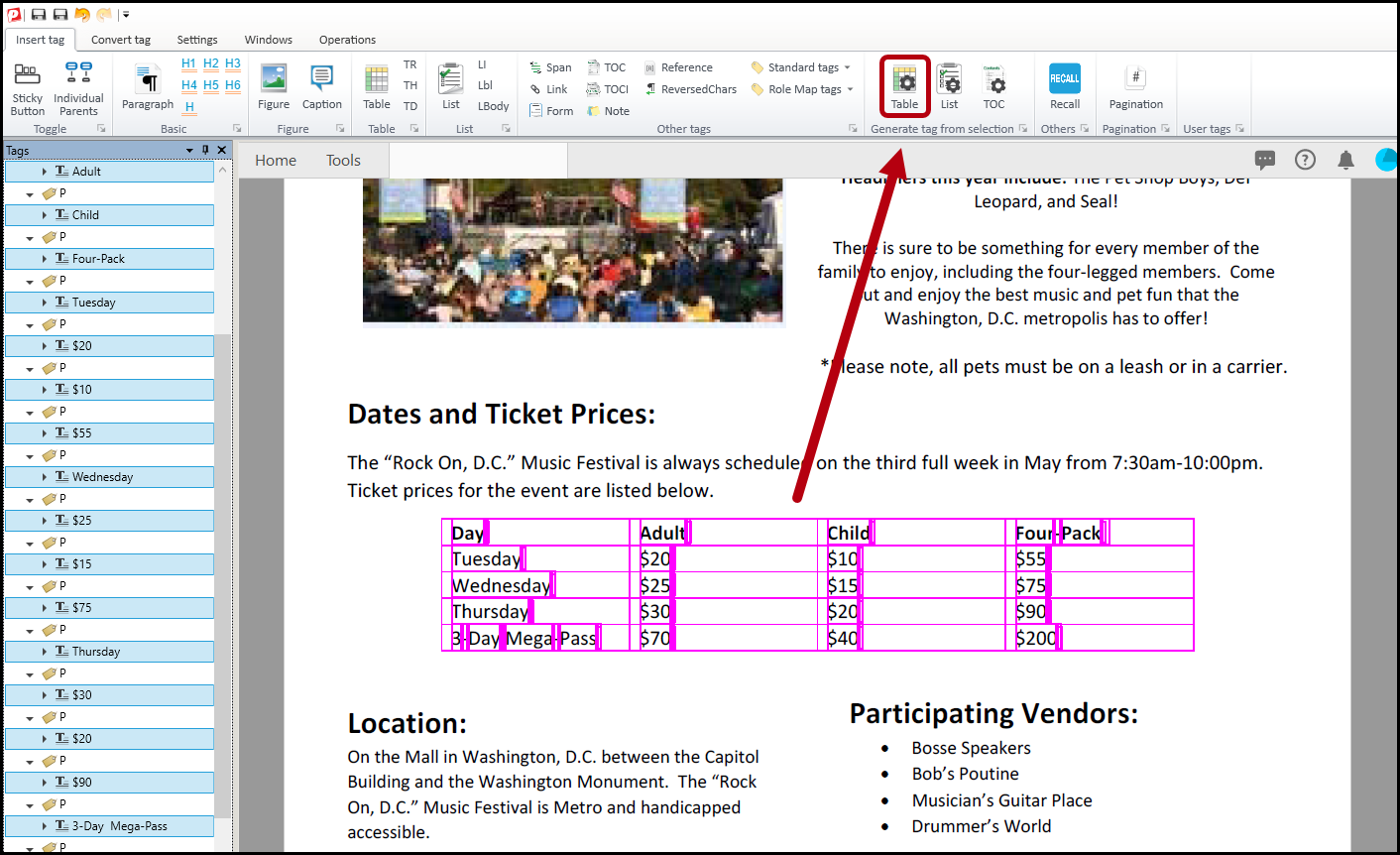
- Make sure that the new Table tag is in the proper reading order in the Tags tree. Remember “Level up” (Ctrl+P) as needed to move it out to the root level.
- Cleanup empty tags that remain after creating the table. Refer to the article on Cleaning Up Empty Tags if needed.
- Right-click (or otherwise open the context menu) on the Table tag and select “Show table editor” from the context menu. Verify and/or correct the following:
- Table and cell layout. For more information, refer to the "Adjusting Cell & Table Layout in the Table Editor" section of this article titled, "Correcting a Generated Table."
- Header cells and their respective scope. For more information, refer to the "Tagging Header Cells & Assigning Scope" section of this article titled, "Correcting a Generated Table."
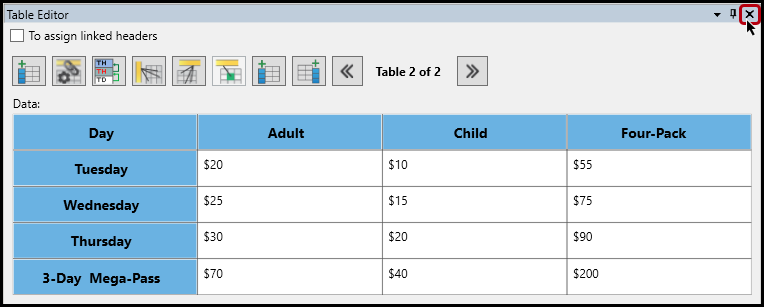
- After work in the table editor is complete, select the “x” in its upper-right corner to close the table editor.
Manually Tagging a Table
If a table does not generate well using the “auto-generate” feature as described above, users may decide to manually build or correct the table. While there are many ways to accomplish this task, one method is described below. In this method, we will build the table from the inside - out. We will begin with tagging the individual cells and then assembling the cells into rows and then, finally, putting all of the rows into a Table tag. For the screenshots, and steps, we will be building the simple table shown below. It has one (top) row of column headers, one column of row headers (the left-most column) and a total of four columns and five rows.

To build the table:
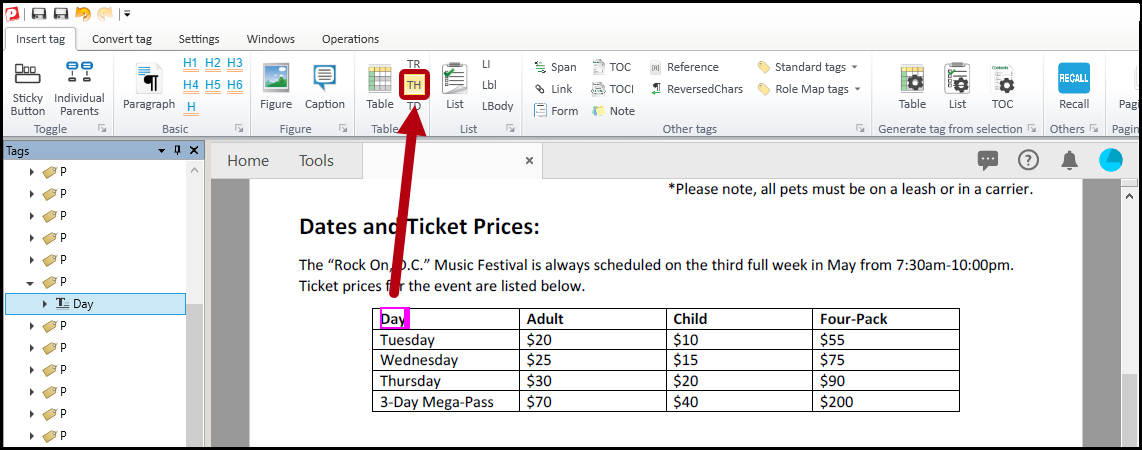
- In the physical view of the document, highlight the word “Day” in the top-left cell of the table. (If you seem to be accidentally selecting the lines of the table, refer to the Selection group in the Settings tab. This will allow you to control what you are selecting and make table construction more effective.)
- In the Insert tag tab, in the Table group, click the TH button.
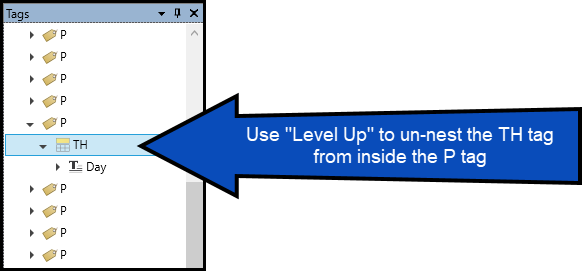
- If needed, press Ctrl+P (or right click on the new TH cell just created) to “Level it up” and move it out to the Tags root level.
- Repeat Steps 1-3 with the remaining cells in the top row of the table.
Tip: Using “Sticky Button” can be a very helpful feature to quickly and efficiently tag these TH cells! Refer to the section on Sticky Buttons if needed.
- Repeat Steps 1-3 (highlight, tag as TH, and “Level up”) for the first cell in the second row of the table.

- In the physical view, highlight the second cell in the second row of the table. In the Insert tag tab, click the button in the Table group to create a TD (data cell) and then “Level up.”
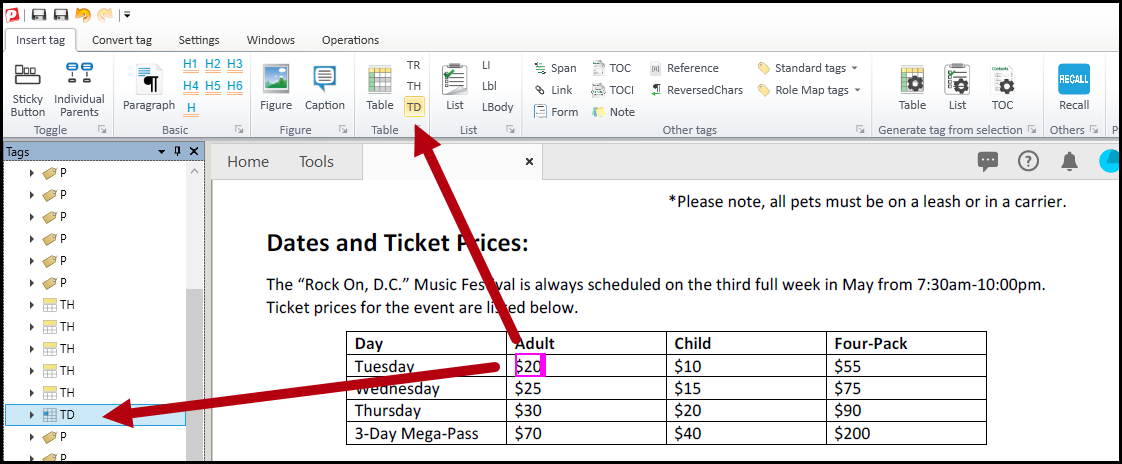
- Repeat Step 6 for the other data cells in the second row of the table.

- Repeat Steps 5-7 on the remaining rows of the table. This will create a TH for the first cell in each row and TD cells for the remaining cells in each row.
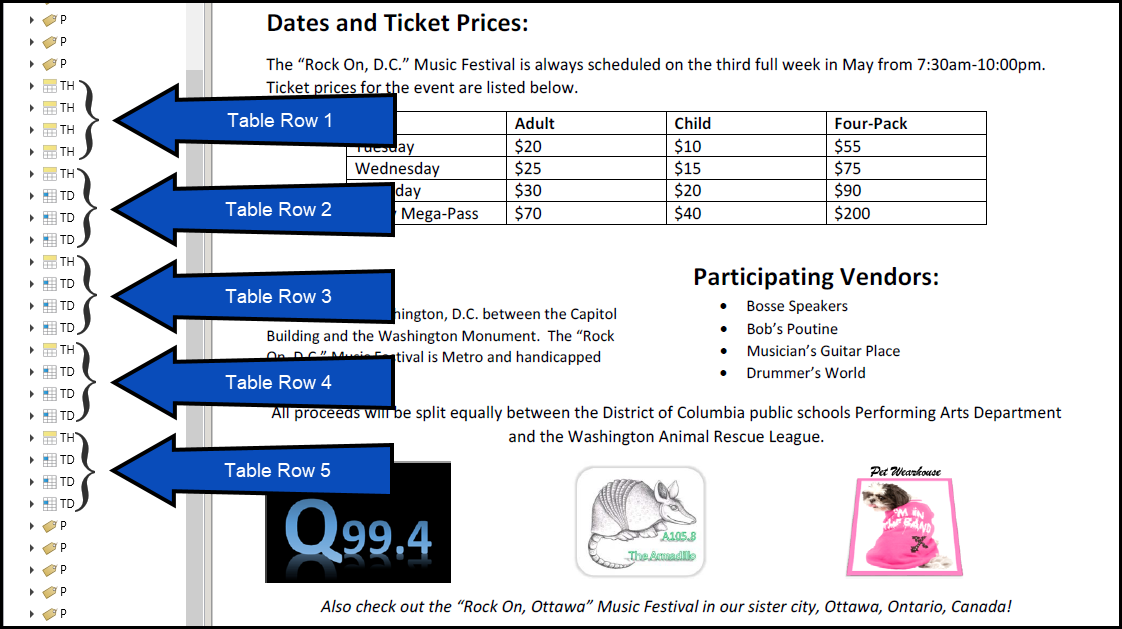
- After all of the cells for each row have been tagged, select all of the tags that belong to the cells in the first row.
Tip: Changing the Selection option to “Tags” in the Settings tab, and then highlighting the top row of the table in the physical view, will result in all of the TH tags being selected.
- In the Insert tag tab, in the Table group, click the button to create a TR (table row) tag.
Tip: When the TR is created, it will be open, showing the cells inside. Closing the tag may help to reduce “clutter” and make it easier to see and tag the other table rows.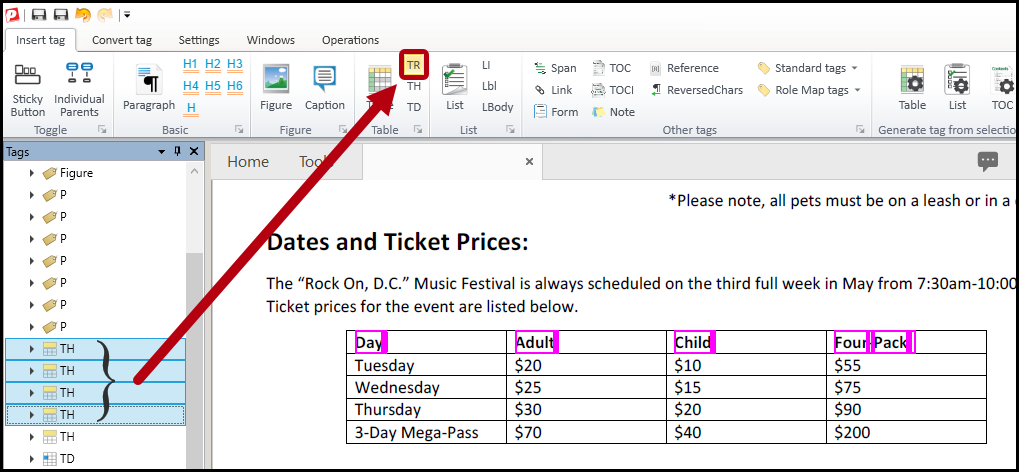
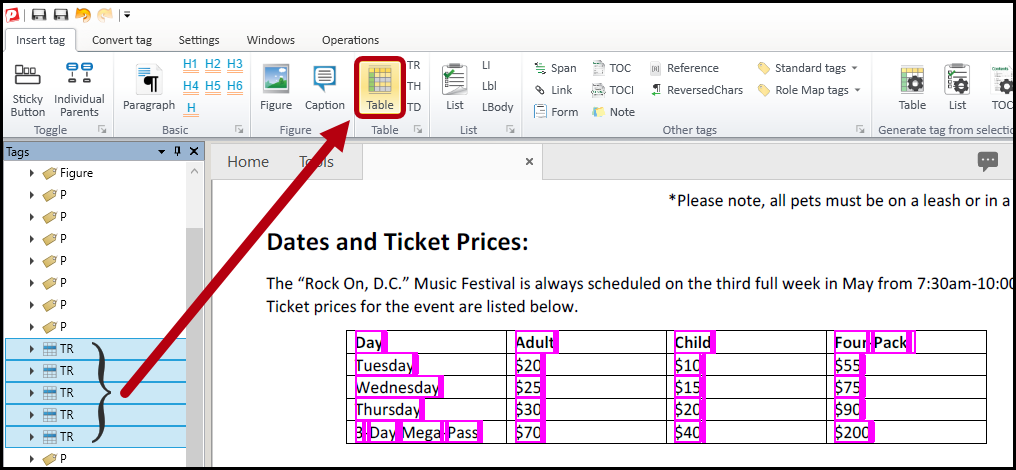
- Row by row, select the tags and place them in TR tags. When this step is finished, each row’s cells will be in their own TR tag and there will be a total of five TR tags in the Tags tree. (The screenshot below shows the five TR tags in the Tags tree.)
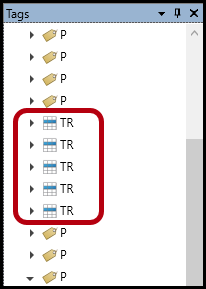
- Select all of the TR tags and, in the Insert tag tab, in the Table group, click the button to create a Table tag.
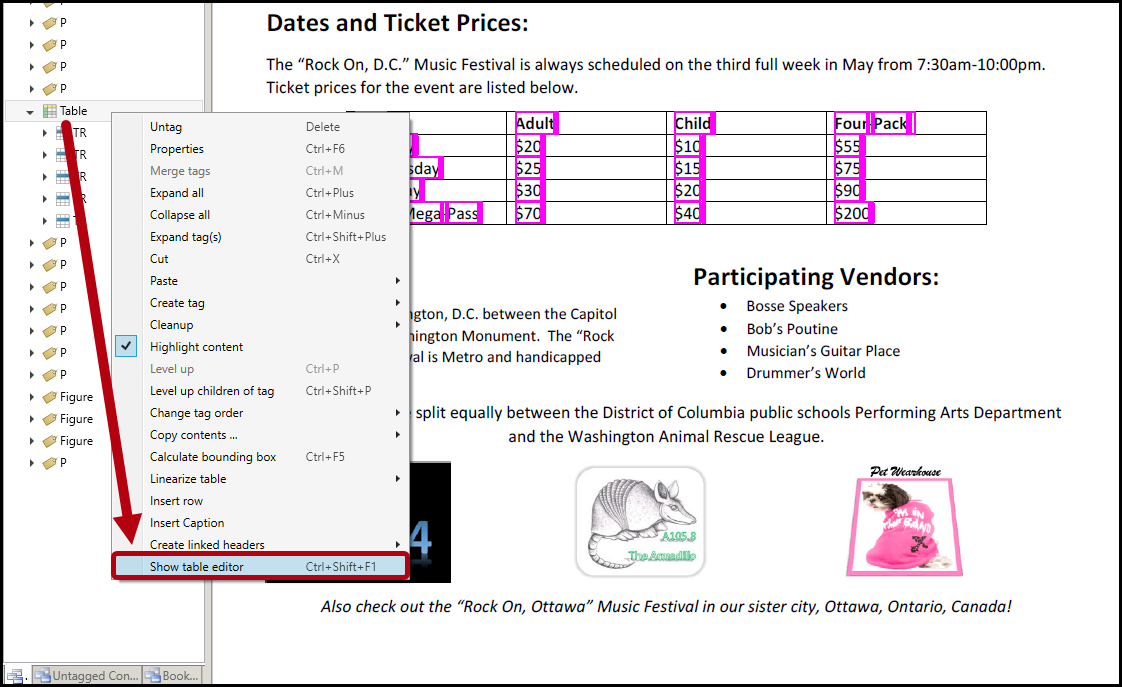
- Right click on the Table tag and, from the context menu, choose “Show table editor.”
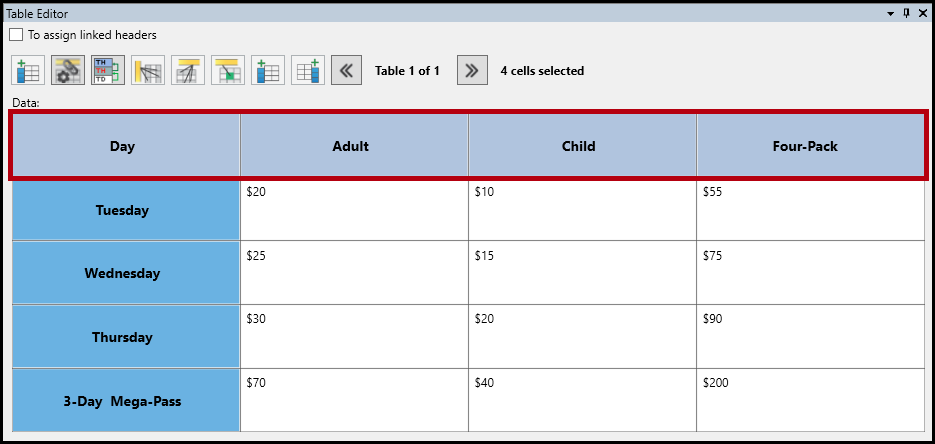
- When the Table Editor opens, the TH cells that were created in the preceding steps will appear blue and the text will be in bold font. This is simply to indicate which cells are marked as headers and which cells are data cells. Select all of the cells in the top row in the Table Editor. (Use the Shift or Control keys to multi-select.)
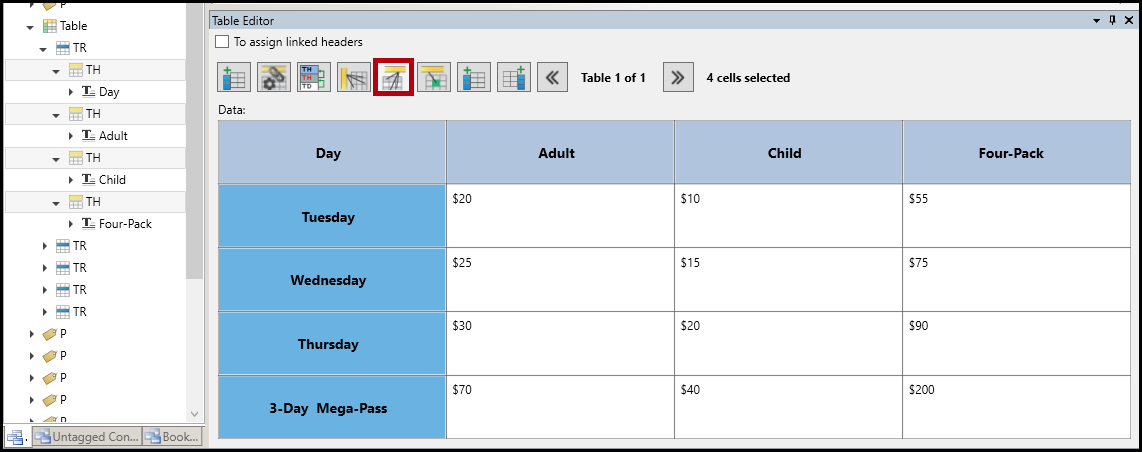
- At the top of the Table Editor, click the fifth button from the left to assign the scope of column to the selected header cells. (Technically, this button will convert data cells to TH cells and assign the scope of column. Since the cells were created as TH, that step is done but they still need scope.)
- In the Table Editor, select all of the row header cells (the cells in the first column on the left except the very first cell – “Day” in this example).
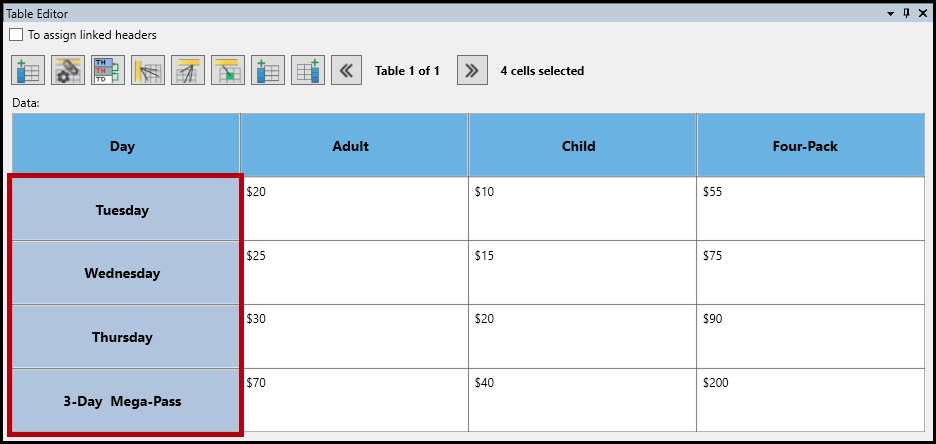
- At the top of the Table Editor, click the second button from the left to assign the scope of row to the selected header cells. (Technically, this button will convert data cells to TH cells and assign the scope of row. Since the cells were created as TH, that step is done but they still need scope.)
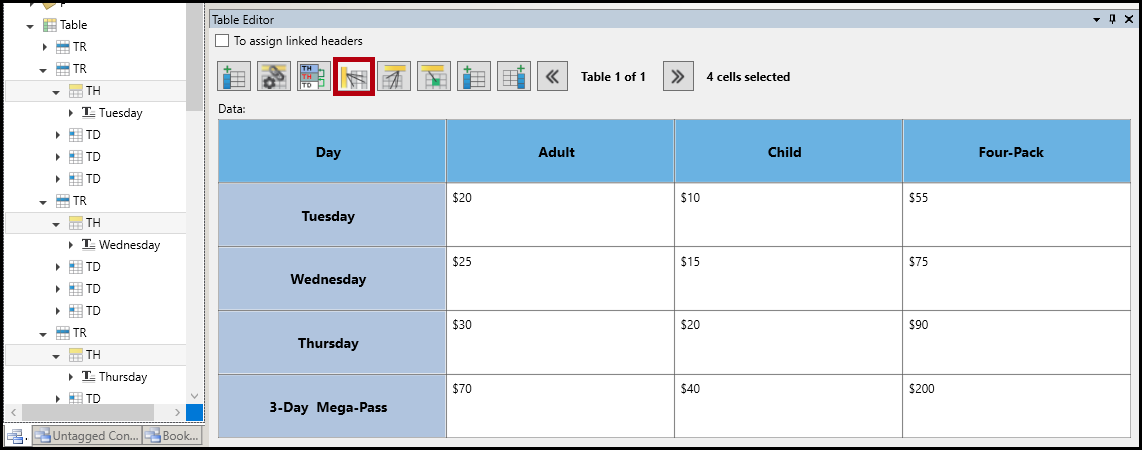
- Click the “x” at the top right corner of the Table Editor to close it.
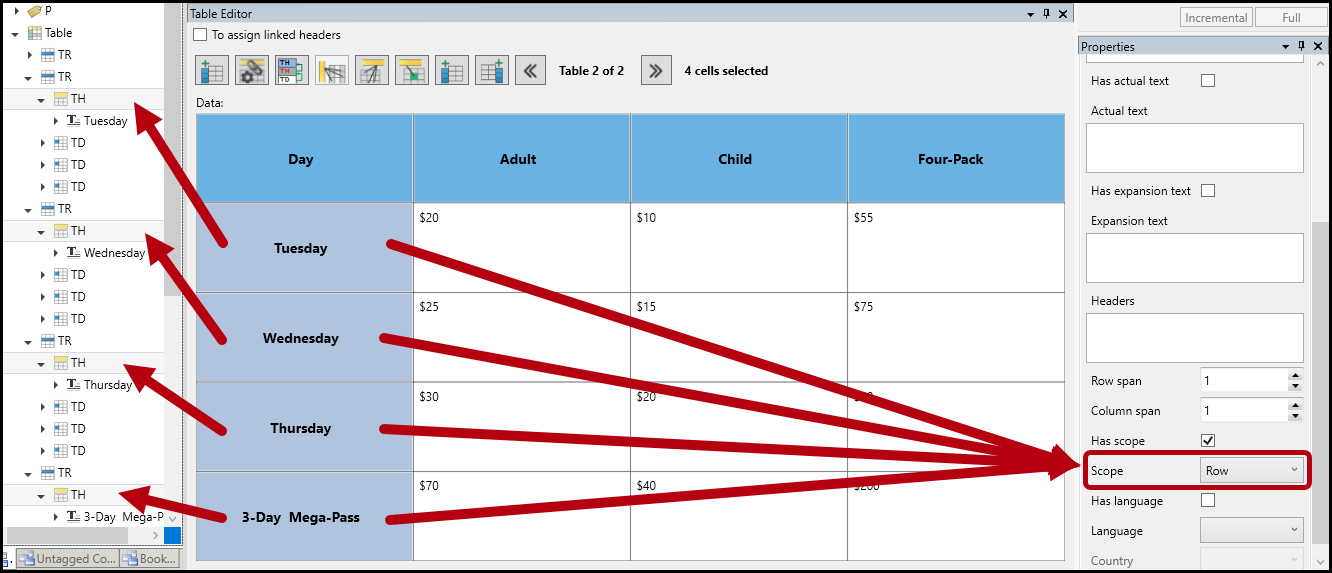
Below is a screenshot of the fixed table. The row headers are still selected (after completing Step 17, above) and in the Properties panel, on the right, the scope is set to “row.” This is an excellent way of checking that your scope assignments are accurate. In addition, in the Tags tree, the user can verify that these cells remain as TH cells.
Note: For an explanation of the other buttons at the top of the Table Editor, refer to the article titled, "Table Editor Buttons."
Didn't find what you're looking for? Navigate to our "Tables" section for more related articles that may help!
Was this article helpful?
That’s Great!
Thank you for your feedback
Sorry! We couldn't be helpful
Thank you for your feedback
Feedback sent
We appreciate your effort and will try to fix the article