Adjusting Cell & Table Layout in the Table Editor
Using the Table Editor, a remediator is able to efficiently adjust a table to reflect the physical view of the information. Some examples of potential adjustments could be to increase or decrease the size of a cell, move a cell up or down in the table, or even removing cells that were incorrectly inserted.
To adjust a cell’s span (if it is too big or too small):
- Select the cell in the table editor.
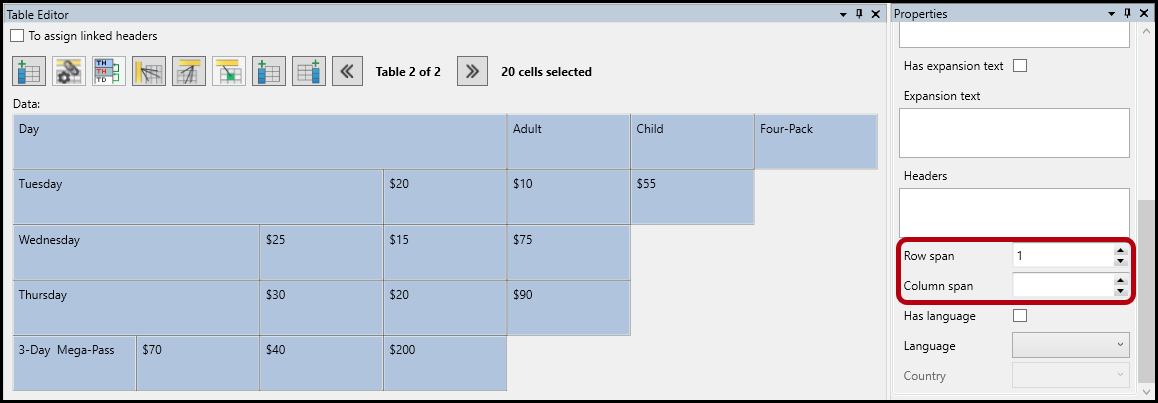
- On the lower right side of the CommonLook screen, find the cell’s Properties panel and scroll down to the bottom.
Tip: Sometimes when generating a table, more than one cell’s column or row span will be set incorrectly. To efficiently adjust all cells at once, click on any cell in the table editor, press Ctrl+A to select all of the cells, and then set the span (size) correctly. A common workflow is to first adjust all the cells to a row span of one and a column span of one, then adjust the cells that have different sizes. This is illustrated in the screenshot below: - Adjust the column or row span as needed and press the Tab key when finished
To Insert, merge, or delete cells as needed:
- To insert a cell:
Look at the Table Editor and decide where to insert the new cell. In the screenshot below, the first two cells in the top row were tagged as one cell. We’ll insert a cell before the incorrectly tagged cell.
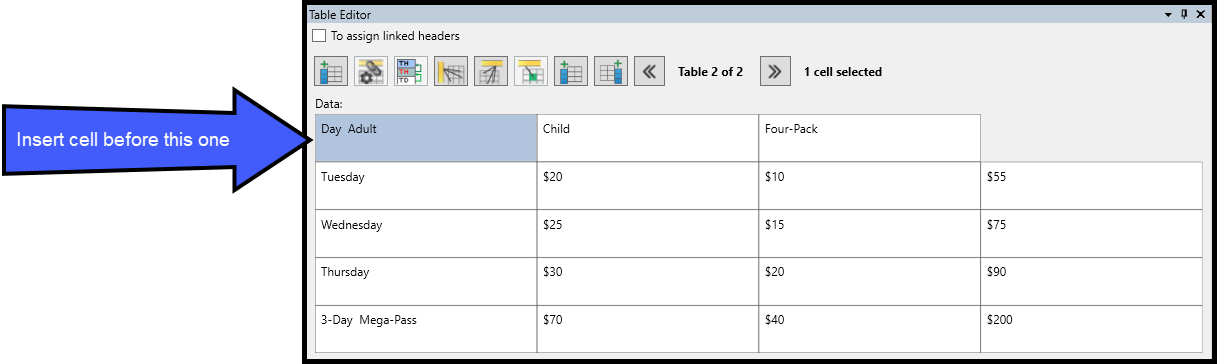
Right-click (or otherwise open the context menu) on the cell that the new cell will be placed in front of and, from the context menu, choose “Insert cell” and then “Insert cell before.”
Note: You may also use the Table Editor button highlighted in the below graphic.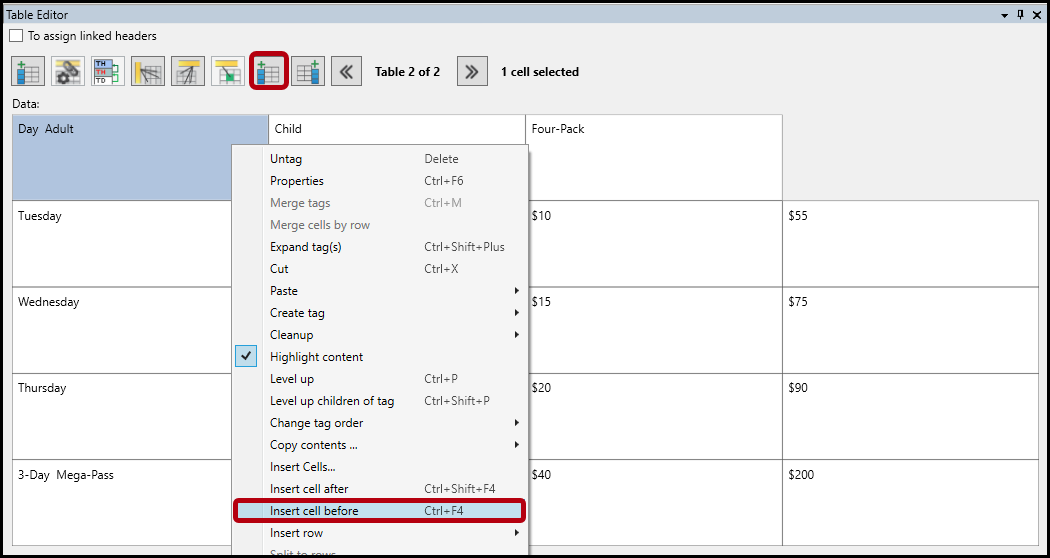
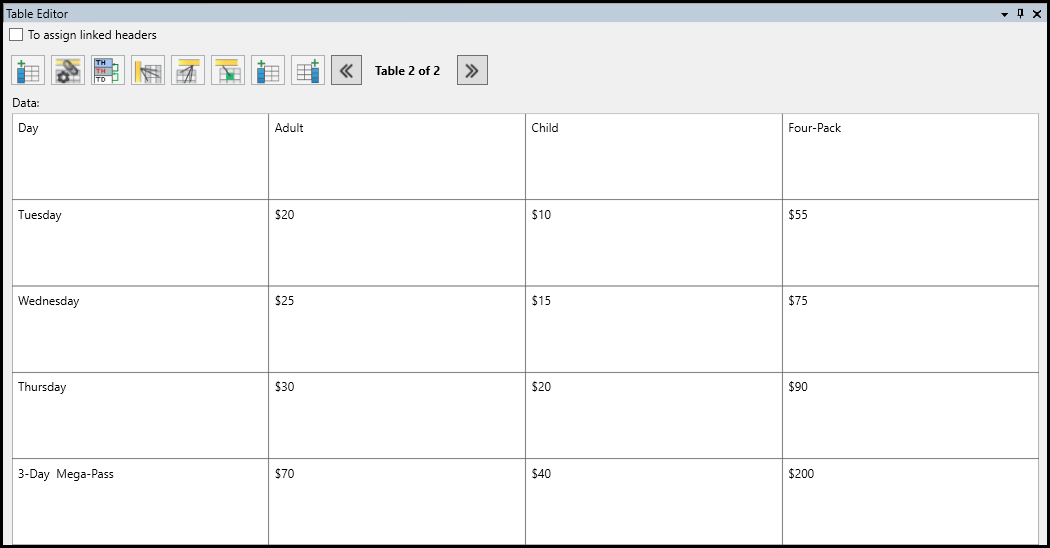
After the cell is created, move the appropriate text into it and/or make any other cell property changes necessary. In the screenshot below, the text “Day” has been moved into the newly created cell.
To delete a cell:
Select the unneeded cell in the Table Editor
Right-click (or otherwise open the context menu)
Select untag (or press the Delete key)
Tip: If deleting an empty cell, running a “Full” cleanup will remove it. However, a full cleanup will remove all empty cells in all of the tables in the document so use this feature carefully!
To merge cells:
Select the cells you wish to merge
Right-click (or otherwise open the context menu)
Select "Merge cells" (or press Ctrl + M)
Caution: Be sure to select the cells in the correct order because, when merged, the text in the cells will be read in the order in which it was selected! A great way to remember this is to select the destination cell first.
One important thing to remember is that when you manipulate a table, you may have empty Table Row (TR) tags or Table Data cells as a result. Be sure to remove these empty rows and cells before linking or your table, or the linking outcome will be incorrect.
Tagging Header Cells & Assigning Scope
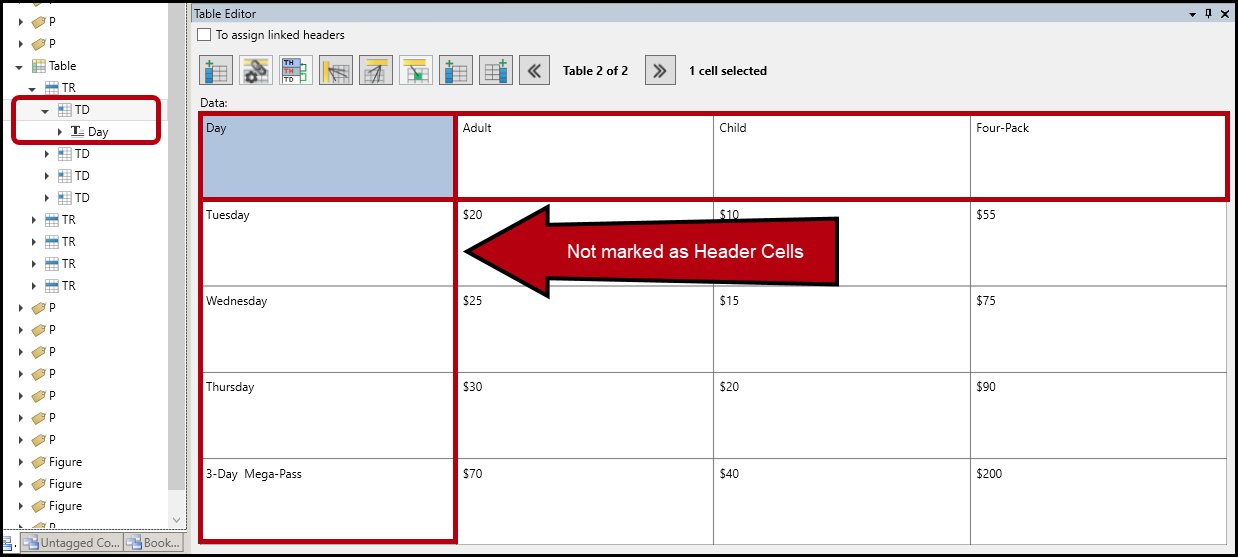
After a table is tagged, whether done in Acrobat, CommonLook, or the authoring software itself, it needs to be verified for compliance. This includes making sure that the header cells are marked (or tagged) as Table Headers (TH) and they have the correct scope (column or row). The screenshot below shows the physical view of a simple table. In this table, there is one row of column headers (across the top), and one column of row headers (the left-most column in the table).
In CommonLook's Table Editor, header cells have a blue background and the text is bold. This allows users to quickly and easy determine whether or not headers have been tagged. The screenshot below shows the Table Editor view of the same table shown above. None of the cells are blue and bold, and clicking on one of the header cells reveals in the Tags tree that the cell is marked as a TD (table data cell).
Note: Do not confuse the blue cell selected as a header cell because it is blue. The font in the Table Editor is not bold and when that cell is de-selected, it is no longer blue. Also, in the Tags tree, the TD for that cell is selected (not TH).
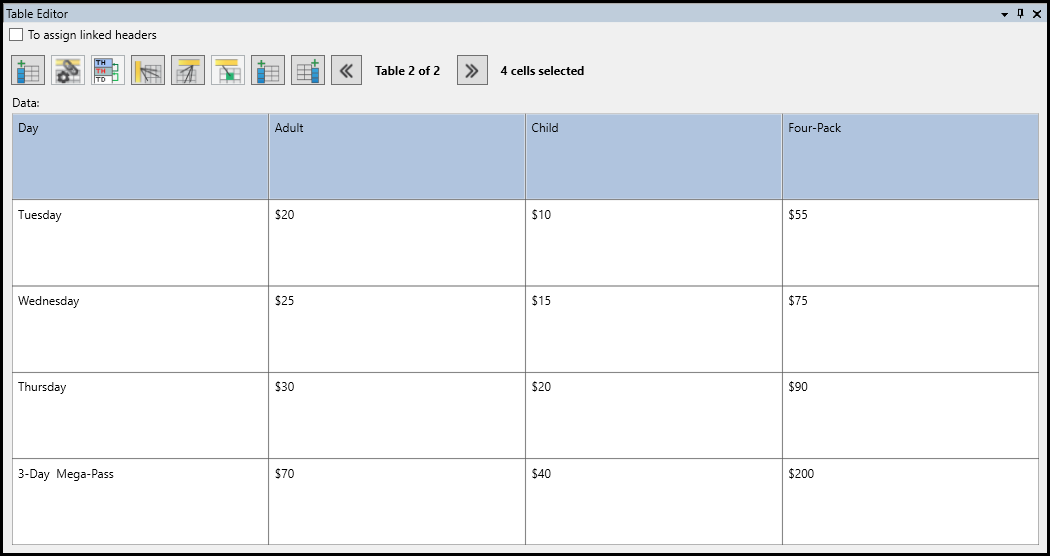
Follow these steps to tag the data cells as headers and to assign the correct scope:
- Click in the first cell in the top left corner of the table. (In this example, that is the “Day” cell.)
- Hold down the Shift key and then click in the last cell in the top row. (In this example, that is the “Four-Pack” cell.) This selects all of the cells that will be converted to column headers.
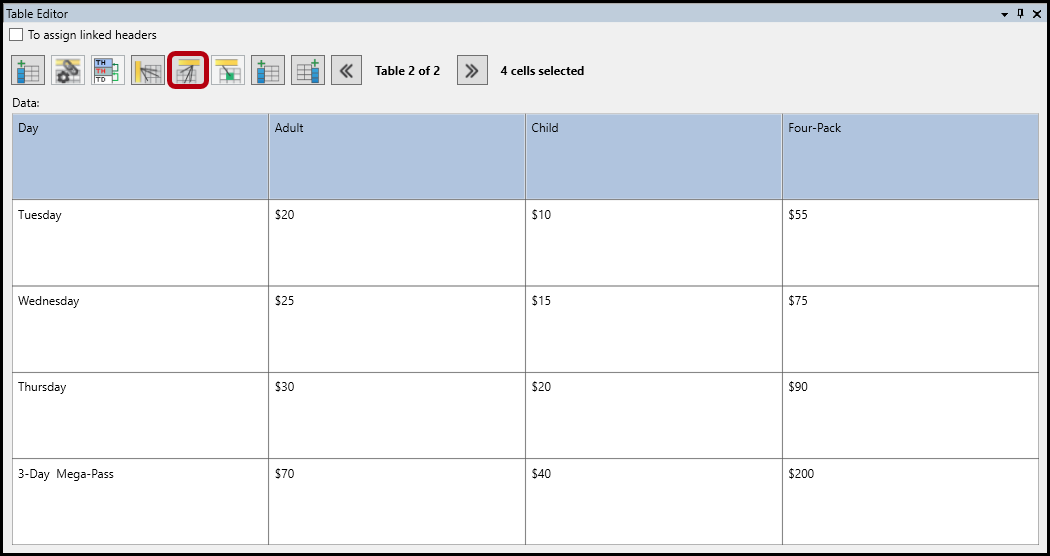
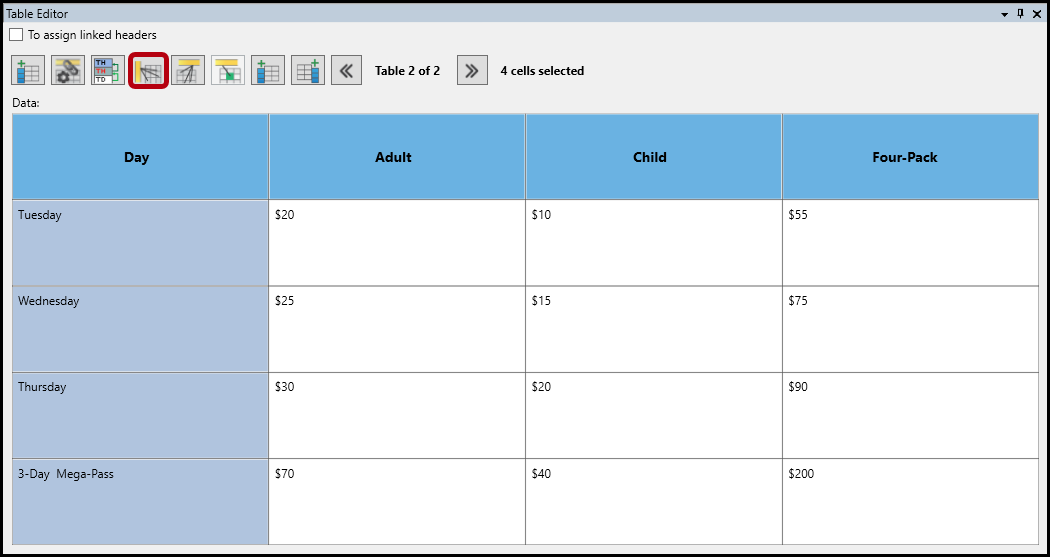
- Select the fifth button from the left at the top of the Table Editor to convert the selected cells to TH and to assign them the scope of column all at once.
- Repeat the cell selecting process (Step 2, as described previously), this time with the cells that will be the row headers. (The screenshot below shows the row header cells selected. Notice that the column header cells are blue and the font is bold. This indicates that they have been marked as headers – as per the preceding steps.)
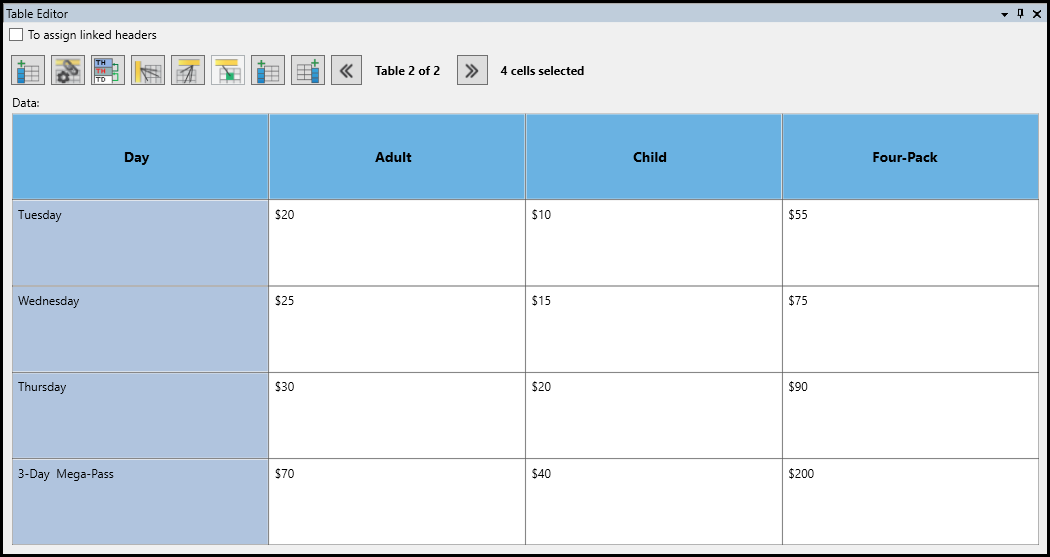
- Click the fourth button from the left at the top of the Table Editor to convert the selected cells to TH and to assign them the scope of row all at once.
- Click the “x” at the upper right corner of the Table Editor to close it.
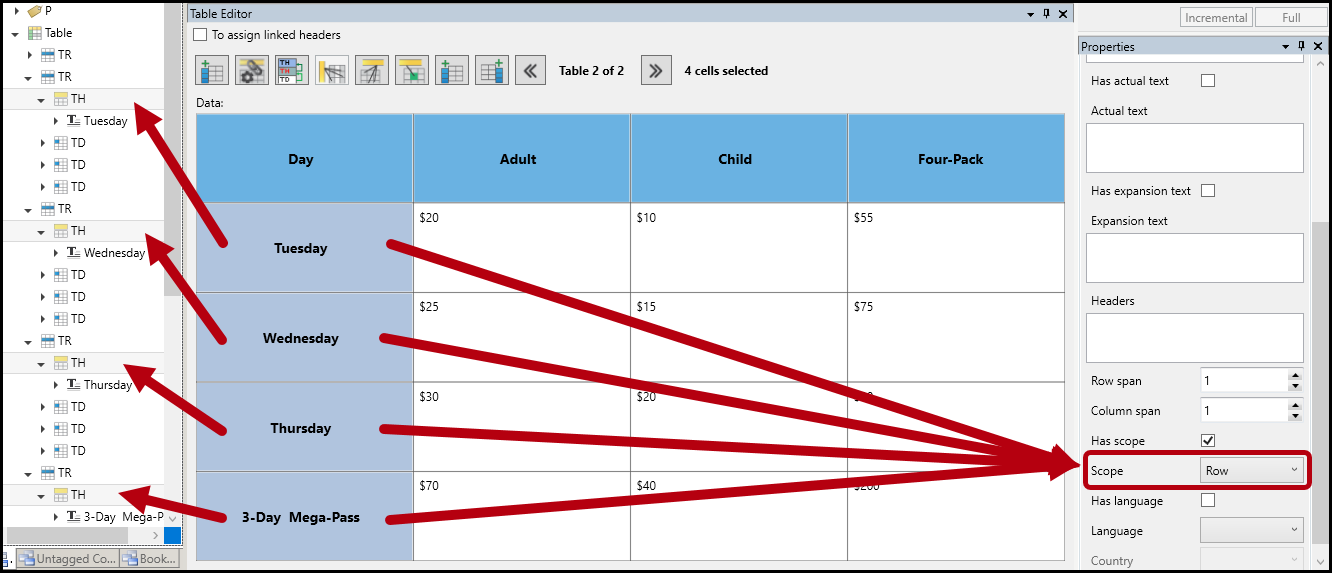
Below is a screenshot of the fixed table. The row headers are still selected (after completing Step 5, above) and in the Properties panel, on the right, the scope is set to “row.” This is an excellent way of checking that your scope assignments are accurate. In addition, in the Tags tree, the user can verify that these cells have been changed to TH.
Note: For an explanation of the other buttons at the top of the Table Editor, refer to the article titled, "Table Editor Buttons."
Didn't find what you're looking for? Navigate to our "TTables" section for more related articles that may help!
Was this article helpful?
That’s Great!
Thank you for your feedback
Sorry! We couldn't be helpful
Thank you for your feedback
Feedback sent
We appreciate your effort and will try to fix the article