Tables are often used in documents for formatting purposes, even when there is not any real data in the table. The problem is that a screen reader will share with a listener that there is a table of “X” number of columns and “Y” number of rows and then try to associate data with headers in the table. This is both inaccurate and wildly confusing for someone using assistive technology.
When a table is used only to assist with the layout of the document, it needs to be “linearized” so that incorrect structural information is not conveyed to the user. Linearization is essentially breaking down the table so that the information within is shared separately, as accurate tags, rather than one table tag. Follow these steps to linearize the table:
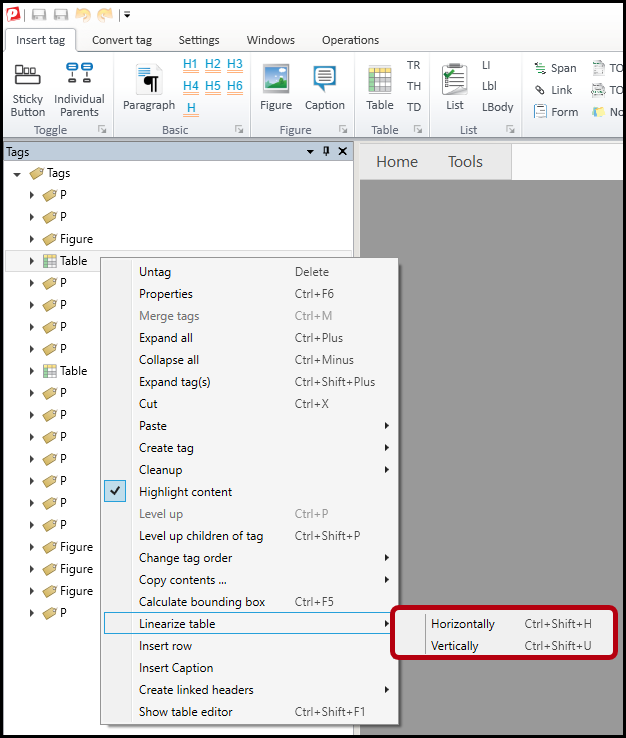
- Right-click on the Table tag in the Tags tree (or otherwise open the context menu).
- Choose Linearize table from the context menu. There are two options:
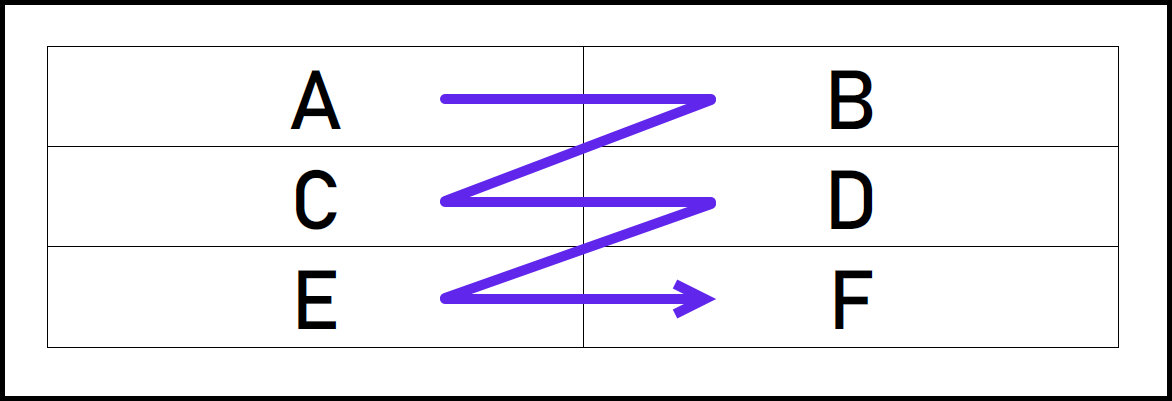
- Linearizing the table Horizontally converts all of the data cells to paragraph tags moving cell by cell from left to right across the first row of the table and then proceeding down the table row by row (left to right, top to bottom). The following screenshot illustrates how a presentation table would be assembled after horizontal linearization. In this example, the paragraphs would be assembled in the order A, B, C, D, E, F.
- Linearizing the table Vertically converts all of the data cells to paragraph tags moving cell by cell down the first column on the left and then proceeding column by column across the table to the right (top to bottom, left to right). The following screenshot illustrates how a presentation table would be assembled after vertical linearization. In this example, the paragraphs would be assembled in the order A, C, E, B, D, F.
Tip: Most of the time choosing “Horizontally” will work just fine. If it does not result in the correct reading order, a user can simply adjust the reading order in the Tags tree.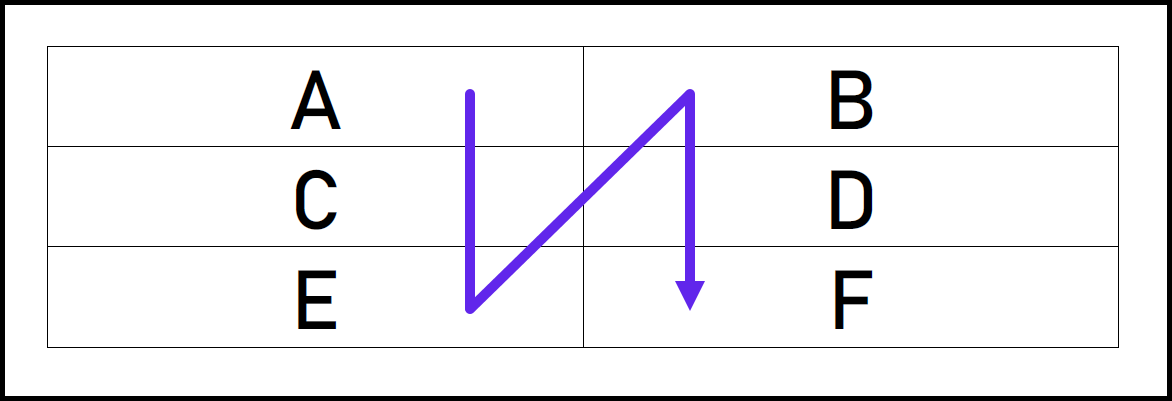
- Linearizing the table Horizontally converts all of the data cells to paragraph tags moving cell by cell from left to right across the first row of the table and then proceeding down the table row by row (left to right, top to bottom). The following screenshot illustrates how a presentation table would be assembled after horizontal linearization. In this example, the paragraphs would be assembled in the order A, B, C, D, E, F.
For information on proper tagging and remediation of data tables, please refer to the article titled "Tagging a Data Table."
Didn't find what you're looking for? Navigate to our "Tables" section for more related articles that may help!
Was this article helpful?
That’s Great!
Thank you for your feedback
Sorry! We couldn't be helpful
Thank you for your feedback
Feedback sent
We appreciate your effort and will try to fix the article