Table of Contents (TOC) Structure
A Table of Contents is tagged very similarly to how Lists are tagged. The screenshot below shows a List and a TOC opened up, side by side, so as to compare their internal structure.

The L (List) tag corresponds to the TOC (Table of Contents) tag and the LI (List Item) tags correspond to the TOCI (Table of Contents Item) tags. The differences are in the “item” tags (List Item or Table of Contents Item). The List Item tags contain Labels (Lbl) for the bullets, numbers, or letters of the list and the LBody tags for the text of the list itself. In contrast, the TOCI tags contain Reference tags that contain the text for each particular item in the Table of Contents.
Note: If the Table of Contents is set up with links to the various pages in the document, then the Reference tag (in the TOCI) would contain a Link tag which then has, inside the Link, the text and the Annotation for the link. Refer to the article on Creating Properly Tagged Links and Verification Checkpoints Related to Links as needed.
Tagging a Table of Contents
- Highlight the Table of Contents in the physical view of the document and, in the Insert tag tab, in the “Generate tag from selection” group (on the far right), choose TOC (or, use the keyboard shortcut Ctrl+0).

- Move the TOC to the correct reading order in the Tags tree if it is not automatically placed there. Tip: Use Level Up, Change Tag Order, or Cut and Paste as needed.
- Clean up the empty tags that were left behind when the TOC was created.
- Right click (or otherwise open the context menu) on the TOC tag and, from the context menu, choose “Artifact leaders.” This will artifact all of the dots, for example, so that they are not read by a screen reader.

- Open the TOC tag to verify that it, and its parts, were assembled correctly. The screenshot below shows a properly tagged simple TOC containing the TOCI tags. The first TOCI is opened to show the Reference tag inside. (Continue reading for information about nested TOCs and TOCs that span multiple pages.)
Important: When the text that belongs to one TOCI appears on two lines in the Physical View, sometimes CommonLook will put each line in its own TOCI and its own Reference. If that happens, be sure to open the TOCI tags and merge the Reference tags. If you merge the TOCIs you'll be left with one TOCI with two Reference tags inside! In addition, if the TOC is linked, you'll need to open the Reference tags and merge the Link tags inside! Be sure to clean up any empty tags left behind, too!

Nested TOCs
The screen shot below shows a portion of a Table of Contents with nested sub-sections (outlined), as seen in the physical view of a document.

At the "base" level, we'll have one TOC that contains the whole Table of Contents. The nested sections will be tagged as individual TOCs which are then placed within their “main” TOCI tag. The screenshot below shows the TOC tagged and open showing 5 TOCIs for the "main" levels of the Table of Contents.

Follow these steps to assemble and verify the nested TOC:
- Tag the Table of Contents using "Generate Tag from Selection" (Ctrl+0) as previously described. Artifact Leaders as needed.
- Open the TOCIs to verify that they, their References, and Links (if present) have been assembled correctly.
- Check the Nested TOC:
- Open the "Parent" TOCI - there should be a Reference tag containing the text for that "main level" item
- Directly below the Reference, there should be a nested TOC.
- Expand the nested TOC to verify it was generated correctly. As with your "main level" TOC, Open the TOCIs to make sure that the References (and Links, if applicable) have been assembled correctly.
The screenshot below shows a properly tagged nested TOC. The "main level" TOCI is open showing the Reference tag and a nested TOC immediately below it (as a sibling). The nested TOC is opened to show the TOCI tags for each line of the nested TOC and the TOCI tags are open to show their Reference tags. (This TOC is not linked so there are no Link tags present.)

Linked TOCs
Sometimes, Table of Contents items are internally linked in the PDF. For a Linked TOC the link tag should be placed insde of the reference tag with its associated text and annotation as shown in the following screenshot. Sometimes the annotation will show as two, one for the text and another for the page number. In this case, ensure that the annotations are grouped inside the link tag. For morer information for how to tag links with more than one annotation please check out the Creating Properly Tagged Links knowledge base article.

TOCs Spanning Multiple Pages
When you have a Table of Contents that spans multiple pages, it should be tagged as one continuous TOC.
Follow these steps to merge Tables of Contents together:
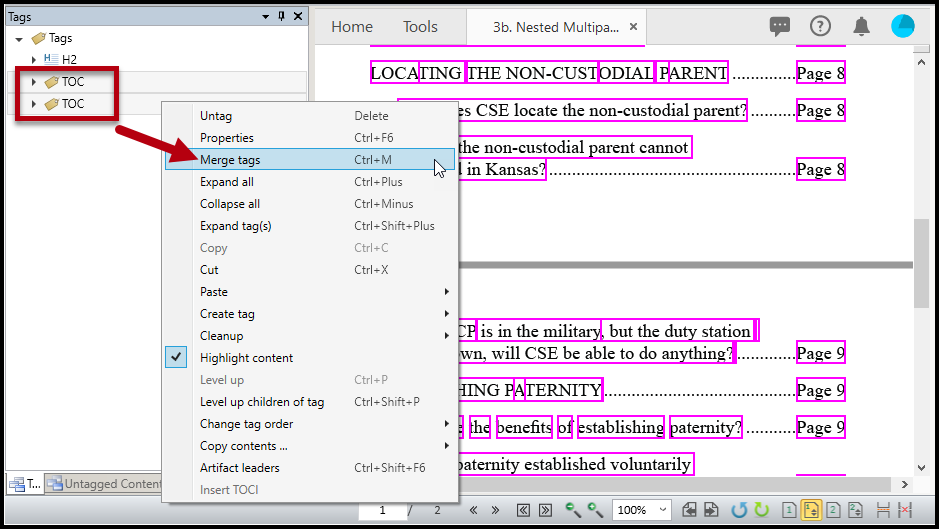
- Create the TOCs independently, following the steps as previously outlined in this article. Make sure to check for proper assembly, nesting of TOCs, etc.!
- In the Tags tree, select the TOCs in the correct order.
- Right-click (or otherwise open the context menu) on one of the TOCs you've selected and choose Merge tags (or use the keyboard shortcut Ctrl+M).

Didn't find what you're looking for? Navigate to our "Tagging (or Untagging) Content" section for more related articles that may help!
Was this article helpful?
That’s Great!
Thank you for your feedback
Sorry! We couldn't be helpful
Thank you for your feedback
Feedback sent
We appreciate your effort and will try to fix the article