Note: There are two ways to handle complex tables in CommonLook PDF. One method is to manually link data cells to their headers (in the Table Editor). That method is outlined in the article on Manually Linking Complex Tables. (In that method, you cannot use the functionality to automatically link the cells!)
This article discusses the “other” way of handling complex data tables, by redrawing them in the Table Editor and then using the automated linking functionality in CommonLook PDF.
What Makes a Table "Complex"?
If your data table contains one (or more) of the following, it's a complex table (even if the layout is relatively simple).
- Cell(s) that span multiple columns or multiple rows.
- Multiple rows of column headers.
- Multiple columns of row headers.
- Empty cells. (Technically, empty cells don't make a table complex. However, the linking of the data cells to the header cells, as required for complex tables, also ensures that tables with empty cells in them will be read correctly by screen readers.)
Important! All complex tables need to have their data cells linked to their corresponding header cells so that screen readers make the correct associations. When a complex table has a relatively simple layout this linking can be done automatically in CommonLook PDF. Sometimes additional work is needed in the Table Editor, to redraw the table in the tags, before you can link the data cells to the header cells.
How do I know if the auto-linking will work correctly?
If the column and/or row headers line up directly with their data cells then the auto-linking will work correctly. If they don't all line up directly then you'll need to redraw the table in the Table Editor. Refer to that section of this article for more information.
Automatically Linking Data Cells to Header Cells
- Make sure the table is tagged properly. (Refer to the other table tagging articles as needed.)
- Select the Table tag in the Tags tree and then right-click or otherwise open its context menu and choose “Show table editor."
- Verify that the table has the correct layout. Insert, merge, and/or delete cells as needed to fix the layout. Also, be aware of proper cell span. Refer to the article on Tagging a Data Table to learn how to adjust cell and table layout as needed.
- Verify that the header cells have been tagged as TH and that they have the correct scope (column or row). Remember, there are quick buttons in the Table Editor to easily convert data cells to header cells and to assign their scope! Refer to the article on Tagging a Data Table to learn how to tag header cells and assign scope if needed.
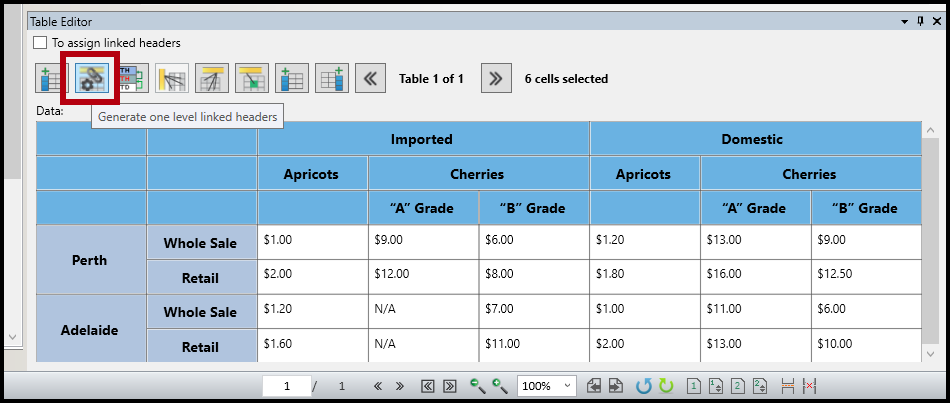
- Use the second button at the top of the Table Editor to automatically generate one level linked headers. (For more information about one level linked headers and recursive linked headers, refer to the article on Table Editor Buttons.)
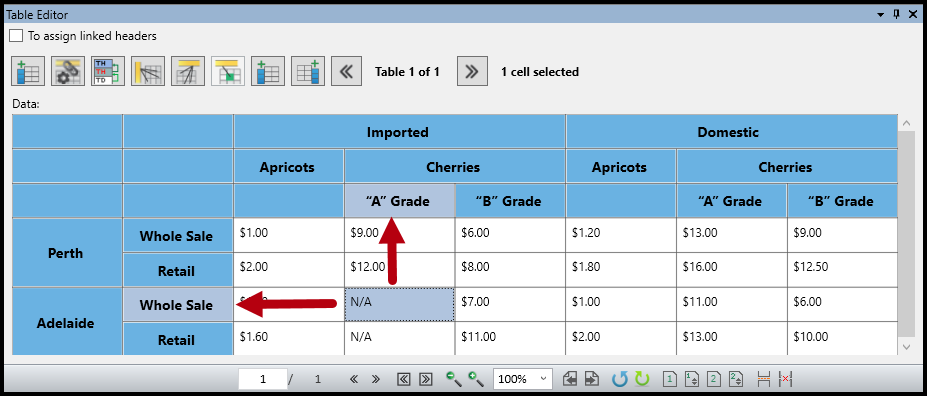
- In the Table Editor, select various data cells to verify that they are linked to their corresponding headers correctly. When data cells are selected, the headers that they have been linked to will be highlighted.
Redrawing Complex Tables in the Table Editor
When redrawing a table in the Table Editor, in addition to more accurate auto-linking, a complex design becomes easier for people using screen readers to understand. If you have to redraw your table in the Table Editor (remember, we can't actually change how the table looks on the page) follow the steps below.
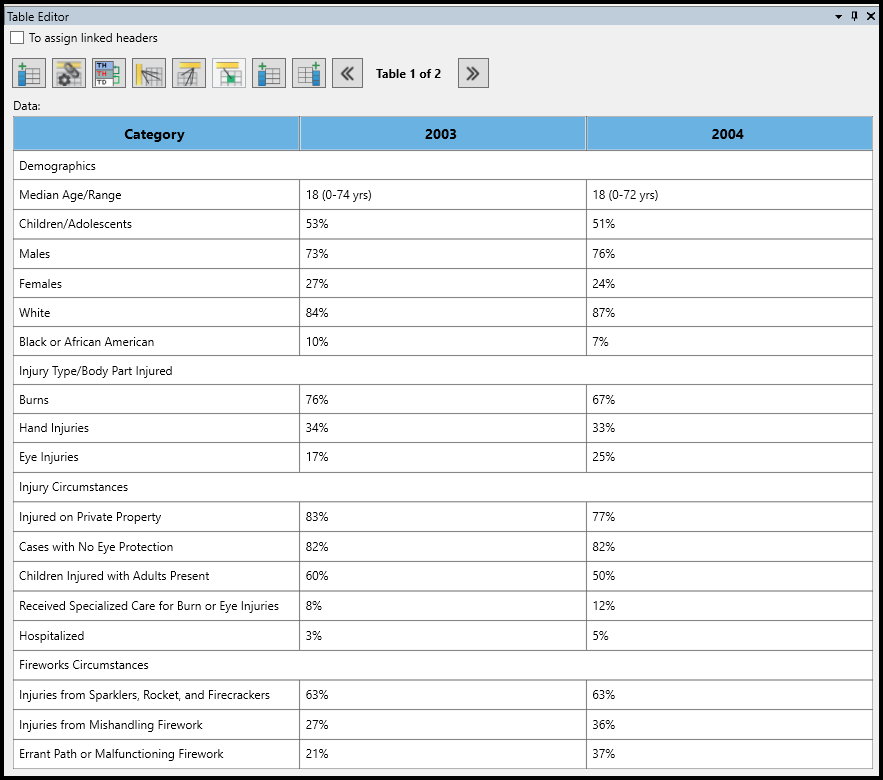
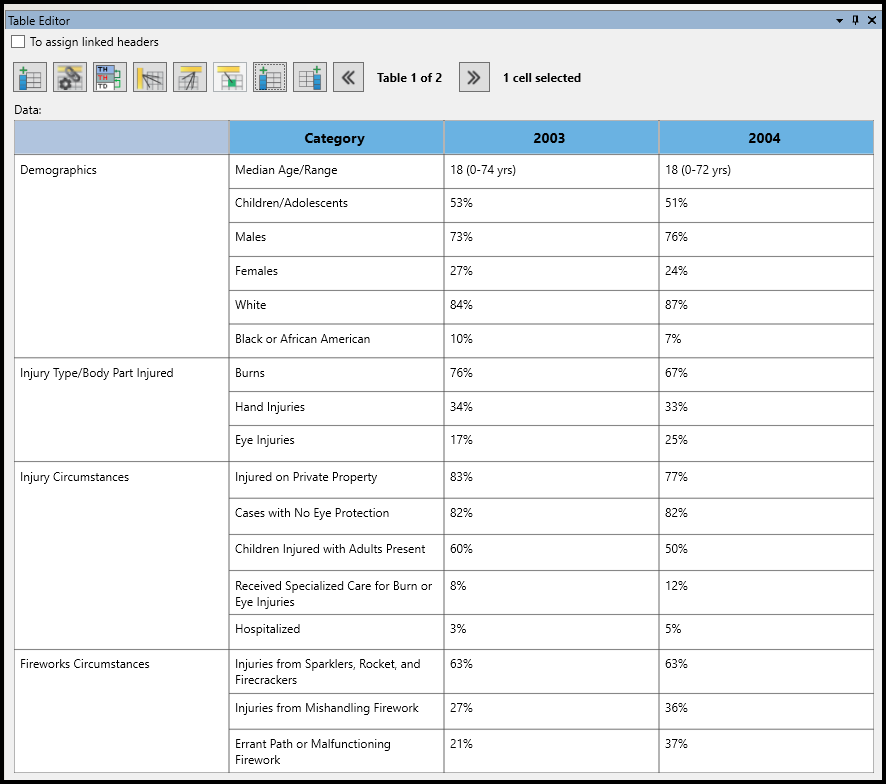
The two screenshots below show a table in the Table Editor. The first image is of the table before being redrawn and the second is the table after being redrawn.
Before:
After:
A helpful tip: As the table is being redrawn, cells will be added, moved, and deleted from the table in the Table Editor. During this process, the Table Editor layout will no longer match the physical view of the table. It may be helpful to draw out on paper ahead of time what the final redrawn table will look like so as to not “lose your place” partway through the process!
As illustrated in the screenshots above, in the redrawn table, the row headers for Demographics, Injury Type, Injury Circumstances, and Fireworks Circumstances are placed in a new column to the left of their “subordinate” row headers and the column Header for Category is moved to the right so that it is positioned above the row headers that it's related to.
Follow these steps to redraw the table as shown above:
- Make sure the table is tagged properly.
- Open the Table Editor.
- Verify that the table has the correct layout. Insert, merge, and/or delete cells as needed to fix the layout. Also, make sure that the cells span the correct number of columns and/or rows. (If needed, adjust the cell span in the Properties panel.) Note: We're about to redesign the table, changing the appearance in the Table Editor. That said, it's recommended to start with the layout in the Table Editor resembling the table as seen in the physical view.
- Select the cell “Median Age/Range” and use the 7th button from the left at the top of the Table Editor to Insert a cell before.
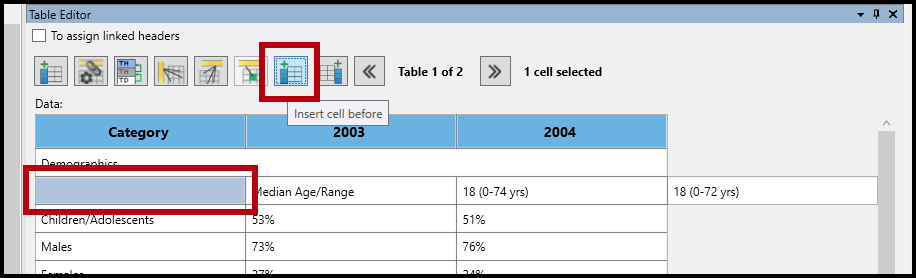
- With the cell created in step 4 still selected, press the Ctrl key and select (in the Table Editor) the cell containing “Demographics.” Merge those two cells (Ctrl+M). Remember, selection order matters!
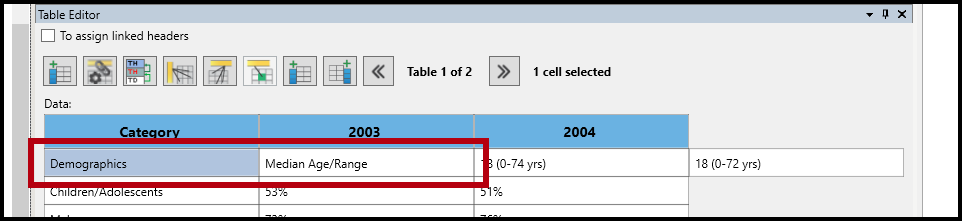
- With the “Demographics” cell still selected, in the Properties panel (on the right side of the CommonLook interface) scroll down to the bottom to locate the Row Span property.
- Change the Row span to 6. When doing so, “Demographics” will span the other rows that it relates to.
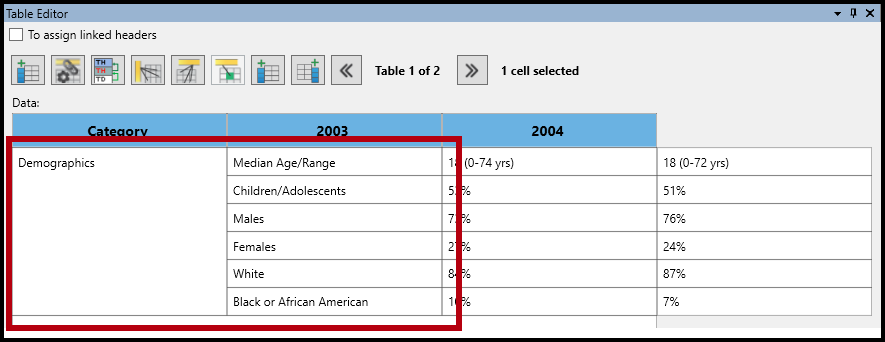
- Above "Demographics" there will be empty cells remaining in the row where "Demographics" originally was before you moved it down and in front of "Median Age/ Range." Select the empty cells in the Table Editor (using Shift or Control to multi-select) and then delete those empty cells.
Important: This will leave behind an empty TR (Table Row) tag in the Tags tree. Do a "Skip Empty Cells" cleanup to remove the empty TR. (Refer to the article on Cleaning Up Empty Tags if needed.)
Note: We're going to continue working our way down the rest of the table and then come back to the top to make sure the column header cells line up properly. - In the next section of the table, "Injury Type/ Body Part Injured" needs to be moved down a row and placed in front of the cell for "Burns." Repeat the steps, as above, to insert a cell in front of "Burns" and then, with the new cell selected, choose the cell for "Injury Type/ Body Part Injured" and merge them. Change the row span to 3 and then delete the empty cells and the empty TR that are left behind.
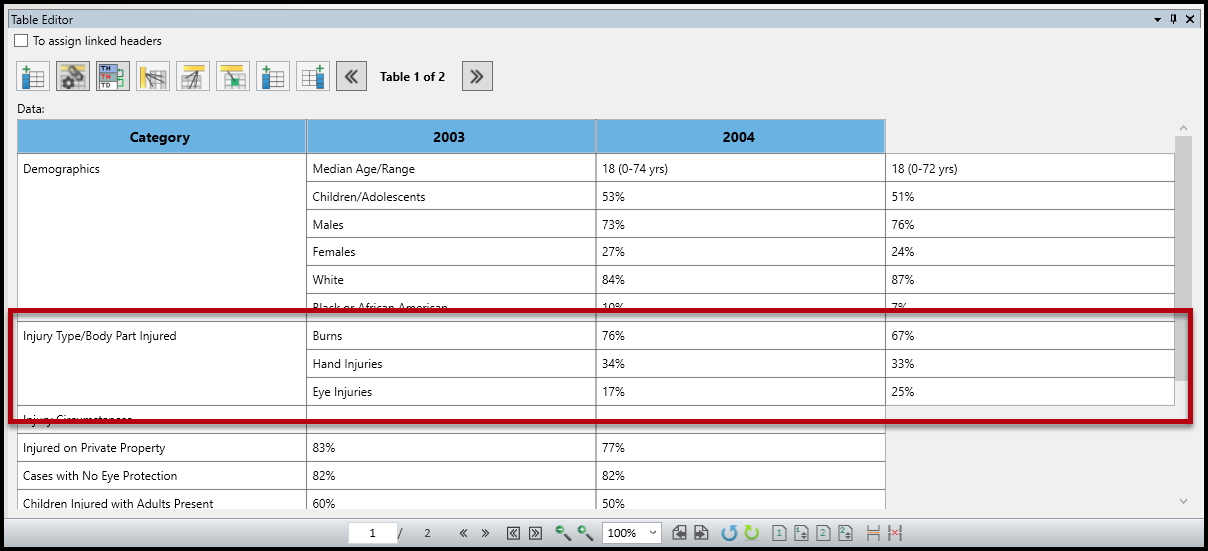
- Repeat the steps again for "Injury Circumstances." Tip: After moving "Injury Circumstances," the Row Span should be set to 5.
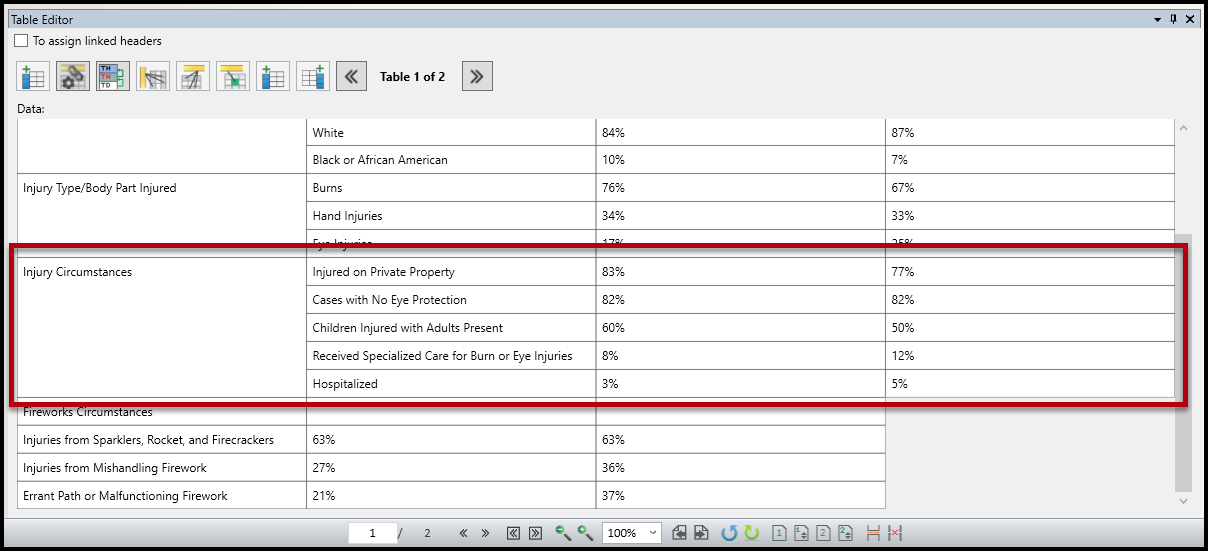
- Repeat the same process again for "Fireworks Circumstances." Tip: Row Span should be set to 3.
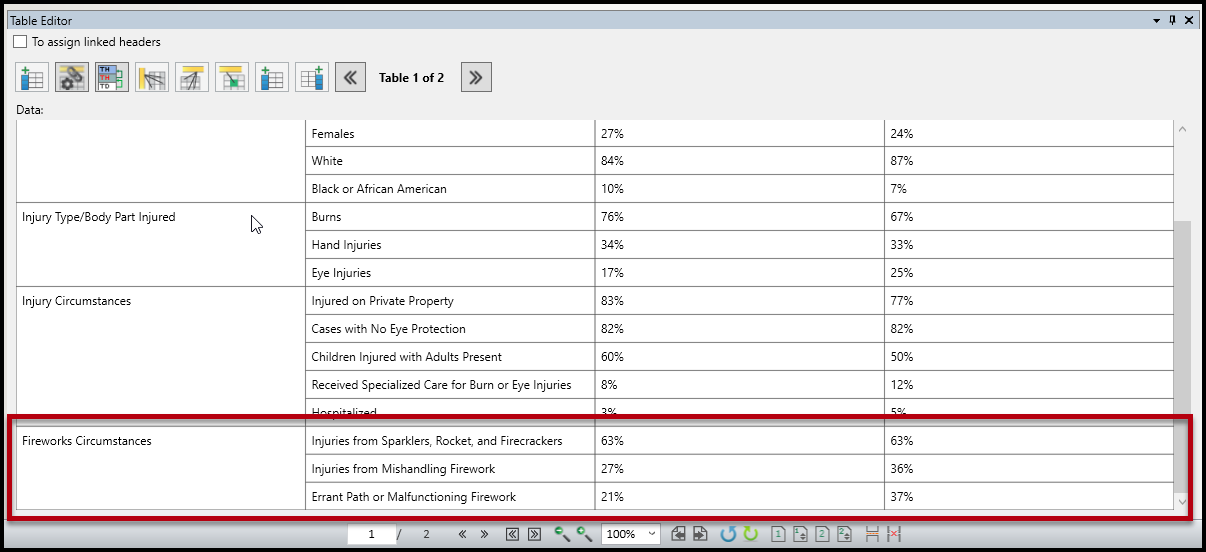
- Navigate back to the top of the Table Editor. Notice that the Column header cells don't line up correctly with their corresponding data below.
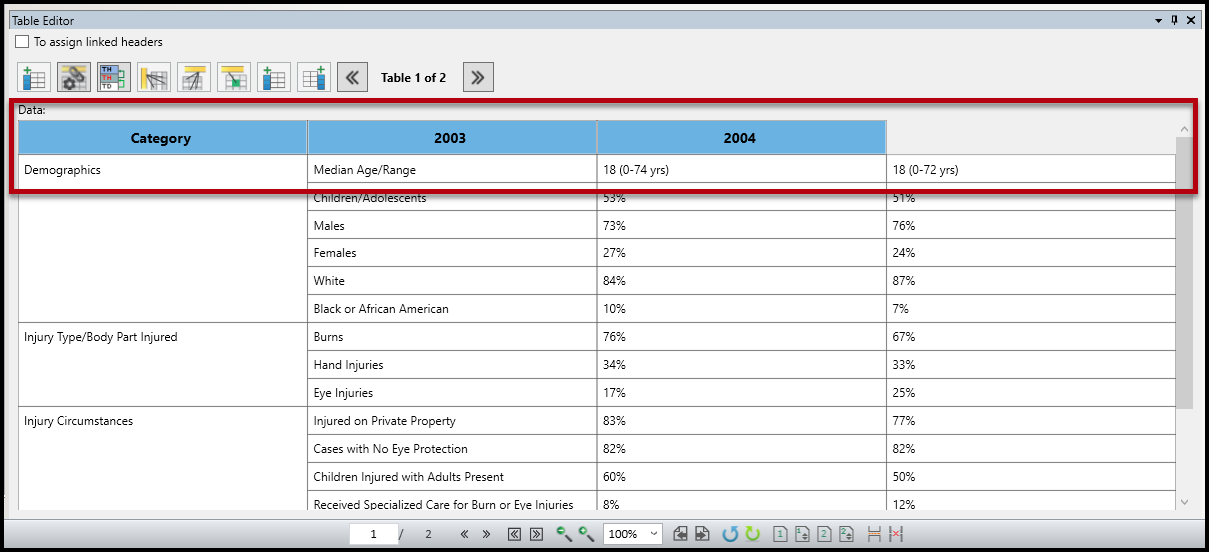
- To make the Column Headers line up correctly with their data takes a bit of a judgment call on the part of the remediator. Here are some options to consider:
- If "Category" should be the column header for just the first column of cells, choose it and then use the eighth button at the top of the table to "Insert a cell after."
- If "Category" should be the column header for the cells in just the second column, choose it and then use the button that you've used before to "Insert a cell before."
- If "Category" should be a column header for the first two columns in the table, select it in the Table Editor and then, in the Properties panel, change the Column Span to 2.
- After you've finished redrawing the table in the table editor:
- Select all of the column header cells and convert all of them to TH and assign the scope of Column.
- Select all of the row header cells and convert all of them to TH and assign the scope of Row. Important: Now that you've redesigned your table, in this example, there are two columns of row headers!
- Once your column and row headers are all set, use the second button from the left at the top of the Table Editor to "Generate One-Level Linked Headers." Refer to the section above on "Automatically Linking Data Cells to Header Cells" as needed.
Another Version of a Complex Table
The screenshot below shows another version of a complex table that would need to be redrawn in the Table Editor. However, this one differs from the example above because there aren't row headers in front of otherwise empty cells. In this example, in the second and third rows, for example, "Jan 11 - Feb 11" has data associated with it but is also a row header for "(Previous Estimate)" in the row below. In this case, you would not move "Jan 11 - Feb 11" down in front of "(Previous Estimate)." Simply leave it where it is but change the Row Span to 2. Of course, this will change the formatting of the table so additional cells will need to be added, deleted, etc., to make sure that the table is "regularly shaped."
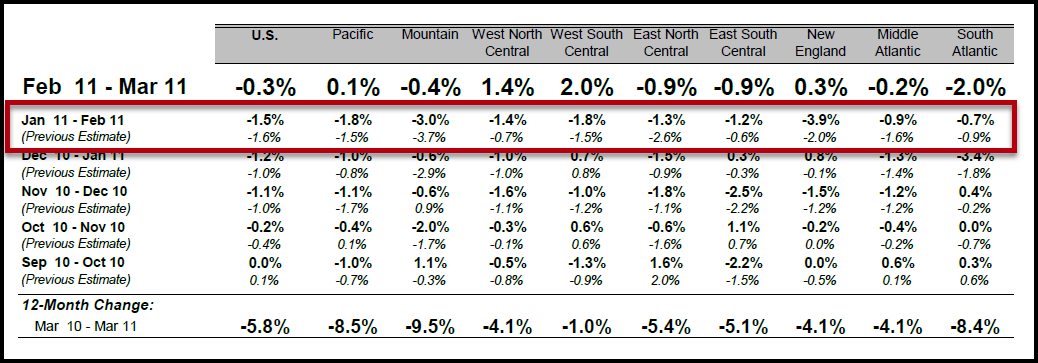
Here's a screenshot of the Table Editor after redrawing the table shown above so that "Jan 11 - Feb 11," "Dec 10 - Jan 11," etc., span the required rows and the table is "regularly shaped."
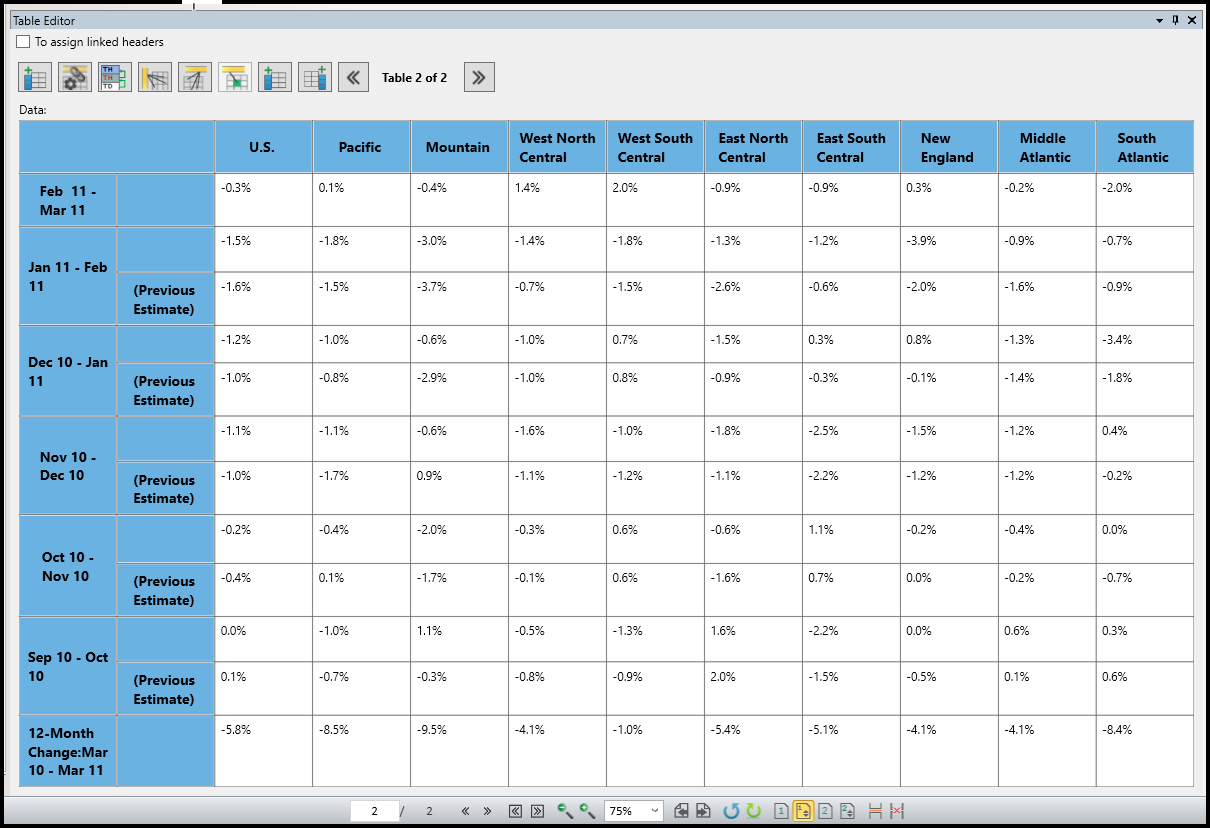
One important thing to remember is that when you manipulate a table, you may have empty Table Row (TR) tags or Table Data cells as a result. Be sure to remove these empty rows and cells before linking or your table, or the linking outcome will be incorrect.
Didn't find what you're looking for? Navigate to our "Tables" section for more related articles that may help!
Was this article helpful?
That’s Great!
Thank you for your feedback
Sorry! We couldn't be helpful
Thank you for your feedback
Feedback sent
We appreciate your effort and will try to fix the article