When a table spans multiple pages in the PDF it still needs to be tagged as one table. However, sometimes, in the tags, the content will be placed in multiple Table tags that will need to be merged.
The screenshot below shows a table in the physical view that is spread across two pages. In the Tags tree, there are two Table tags, separated by two paragraph tags and one H2 tag (the footer at the bottom of the first page and the header at the top of the second page). For the sake of this example, we will delete the H2 and the two Paragraph tags.
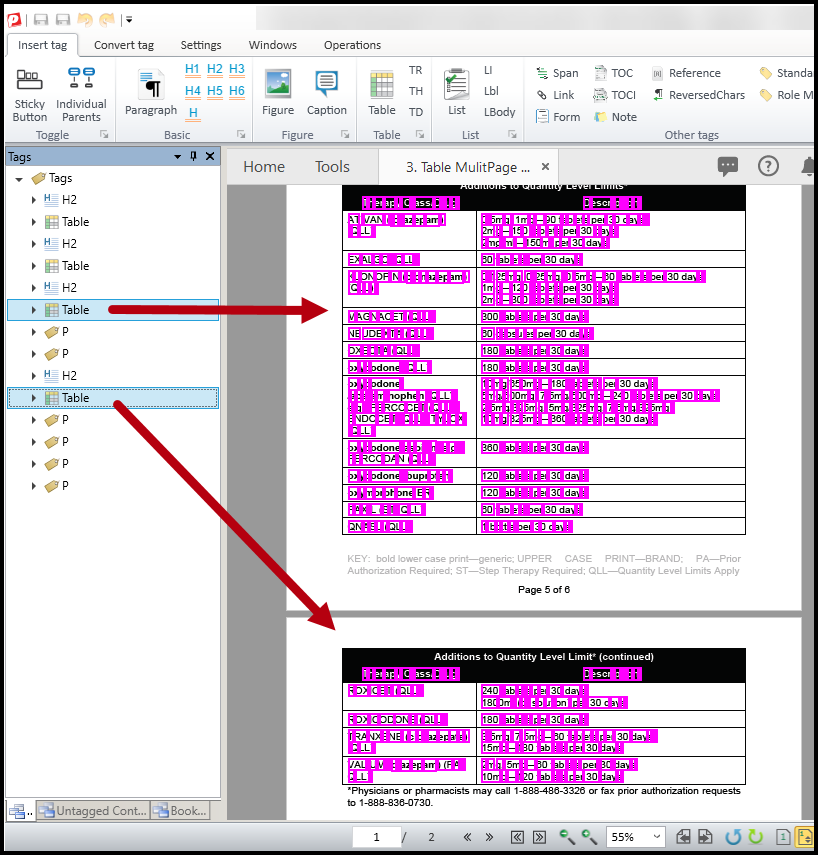
To merge these two tables into one, follow these steps:
As mentioned in the preceding paragraph, for this example, delete the H2 and the Paragraph tags between the two Table tags that will be merged. (The H2 is for the text "Additions to Quantity Level Limits (continued)". Generally speaking, if something says "continued" we can artifact it because a screen reader will just continue reading the content anyway.)
- Open the Table tag on the second page of the table.
- Select the first TR (table row) that contains the column header cells, and delete it. (As a result, when the tables are merged, the headers will not be read in the middle of the table as the screen reader works its way down the rows.)
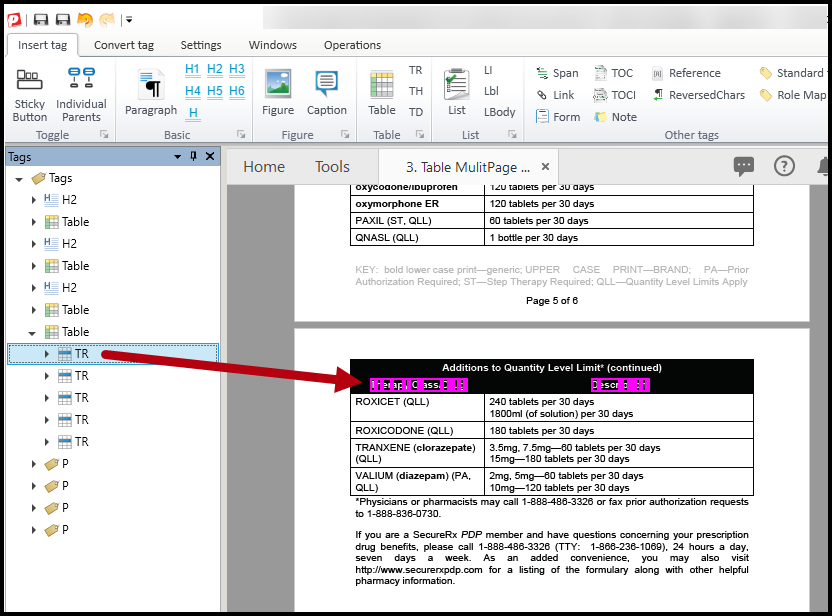
- In the Tags tree, select the first Table tag, hold down the Shift (or Ctrl) key, and then select the second Table tag. (Remember, selection order matters!)
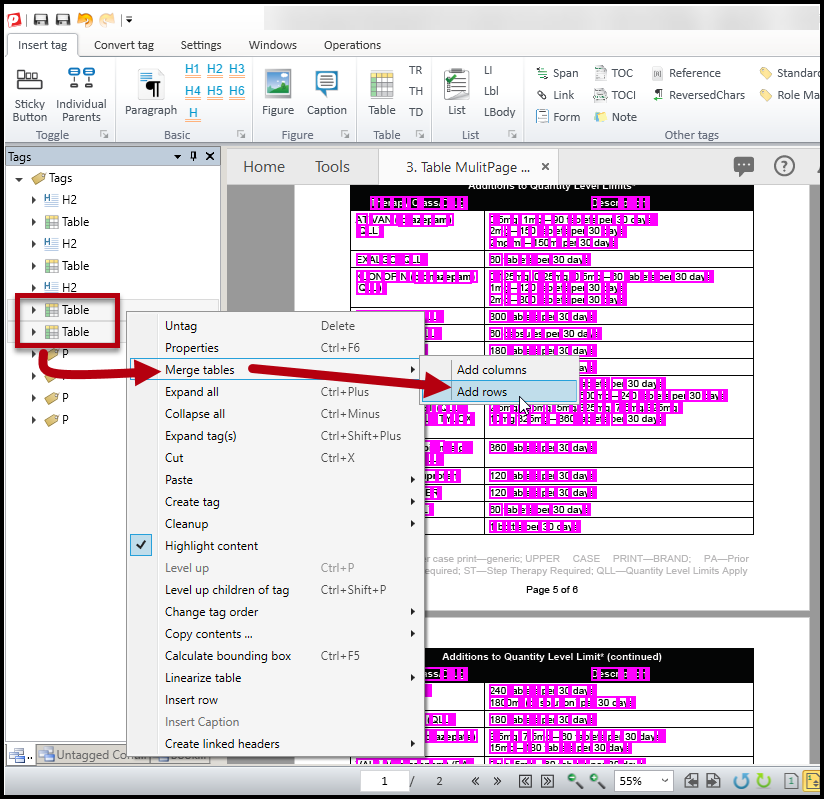
- Right-click (or otherwise open the context menu) on one of the two Table tags selected, and, in the context menu navigate to Merge Tables, and choose “Add rows.” The TR tags from the second table will be moved to the bottom of the first Table tag.
- After merging the tables, open the Table Editor to make sure that the column headers are at the top of the table where they belong. Fix any other formatting or tagging issues you may notice (for example, make sure that your TH tags have the correct Scope assigned) and, if needed, link the data and header cells.
Read the article on Tagging a Data Table to learn how to Assign Scope if needed.
Refer to the article on Tagging Complex Tables for information on linking data and header cells.
Wide Tables Spanning Multiple Pages
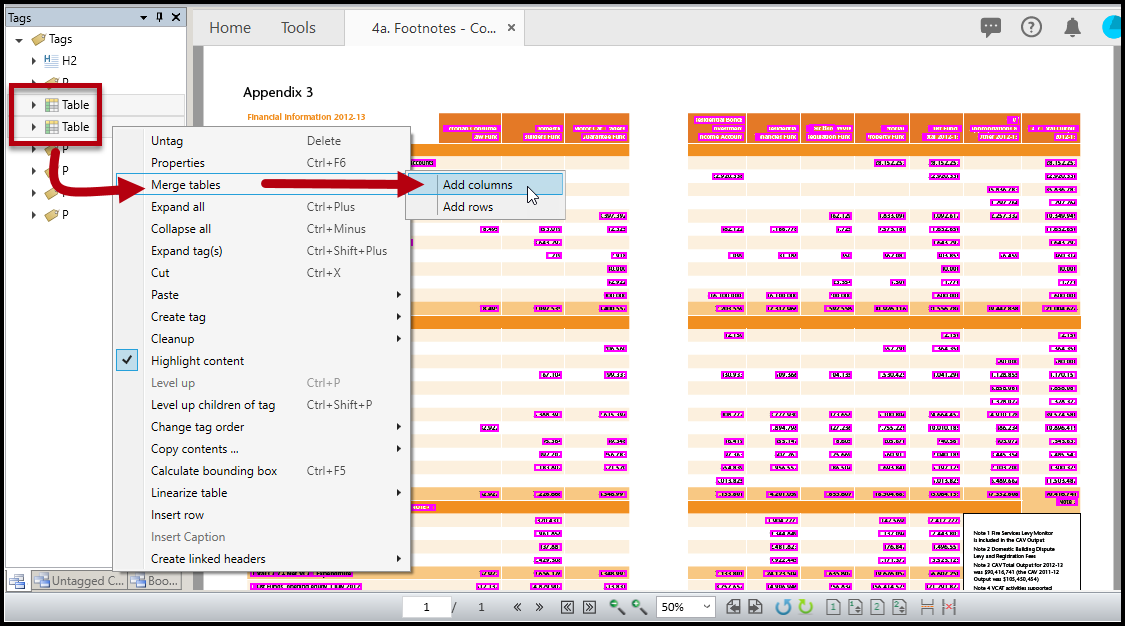
The screen shot below shows a table that is two pages wide, however, there are two Table tags in the Tags tree.
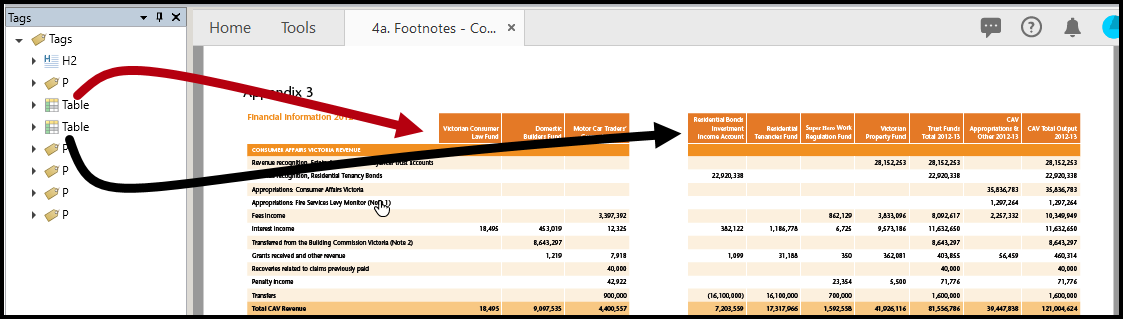
Follow the steps below to properly merge these Tables:
- Open the Table editor for each Table tag to verify that the layout is correct and that both Table tags contain the same number of TR tags. Important Note: If the table is complex, and needs to be redrawn, it might be easier and more manageable to do that part first and then merge the tables. Refer to the article on Tagging Complex Tables for more information about redrawing tables.
- In the Tags tree, select the Table tag for the left side of the table then select the Table tag for the right side of the table. Remember, selection order matters!
- Right-click (or otherwise open the context menu) on one of the selected Table tags, navigate to Merge tables, and then choose “Add columns.”
- Use the Table Editor to check that the table layout is correct. Pay attention to cell span, make sure that all headers are tagged as TH cells, and verify that the headers have been assigned the correct scope. Read the article on Tagging a Data Table to learn how to Assign Scope if needed.
- Link the data cells to the header cells if needed. Refer to the article on Tagging Complex Tables for information on linking data and header cells.
Didn't find what you're looking for? Navigate to our "Tables" section for more related articles that may help!
Was this article helpful?
That’s Great!
Thank you for your feedback
Sorry! We couldn't be helpful
Thank you for your feedback
Feedback sent
We appreciate your effort and will try to fix the article