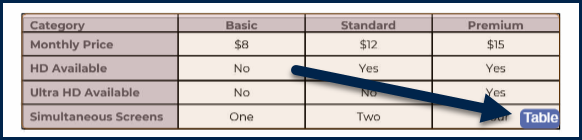
If you are looking at a table in the page view of the document, in CommonLook PDF's Simplified Editor, it should be in a Table container. If it’s in some other type of container, try converting the container to a Table. If that doesn’t look right, you could try deleting the container and creating a new one. Below are two screenshots. The first shows a table in the document that’s been properly identified as a Table. The second shows a table in the document that has been identified as text.
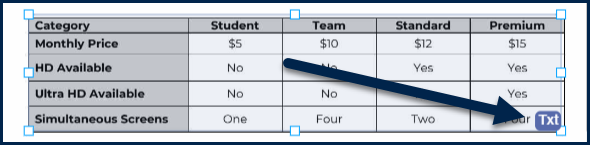
There is, however, one important thing to consider when it comes to tables that that’s whether or not something was really intended to be read as a table or if a the table functionality was simply used in the source document to make formatting easier. The screenshot below shows content that’s been marked as a Table but, when looking at the content, it’s apparent that it’s not really a data table. This will need to be corrected.

Correcting a Table that is not identified accurately:
Once the Table element has been created, you may have to adjust some of the cells to ensure they are identified accurately. This might involve changing the size of some cells, merging or splitting cells, or adding additional columns or rows to the table.
Adding or Removing Columns or Rows
In this table, the Simplified Editor incorrectly split the top row into two rows, which would result in the table being tagged with an extra row.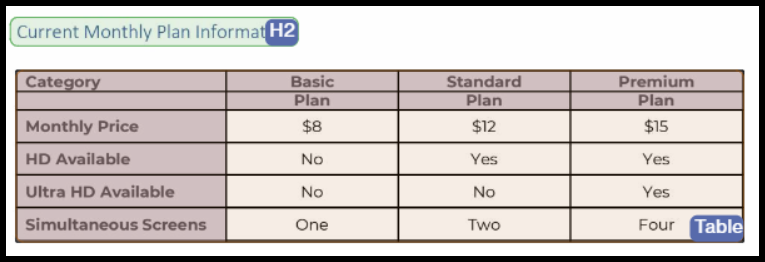
To fix this issue, navigate into the table, and remove the unnecessary horizontal line.
- Select the Table container.
- In the toolbar, hit the Table button to open the Table submenu
- Select the row line you wish to remove - it should turn a darker, blue color to show it is selected.
- Use the Delete key on your keyboard to remove it.
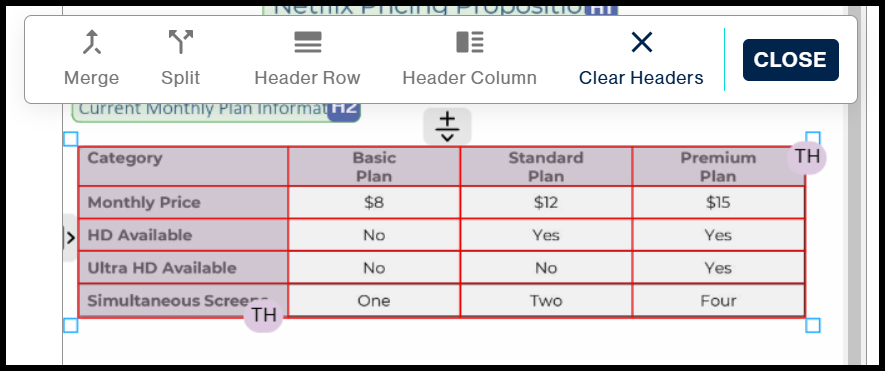 The same can be done for vertical lines, which would result in extra columns.
Merging or splitting cells incorrectly identified
In this table, the Simplified Editor incorrectly split one data cell into two, which would result in the table being tagged with an extra, inaccurate cell.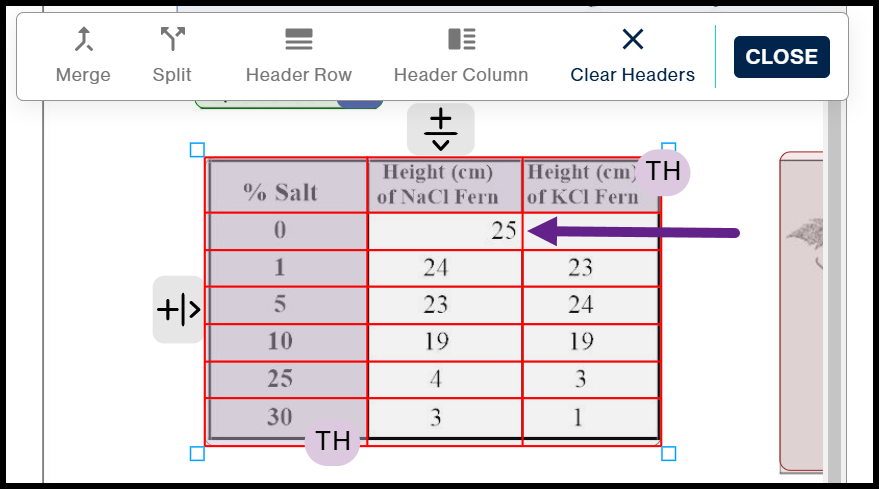
To fix this issue, navigate into the table, and merge the cells.
- Select the Table container.
- In the toolbar, hit the Table button to open the Table submenu
- Select the two cells that need to be combined by clicking and dragging a small box to cover those two cells. The two cells should turn a lighter, yellow color.
- With them both selected, navigate to the Merge button in the toolbar.
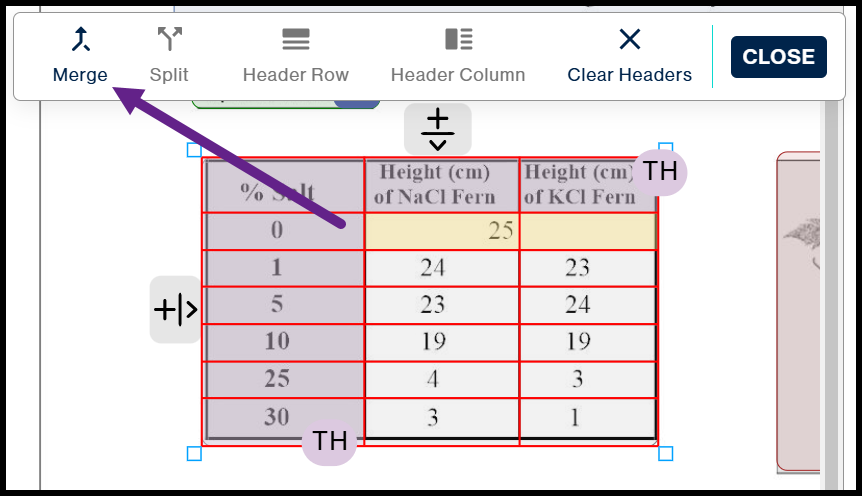 The same can be done for cells that need to be Split.
If you have content that’s marked as a table, but should not be:
- Select the Table container.
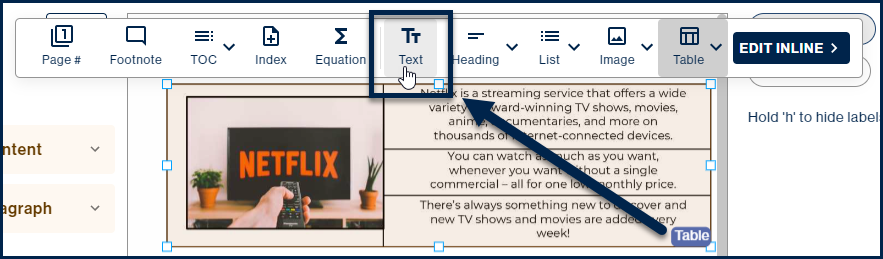
- In the toolbar, hit the button to convert the Table container to the correct type. In the screenshot below, the Table container is selected, the toolbar is open, and the “Text” button is highlighted, to convert the Table to Text. (Note: Converting a "layout" table - a table that's simply been used for formatting - to text is sometimes referred to as "linearizing" a table.)
Important Tip: If, after converting the Table container to Text, you realize that the text should actually be placed in more than one paragraph (in your accessible PDF), you may need to further adjust the Text containers. Also, as shown in the screenshot below, in addition to the text on the page there is also an image that would need to be handled correctly.
Converting a container to a Table
Similar to the steps in the section above, to convert a Table container to something more appropriate for the content, if you have a table in the page view that is not marked as a table, select the container and, in the toolbar, convert it to a Table container.
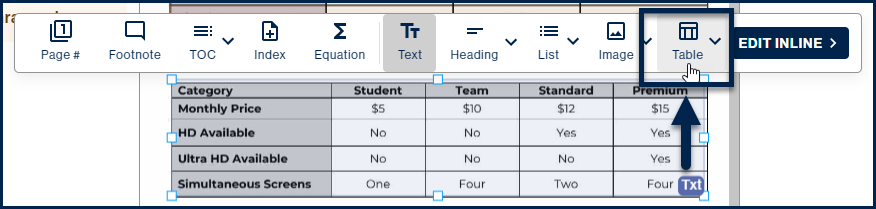
Note: When you convert a container to a table, or manually mark a table as described in the next section, the system will try to automatically detect rows and columns. It will also try to properly identify the header cells in the table.
Manually creating a Table container
If converting a container to a Table container doesn’t seem to work correctly, create a new Table container. Follow these steps:
- Select the container that is holding the table and delete it.
- Draw a box around the table in the page view.
- In the toolbar, choose “Table.”
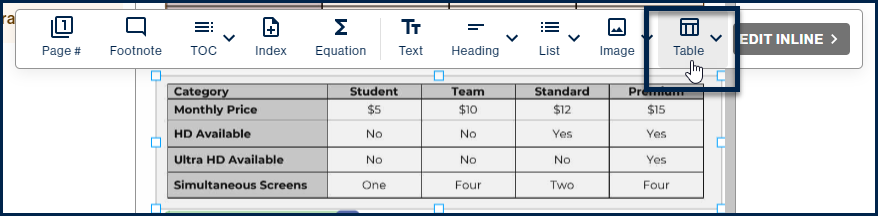
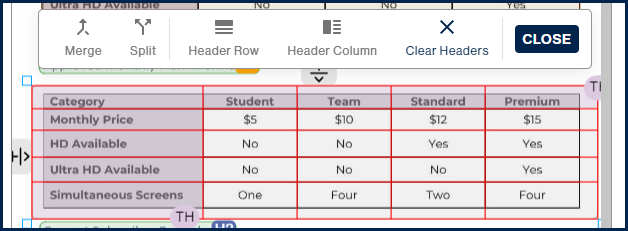
The Simplified Editor will then show you the table that’s been created.
Didn't find what you're looking for? Navigate to our "Tables" section for more related articles that may help!
Was this article helpful?
That’s Great!
Thank you for your feedback
Sorry! We couldn't be helpful
Thank you for your feedback
Feedback sent
We appreciate your effort and will try to fix the article