The “Sticky Button” functionality in CommonLook PDF can be a helpful feature to use when creating many consecutive tags of the same type. For example, in the screenshot below, there are three paragraphs of text between the Headings for Introduction and History. Using sticky buttons, these paragraphs can be tagged quickly and easily.
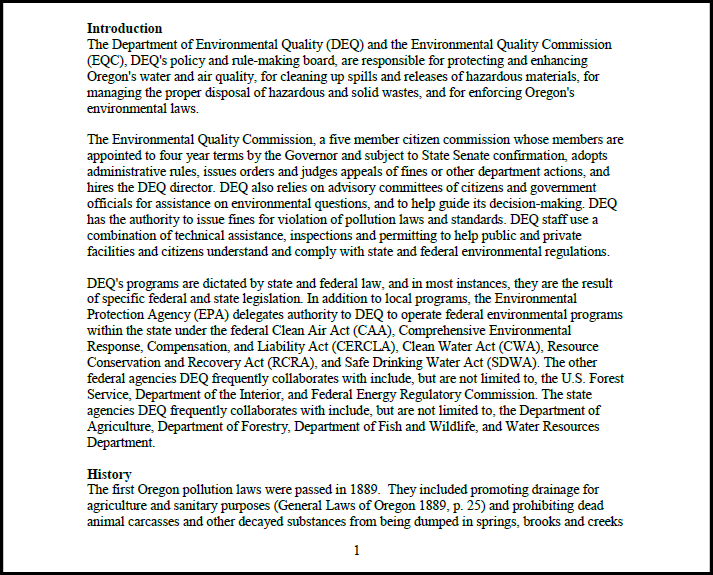
For the example shown above, follow these steps to tag the paragraphs using the Sticky Button functionality.
- Find the tag in the tag tree under which the content about to be tagged will be placed (in this example, that’s the tag containing “Introduction”). Note that when the tag is selected, the text will also be highlighted in the physical view. (An easy way to find the tag for “Introduction” is to highlight that word in the physical view.) It may be helpful to open the tag to use it as a reference point in the Tags tree.
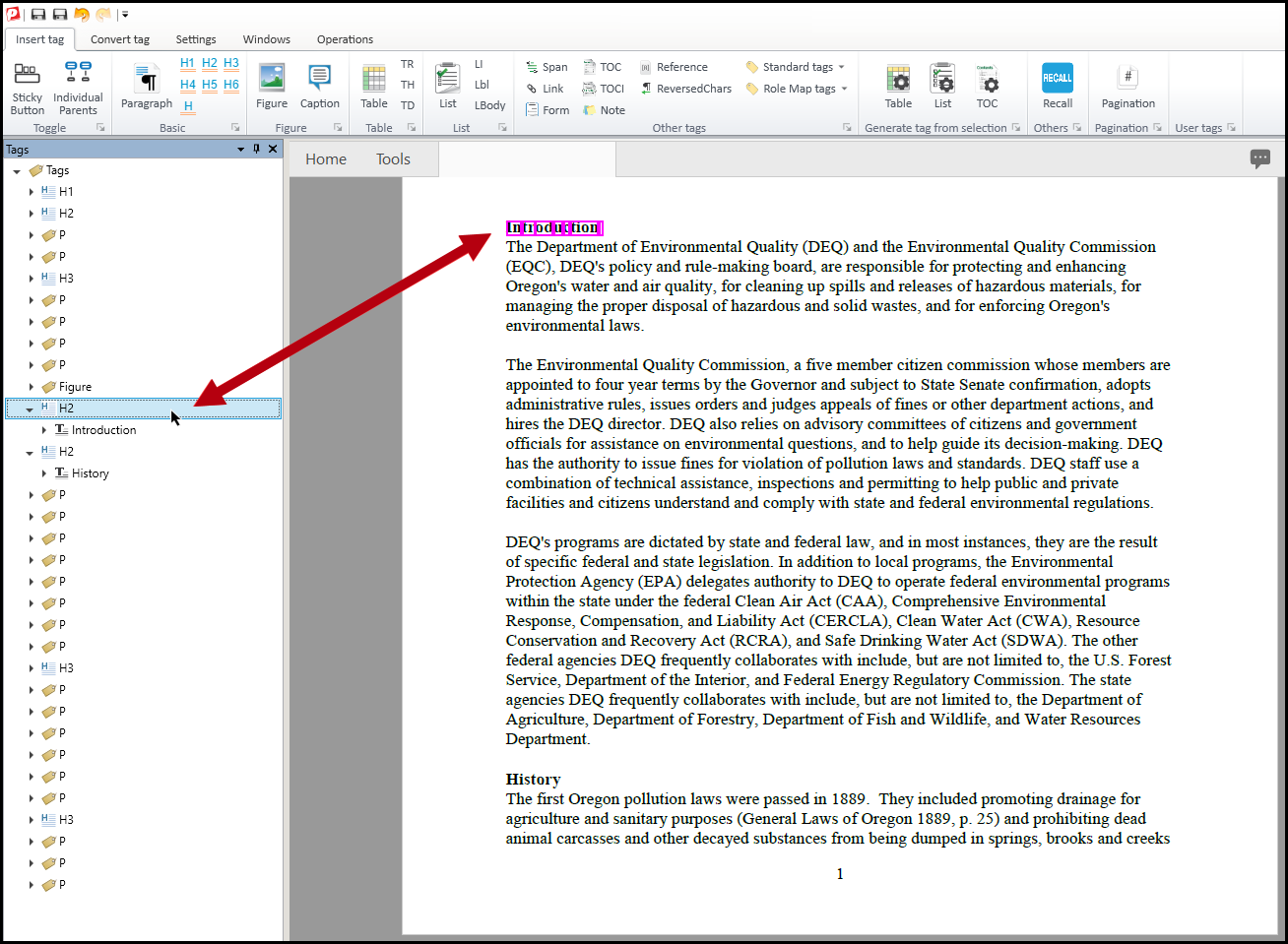
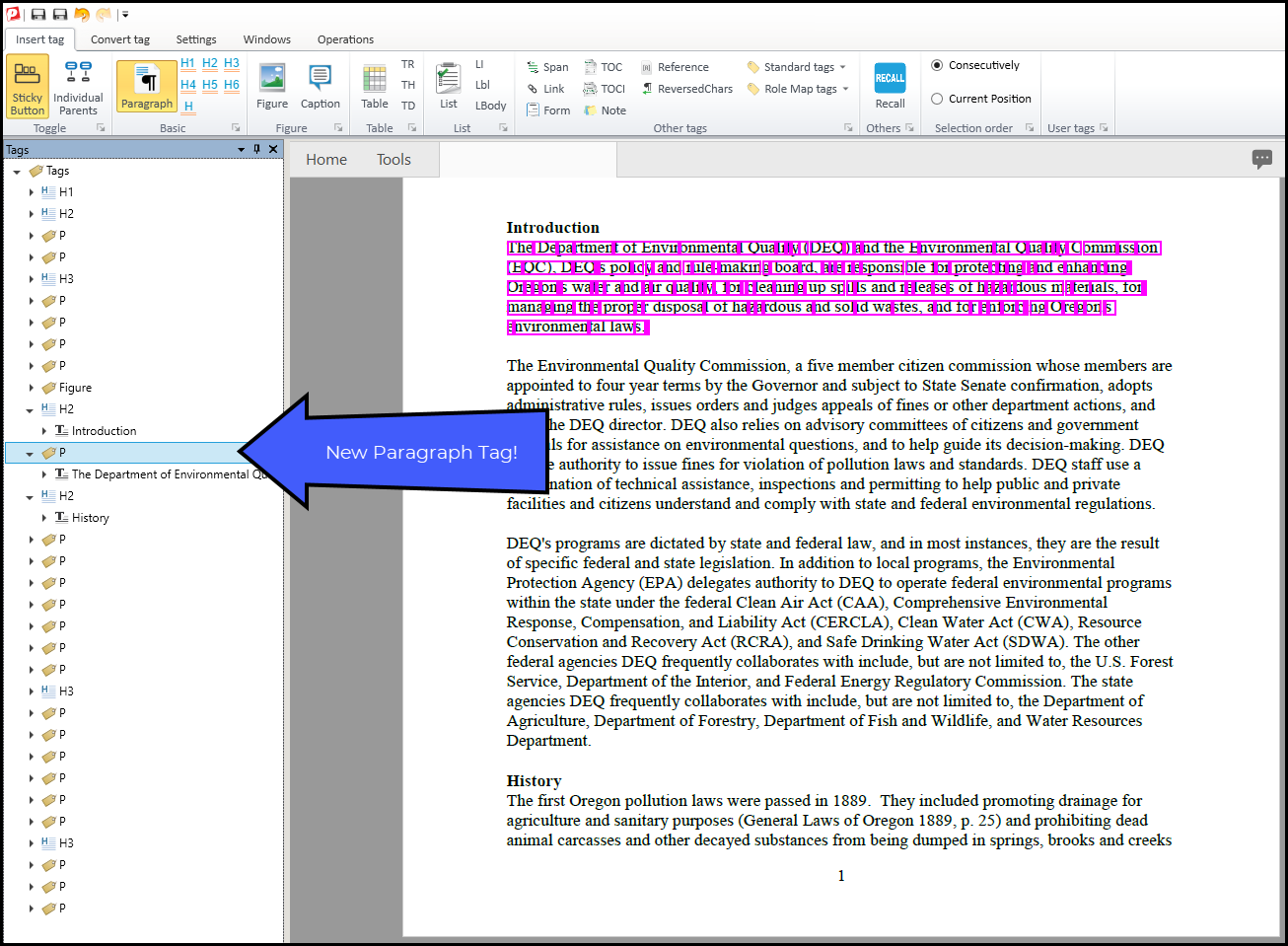
- In the Insert Tag tab on the ribbon, click the “Sticky Button” button to turn on that feature and then choose the Paragraph button to select the type of tag to be created. When these two options are “turned on,” they will turn yellow.
Note: In the ribbon, there will now be a "Selection Order" group. Keep the default selection - "Consecutively."
- Select the tag containing the word “Introduction” again. This step seems redundant but it is necessary so that CommonLook places the newly created tags in the proper reading order. Important Tip: Be sure to select the tag in the Tags tree for “Introduction” and not the text inside the tag. If the text in the tag is selected, the newly created tags (in the next step) will be placed inside the tag containing “Introduction” and this nesting is incorrect!
- Highlight (draw a box around) the text in the physical view that will be placed in the first paragraph tag created. When the mouse button is released, a new paragraph tag will be created in the Tags tree and it will contain the text that was highlighted in the physical view.
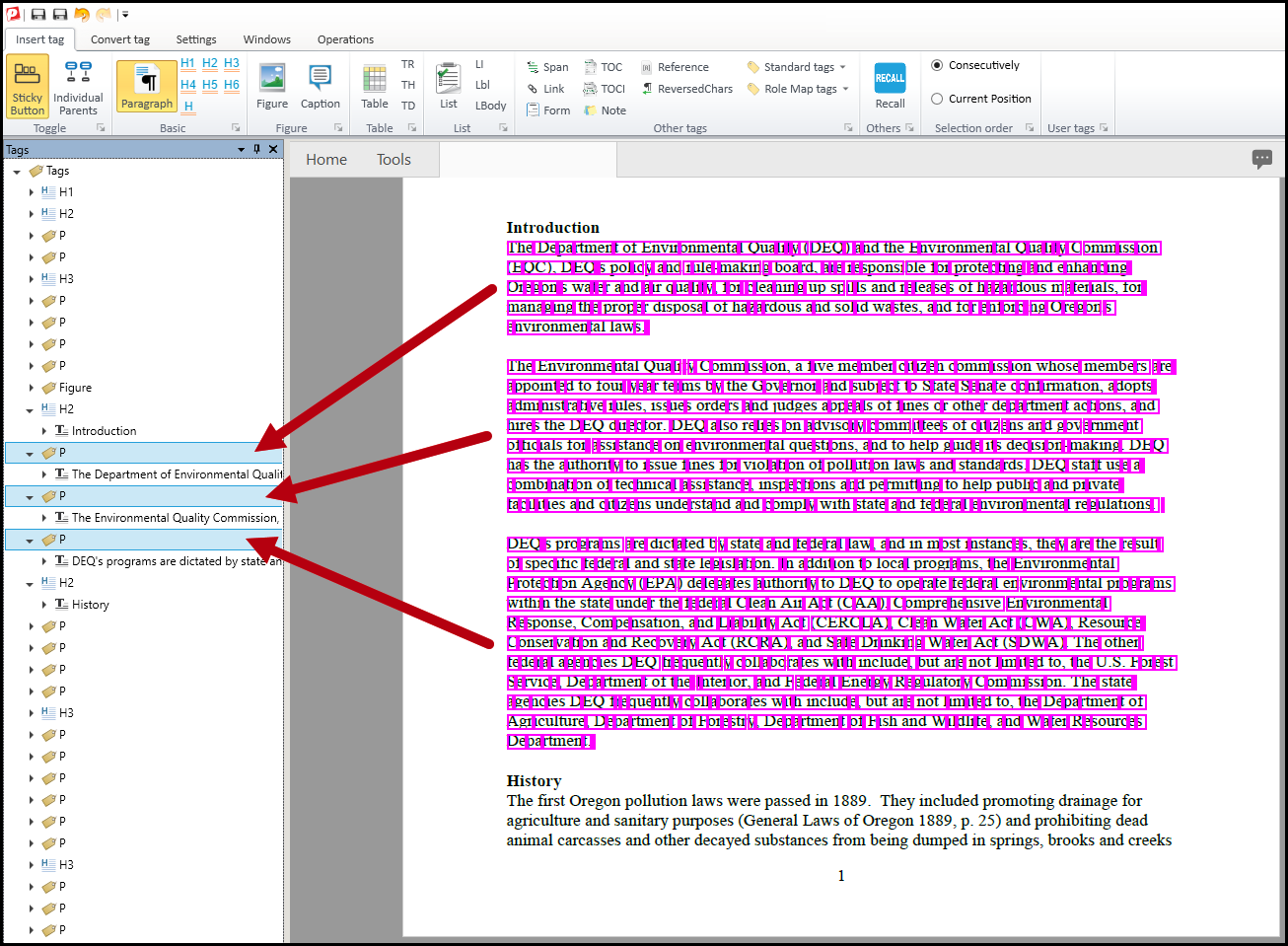
- Repeat Step 4 for the remaining two paragraphs under the Introduction section. The screen shot below shows the three paragraphs highlighted in the physical view and their corresponding tags in the Tags tree.
- When finished using “Sticky Buttons” remember to click that button again in the ribbon to turn off the feature.
Didn't find what you're looking for? Navigate to our "Tagging (or Untagging) Content" section for more related articles that may help!
Was this article helpful?
That’s Great!
Thank you for your feedback
Sorry! We couldn't be helpful
Thank you for your feedback
Feedback sent
We appreciate your effort and will try to fix the article