Occasionally throughout the remediation process, and certainly before the job is completed, remember to remove empty tags so that they do not corrupt the document and make it inaccessible. Any empty tag can be misleading and convey incorrect information to someone using assistive technology.
To remove empty tags, right-click (or otherwise open the context menu) on any tag in the tree and choose from the “Cleanup” options.
(Screenshot of the desktop version:)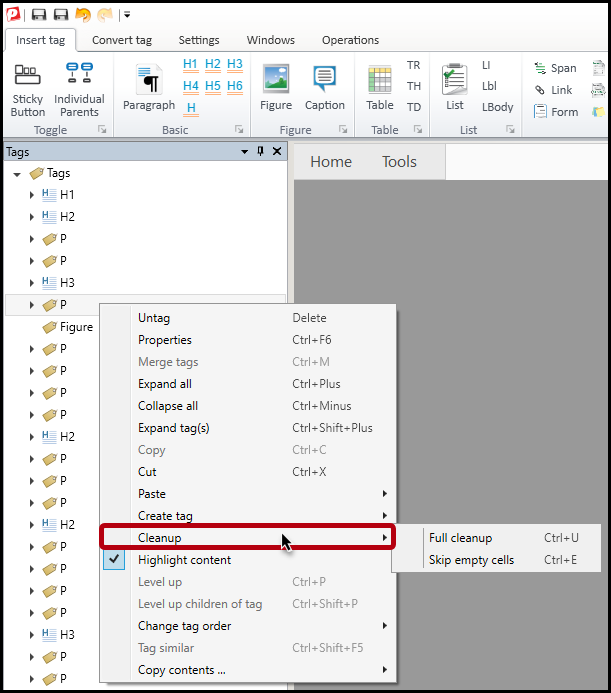
Screenshot from the web-based version:
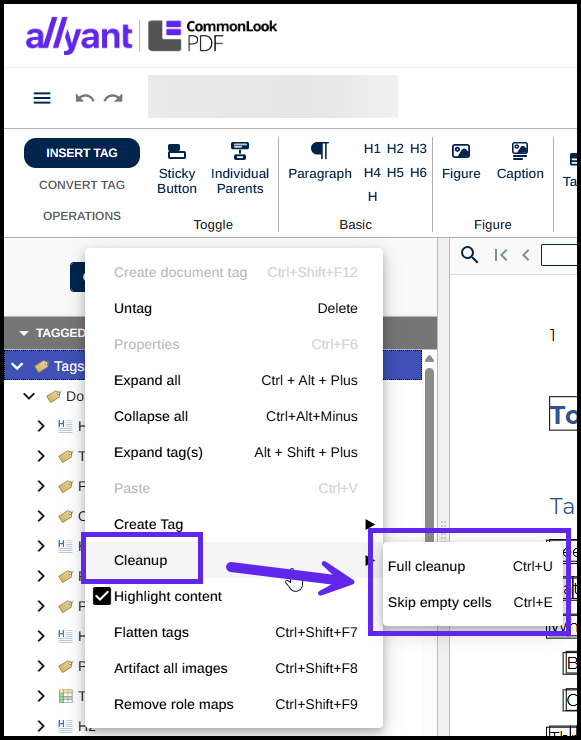
The "Full cleanup" option (Ctrl+U) gets rid of every empty tag in the document.
The “Skip empty cells” clean up (Ctrl+E) gets rid of every empty tag in the document but will leave behind empty table data (TD) or table header (TH) tags. This can be helpful, to maintain the structure of your table, and keep it "regularly shaped," if you have empty cells in your table that you need for formatting.
Pro Tip: If you're going to remember one keyboard shortcut for cleaning up empty tags, remember Ctrl+E for the skip empty cell cleanup. This way you won't accidentally mess up your data tables.
Important Settings Adjustment for Cleaning Up Empty Tags
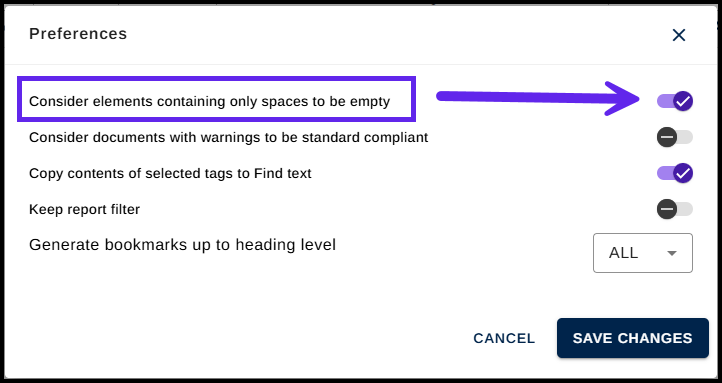
Oftentimes in the authoring phase spaces are added to the document. Sometimes authors will use the Space, Enter, and/or Tab keys to control formatting, for example. The problem with this is that, in the PDF, those spaces get needlessly tagged and, perhaps, read by assistive technology. In the Settings tab, there is an adjustment so that if tags contain only empty spaces then they will be treated like empty tags and deleted upon cleanup. To make sure that this option is enabled, follow these steps:
In the desktop version:
- Click on the Settings tab in the ribbon.

- In the Settings tab, near the right side, click the button labeled “User Preferences.”

- When the User Preferences dialog box opens, check the checkbox to “Consider elements containing only spaces to be empty.”
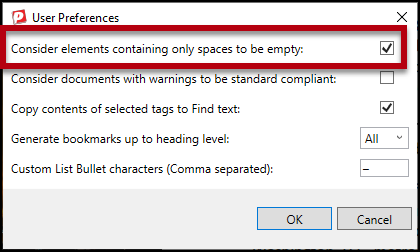
- Click “Ok.”
In the web-based version:
- Navigate to the "hamburger" menu at the upper left of the screen and expand it,
- Navigate to "Settings,"
- Select "Preferences."
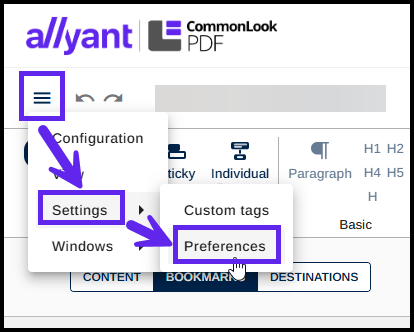
- In the Preferences dialog, turn on the slider for "Consider elements containing only spaces to be empty."
Didn't find what you're looking for? Navigate to our "Tagging (or Untagging) Content" section for more related articles that may help!
Was this article helpful?
That’s Great!
Thank you for your feedback
Sorry! We couldn't be helpful
Thank you for your feedback
Feedback sent
We appreciate your effort and will try to fix the article