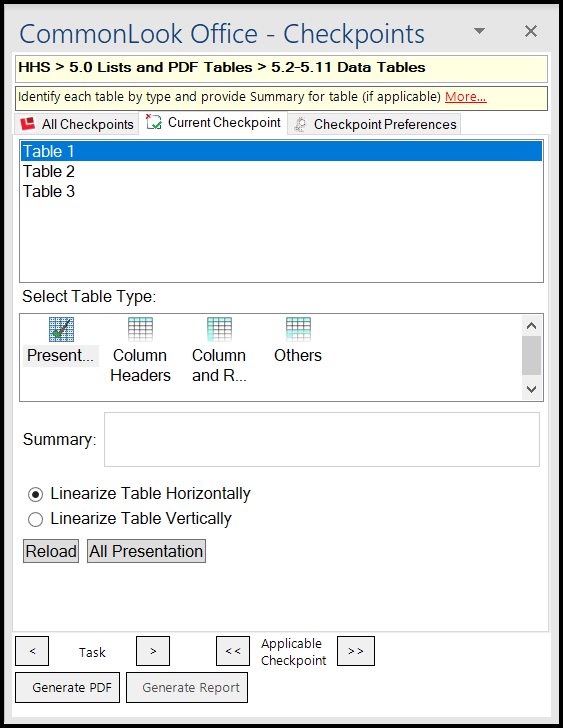
If your Word document (or PowerPoint) contains tables, this checkpoint will run and the CommonLook Office panel will list all of the tables in the document (presentation).
Tip: Tables can be particularly tricky. Remember to use the "More" link at the top of the CommonLook Office panel for even more information on how to handle your tables.
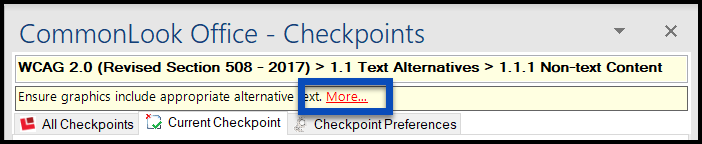
The CommonLook Office Panel showing the Tables Checkpoint
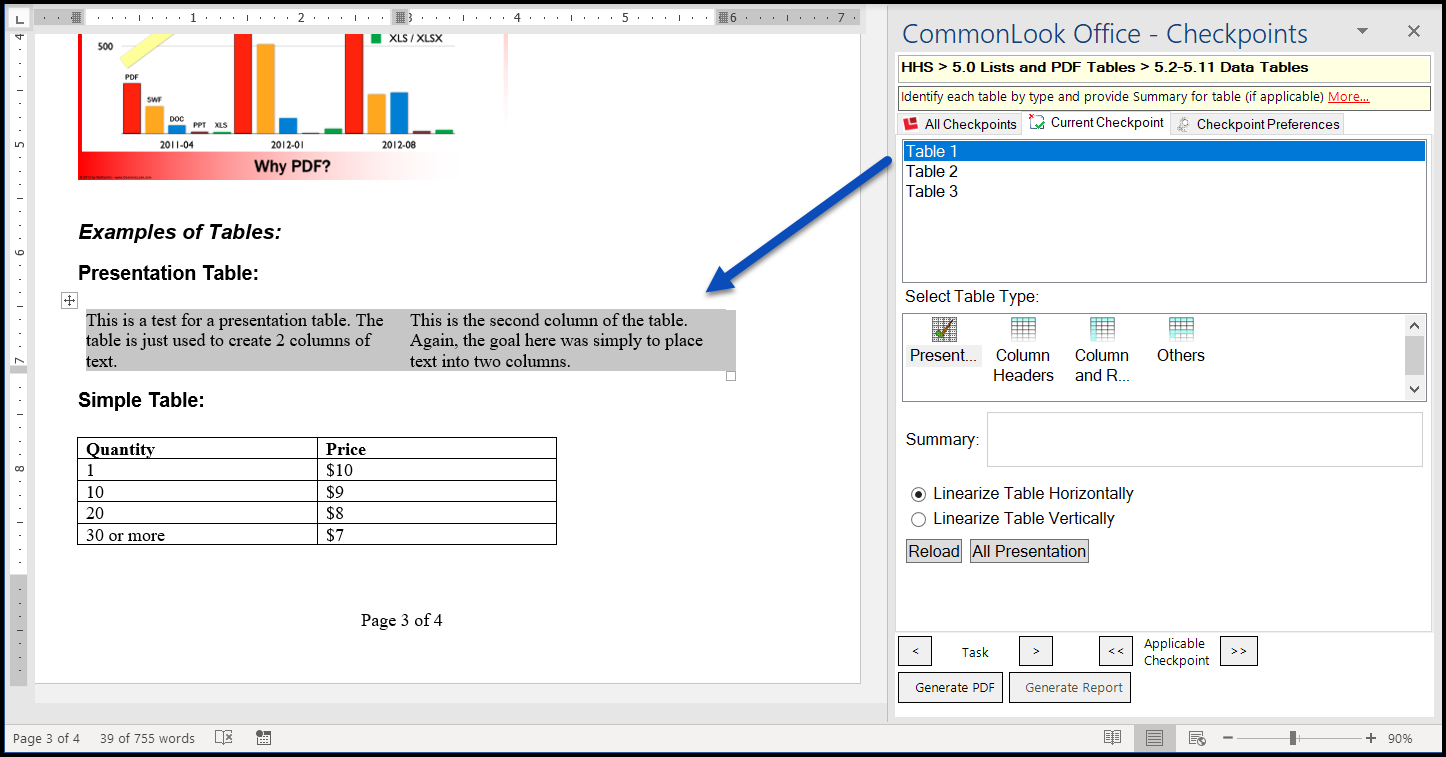
If the Table is a Presentation Table
Although using tables for layout (formatting) is not acceptable by accessibility standards, CommonLook Office can make sure that the table is handled correctly in the PDF.
Follow these steps for a Presentation Table:
- In CommonLook, select the presentation table from the list of tables in the upper panel.
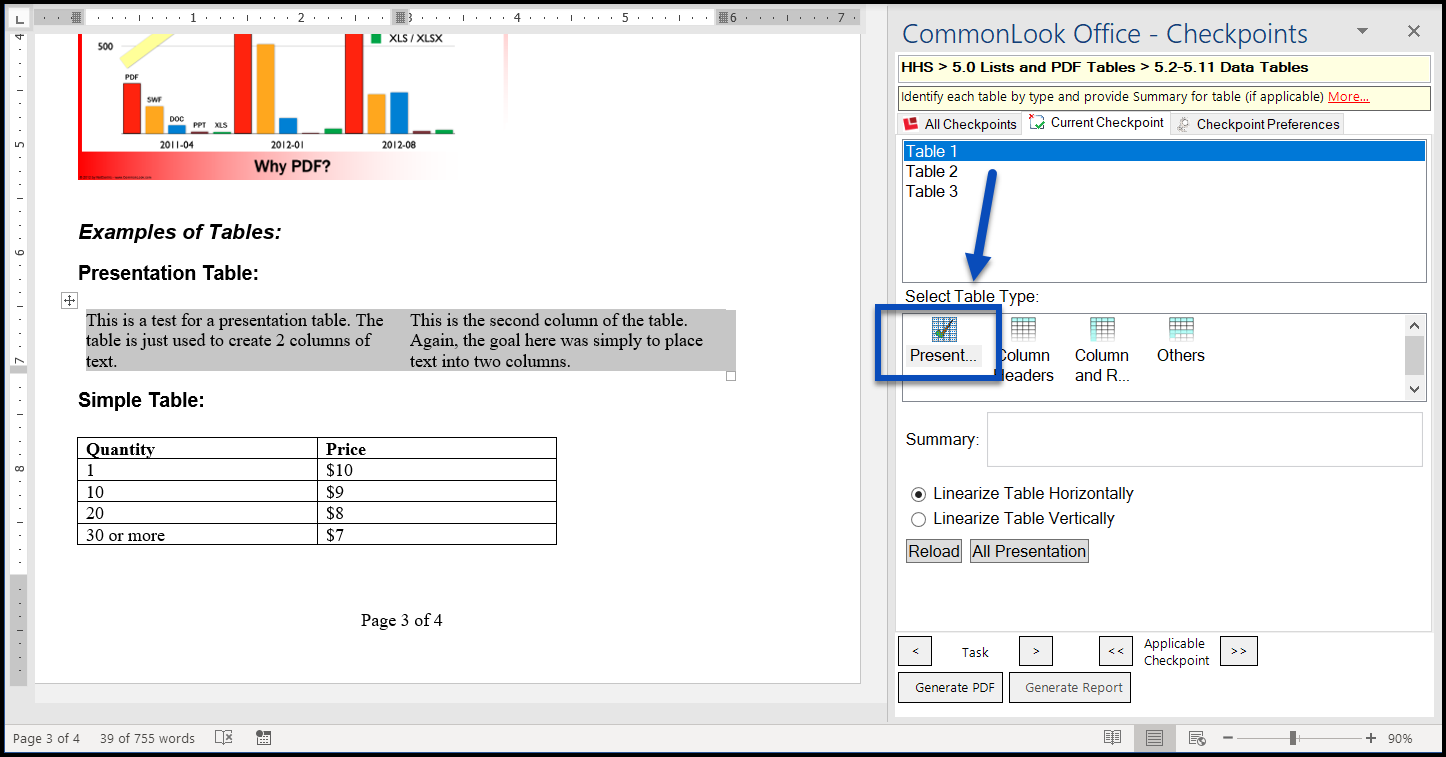
- Choose “Presentation” in the “Select Table Type” section below the list of tables.
- Below the “Select Table Type” options, choose whether to linearize the table horizontally or vertically.
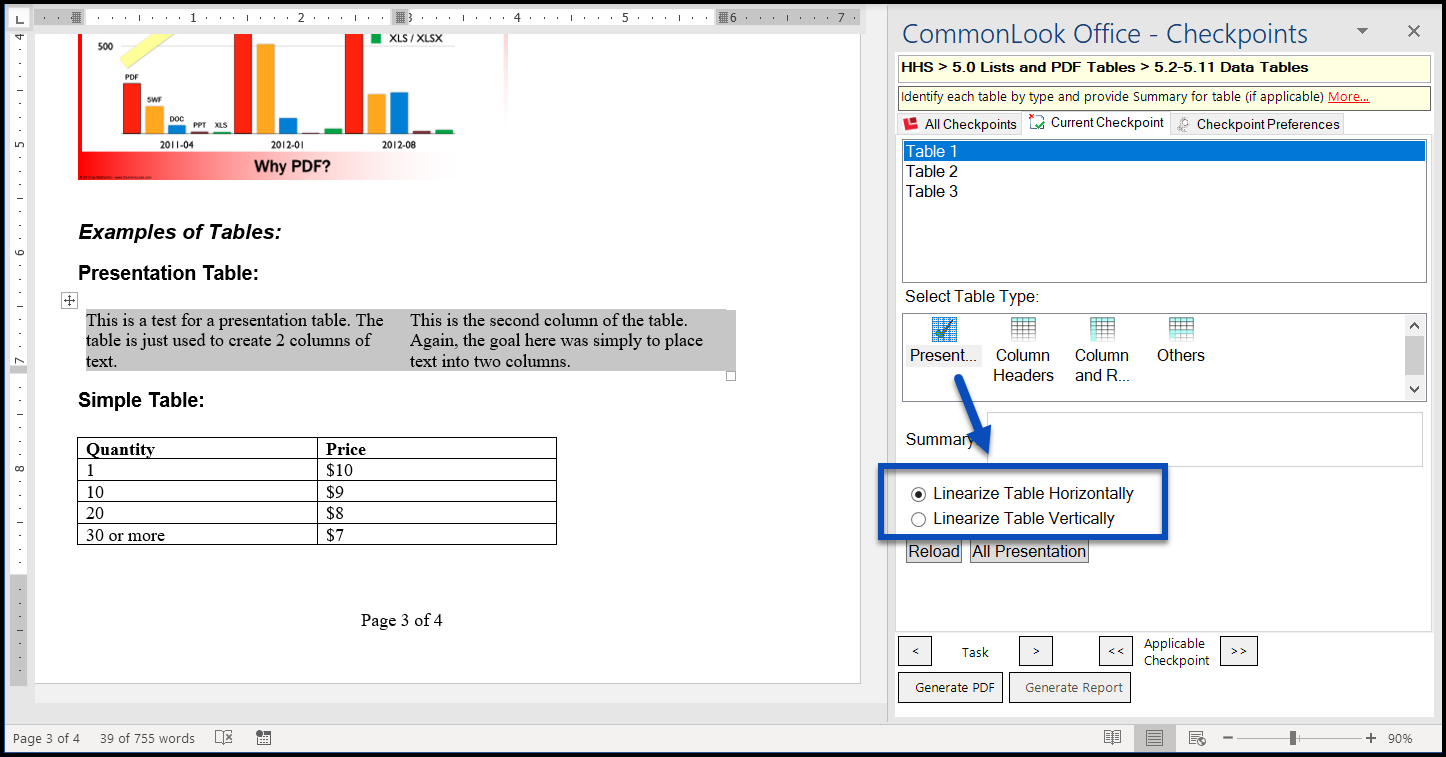 To Linearize the table Horizontally converts all of the data cells to paragraph tags moving cell by cell from left to right across the first row of the table and then proceeding down the table row by row. In contrast, to Linearize the table Vertically converts all of the data cells to paragraph tags moving cell by cell down the first column on the left and then proceeding column by column across the table to the right.
The End Result: In the PDF, the text in the table will be tagged as paragraphs and screen readers will not announce the presence of a table.
Note: You won't be able to provide a Summary for Presentation-type tables.
If the Table is a Data Table
Follow these steps to properly create the tags in the resulting PDF:
- In CommonLook, select the data table from the list of tables in the upper panel.
- Select the appropriate type – Column Headers or Column and Row Headers.
Note: CommonLook Office will automatically link the data cells to their header cells so that the table is read correctly. This linking is assigned based on the scope of the header cells (column or row). If a table is so complex in its layout that inaccurate linking occurs either: 1) Consider redesigning the table with a more simple layout (this would probably make the table more accessible and understandable for everyone), OR 2) Select “Others” as the table type and manually link the data cells to the proper headers. (For more information on this process, follow the “More” link in the Data Tables checkpoint.) - After selecting the table type, use the arrows to select the correct "Number of Rows that contain Column Headers” and, if appropriate, the "Number of Columns that contain Row Headers.”
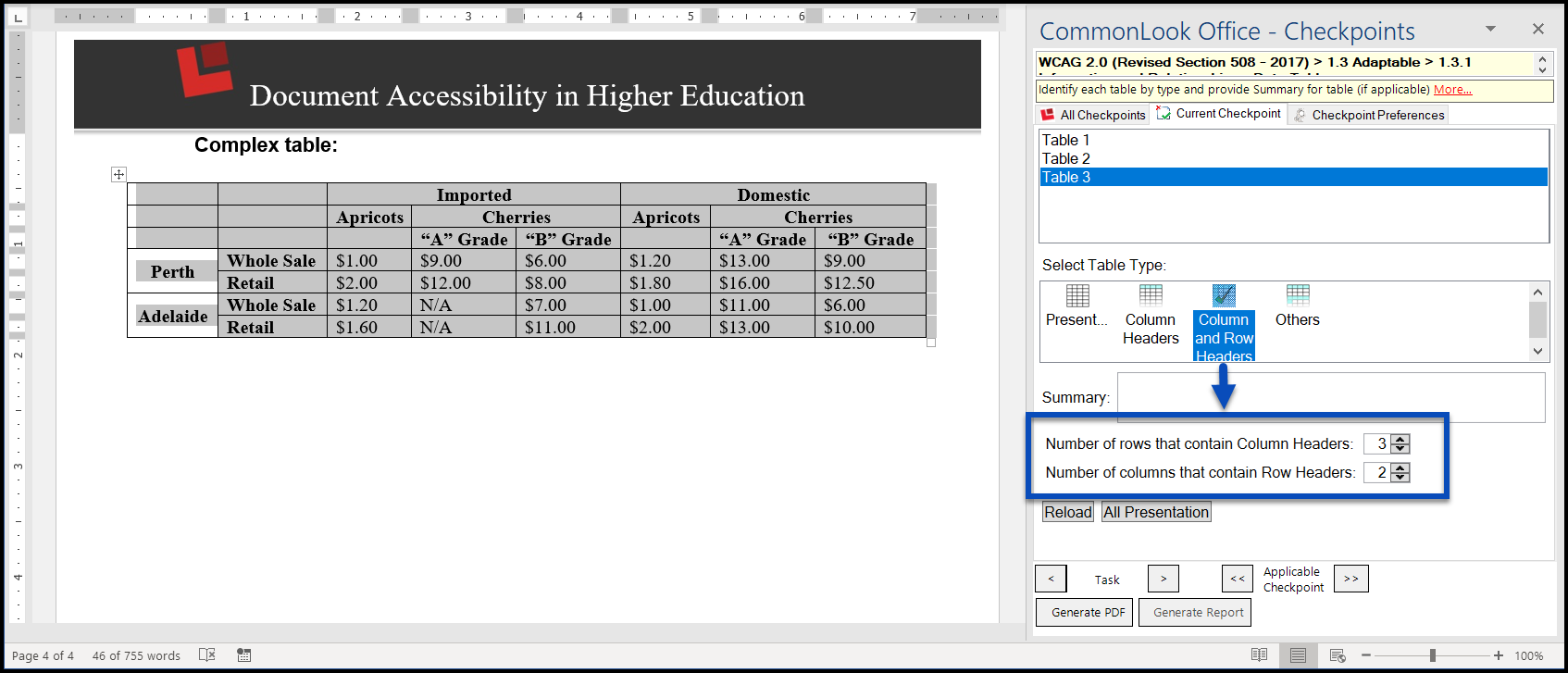
- (Optional) Type a summary in the “Summary” text field. Providing a summary for a table is helpful because this gives the user the option of listening to the summary and then deciding whether or not they want to listen to the data table in its entirety. Consider using CommonLook’s functionality to add a summary to long or complex tables.
Working with Very Complex Data Tables
If a table has a very complex layout, it may be too difficult for screen readers to present accurately, people who are visually and/or cognitively impaired may not be able to decipher the content accurately, and/or CommonLook Office may not be able to automatically link the headers to their data cells correctly. Perhaps, in these situations, it would be best to redesign the table. That being said, there is the facility, in CommonLook Office, to manually link table headers so that it can be tagged correctly and accurately read by screen readers.
Follow these steps to manually link a very complex table:
- In CommonLook, select the data table from the list of tables in the upper panel.
- Choose “Others” for the table type.
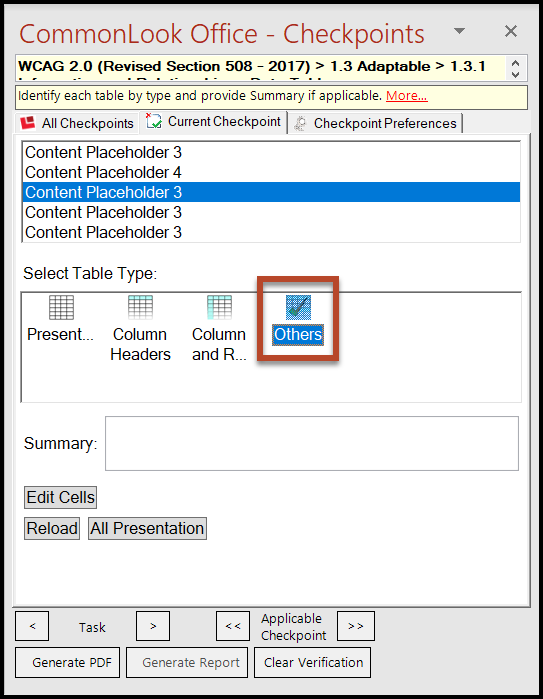
- Choose “Edit Cells.”
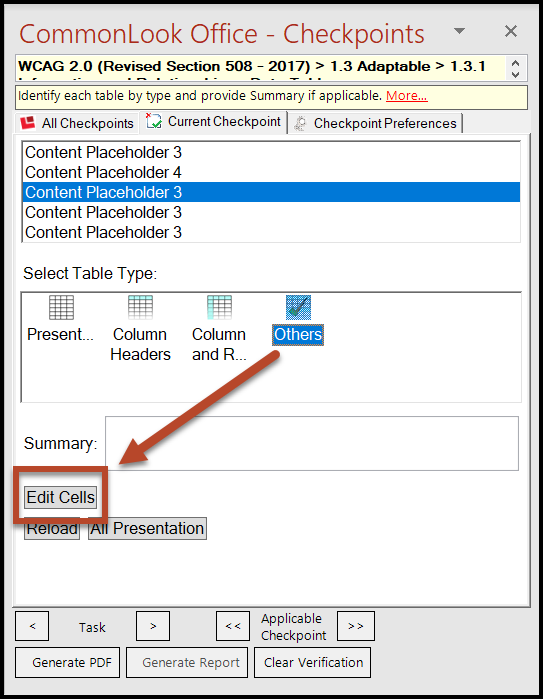
- In the Table Settings window, choose the Cell Properties tab, select the header cells, and change their type to “Header.” (It is possible to use the Shift or Control keys to select multiple cells.)
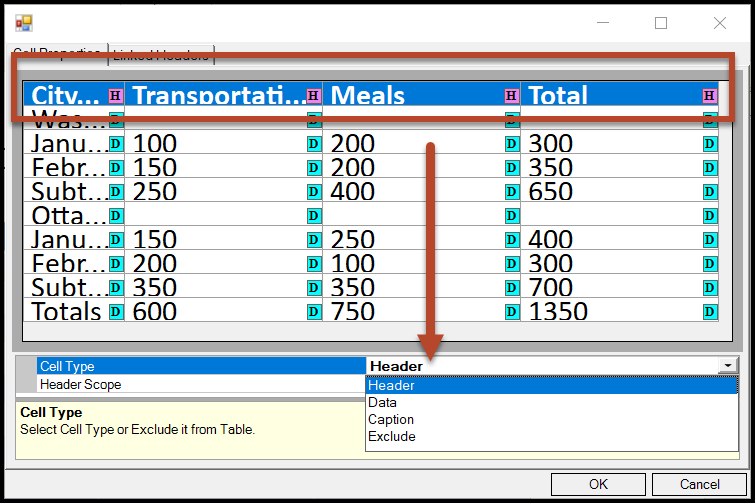
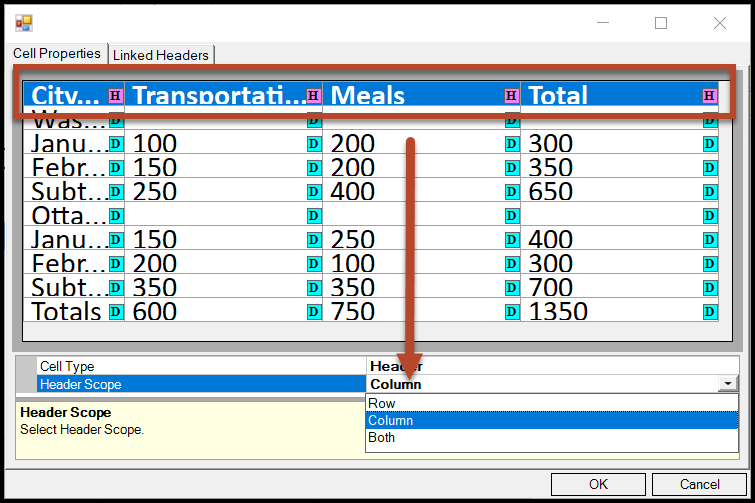
- Use the drop-down menu below the cell type to assign the header cells the correct scope (column, row, or both). Note: In the screen shot below, the column header cells have been selected and their scope is set to Column. If applicable, repeat these steps to change the row header cells’ type and scope.
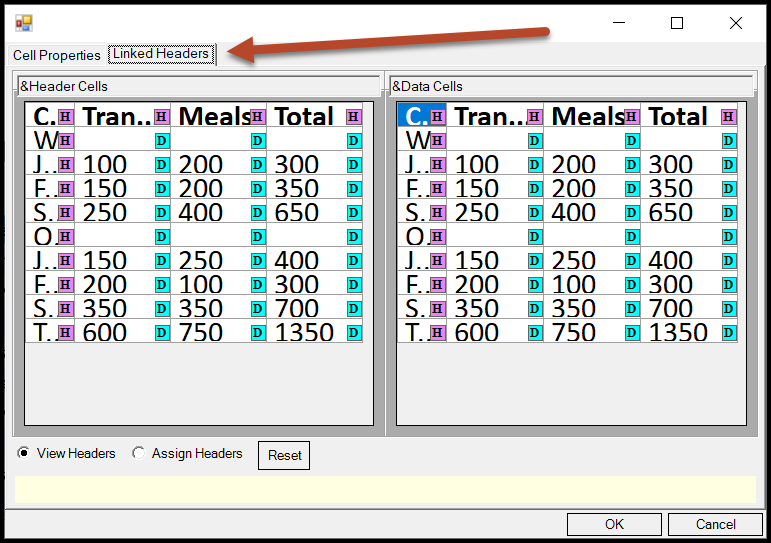
- Choose the Linked Headers tab (located immediately to the right of the Cell Properties tab identified in Step 4).
- Choose the “Assign Headers” radio button. Note 1: Notice that there is a radio button and a rectangular button labeled “Assign Headers.” For this step, choose the radio button! Note 2: In the screenshot below, the row header cells have also been marked as headers and their scope is set to row, as mentioned in Step 5 above.
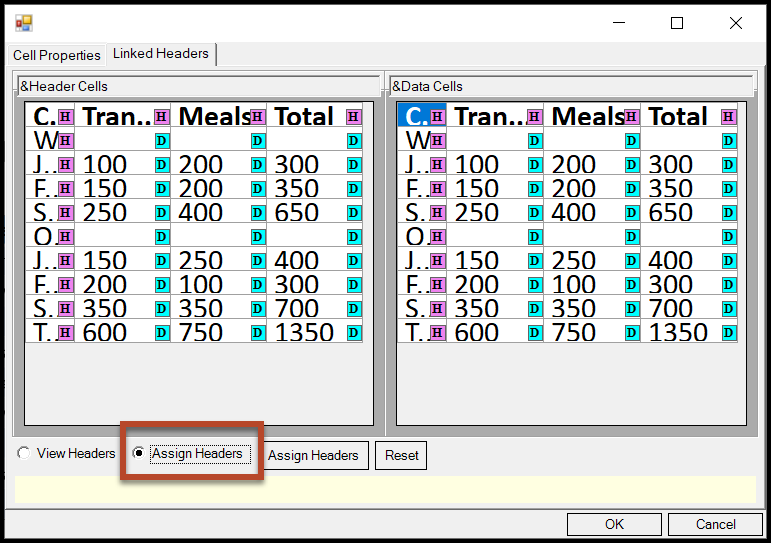
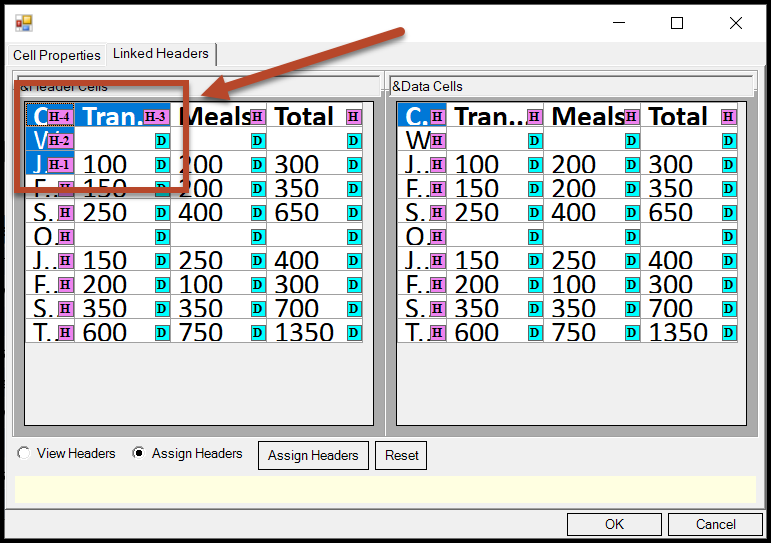
- In the left panel (labeled "Header Cells"), select the header cells to be linked to their corresponding data cells (hold down Shift or Ctrl as needed to multi-select). Important! PDF specifications say to choose the row headers first and then the column headers. When headers are chosen for linking, they will get a number assigned to them based on the order in which they are chosen. The screenshot below shows H-1 next to J, H-2 next to W, and so on. These are not heading levels as used in the “body” of a document. The numbers here indicate the order in which they were selected.
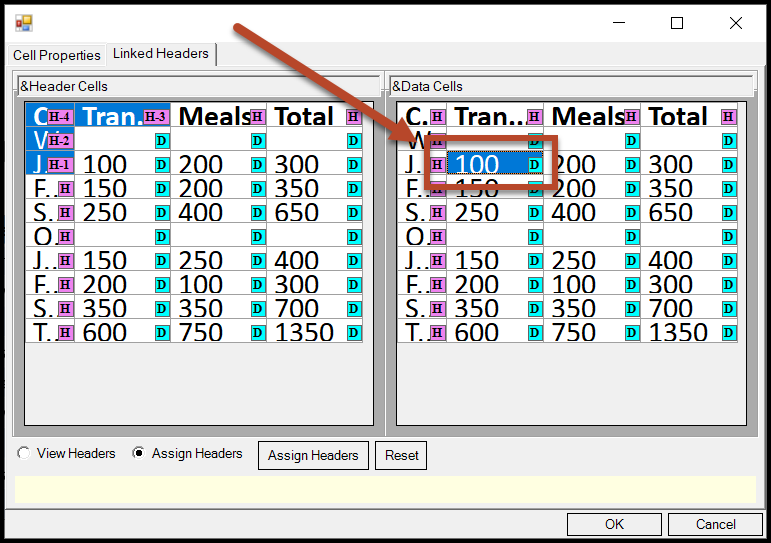
- In the right panel click on the data cell(s) to be linked to the selected header cells in the previous step.
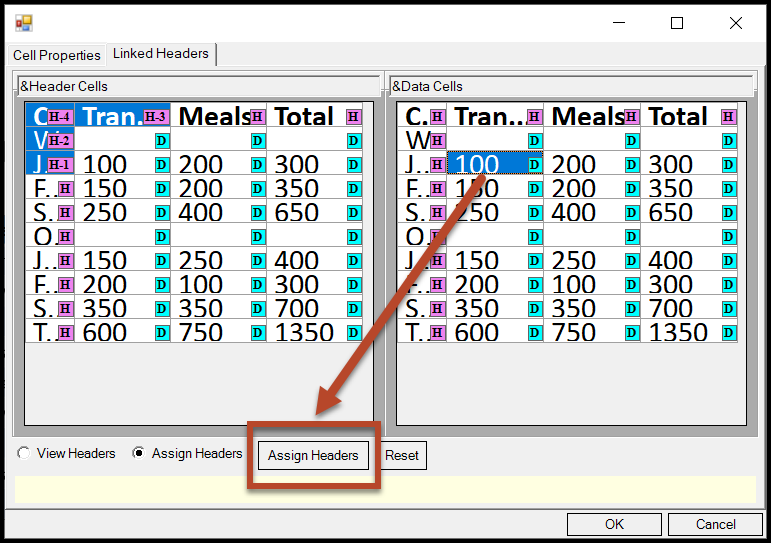
- Click the rectangular “Assign Headers” button.
- Repeat Steps 8 through 10 to link the rest of the data cells to the correct headers.
- When finished, select “OK.”
Additional Notes about Linking Headers
- If a mistake is made, use the rectangular “Reset” button (to the right of the “Assign Headers” button). This will undo all of the linking, however, and you’ll have to start over.
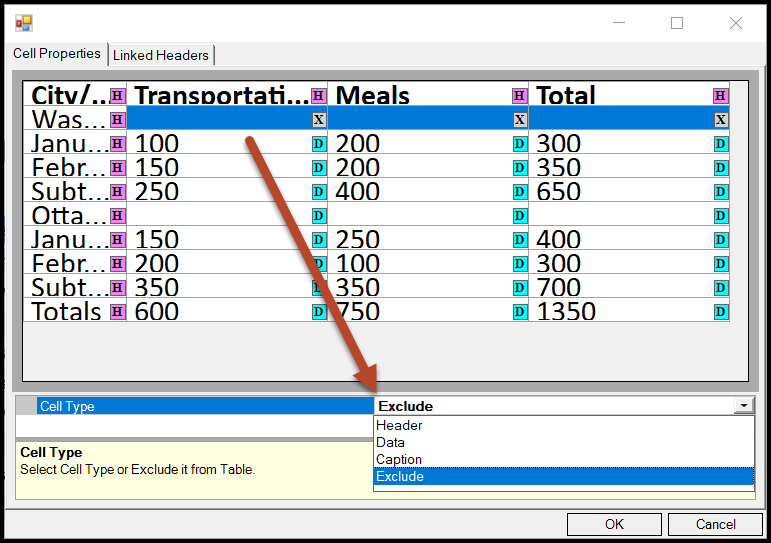
- Blank cells in the table that are simply there for formatting may be excluded. To do this, under the Cell Properties tab, select the necessary cells and then, in the “Cell Type” menu, choose “Exclude.” Excluded cells do not need to be linked to table header cells.
Working with Tables that Span Multiple Pages/ PowerPoint Slides
When working in CommonLook Office in Word, if you're setting your column (and possibly row) headers correctly, CommonLook Office will tag the table correctly in the PDF. However, in PowerPoint, this is handled a little differently because each slide in the PowerPoint becomes its own page in the PDF. Refer to the article on Tables Spanning Multiple Slides in PowerPoint for more information.
Final Notes about the Tables Checkpoint
If you have tables in your documents (or presentations), CommonLook Office will run on this checkpoint. And, while CommonLook Office will make your source files as accessible as possible (Alternative text assigned to images will also be assigned in the source, for example), because of the limitations of Word and PowerPoint, regarding tables, this cannot always be done. For example the Microsoft products don't support multiple rows of column headers and they don't support row headers at all - even though these things are supported in PDF. So, if you go through the Table checkpoint in CommonLook Office, close the software and return to Word, and then come back into CommonLook Office (after having edited your source file, for example), you likely will have to run the Table checkpoint again. There is, however, a workaround.
If you can put all of the tables into your source document before running CommonLook Office, when you run it the first time, you'll have to go through the Table checkpoint. Address the tables as needed, assigning type, headers, etc. Then, if you need to close CommonLook Office to edit the document, be sure to save the .xml file that CommonLook Office created. This "bridges the gap" between what Word and PowerPoint can do and what CommonLook Office needs for the PDF. Basically, it stores all of the "interim information" that it needs to generate a correctly tagged PDF. However, when you re-run CommonLook Office, it'll "refer" to that .xml file, and get the information that it needs. This way you won't have to go through all of your tables again! Although it is important to remember that even after generating and saving the XML file, if you go back into the Word Document (or the PowerPoint), those table settings won't be retained in the source file. Unlike alternate text that, when assigned to images in CL Office, will also be assigned in the source document, table settings made in CL Office will not be applied in the source document due to limitations in Word and PowerPoint.
Furthermore, if you're using one document as a template, for example, you can setup the tables, run CommonLook Office, get the .xml, and then the tables in your other documents, based on that template, will be ok (assuming, of course, you haven't done something else to "break" them.
And here's a "Pro Tip" for you - if you're renaming your Word document for a future version of it, you can rename the .xml file, too, and it'll work with your new Word document. Just make sure you haven't done anything else to break the accessibility of it!
Was this article helpful?
That’s Great!
Thank you for your feedback
Sorry! We couldn't be helpful
Thank you for your feedback
Feedback sent
We appreciate your effort and will try to fix the article