Note: There are two ways to handle complex tables in CommonLook PDF. One method is to redraw (in the Table Editor) the table and then use the auto-linking functionality in CL PDF. That method is outlined in the article on Redrawing Complex Tables in CL PDF.
This article discusses the “other” way of handling complex data tables, by manually linking data cells to their headers.
What Makes a Table "Complex"?
If your data table contains one (or more) of the following, it's a complex table (even if the layout is relatively simple).
- Cell(s) that span multiple columns or multiple rows.
- Multiple rows of column headers.
- Multiple columns of row headers.
- Empty cells. (Technically, empty cells don't make a table complex. However, the linking of the data cells to the header cells, as required for complex tables, also ensures that tables with empty cells in them will be read correctly by screen readers.)
Important! All complex tables need to have their data cells linked to their corresponding header cells so that screen readers make the correct associations. When a complex table has a relatively simple layout this linking can be done automatically in CommonLook PDF. Sometimes additional work is needed in the Table Editor, to manually link the data cells to their header cells.
How do I know if the auto-linking will work correctly?
If the column and/or row headers line up directly with their data cells, then the auto-linking will work correctly. If they don't all line up directly then you'll need to manually link the cells.
Manually linking data cells to their header cells
We’ll use the table in the screenshot below for this example. In that table, the column headers for “Category,” “2018,” and “2019” line up with their respective cells below. However, in the first column, under the column header for “Category,” there is a header for “Demographics” that does not have any data in its row and appears to be a header for “Median Age/Range,” “Children/Adolescents,” “Males,” and “Females,” below it. Similarly, there is a header for “Movie Genre Preferences” with “sub-headers” below it and then another header for “Television Genre Preferences,” and subsequent sub-headers below it.
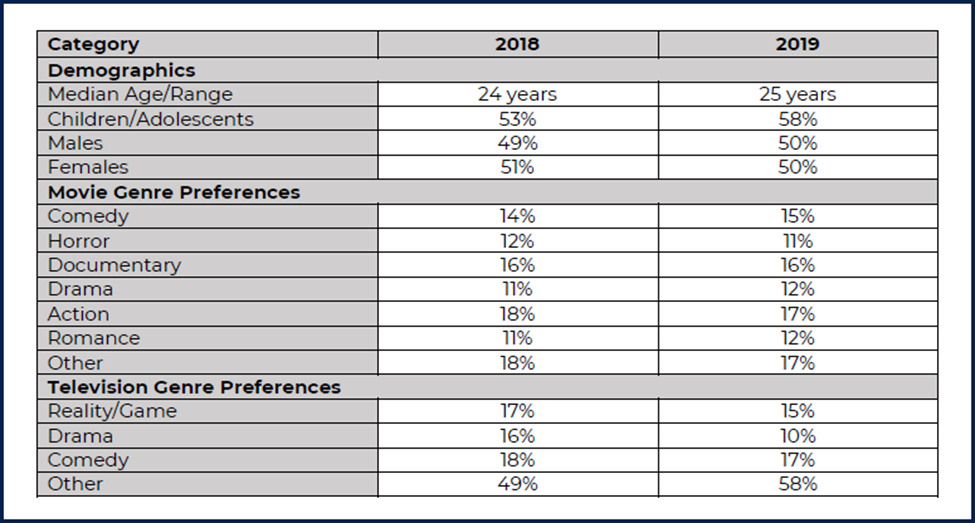
The Problem: If we mark “Demographics” (and “Movie Genre Preferences,” “Television Genre Preferences”) as row headers, they have no data associated with them. If we mark “Demographics” as a column header, then it becomes a column header for everything below it, including the other “major” headers and their “sub-headers.”
Follow the steps below to correctly link the data cells to their appropriate header cells in CL PDF.
- Start by making sure the table is tagged correctly. Use the Table Editor to check and correct the layout and/or tagging of the table before you begin linking.
Important: Be sure to clean up any empty TR tags before you start linking! - Make sure that the Scope for “Demographics,” “Movie Genre Preferences,” and “Television Genre Preferences” is set to Row. (“Median Age/ Range,” and other sub-headers should also have their Scope set to Row. The Scope for “Category,” “2018,” and “2019” should be Column.)
- At the top of the Table Editor, check the checkbox “To assign linked headers.”
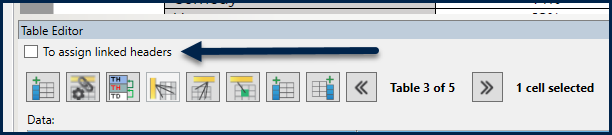
- The Table Editor will then have multiple panels in it. On the left is the panel showing “Linked headers.” Once you begin linking, you’ll find header cells listed there. To the right of the “Linked headers” panel, on top, there will be the “Header” panel and, below it, there’s the “Data” panel.
Pro Tip: It will likely be helpful to resize the Table Editor to give yourself more working space inside it!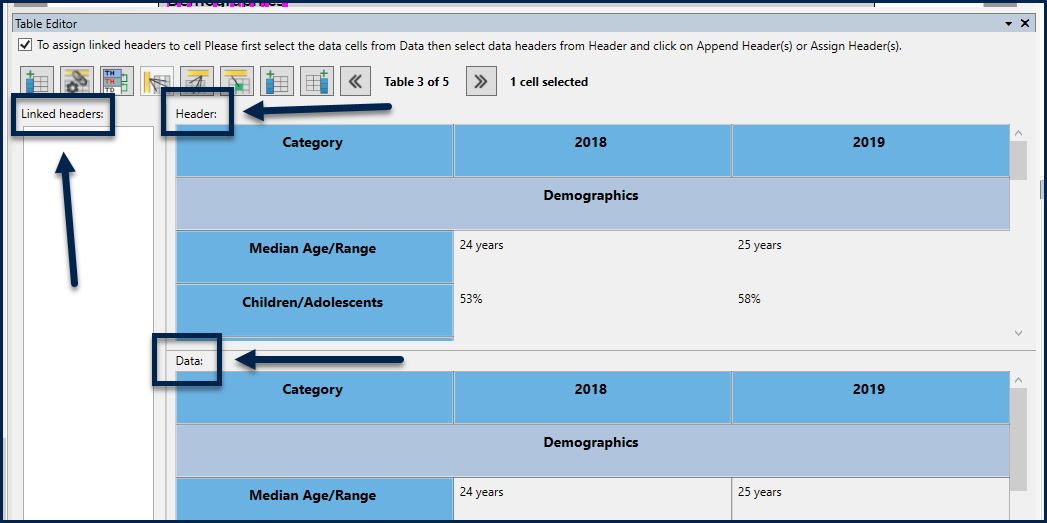
- When you start manually linking, you need to link the data cells to their Row headers, first, and then to their Column headers.
- Starting with the first “set” of data cells, in the lower, Data, panel, select the cell for “24 years.” Then, hold the Shift or Control key and select the “25 years” cell, to the right of “24 years.”
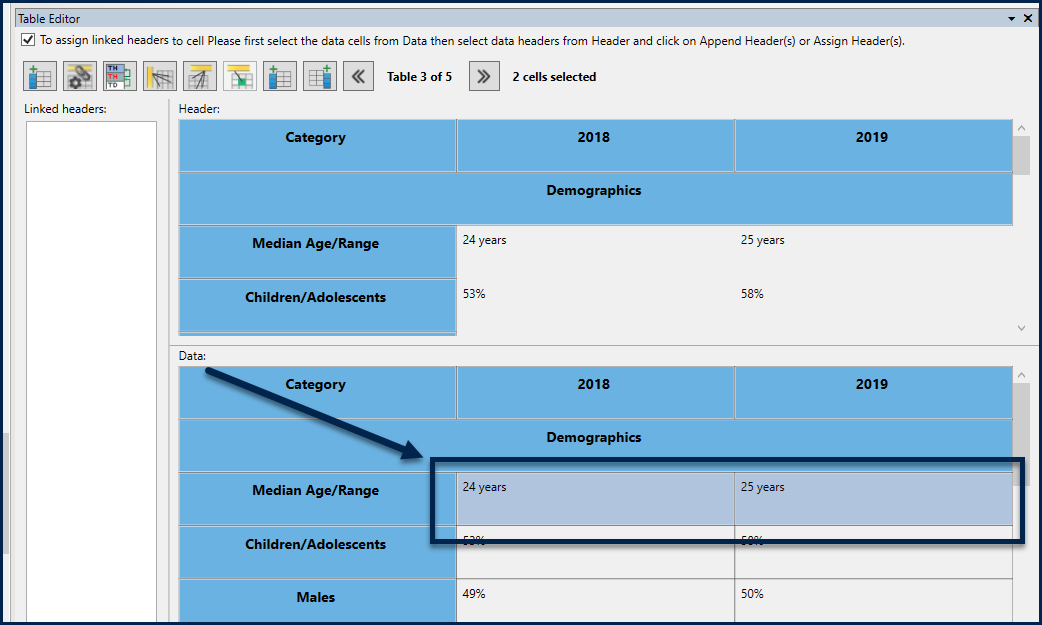
- In the upper, “Headers” panel, we want to link the selected data cells to their Row header, “Median Age/ Range.” To do so, in the upper panel, select “Median Age/ Range.” (You’ll find it, then, listed in the “Linked headers” panel, too. But it hasn’t actually been linked yet!)
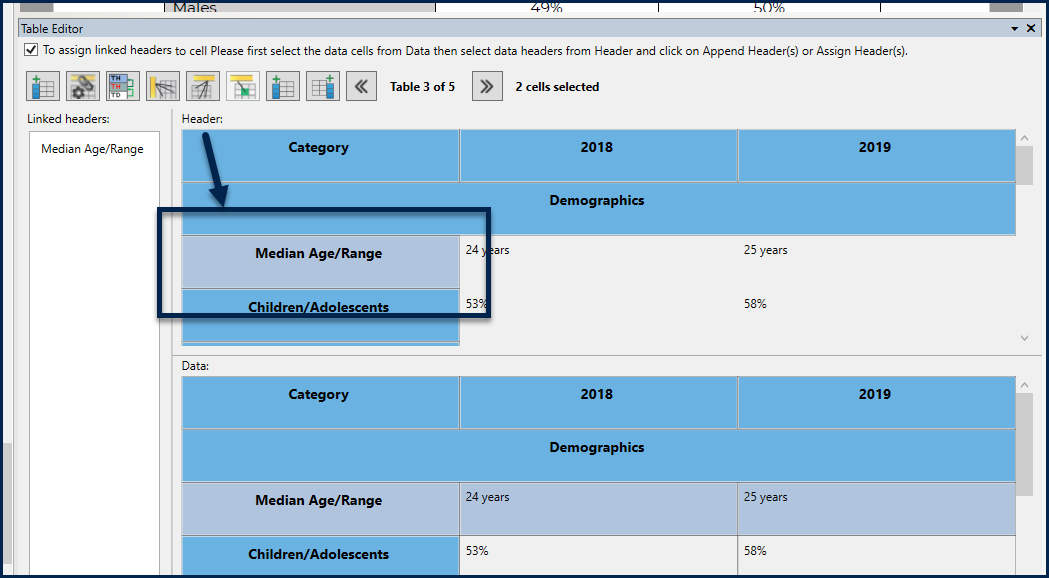
- At the bottom of the “Linked headers” panel, use the “Assign Header(s)” button.
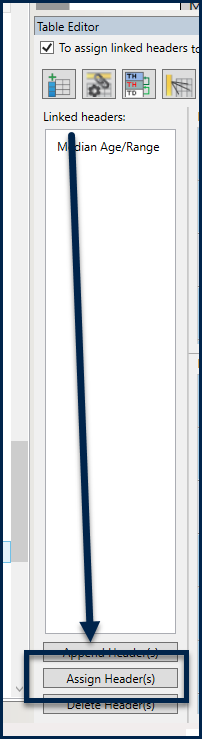
- Repeat the steps with the remaining data cells, linking them to their related sub-headers (“Children/ Adolescents,” “Males,” “Females,” etc.)
- Next, the sub-headers in the first “section” of the table need to be linked to “Demographics.” Select “Median Age/ Range” and then, while holding the Control key, select the other “sub-headers” (“Children/ Adolescents,” “Males,” and “Females”).
- In the “Headers” panel, select “Demographics.”
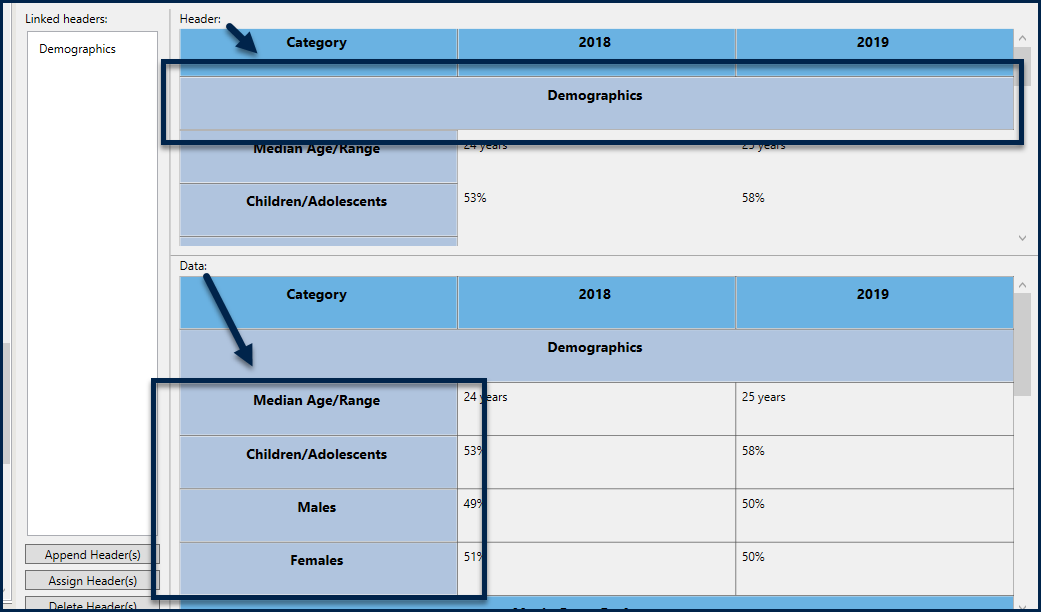
- Use the Assign button to assign those sub-headers to their Row header (Demographics).
- Once the data cells have been assigned to their Row sub-headers (and those sub-headers have been assigned to their Row header), you’ll need to link cells to their column headers.
- Using the Control key to multi-select, in the “Data” panel, select “Demographics” and its four sub-headers (“Median Age/ Range” down to “Females”).
- In the “Header” panel, select the Column header “Category.”
- At the bottom of the “Linked headers” panel, use the “Append Header(s)” button to add the Column header, “Categories” to the list of headers that have already been assigned.
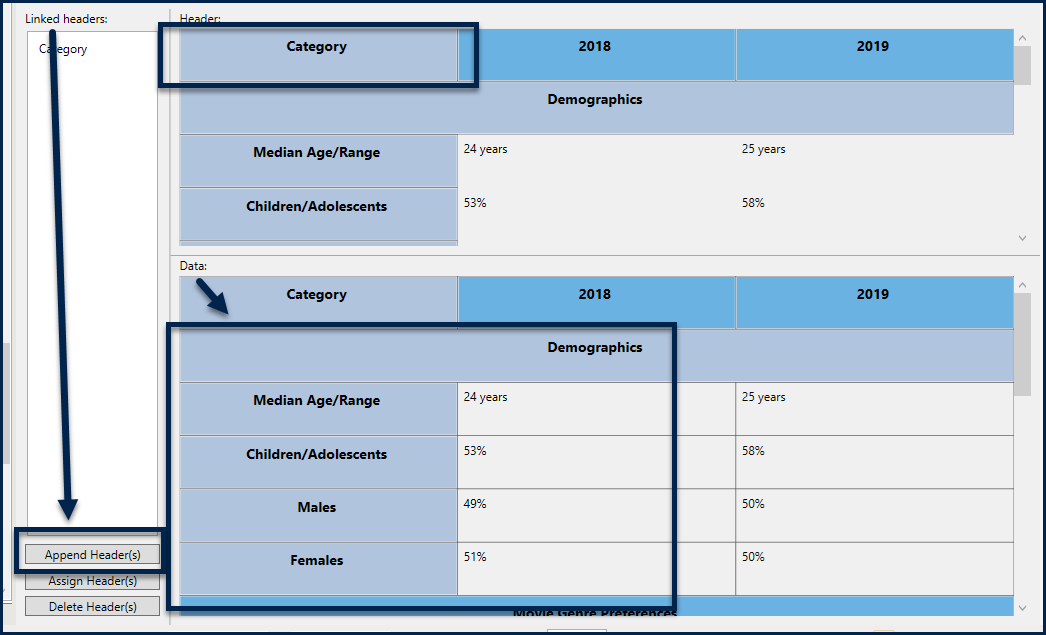 After hitting “Append,” if you select the “Median Age/ Range” cell, for example, you should see that it’s been linked to both “Demographics” and “Category.”
 - Similarly, to link the data cells, in the second column, to their Column header (“2018”), use the Control key to multi-select “24 years,” “53%,” “49%,” and “51%.” Then, in the “Headers” panel, select “2018.” Use the “Append Header(s)” button to add the Column header “2018” to the Row headers that have already been linked.
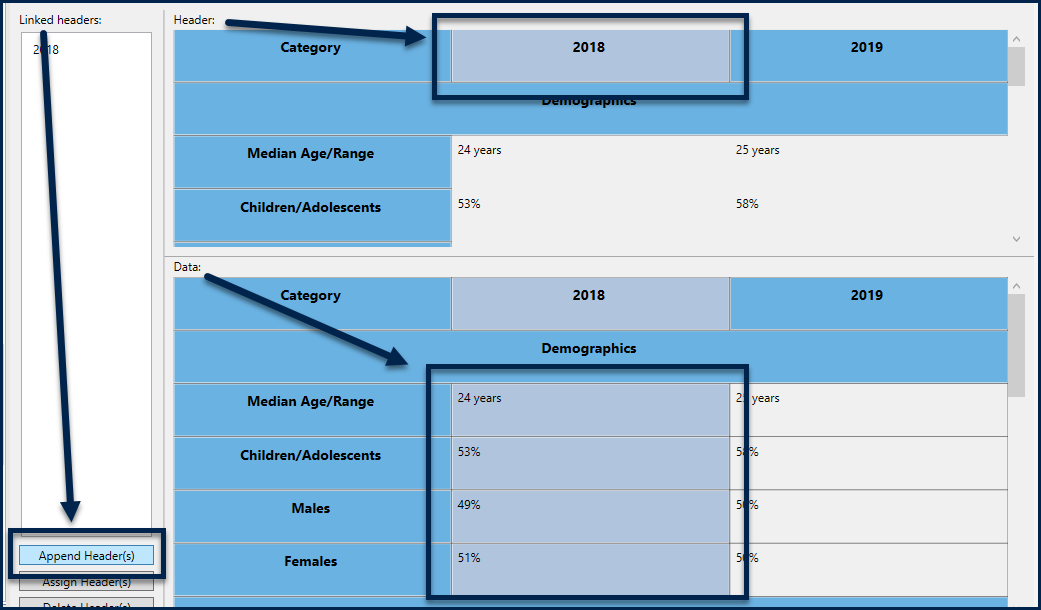
- Repeat the process for the rest of the cells in the table, remembering to link to Row headers first and then to Column headers. Also remember to use “Assign Header(s)” the first time you make a link but to “Append Header(s)” in subsequent linkings.
Didn't find what you're looking for? Navigate to our "TTables" section for more related articles that may help!
Was this article helpful?
That’s Great!
Thank you for your feedback
Sorry! We couldn't be helpful
Thank you for your feedback
Feedback sent
We appreciate your effort and will try to fix the article