Product
Advanced Editor (Web-based CL PDF)
Feature
Lists
Document Element
Lists Spanning Multiple Pages (Merging Split List Tags)
Overview
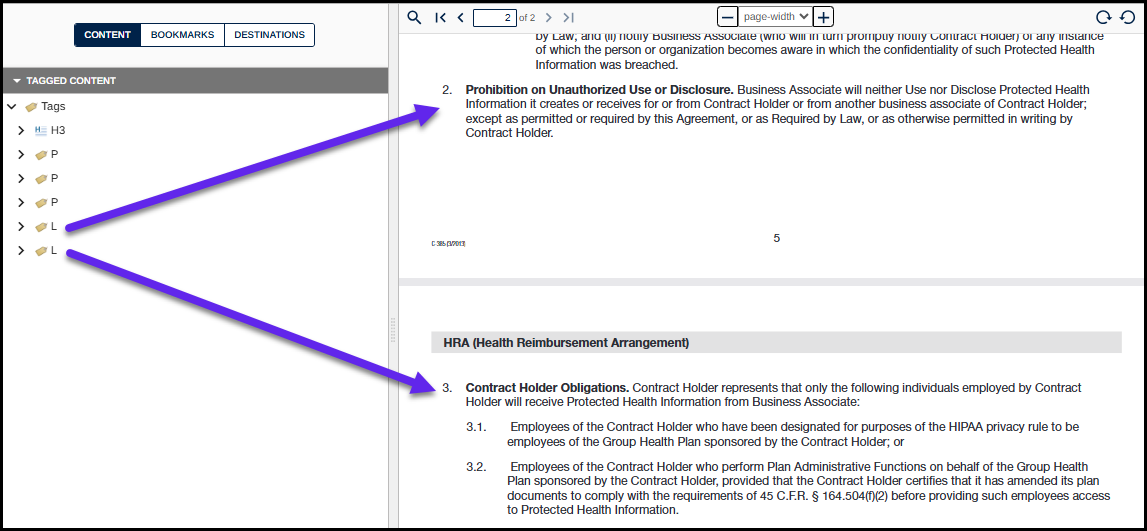
When a list continues across a page break, it's sometimes tagged — or auto-tagged — as two separate List (L) tags, one per page, instead of one continuous list. If the tags are left that way, a screen reader announces two short lists instead of the one list the content actually is. Lists split across pages like this need to be merged into a single List tag so the structure matches the content.
Prerequisites
Do this when:
- A list runs across a page break and the Tags tree shows it as two separate List (L) tags instead of one continuous list.
- Each half of the list — and any nested lists inside it — is already tagged correctly on its own.
Steps to Follow
- Tag each of the lists on the two pages independently. If applicable, be sure that all of the nested lists are tagged (and nested) correctly as well.
Refer to the other articles on Lists as needed. The Articles on Tagging Lists and Tagging Nested Lists may be particularly helpful. - In the Tags tree, select the two List tags in the correct order.
- Right-click (or otherwise open the context menu) on one of the selected List tags and choose “Merge tags” (or use the keyboard shortcut Ctrl+M).
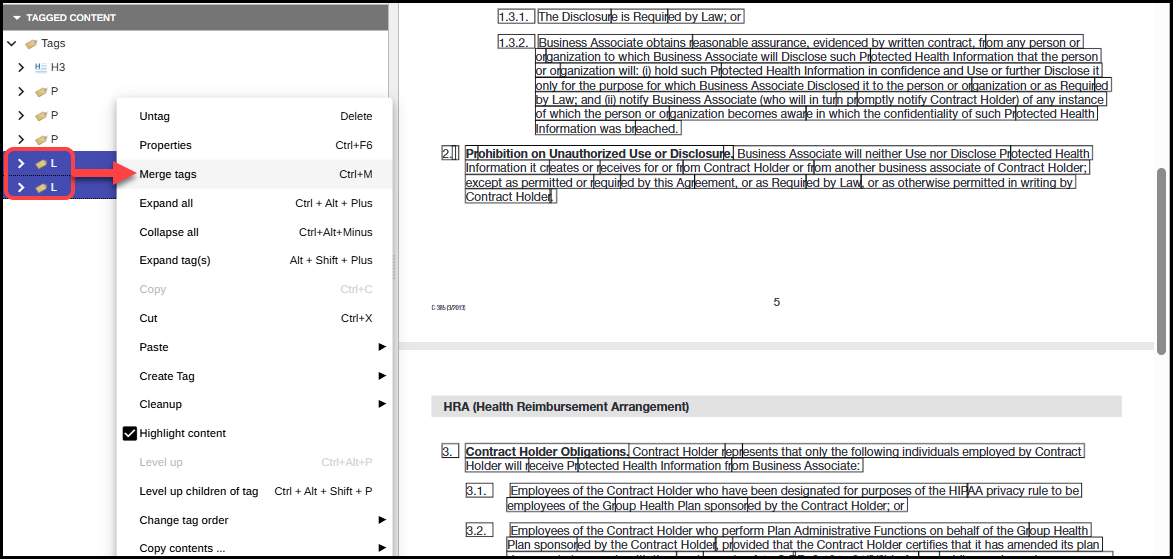
- Open the merged List tag to make sure that the List Item tags are in the correct reading order.
Screenshots
When a list spans multiple pages and is broken into two separate lists, as shown in the screenshot below, they need to be merged so that the content is presented as one list.
Common Problems
- Merging the two List tags before each half — and any nested lists inside it — is fully and correctly tagged on its own. Fix each half first, then merge.
- Selecting the two List tags in the wrong order before merging, which can leave the List Items out of reading order.
- Assuming the merge fixes reading order automatically — always open the merged List tag afterward and check the List Item order.
- Overlooking nested lists inside either half before merging the outer List tags.
Frequently Asked Questions
How do I know a list needs to be merged?
If a list runs across a page break, check the Tags tree — the document may have tagged the two visual portions as two separate List (L) tags instead of one continuous list.
What's the fastest way to merge two List tags?
Select both List tags in the Tags tree, in the correct order, then press Ctrl+M (or right-click and choose "Merge tags").
Does merging fix the reading order automatically?
Not always — after merging, open the List tag and confirm the List Item tags are in the correct reading order.
Does this apply to nested lists too?
Yes. Make sure any nested lists inside either half are tagged and nested correctly before merging the outer List tags.
Was this article helpful?
That’s Great!
Thank you for your feedback
Sorry! We couldn't be helpful
Thank you for your feedback
Feedback sent
We appreciate your effort and will try to fix the article