A nested list is one that has smaller, sub-lists within it. Users should not think of this as an entirely new tagging structure to learn, but rather an addition to the tagging structure for simple lists. All properly tagged lists are comprised of a List tag with one LI (list item) tag inside for each list item shown in the physical view. Within each list item, there is a Lbl (label tag) holding the object (number, letter, bullet point, etc.) and an LBody containing the text of the list item. A nested list is structured in the same way and its List tag (containing all of the parts of the list) is placed inside the LBody holding the “parent” text. This screenshot shows a properly tagged nested list.
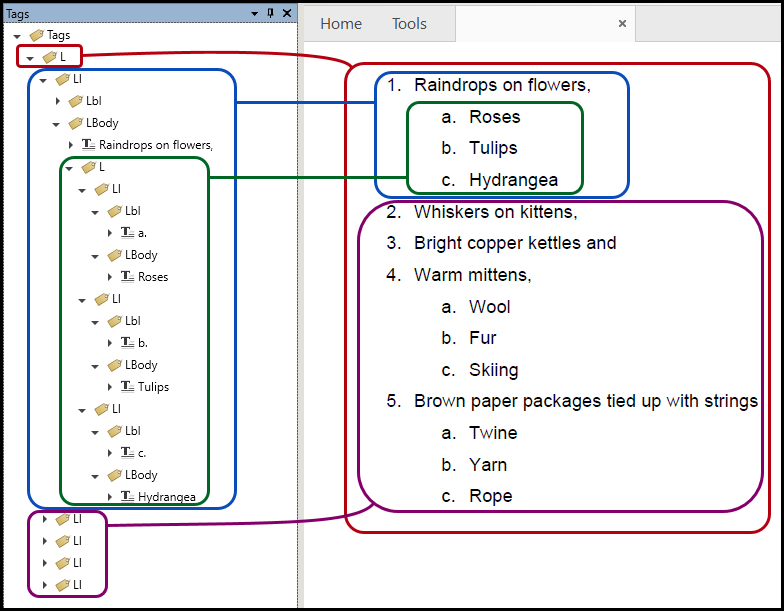
The image above illustrates the following details in creating the nested list:
- The List tag at the top of the Tags tree is the “main” List tag for the entire list and its nested parts. Some refer to this as the "parent list."
- As immediate “children” to this main List tag are five LI (list item) tags. These LIs correspond to the five “main” list items, numbers 1 through 5, in the physical view.
- The first of these List Item tags (and its LBody tag) is open, showing the text element, “Raindrops on flowers.”
- Inside the LBody tag, under the text element containing “Raindrops on flowers,” there is a List tag containing the nested list and its three list items.
- The nested list’s LI tags are also opened to show their label and LBody tags (corresponding to the three types of flowers).
- The nested list’s LBody tags are open to show the text inside each of them as displayed in the physical view of the list.
Tips for Tagging Nested Lists
In general, CommonLook PDF will correctly generate nested lists using the “generate tag from selection” feature. Always remember to open the List tags and make sure that auto-generated lists are structured correctly! If the list needs to be fixed, or if manually tagging a nested list is required, here are some tips and reminders that may be helpful:
- If CommonLook does not accurately tag the entire nested list, try using the auto-generate feature on smaller parts of the list at a time and then assemble the parts to make the complete list. (For example, start with auto-generating the nested list parts and then manually move them inside the “main” list’s LBody tags after those have been created.)
- If auto-generating the list in parts (as per the previous suggestion) it may be easier to build the “main” list’s parts first and then build (or fix) the nested lists and place them inside their appropriate LBody.
- If manually creating the list’s tags, remember the Sticky Button and Individual Parent features!
- Combining functions such as Sticky Button and Individual Parents when creating tags may save time (especially, for example, when creating a lot of Lbl tags).
Didn't find what you're looking for? Navigate to our "Lists" section for more related articles that may help!
Was this article helpful?
That’s Great!
Thank you for your feedback
Sorry! We couldn't be helpful
Thank you for your feedback
Feedback sent
We appreciate your effort and will try to fix the article