File Size/ Page Count limits?
Question: Are there file size limits for the files that I can work on?
Answer: Yes, please refer to the upload limits below.
| If your source is: | File size limit |
|---|---|
| 200 MB, 150 pages (Simplified Editor), no page limit (Advanced Editor) | |
| Word | 20MB, no page limit |
| ePub | 20MB, no page limit |
| NIMAS | 80MB, no page limit |
Simplified Editor and Advanced Editor?
Question: Are the simplified and advanced editors available for all input and output formats in CommonLook Edu?
Answer: No. The simplified editor and advanced editor are not available for all input and output formats.
- The Simplified editor is available when the source document is in a PDF format, for any selected accessible output format.
- The Advanced editor is specific to the accessible PDF format, and it is available when user selects accessible PDF the as output format.
- For source documents in Word, NIMAS, and ePUB formats, the conversion to accessible format is done automatically without the editor.
| Accessible Output Format | ||||
Reflowed Large Print (Accessible) | Braille | Accessible PDF | E-Text | ||
Input | Simplified Editor | Simplified Editor | Simplified editor (PDF/UA) & Advanced editor (WCAG, PDF/UA) | Simplified editor | |
Word | n/a | n/a | n/a | n/a | |
NIMAS | n/a | n/a | n/a | n/a | |
ePUB | n/a | n/a | n/a | n/a | |
Simplified Editor: Clarify Page Elements vs. Full Document Review?
Question: What is the difference between “Clarify Page Elements” and “Full Document Review?”
Answer: Clarify Page Elements takes you through specific pages where the system has detected it needs your input. Some examples may include the following:
- CL Edu wasn’t totally sure about the containers and it wants you to verify they are correct,
- Content wasn’t placed in a container.
During “Clarify Page Elements,” CL Edu will skip pages that it feels confident about, though.
“Full Document Review” is your opportunity to check and make corrections, if needed, on every page in the file. No pages get skipped during this process.
This is also where you check and make “connections” for things like lists or tables that span across multiple pages.
Why might I need to use the Advanced Editor?
There may be certain situations in which you can do the bulk of the PDF remediation work in the Simplified Editor but you might need to also use the Advanced editor. Some examples are below:
- Documents that use languages other than English, French, Spanish, Basque, Bulgarian, Catalan, Croatian, Czech, Danish, Dutch, Estonian, Finnish, German, Hungarian, Italian, Latvian, Lithuanian, Norwegian, Portuguese - Brazilian, Romanian, Russian, Slovak, Slovenian, Swedish, Turkish, Ukrainian, Polish.
- Documents with multiple languages or when the language in a document changes.
- If you need a greater degree of control regarding Reference tags and Notes (footnotes),
- If you need certain tag substructures (such as nesting)
- Figure tags inside LBody tags,
- Caption tags inside Table tags,
- If you need Caption tags,
- If you need a greater degree of control of the reading order for more complex page organization. (For example, if you have a sidebar on one page that you want to be read after a list that begins on the same page but carries over to the next page.)
- If you’re working with very complex data tables that you would redraw in the Table Editor.
Getting “timed out”?
Question: CL Edu timed me out. Can I pick up where I left off?
Answer: Yes! In CL Edu, on the Remediations screen, the project you were working on will be listed as “Pending.” When you’re ready to continue working, find your “Pending” project and select “Continue.”

Save and come back later?
Question: Can I save my work and pick up where I left off later?
Answer: Yes! In the Simplified Editor, choose “Save and Continue Later.”
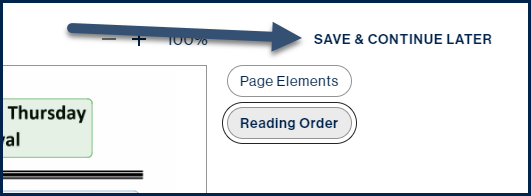
In the Advanced Editor, choose “the Save Icon” and then the exit button.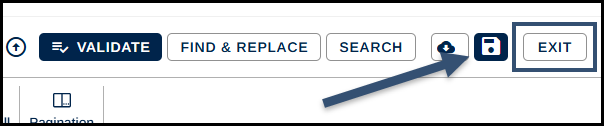 When you’re ready to continue working, in your list of Remediations, find your “Pending” project and select “Continue.”

Doing the same document again?
Question: Wait, I missed something, can I do the same document again?
Answer: Yes! Back in the Remediations screen, click the three dots next to the file (the “hamburger menu”) and choose, “Edit Again.”

You’ll get a dialog box telling you that you’ll need to convert the file again in order to generate a new, accessible file.
Note: This action cannot be undone. In other words, if you choose to rework the file, you will not be able to download the file that was previously available on the Remediations screen. You’ll need to complete the process to download a new, accessible file.
Choose “Yes, Edit Again,” or “Cancel” as needed.
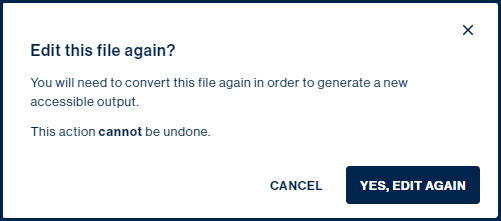
If you choose “Yes, Edit Again,” you’ll be brought back into CL Edu at the “Full Document Review” stage. Continue working as needed.
Was this article helpful?
That’s Great!
Thank you for your feedback
Sorry! We couldn't be helpful
Thank you for your feedback
Feedback sent
We appreciate your effort and will try to fix the article