Product
Advanced Editor (Web-based CL PDF)
Feature
Lists
Document Element
Creating and Tagging Lists (Generate Tag from Selection and Manual Tagging)
Overview
Lists share ordered or unordered information as a logical group. When a list is tagged correctly, assistive technology tells the listener there's a list of a given number of items, then reads each item — and sub-item — in tag order. Correct tagging is the only way to make that information clear and logical to someone who can't see the list visually.
There are two ways to create and tag a list in CommonLook PDF Desktop:
- Generate Tag from Selection — lets CommonLook tag the list components to the best of its ability. Depending on how the document was built, this is often completely accurate and needs no correction, though you should always check the result for mistakes. Think of this as letting CommonLook do the heavy lifting while you clean up anything that needs attention. See "Generating a List from Selection" below.
- Manual tagging — lets you decide how each list element is tagged as you go. This can produce a more accurate result and is sometimes more efficient, though it takes more individual commands. See "Manually Tagging a List" below.
Recommended strategy: use Generate Tag from Selection first, then use manual tagging to correct anything it got wrong.
Prerequisites
Do this when:
- You have a list in the source document (ordered or unordered) that needs to be tagged so assistive technology can announce it correctly.
- Generate Tag from Selection didn't tag a list accurately and it needs manual correction.
- You're building a list's tag structure entirely by hand.
Steps to Follow
Generating a List from Selection (Recommended)
Generating a list from a selection lets CommonLook tag the list components to the best of its ability. Depending on how the document was built, this is often completely accurate and needs no manipulation or correction
- In the physical view of the document, highlight the list.
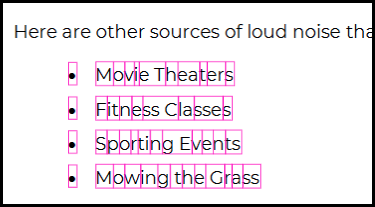
- In the Insert Tag ribbon, on the far right side, in the “Generate from selection” group, click “List.”

- Level up the List tag (L) as needed to move it out to the root level in the Tags tree.
- Open the List tag to make sure that the auto-generate feature tagged the list accurately.
- Verify that the ListNumbering attribute is correct. If needed, select the correct ListNumbering attribute from the dropdown. (This is required for WCAG and PDF/UA.)
Note about ListNumbering: If the bullet has a shape that is not listed, choose “None” for that attribute. “None” can also be used for “Other.”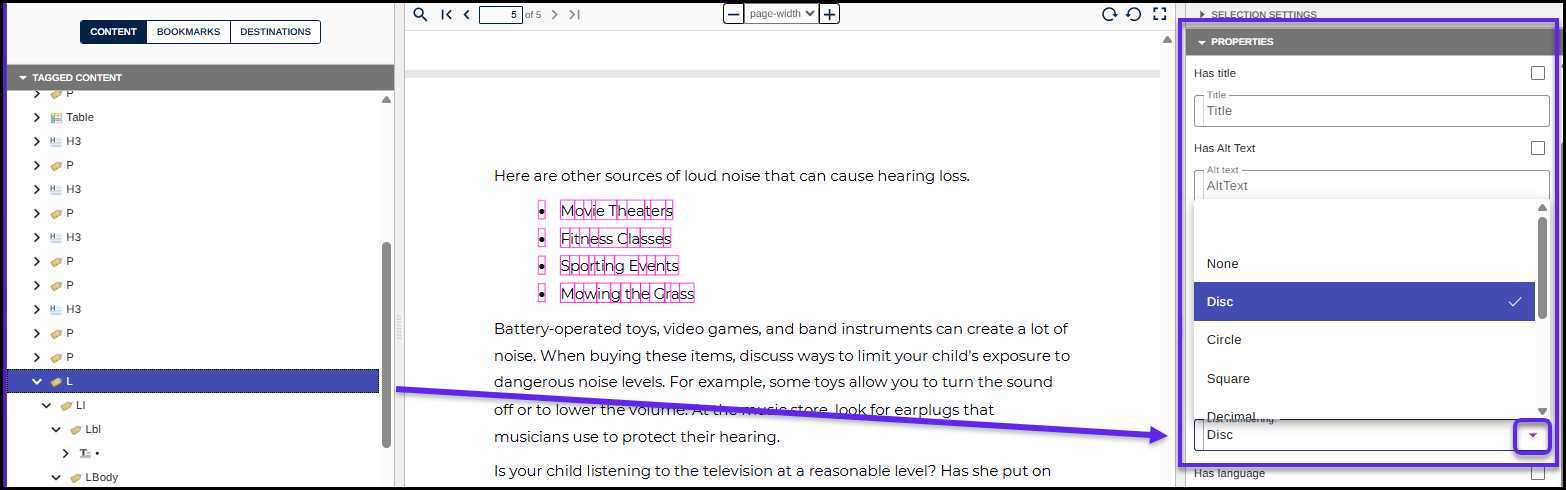
Screenshots
Proper List tagging structure
- Each item in the list is placed in a List Item (LI) tag and nested inside a L (List) tag.
- Inside each List Item tag there should be two additional tags:
- The Label (Lbl) contains the bullet, number, letter, etc. at the beginning of each list item.
- The LBody contains the text of the list item.
Note: The screenshot below shows the list tagged in the Tags tree, the LI tags are expanded, and the Labels and LBodies are shown. In addition, the text for the first list item is highlighted in the physical view and the corresponding Lbl and LBody tags are identified in the Tags tree.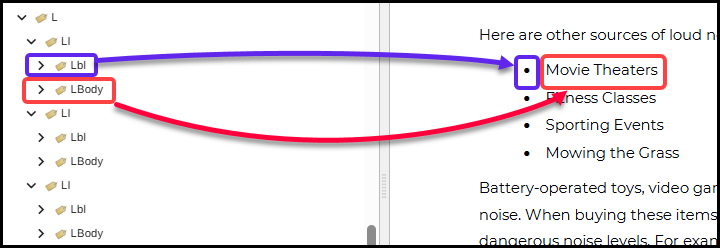
Frequently Asked Questions
What if the auto-generated list isn't tagged correctly?
Open the List tag and check that each item is in its own LI, with a Label (Lbl) and LBody inside. Fix any mismatches manually, or rebuild that portion using the manual method.
What ListNumbering value do I use if the bullet shape isn't in the dropdown?
Choose None — it covers any bullet shape, or "other" marker, that isn't listed.
Do I need to set ListNumbering whether I use auto-generate or manual tagging?
Yes. Whichever method you use, open the List (L) tag's Properties panel and confirm ListNumbering is set correctly — it's required for WCAG and PDF/UA compliance either way.
Was this article helpful?
That’s Great!
Thank you for your feedback
Sorry! We couldn't be helpful
Thank you for your feedback
Feedback sent
We appreciate your effort and will try to fix the article