Lists are used in documents as a way to share logical ordered or non-ordered information. If tagged properly, assistive technology will share with a listener that there is a list of “X” number of items and share each item and sub-item in the tag order. Tagging appropriately is the only way to ensure that the information is shared in a logical and clear way.
There are two ways to create and tag a list:
- Using the "Generate Tag from Selection" Feature: This method allows CommonLook to tag the list components to the best of its ability. Based on how the document was constructed, this can frequently be completely accurate and not require any correction, but always check list construction for mistakes. Think of this option as letting CommonLook doing the heavy lifting, and the user cleans up anything that needs attention. For specific instructions on generating a list from selection, refer to the section of this article titled, "Generating a List from Selection."
- Manually Tagging a List: This method allows the user to decide how specific list elements are tagged as they go. This can result in a more accurate tagging outcome, so it can sometimes be more efficient but will result in more software commands made by the user. For specific instructions on manually tagging a list, refer to the section of this article titled, "Manually Tagging a List."
A recommended strategy is to use the "Generate Tag from Selection" method and then use the manual tagging approach to correct tagging issues if necessary.
Generating a List from Selection (Recommended)
The act of generating a list from a selection allows CommonLook to tag list components to the best of its ability. Based on how the document was constructed, this can frequently be completely accurate and not require any manipulation or corrections, but always check list construction for mistakes. Think of this method of list construction as letting CommonLook do the heavy lifting, and the user cleaning up anything that needs attention. The following steps will articulate how to generate a list using the "generate tag from selection" tool group.
- In the physical view of the document, highlight the list. (The screenshot below shows an example list highlighted in the physical view.)
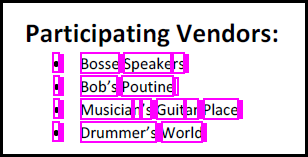
- In the Insert Tag tab, on the far right side, in the “Generate tag from selection” group, click “List.”
Note: When using this method to automatically generate a List, be sure to use the button on the right side of the Insert tag tab as shown in the screen shot below. There is a different List button to the left that will be described further in this article's section titled "Manually Tagging a List."
- Level up (Ctrl+P) the List tag (L) as needed to move it out to the root level in the Tags tree.
- Open the List tag to make sure that the auto-generate feature tagged the list accurately. Verify the following:
- Each item in the list is placed in a List Item (LI) tag.
- Inside each List Item tag there should be two additional tags:
- The Label (Lbl) contains the bullet, number, letter, etc. at the beginning of each list item.
- The LBody contains the text of the list item.
Note: The screenshot below shows the list tagged in the Tags tree, the LI tags are expanded, and the Labels and LBodies are shown. In addition, the text for the first list item is highlighted in the physical view and the corresponding Lbl and LBody tags are identified in the Tags tree.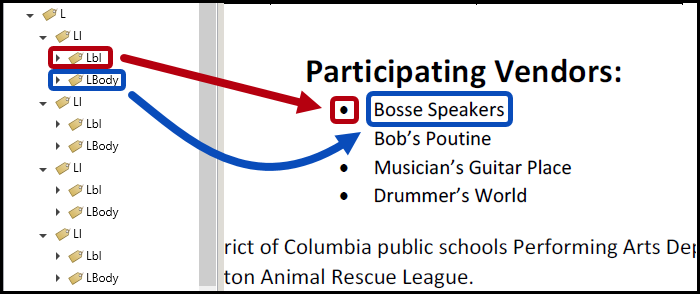
- After verifying that the list parts were all assembled and tagged correctly, click on the L tag in the Tags tree, find the Properties panel on the lower right side of the CommonLook window and scroll down to the bottom of that panel.
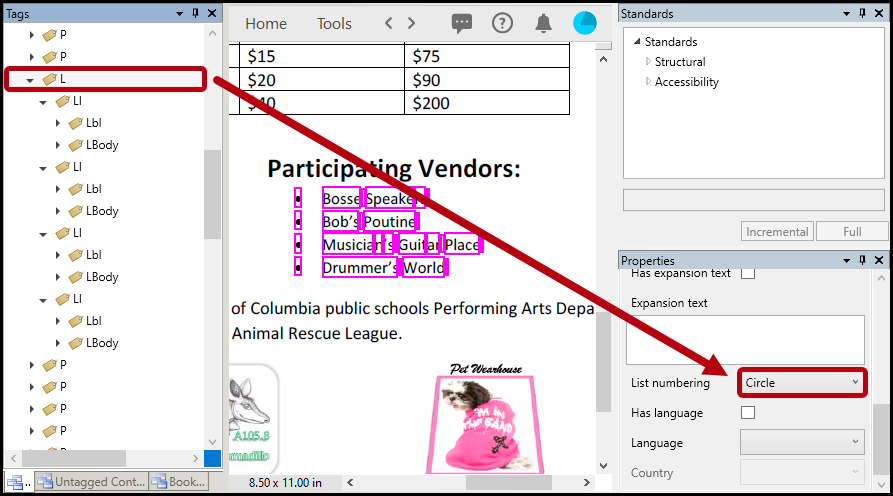
- Verify that the ListNumbering attribute is correct. If needed, select the correct ListNumbering attribute from the dropdown. (This is required for WCAG and PDF/UA.)
Note about ListNumbering: Most of the options for setting the ListNumbering attribute are self-explanatory. However, because not every bullet shape is listed as an option in the dropdown menu, if the bullet has a shape that is not listed, choose “None” for that attribute. “None” can also be used for “Other.”
Manually Tagging a List
If a list does not generate well using the “auto-generate” feature described previously, users may decide to manually build or correct the list. While there are many ways to accomplish this task, one method is described below. In this method, we will build the list from the inside - out. We will begin with tagging the individual list labels (Lbl) and bodies (LBody) and then assemble the elements into list items (LI) and then, finally, putting all of the list items into a List tag. For the screenshots, and steps, we will be building the simple table shown below.
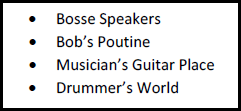
Tip: When manually building a list, using functionality tools such as “Sticky Buttons” and “Individual Parents” can be quite helpful and save time! Refer to the articles on tagging lists using "Individual Parents" and "Sticky Buttons" as needed.
To manually tag the list:
- In the physical view, highlight the first bullet.
- On the Insert tag tab in the ribbon, in the List group, click the Lbl button to create the label tag.

- “Level up” (Ctrl+P) the Lbl tag, pushing it out to the root level.
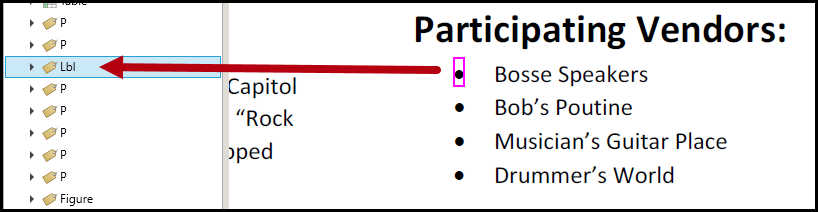
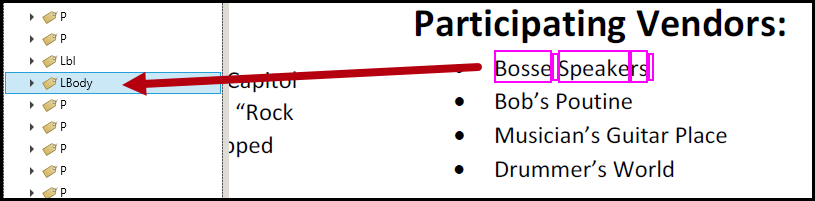
- In the physical view, highlight the text for the first list item.
- On the Insert tag tab in the ribbon, in the List group, click the LBody button to tag the highlighted text.

- “Level up” (Ctrl+P) the LBody tag, pushing it out to the root level.
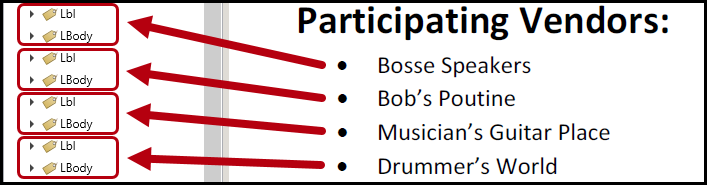
- Repeat Steps 1-6 for each list item, placing each bullet in its own Lbl tag and the text for each list item in its own LBody. The screenshot below shows Lbl and Lbody tags for each of the four list items.
- In the Tags tree, select the first Lbl and the first LBody tags and, in the Insert tag tab, in the List group, click the LI button to create a List Item tag.
Tip: Setting the selection option to “Tags” in the Settings tab and then highlighting the first line in the list will allow the user to select the Lbl and LBody tags themselves.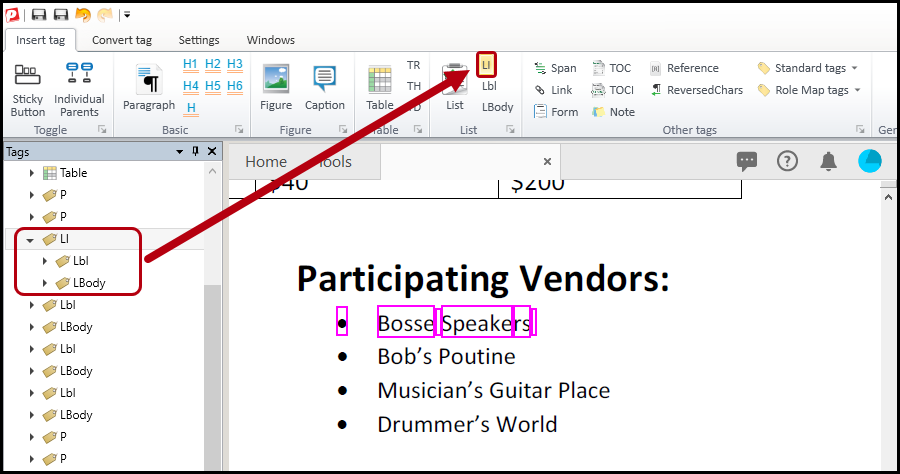
- Repeat Step 8 for the remaining list items. Select the Lbl and LBody tags for each line in the list and put each pair in their own LI tag. The screenshot below shows the four LI tags, each containing one Lbl and one LBody.
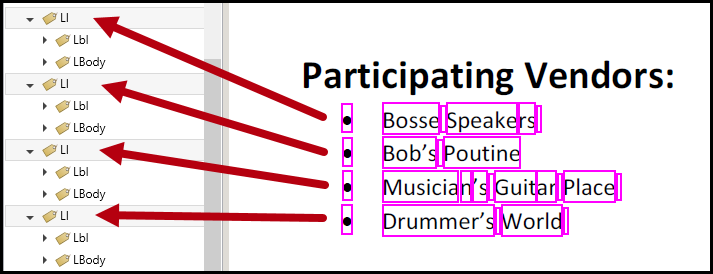
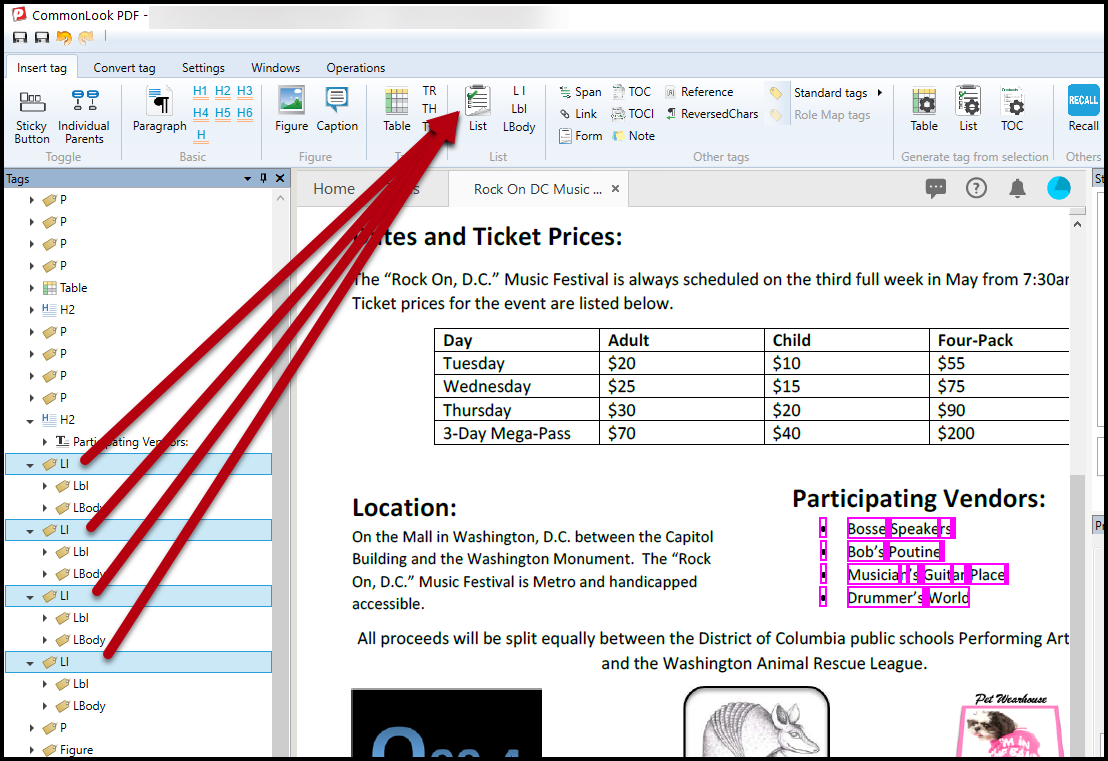
- In the Tags tree, select all of the LI tags (in the proper order) and, in the Insert tag tab in the ribbon, in the List group, click the button to create the List tag.
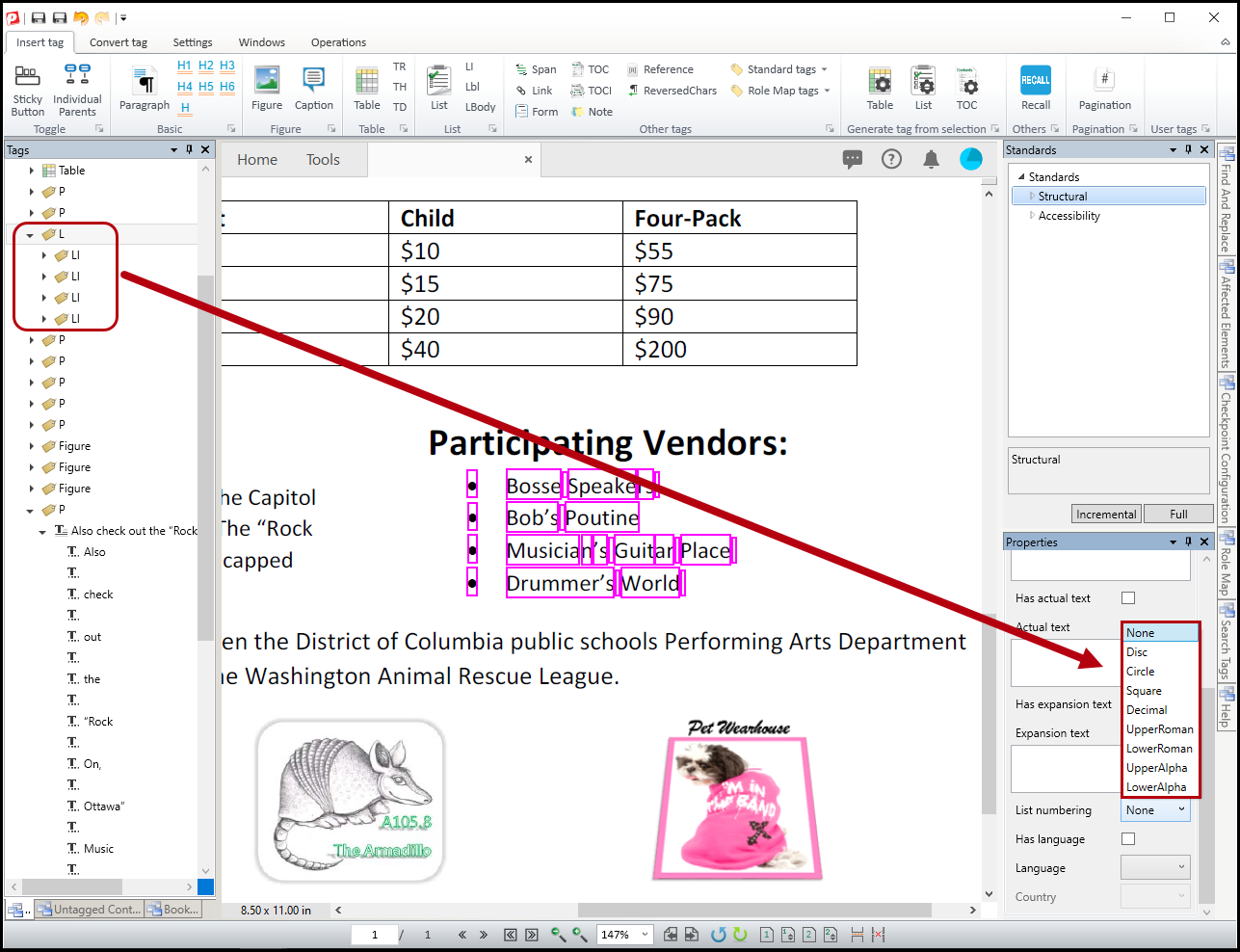
- After the List tag is created, find the Properties panel on the lower right side of the CommonLook window and scroll down to the bottom to locate the ListNumbering attribute. Click the arrow to expand the dropdown menu and select “Circle” (based on the bullets used in the physical view of the list).
 Note about ListNumbering: Most of the options for setting the ListNumbering attribute are self-explanatory. However, because not every bullet shape is listed as an option in the dropdown menu, if the bullet has a shape that is not listed, choose “None” for that attribute. “None” can also be used for “Other.”
Didn't find what you're looking for? Navigate to our "Lists" section for more related articles that may help!
Was this article helpful?
That’s Great!
Thank you for your feedback
Sorry! We couldn't be helpful
Thank you for your feedback
Feedback sent
We appreciate your effort and will try to fix the article