When data tables span multiple pages in a document (or, if a table is formatted so that it spans across columns on a page), in the Simplified Editor, the “parts” need to be “connected” so the table is identified as one table, instead of multiple tables, in the accessible PDF output. When this is the case, there are some general authoring and accessibility rules and best-practices that need to be followed.
- When authoring a document, the column headers, visually, need to repeat at the top of the table when it goes on to the next page. This way, when someone is looking at the document, they don’t have to keep flipping back to “page 1” to remember what the column headers are.
- In an accessible PDF, the repeated column headers (when they appear on “page 2”) should not be tagged. Screen reader, and other assistive technology, users will be able to get the column header information from where they first appear, at the top of table, and they don’t need to be repeated in the tagging on every page. (In contrast, retagging the column headers, as they repeat, can be problematic for some assistive technology users.)
That said, there are essentially two approaches we can take to handling tables that span across page breaks.
Note: When connecting tables, they must have the same number of columns.
Connecting Tables
Method 1: Mark each table independently
This first method involves marking the table on each page as a separate table, in the Page Elements, and then making the “connection” in Connections (during the Full Document Review).
Using the Page Elements functionality, mark the tables, as they appear on each page, as independent tables. So, for example, mark the “Header Column(s)” and “Header Row(s)” as needed.
(Note: Do any additional “table touch-up” that may be required. Depending on how the system marked the content, you may need to do this in the “Clarify Page Elements” step, or you may need to do it in the “Full Document Review” step.
Tip: Refer to the Quick Start Guide, or the other articles related to Tables, for more information about correcting your tables.)- When in “Full Document Review,” click the “Connections” button to be able to connect the tables so that, in the resulting accessible file, it’s constructed as one, continuous table.
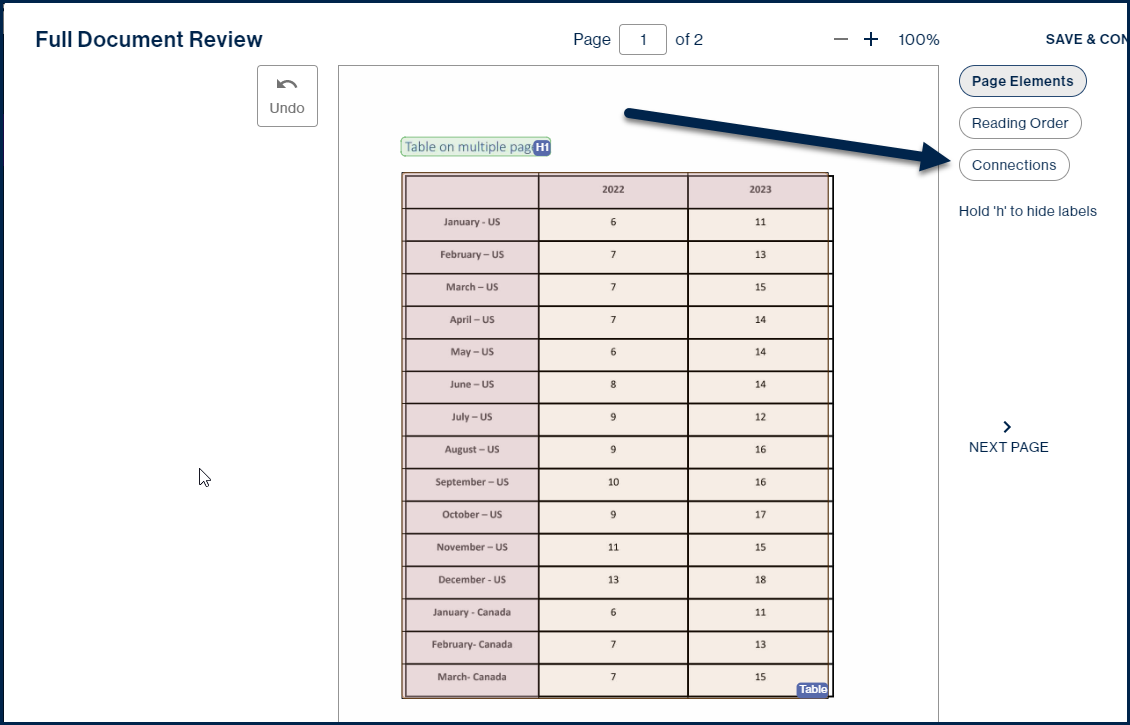
- On the first page of the table, check the box at the lower-right corner to select it as the first part of the connection.
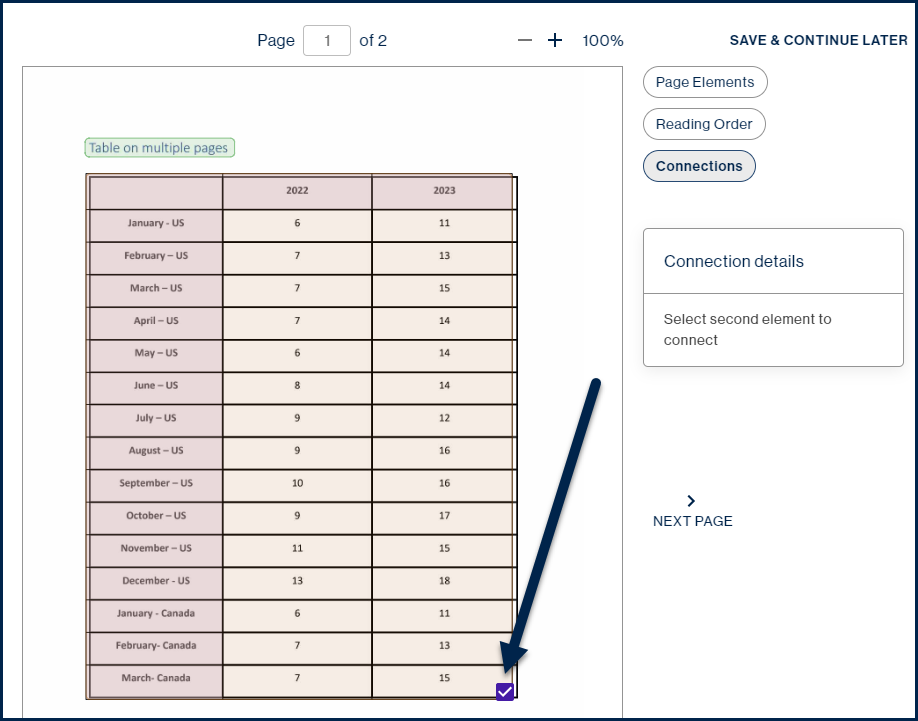
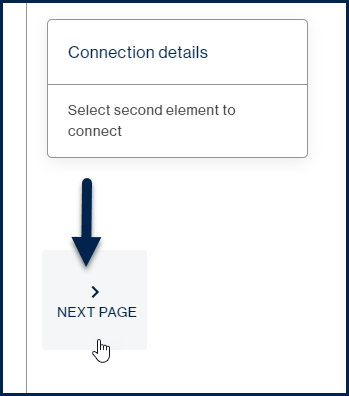
- Use the “Next Page” button, below the “Connection details” dialog, to move to the next page, where the table continues.
- On the next page, check the checkbox at the lower-right corner of the table.
- In “Connection details” choose the “Tables” button to connect the two tables.
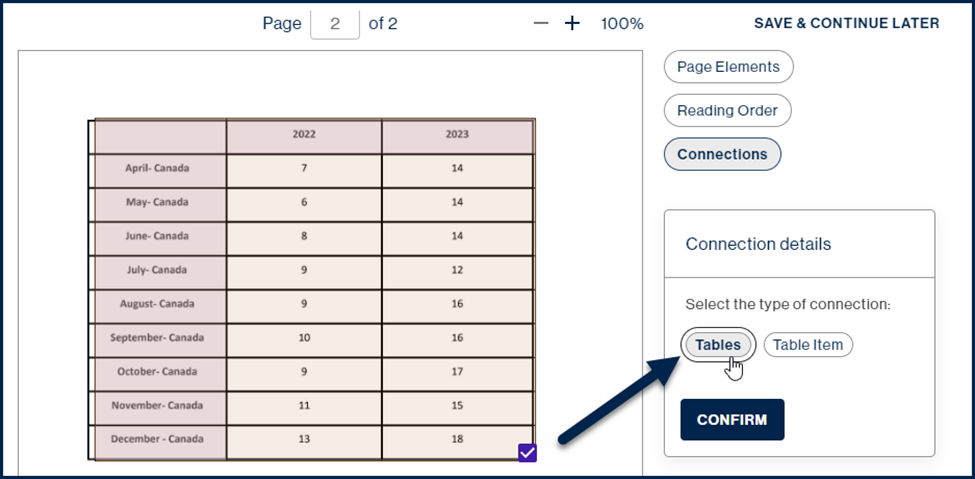
- Hit the “Confirm” button to make the connection.
- While still on page 2, in the page view, after making the connection, you’ll see a blue arrow pointing to the upper-left corner of the table, indicating that it’s connected to the table that starts on the previous page.
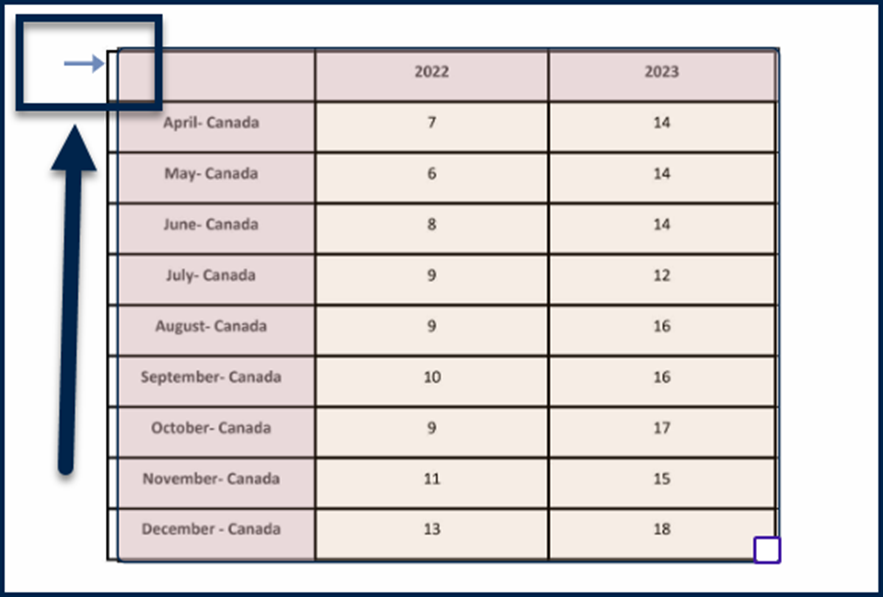
Important Note: If you are using this method, it is critical that you mark the “Header Row(s)” for the second page of the table. If you don’t mark the appropriate “Header Row(s),” those cells will be treated as data cells and, in the PDF, for example, they will be tagged in the table.
Method 2: Resizing the table on the “second” page
Another approach to handling a table that spans multiple pages is to resize the table, on the second (and subsequent) page(s) so it does not include the “Header Row(s).”
The screenshot below shows a table as it appears on the second page of the document. In the Simplified Editor, it has been resized so that the column headers (the cells in the top row) are not included in the Table container.
Important Note: If you resize the table, you’ll need to be sure to mark the “Header Column(s)” as needed.
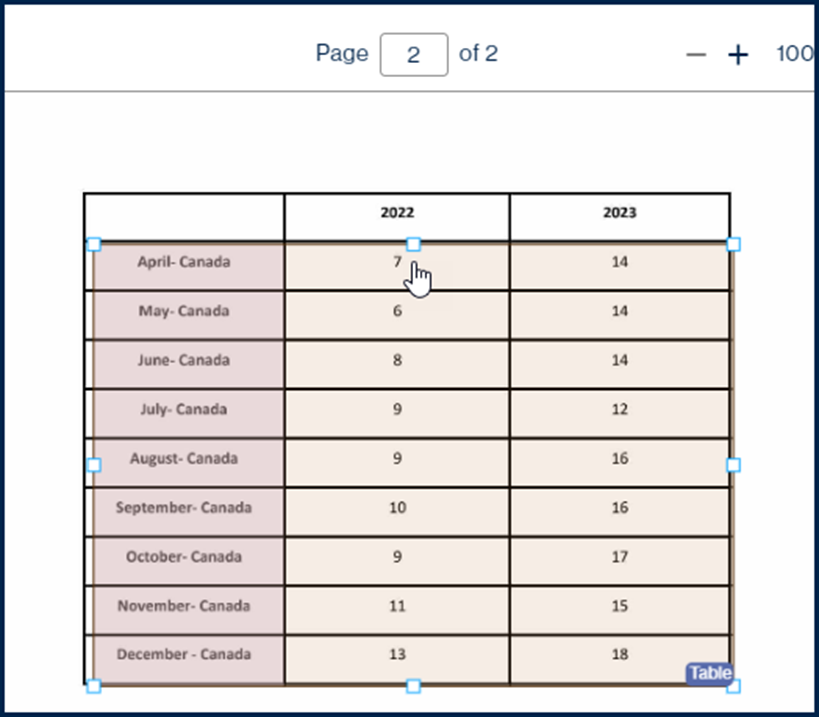
After resizing the Table container, you’ll follow the same steps, as outlined above, to connect the two Table containers so that, in the resulting accessible PDF, the table is handled as one, continuous table.
When a row crosses the page break (Table Item connections)
The screenshot below shows a table, in a PDF, that spans across the page break. In this instance, a row in the table is split by the page break and the column headers repeat, visually, on the second page of the table.
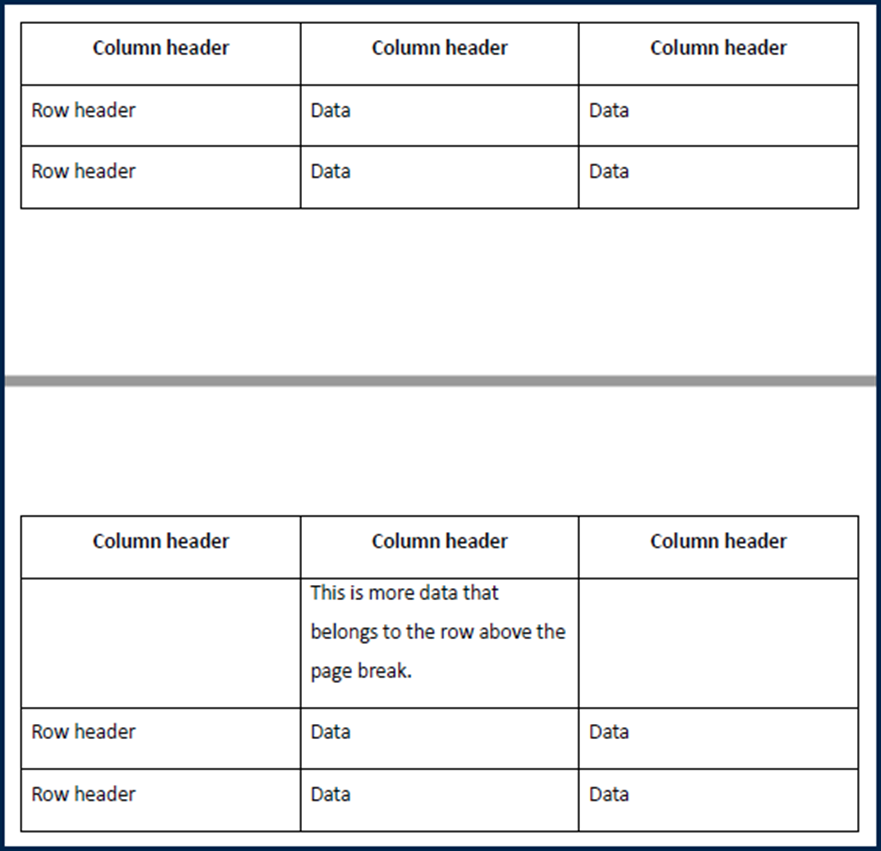
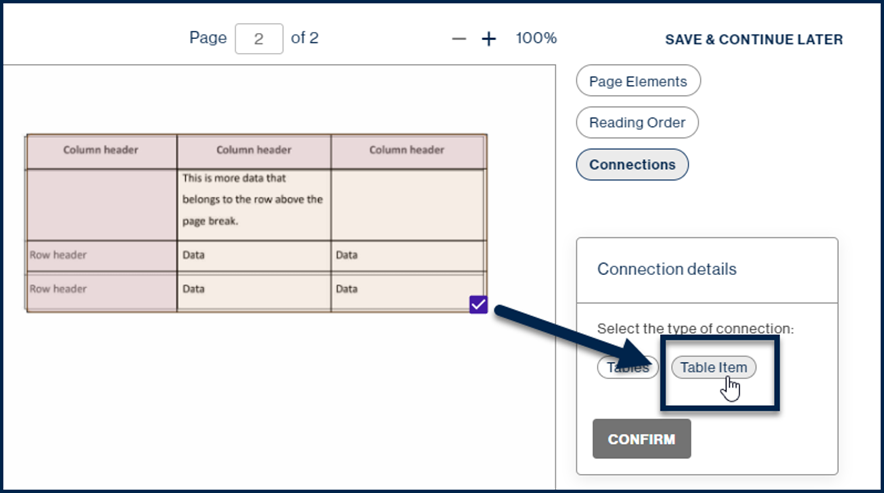
You’ll need to make sure the tables are connected, using one of the two methods described in the section above. However, because a row in the table continues after the page break, when making the connection, choose “Table Item” instead of “Tables.”
Important Note: If data cells span over the page break, make sure the row containing those cells is not marked as a header row.
Didn't find what you're looking for? Navigate to our "Tables" section for more related articles that may help!
Was this article helpful?
That’s Great!
Thank you for your feedback
Sorry! We couldn't be helpful
Thank you for your feedback
Feedback sent
We appreciate your effort and will try to fix the article