When a data table spans multiple slides in PowerPoint, in the PDF it will be tagged as multiple tables (one per slide). However, because the intent is that it be read as one table, this is improper tagging and the tables will need to be merged.
Important: When this happens, it's likely that the title of the slide will be tagged, as well, between the two tables. This title (probably in an H2 tag) will need to be artifacted.
Merging Tables in Acrobat
Follow the steps below in Adobe Acrobat after the PDF has been created. (Note that it's much easier to merge tables in CommonLook PDF!)
- Open the PDF in Adobe Acrobat.
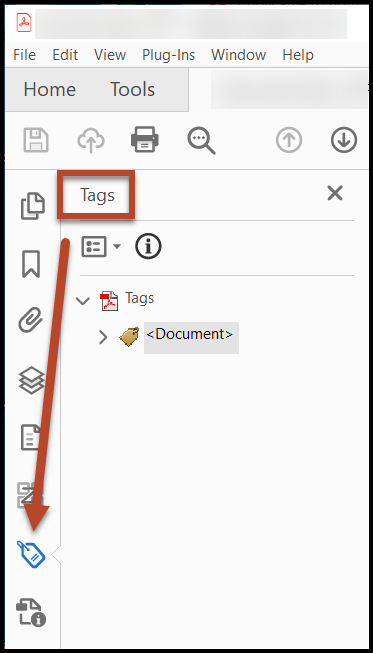
- Navigate to the Tags pane and open it. Either, click the Tag icon or, in the toolbar choose "View" then "Show/Hide" then "Navigation Panes" and then "Tags."
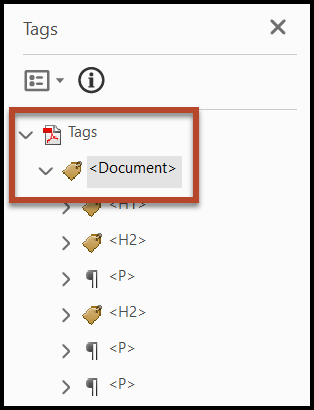
- Use the caret to open the Tags root ("Tags") and also the "Document" tag. (Or, navigate to the Tags root and use the right-arrow on your keyboard to open it. Then, do the same with the Document tag.
- Find the Table tags in the Tags tree that need to be merged. (Either, select the tags in the Tags tree and Acrobat will highlight that content on the page, OR highlight some of the table's text in the physical view and then, in the Options menu in the Acrobat Tags, choose "Find Tag from Selection.")
- Expand both Table tags in the same way that you opened the Tags root and the Document tag.
- On the second page of the table, artifact the Column headers.
Important: After artifacting the column headers, be sure to delete the empty Table Row (TR) tags! - Select all of the TR (Table Row) tags from the second table and drag them into the first Table tag, placing them below the last TR tag.
Caution! Be careful to drag and drop accurately as Acrobat can be very unforgiving!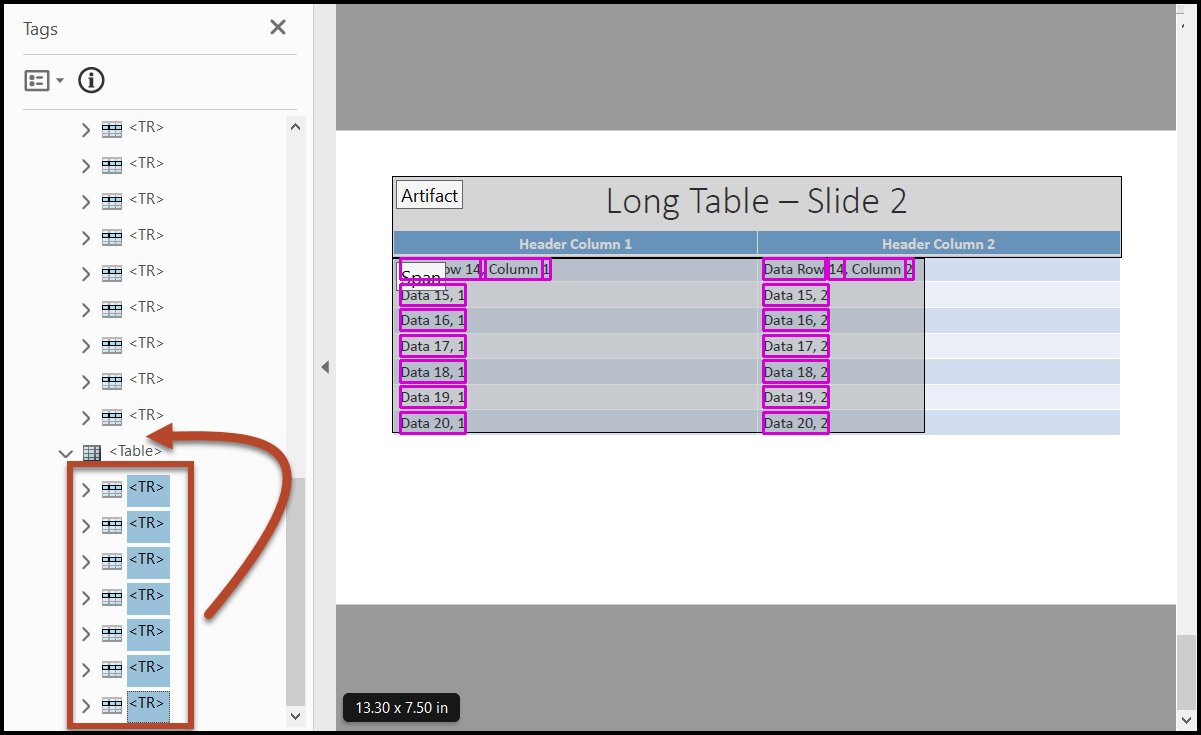
- Delete the empty Table tag that's left behind.
Note: The steps as outlined above deal with merging a fairly simple table that spans multiple pages. If there are row header cells that span multiple pages or other elements that increase the complexity of the task, consider using Commonlook PDF to remediate the document.
Was this article helpful?
That’s Great!
Thank you for your feedback
Sorry! We couldn't be helpful
Thank you for your feedback
Feedback sent
We appreciate your effort and will try to fix the article