When manually tagging a list using the steps described in the, "Manually Tagging a List," section of the "Tagging Lists" article, a more efficient way to tag the bullets could have been to use the “Individual Parents” functionality. Using this tool will allow the user to select all of a given selection type and insert the appropriate tags all at once. In this example, a user can select all of the bullet points at once, tag them as individual Label (Lbl) tags, and move on! To do so, follow these steps:
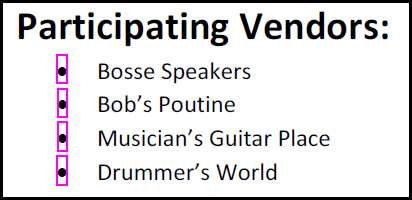
- In the physical view, draw a vertical box to highlight all of the bullets at once.
- In the Insert tag tab, click the button for “Individual Parents” (the second button from the left) and then click the Lbl button to create the label tags. Because each bullet is in its own text run, each bullet will be placed in its own Lbl tag. In addition to being visible in the Tags tree, all of the Lbl tags will be listed in the “Affected Elements” panel to the right of the physical view.
Note: If a user performed this function without slecting the "Individual Parents" button, all of the bullet points would be placed into one Lbl tag.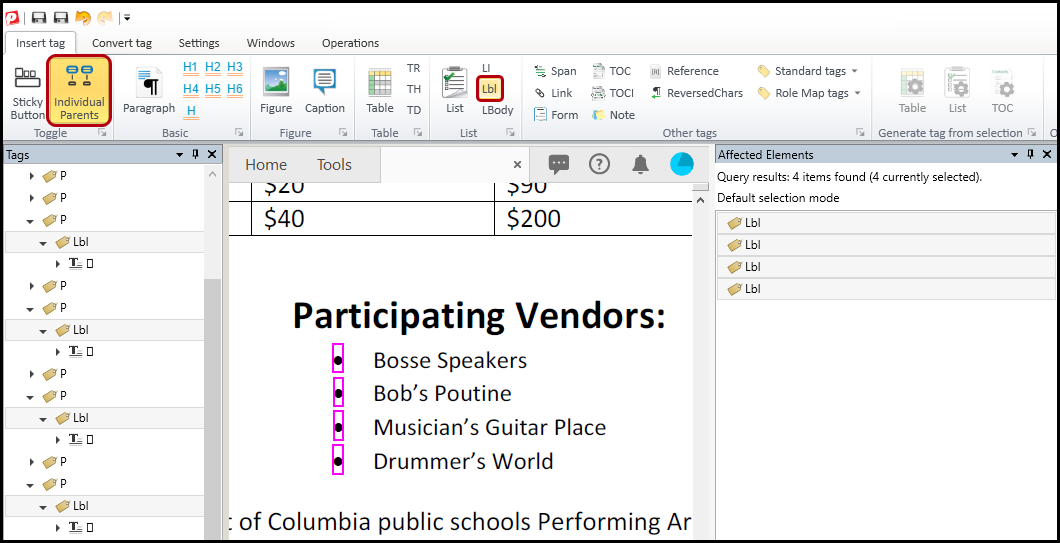
- “Level up” (Ctrl+P) the newly created Lbl tags, pushing them to the root level.
- Run a cleanup to get rid of any empty tags (if necessary).
- Click the “Individual Parents” button again to turn that feature off.
- Continue with the rest of the steps for tagging the list.
Didn't find what you're looking for? Navigate to our "Lists" section for more related articles that may help!
Was this article helpful?
That’s Great!
Thank you for your feedback
Sorry! We couldn't be helpful
Thank you for your feedback
Feedback sent
We appreciate your effort and will try to fix the article