When tagging lists, if you have an ordered list, you'll need to set the ListNumbering value (or ListNumbering attribute). ListNumbering is required for ordered lists and is recommended for unordered lists, too. Oftentimes, CL PDF will assign the ListNumbering for you automatically, if you are using the "Generate List from Selection" functionality. Sometimes, however, during the verification phase, you'll be asked to either assign or verify the ListNumbering.
The ListNumbering attribute is assigned to the List (L) tag in the Properties.
If you have nested lists, you would need to assign and/or verify the ListNumbering attribute for the nested lists, too.
Here is a brief explanation of the ListNumbering options:
- Disc - when you have a bulleted list and the bullets are solid circles
- Circle - when you have a bulleted list and the bullets are open circles
- Square - when you have a bulleted list and the bullets are squares
- None - for bulleted lists when the bullets don't match any of the previous descriptions OR for an ordered list that doesn't match any of the following descriptions
- Decimal - ordered lists numbered with Arabic numerals
- Upper (or lower) Roman - an ordered list that uses upper case (or lower case) Roman numerals
- Upper (or lower) Alpha - an ordered list that uses upper case (or lower case) letters
The screenshot below shows a List tag selected in the Tags tree and the ListNumbering options displayed in the Properties panel. 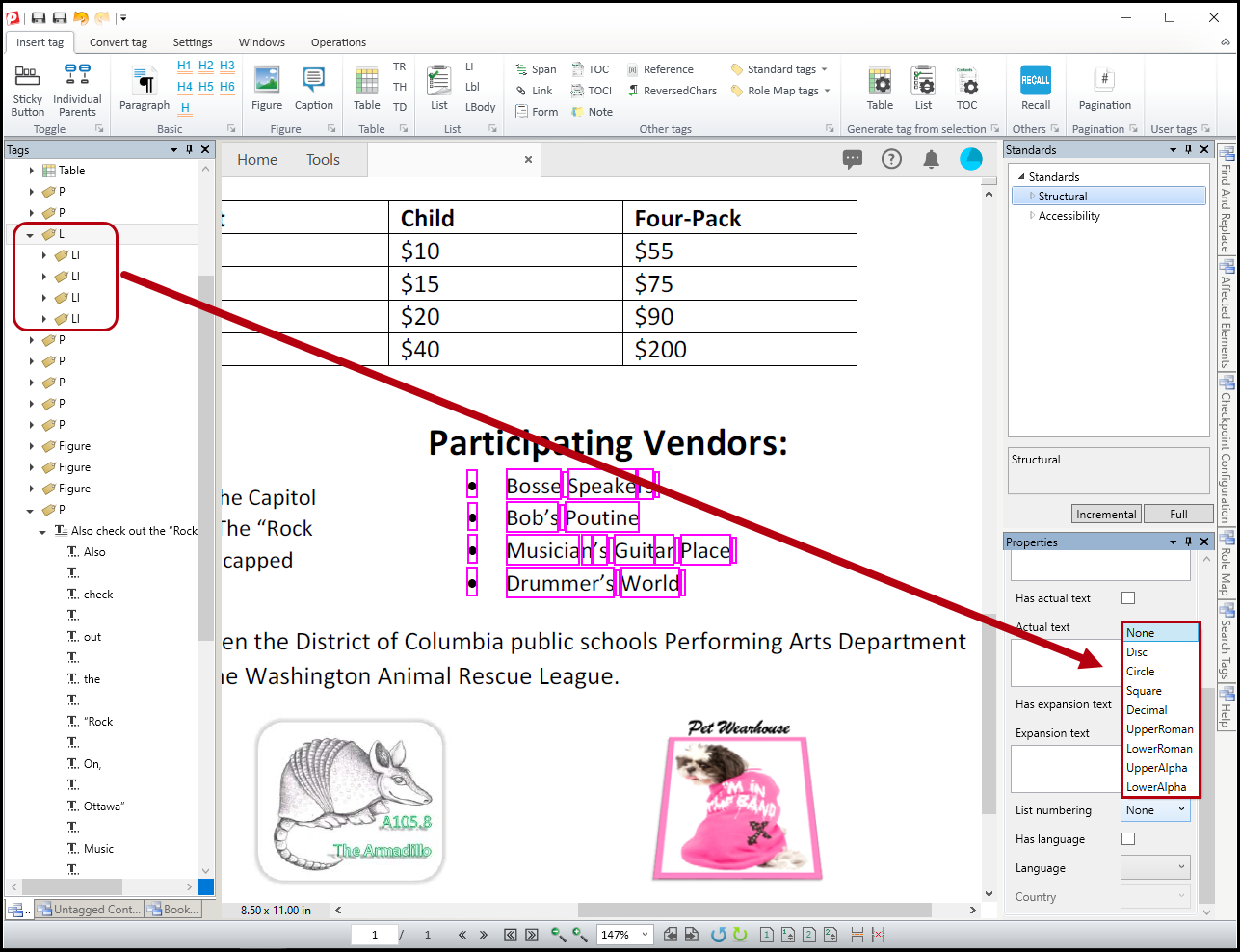
Was this article helpful?
That’s Great!
Thank you for your feedback
Sorry! We couldn't be helpful
Thank you for your feedback
Feedback sent
We appreciate your effort and will try to fix the article