Creating Lists
Creating simple lists in PowerPoint is fairly easy and straightforward. When inserting a new slide, many slide layouts are set to automatically create lists as you type.
If a new list needs to be created manually, follow these steps:
- Determine the type of list needed (Unordered or Ordered) and choose the appropriate list tool in the Paragraph group on the Home tab in the ribbon.
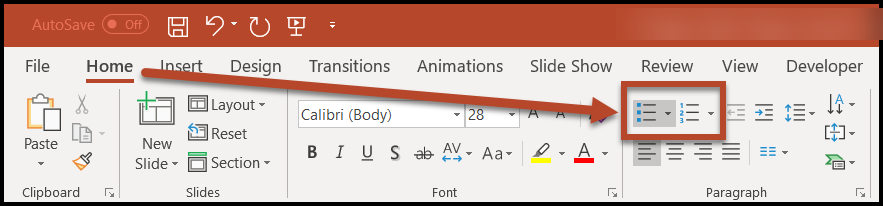
- Type the text for the first list item.
- Hit Enter. The cursor will move to the next line and a new bullet or number (letter, etc.) will be created at the beginning of the next list item.
- Continue typing the list, hitting Enter at the end of each list item.
Caution! Do not use the Enter and Backspace keys to create space on the slide between list items as this can lead to a variety of list tagging issues in the PDF. Refer to the article on Spacing in PowerPoint for more information.
Nested (Sub) Lists
- Create a list using the tools in the ribbon (as outlined above).
- Type the text and hit Enter at the end of the list item.
- To start the (indented) nested list, hit the Tab key.
- As an example, the tab key was pressed to insert this nested list item.
- Pressing the Enter key after a nested list item creates the second item in the nested list (this line).
- When done creating the nested list, hit Enter, then hold down the Shift key and press the Tab key. This will move the list item back out one level. (For example, after typing line “2” in the nested list above this list item, Shift and Tab were used to move out one level to this fourth list item.
- Continue typing the remaining list items.
Multi-Column Lists
Refer to the article on formatting content into columns in PowerPoint for more information.
Multi-Slide Lists
Because each PowerPoint slide becomes its own page in the PDF, a list that spans multiple slides will be tagged in the PDF as separate lists. The tags need to be merged so that a screen reader will read both slides (or pages) as one long list.
After the PDF has been created, follow these steps in Adobe Acrobat to merge long lists:
- Open the Tags pane in Acrobat. Either, click the Tag icon or, in the toolbar choose "View" then "Show/Hide" then "Navigation Panes" and then "Tags."
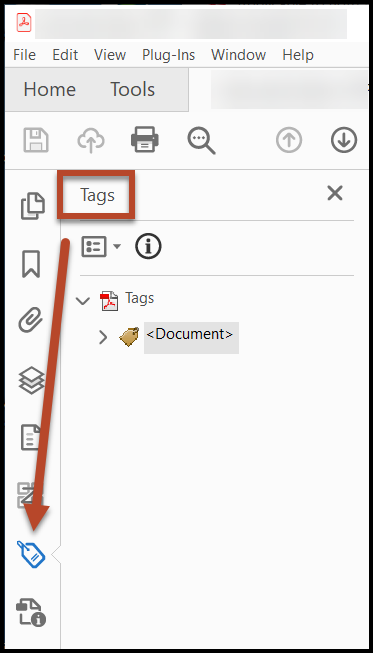
- Use the caret to open the Tags root ("Tags") and also the "Document" tag. (Or, navigate to the Tags root and use the right-arrow on your keyboard to open it. Then, do the same with the Document tag.
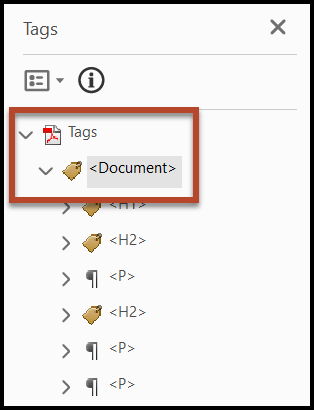
- In the PDF, locate the lists that need to be merged. (Selecting a tag in the Tags tree will highlight that tag’s content in the physical view of the document.) Note: It's likely that, between the two <L> (List) tags in the Tags tree, there will be a heading tag corresponding to the title of the "second" slide in your two-page list. This will probably have to be artifacted and removed from the Tags tree.
- Open the two List tags that need to be merged (similar to how you opened the Tags root and Document tag).
- Select all of the <LI> (List Item) tags in the second list (using Shift to multi-select).
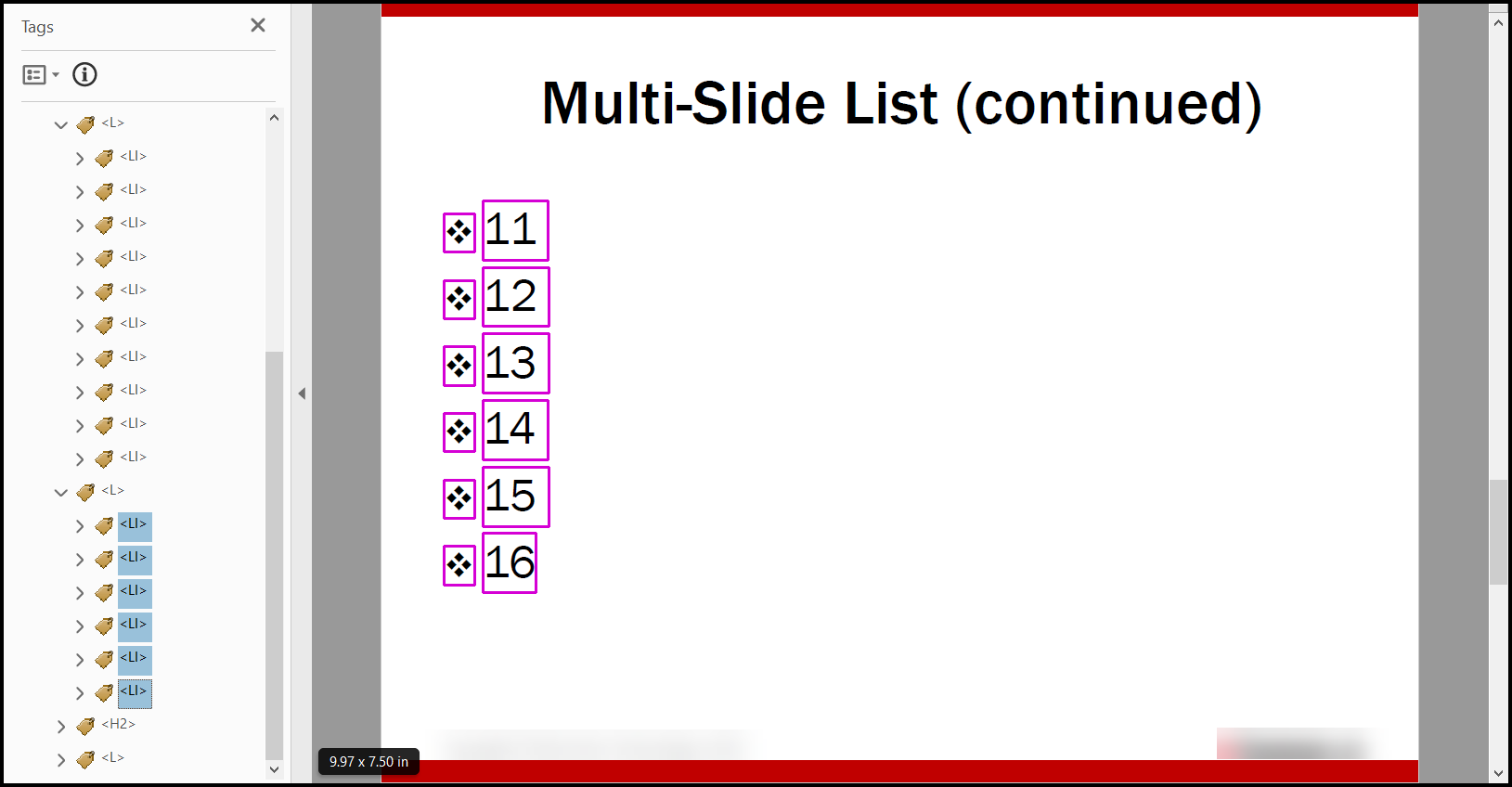
- Drag them into the first list, placing them after the last <LI> tag.
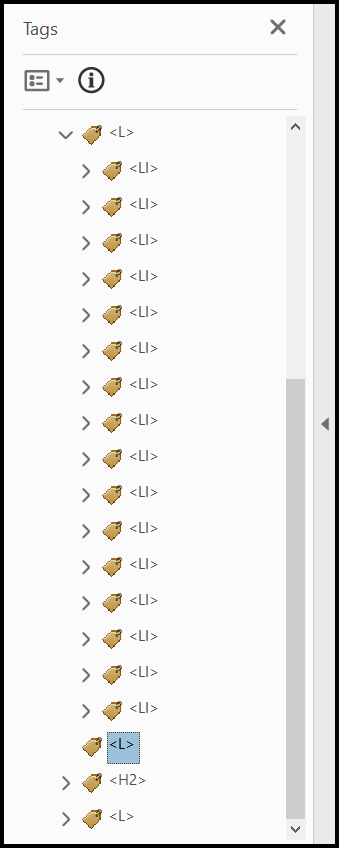
- Delete the empty <L> tag that's left behind.
Note: Merging two lists in CommonLook PDF is much easier! It's as simple as selecting the two <L> tags and using the "Merge Tags" functionality!
Was this article helpful?
That’s Great!
Thank you for your feedback
Sorry! We couldn't be helpful
Thank you for your feedback
Feedback sent
We appreciate your effort and will try to fix the article