When a list spans multiple pages and is broken into two separate lists, as shown in the screenshot below, they need to be merged so that the content is presented as one list.
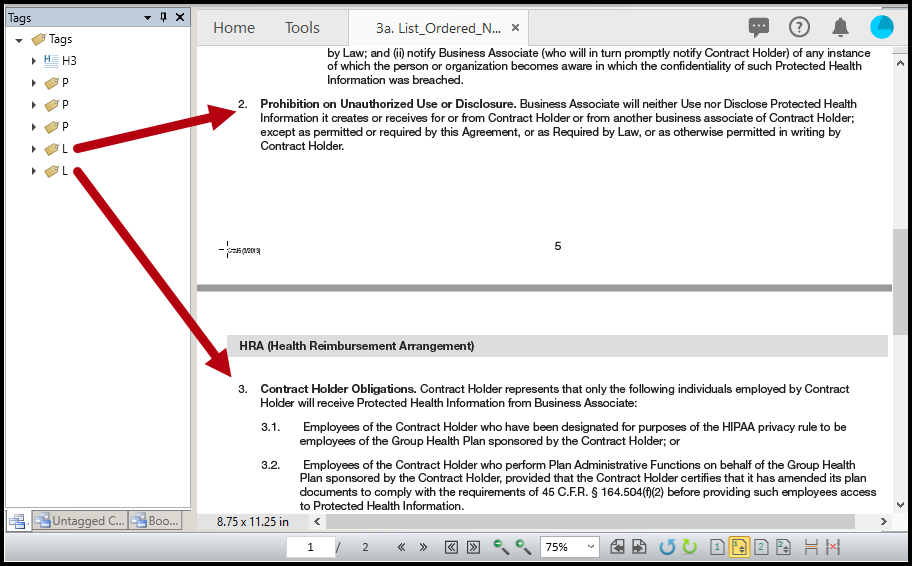
While there are a number of ways to merge lists, one way is presented below:
- Tag each of the lists on the two pages independently. If applicable, be sure that all of the nested lists are tagged (and nested) correctly as well.
Refer to the other articles on Lists as needed. The Articles on Tagging Lists and Tagging Nested Lists may be particularly helpful. - In the Tags tree, select the two List tags in the correct order.
- Right-click (or otherwise open the context menu) on one of the selected List tags and choose “Merge tags” (or use the keyboard shortcut Ctrl+M).
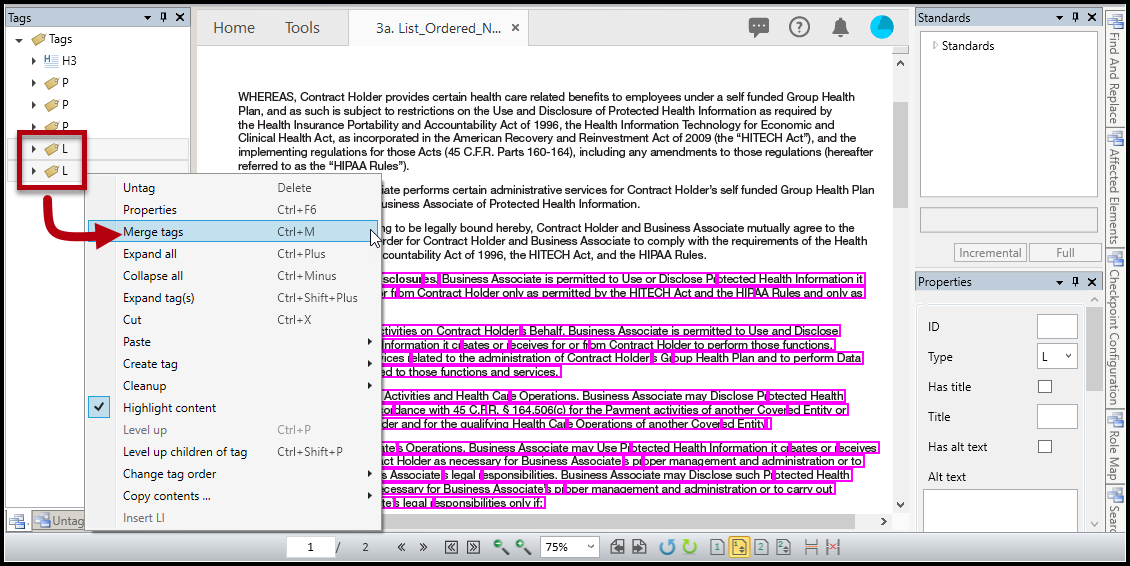
- Open the merged List tag to make sure that the List Item tags are in the correct reading order.
Didn't find what you're looking for? Navigate to our "Lists" section for more related articles that may help!
Was this article helpful?
That’s Great!
Thank you for your feedback
Sorry! We couldn't be helpful
Thank you for your feedback
Feedback sent
We appreciate your effort and will try to fix the article