To format text into columns in your Word document do not use a table! Refer to the article that addresses Tables for Layout to learn why using tables for formatting is not acceptable by accessibility standards.
Instead, follow the steps outlined below. (Note: Steps may vary depending on whether you're adding content to your document and then formatting into columns or setting up the columns first and then adding content. Either way, the concepts below apply.)
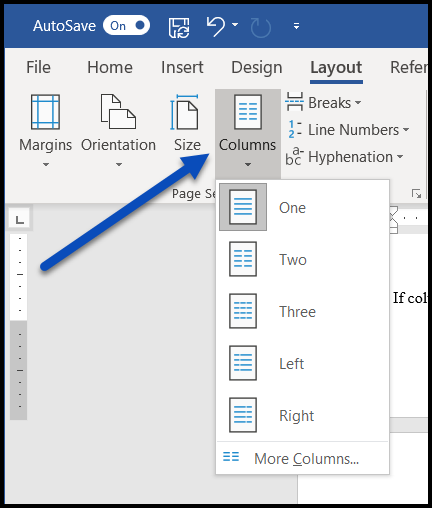
- In Word, select the Page Layout (or Layout) tab.
- Select "Columns" in the Page Setup group. From the menu that opens, choose the number of columns needed. If more precise formatting is desired, at the bottom of the context menu, choose “More Columns.”
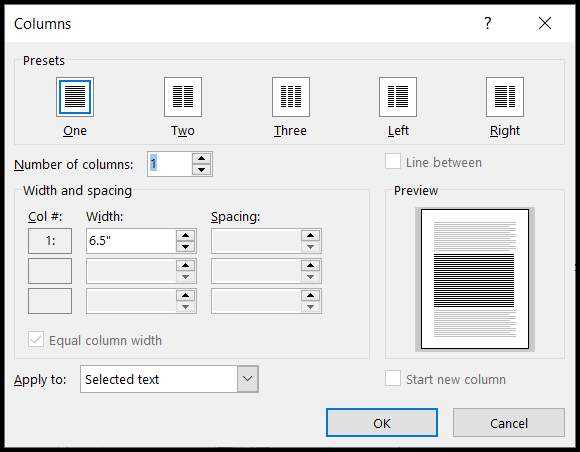
- If "More Columns" is selected, an additional dialog box opens. Make the necessary formatting adjustments and then select “OK.”
Additional Notes:
- If you're adding text and then formatting into columns, highlight the text to be placed in columns and then use the steps above.
- In the "More Columns" dialog you'll also have options to apply the formatting to selected sections of the document, selected text, "this point forward," etc. Use this functionality to start and stop column formatting as needed.
Was this article helpful?
That’s Great!
Thank you for your feedback
Sorry! We couldn't be helpful
Thank you for your feedback
Feedback sent
We appreciate your effort and will try to fix the article