Instead of creating space and manipulating the formatting in a document simply by using the Enter, Spacebar, and Tab keys, use the Paragraph and Page Layout functionality provided in Microsoft Word. This prevents blank spaces from being created in the PDF document which can have negative effects on the presentation of the document. (When someone is reading a document with a screen reader and it gets to those spaces inserted with the Enter or Tab key, or the spacebar, the screen reader will say "Blank." This can be annoying or, even worse, could make someone think that the document is at the end when all they hear is "Blank" over and over again!)
Manipulating the Spacing
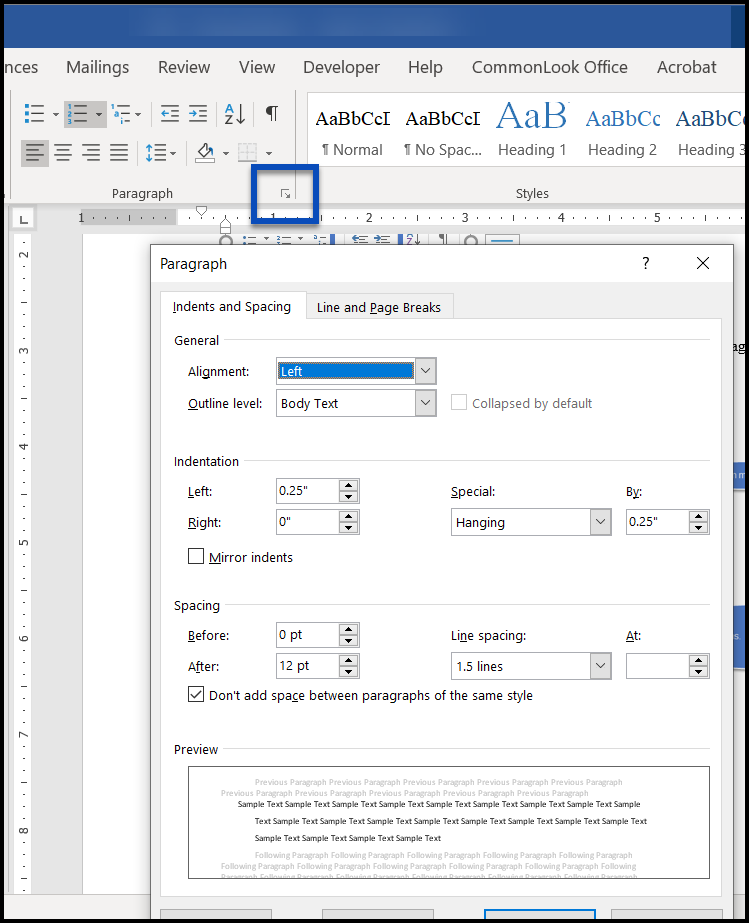
- In the Paragraph group on the Home Tab in the Ribbon, choose from a variety of indent, spacing, and text alignment options.

- If more options are needed, click the arrow on the lower right corner of the Paragraph group to view more formatting possibilities.
Was this article helpful?
That’s Great!
Thank you for your feedback
Sorry! We couldn't be helpful
Thank you for your feedback
Feedback sent
We appreciate your effort and will try to fix the article