A Table of Contents (TOC) in a Word document should be built based on the heading styles used in your document.
To insert a TOC, follow these steps:
- Click in the document where you would like to insert the table of contents. (You may also want to consider adding a page break before or after your TOC for formatting purposes.)
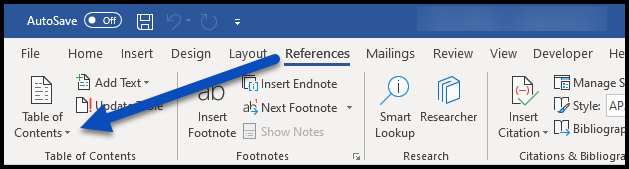
- Select the “References” tab on the Ribbon.
- In the Table of Contents group (on the left end of the Ribbon in the “References” tab), click the arrow next to “Table of Contents.”
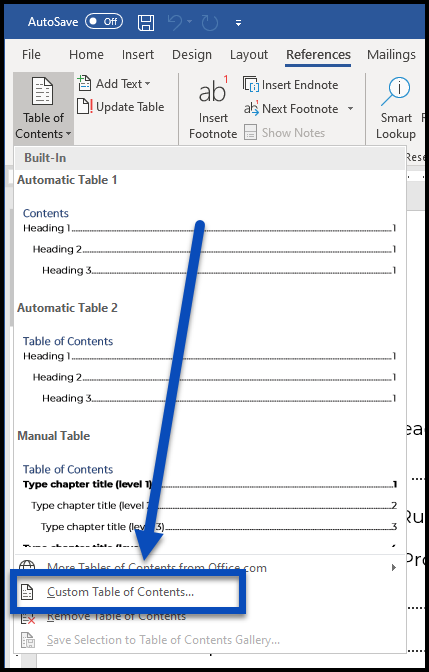
- In the menu that opens, near the bottom, choose “Custom Table of Contents.”
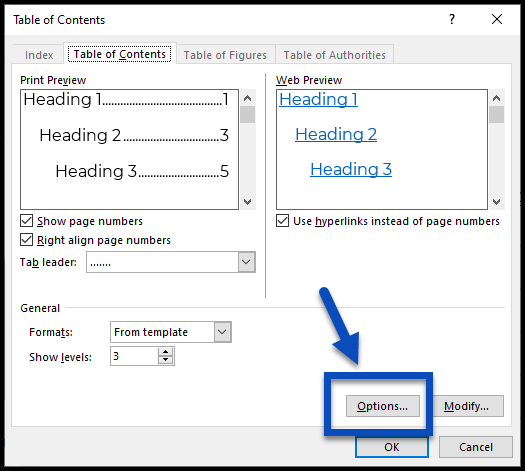
- In the window that opens, near the bottom right corner, click the “Options” button.
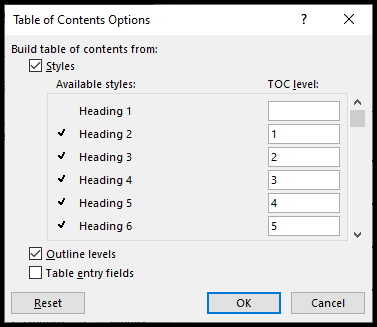
- When the Table of Contents Options window opens, make the necessary adjustments. In the screenshot below, Heading 1 will not be shown in the TOC (because we don't need the title of the document shown in the Table of Contents), Heading 2 has been moved to TOC level 1, Heading 3 is at TOC level 2, Heading 4 is at TOC level 3, and so on through heading level 6.
- Select OK to return to the previous Table of Contents window and then choose OK again to create the Table of Contents in the document.
Updating a Table of Contents
When changes are made to the document, especially when adding or removing content makes the document longer or shorter than it was when the TOC was first created, remember to update the Table of Contents.
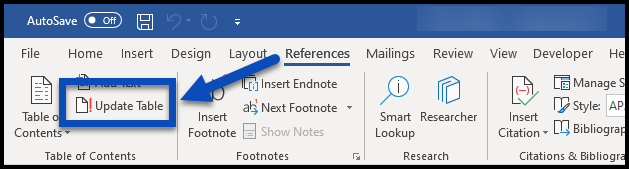
- Navigate to the References tab in the Ribbon
- In the Table of Contents Group, choose Update Table.
- When the Update Table of Contents window opens, choose the second option, to “Update [the] entire table.” The first option, “Update page numbers only” will only correct the page numbers associated with particular headings. If headings have been added, removed, or edited, however, these changes will not be reflected in the TOC unless you update the entire table.
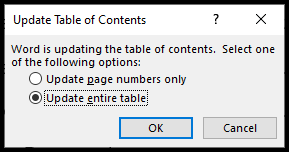
- Select OK.
Was this article helpful?
That’s Great!
Thank you for your feedback
Sorry! We couldn't be helpful
Thank you for your feedback
Feedback sent
We appreciate your effort and will try to fix the article