Watch our demo on CommonLook Office in Word!
Welcome to the CommonLook Office Quick Start Guide for Microsoft Word. This tutorial is intended to help you become familiar with the main features and primary operation of CommonLook Office. This guide will take users step-by-step through the process of using CommonLook Office with the Word document (MS Word) to create an accessible and compliant PDF document. During the process, many accessibility issues typically found in Word documents will be addressed and fixed.
To begin, download the document at the very bottom of this page. It is titled "Document-Accessibility-in-Higher-Education.docx."
Important: In this guide, the term “CommonLook” may be used to refer to the CommonLook Office software.
Let’s Get Started!
Once you have downloaded the Word file at the bottom of this page, we recommend you make a copy of the Word document and work on that copy.
To begin using CommonLook Office follow these steps:
- Open the working copy of the Quick Start Document in Microsoft Word. (Once open, you may need to "Enable Editing" in Word.)
- In the toolbar in Word, select the tab labeled CommonLook Office.

- In the CommonLook Office ribbon, there are various options for help and preferences. Select “Create CommonLook PDF,” to open the CommonLook Office software.

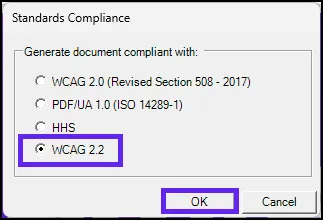
- CommonLook Office will open and ask you to select a compliance standard.
- To follow the steps in this guide, select WCAG 2.2
- Use the OK button to continue, or select “Cancel” if you don’t wish to proceed.
The “Current Checkpoint” Tab
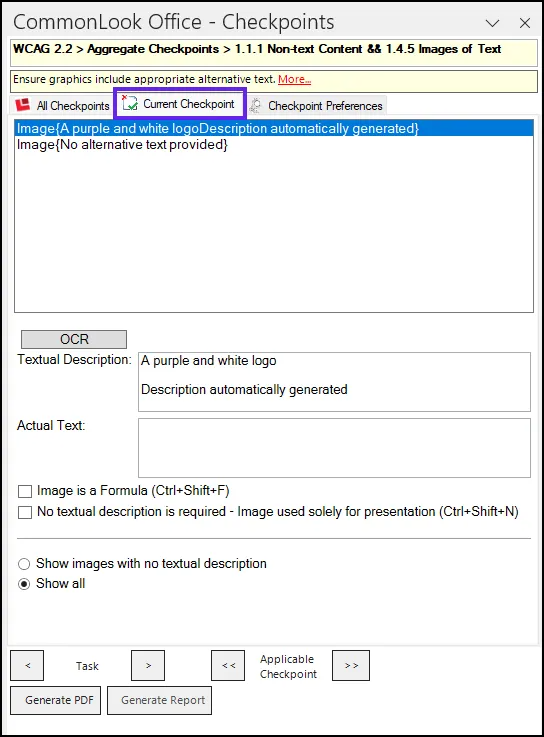
When CommonLook Office opens, the document is displayed in a panel on the left side of the screen (also referred to as the Physical View in this guide) and the checkpoints panels are on the right. By default, CommonLook Office opens in the Current Checkpoint tab, stopping on the first checkpoint that is identified as having an issue or needing manual verification.
Current checkpoint tab image: Screenshot of the Current Checkpoint tab in CommonLook Office.
The “All Checkpoints” Tab
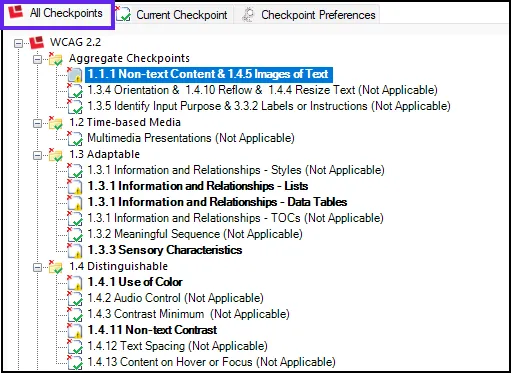
To the left of the “Current Checkpoint” tab is the “All Checkpoints” tab. (Optional): Selecting this tab shows all of the checkpoints for the chosen standard (in this case WCAG 2.2). Not every checkpoint will be relevant for every presentation. The checkpoints that are in bold are those that either CommonLook Office has found an issue with or they require manual verification. Checkpoints that don’t present any issues will not be in bold and will also say “Not Applicable” in parentheses.
Additional Information about Each Checkpoint
Above the Checkpoints panels is a yellow box that provides the Standard and Checkpoint name along with an explanation of what the checkpoint is addressing. In addition, there’s a link, labeled “More” that provides in-depth information about the checkpoint, its purpose, and instructions on how to handle it, along with where the checkpoint can be found in the various standards.

Images and Other Graphical Content
Note: If you navigated to the “All Checkpoints” tab in the previous section, return to the “Current Checkpoint” tab to proceed through this guide.
In the sample document, the first checkpoint that CommonLook Office stops on is for images and “non-text content” because images and graphics have been detected in the Word document. (Use the “More” link to learn why Alternative text is important and what it’s used for.)
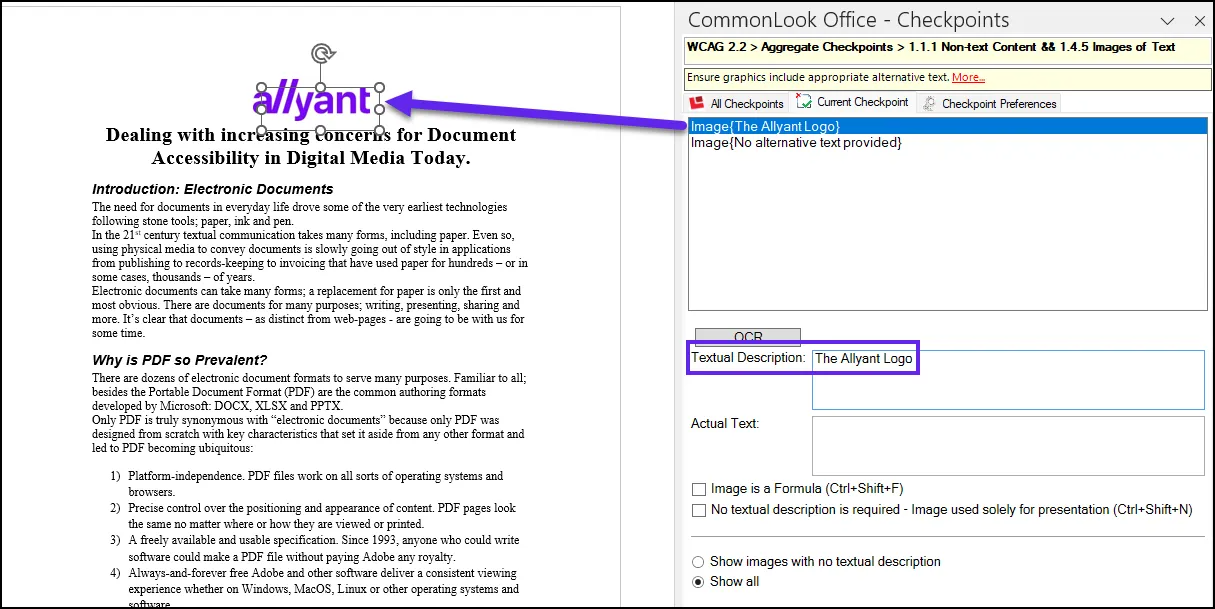
Listed in the “Current Checkpoint” panel are two images. One has Alternative Text that was auto-generated by Word, and the other doesn’t have Alternative Text.
- The first Image, the Allyant logo, has incorrect auto-generated Alternative text and needs to be fixed. To do so, navigate to the Textual Description field, delete “A purple and white logo, Description automatically generated,” and provide an appropriate description for the image. In this case “the Allyant logo” will be sufficient.
- Proceed to the next issue by selecting the “Next Task” button at the bottom of the Checkpoints panel.
- The second image (the chart) is now identified in the physical view and in the CommonLook Office panel. Because the chart contains a lot of information, this graphic will require a more detailed alternative text description than the first example did. Copy or type the following into the Textual Description field: “Chart displaying rainfall values in inches per month from November to March. November rainfall is 5.9 inches, December rainfall is 6.1 inches, January rainfall is 5.8 inches, February rainfall is 5.7 inches, and March rainfall is 5.3 inches.”
Disclaimer: The Alt text provided above is a suggestion. Length, quality, and actual descriptiveness of the Alt text is up to the author, subject matter expert, or remediator.
Tip: Because, originally, there was no Alternative text assigned to the image, the checkbox below the “Textual Description” box, labeled “No textual description required (etc.)”, was checked. Leaving this box checked will untag (or “artifact”) the image in the PDF, and it will not be identified by assistive technology. When a textual description of the image is entered, this checkbox becomes unchecked. - Below the Checkpoints panel, next to “Task”, select the arrow to the right of “Applicable Checkpoint” to proceed to the next checkpoint in the presentation that needs to be addressed.

Lists
The purpose of this checkpoint is to manually verify that lists have been constructed correctly in Word so that they’ll be tagged correctly in the PDF. Common errors that are made when creating lists in Word include not using Word’s list functionality and/or breaking what should be one list into multiple lists.
When the checkpoint opens, the CommonLook Office panel will display the lists that are in the Word document (where images were identified in the previous checkpoint). Follow these steps to verify that lists are assembled correctly:
- In the CommonLook Office panel, select the first List and then expand it either by clicking on the plus (+) sign or by pressing the right-arrow on your keyboard. This will expose all of the List Items inside that List.
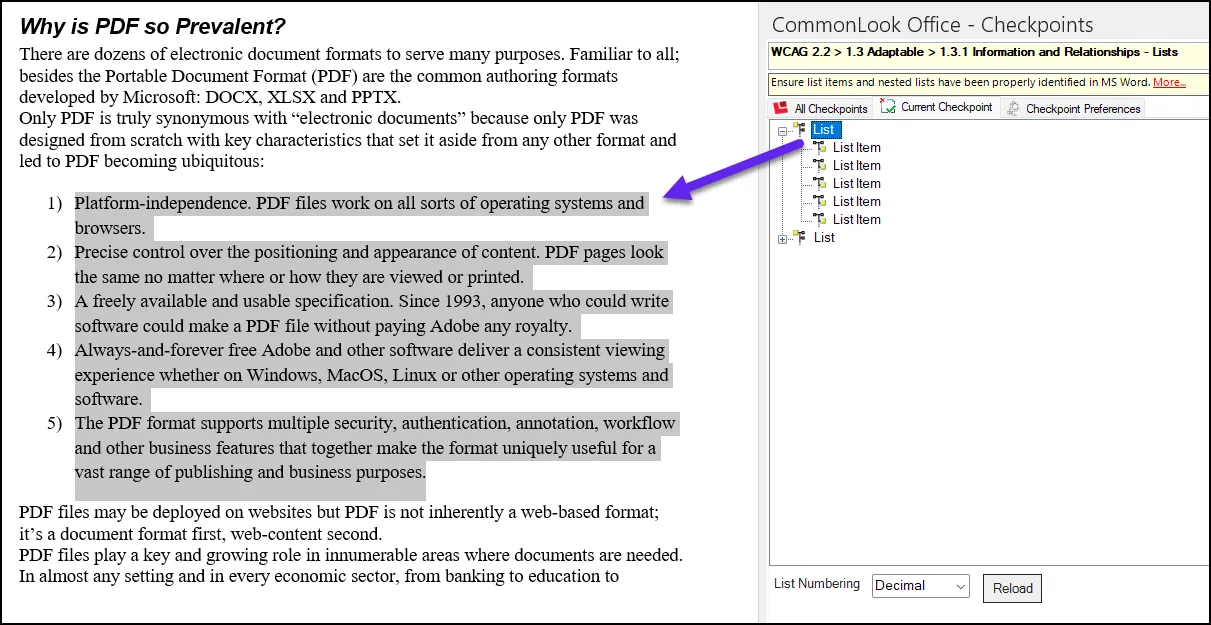
- In the Physical View of the List, check the labels used for the list. In this case, the labels are numbers. Verify that the List Numbering value, “Decimal,” is correct, which it is.
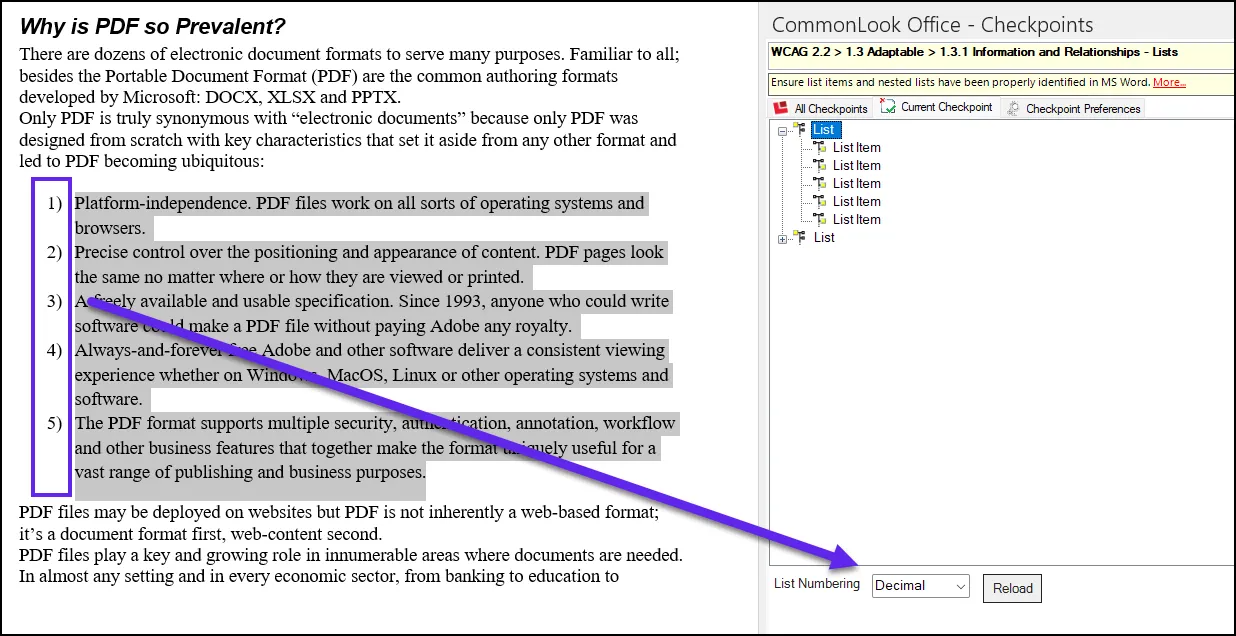
- Select each “List Item,” in the CommonLook List panel with the mouse or the down-arrow on your keyboard to verify that the proper content is highlighted in the Physical View.
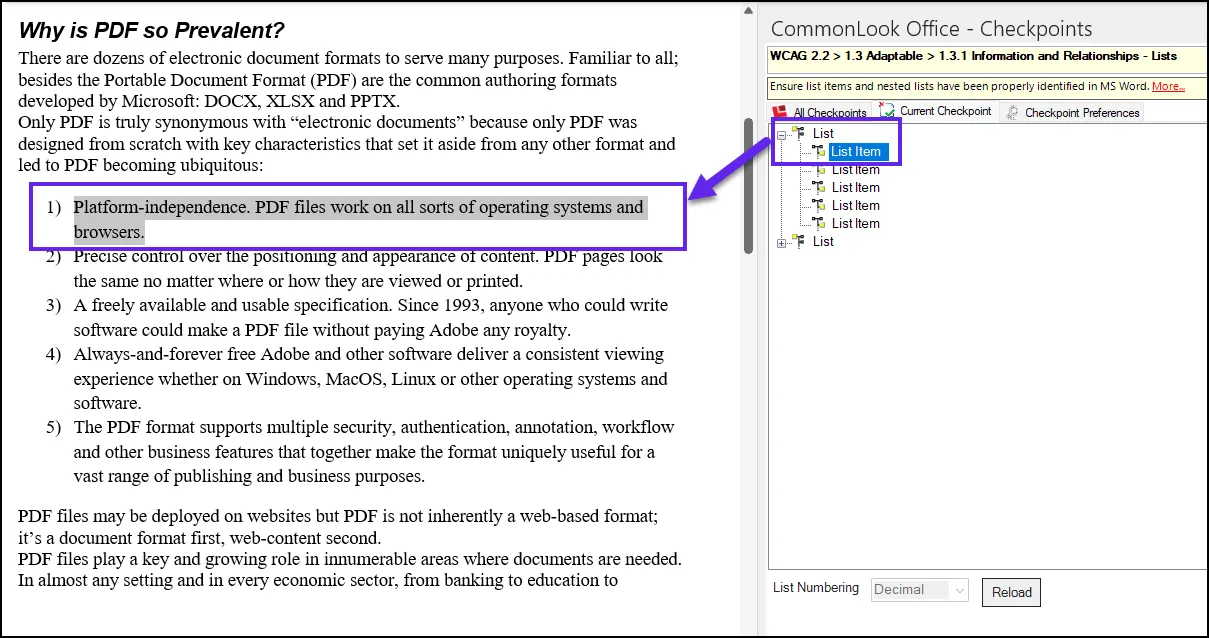
Upon examination, we find that the first list is, in fact, assembled correctly. Select “Next Task” to continue on, verifying the second list in the document as well. (Alternatively, you can just continue navigating down through the lists in the CommonLook panel. You don’t have to use “Next Task” to proceed through the checkpoint.)
There’s a problem with the construction of the second list. We’ll address that next.
Fixing the second list:
The Problem:
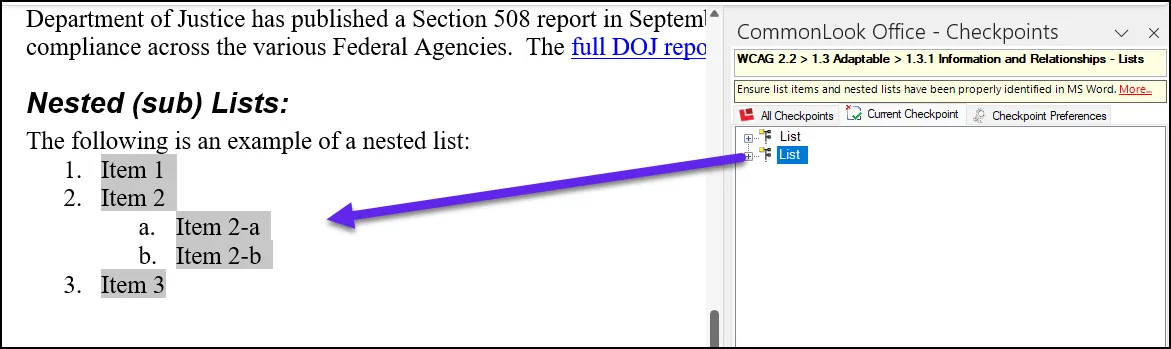
The problem with the second list is that while, in the Physical View of the document it appears as a list of three items containing a nested list of two related items (under the second “main” list item), in the tagging, as revealed by CommonLook Office, it will be marked as a list of only two items (including the nested list under the second “main” item). Item three is not highlighted when the list is selected in the CommonLook Office panel.
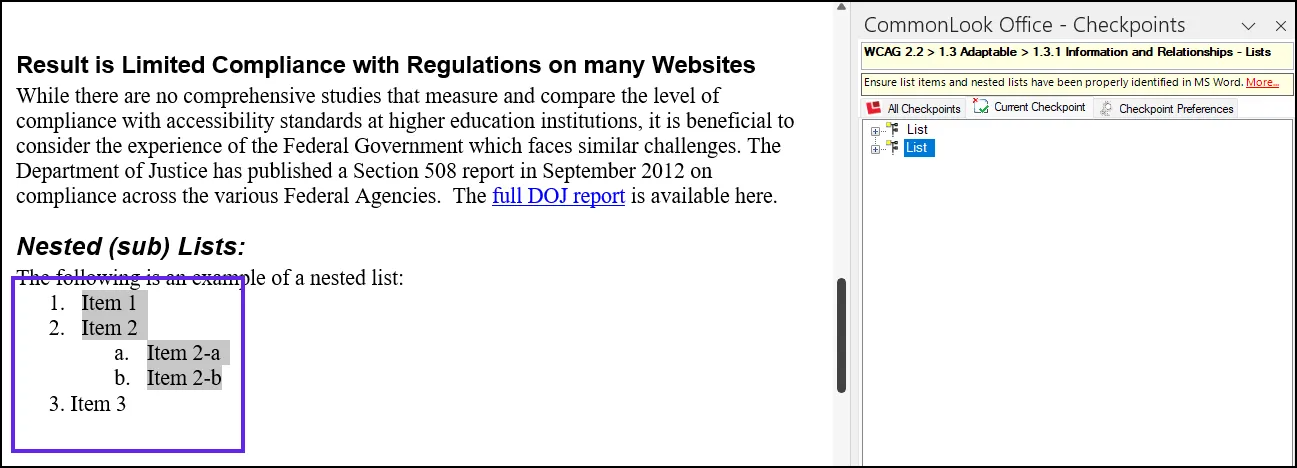
Opening the third list in CommonLook Office reveals how this list will be tagged. Select the second list in the CommonLook Office panel and expand all the collapsed nodes like you’ve expanded the other lists prior to this one.
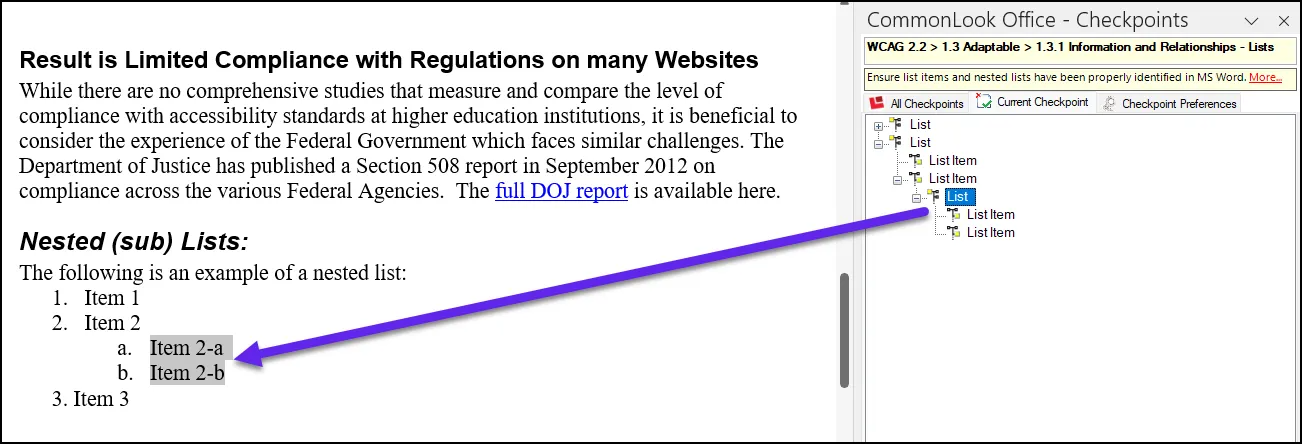
The Solution:
- In the Word document, place the cursor in front of the word “Item” for list item three. (If you’re using your mouse, you can just click in the Physical View for this step. If you’re using keyboard navigation, you’ll have to go to the ribbon, choose “Close and Return to Word” and then navigate to this list in the Word document.)
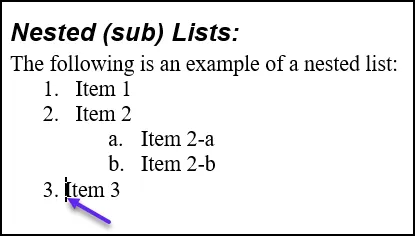
- Press “Backspace” (on the keyboard) until “Item 3” is on the same line as “b. Item 2-b”.
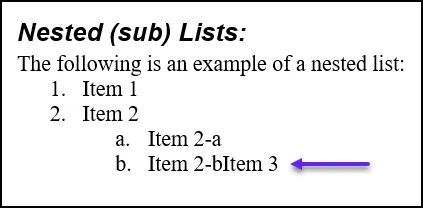
- Press “Enter” on the keyboard. “Item 3” will now be listed as a third nested list item under number 2.
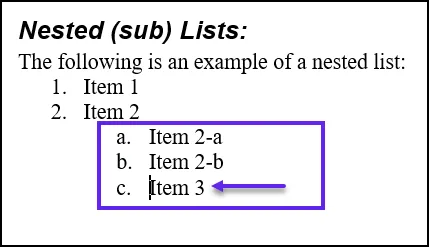
- While holding down the “Shift” key on the Keyboard, press the “Tab” key. This will move “Item 3” out one level in the “Parent List” and create the proper nesting. (At this point it will appear as though you’re right back where you started. The difference is that now the list functionality in Word is being used correctly and the list will be tagged correctly in the PDF.)
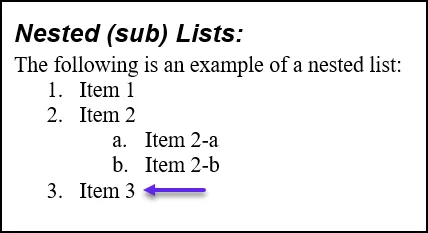
- In the CommonLook Office panel, below the lists, select the “Reload” button. This will reload the List checkpoint.
- Select and open the third list in the CommonLook Office panel to verify that the list and the nested sub-list have been assembled correctly.
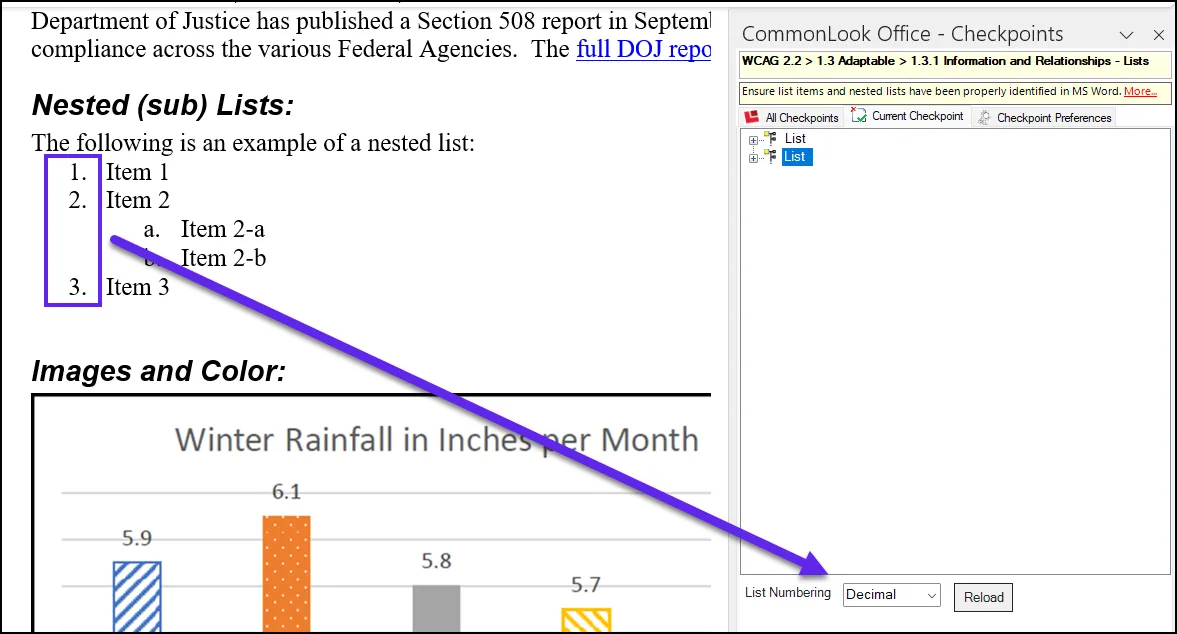
Now that the second list is fixed, we need to check the list number value for the main list and nested list.
- In the Physical View of the main list, check the labels used. In this case, the labels are Numbers. Verify that the List Numbering value, “Decimal,” is correct, which it is.
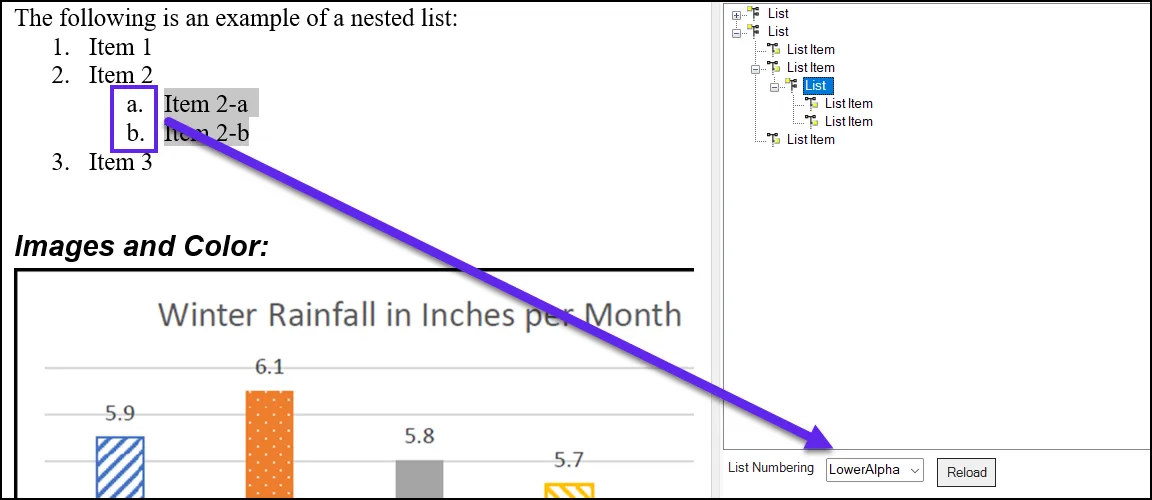
- Next, in the physical view of the Nested list, check the labels used. In this case, the labels are lowercase letters. Verify that the List Numbering value, “Lower-Alpha,” is correct, which it is.
Tables
After checking the lists, CommonLook Office stops on the Data Tables checkpoint. There are three tables identified in this document and all will need some attention.
Presentation Tables
Table 1, listed in the CommonLook panel, identifies a section in the Word document where the author used a table to format the text into two columns. This is not a good authoring practice; a better way would have been to use the column functionality in Word. However, in CommonLook Office, we can “linearize” the table so that, in the resulting PDF, there won’t be a Table tag (or its children). The data cells, containing the content, will be converted to Paragraph tags in the PDF.
(For more information on why this is a poor authoring choice, follow the “More” link in CommonLook Office.)
To resolve this issue, follow these steps:
- Select “Table 1” in the CommonLook panel.
- In the “Select Table Type” window, choose the first option, “Presentation.”
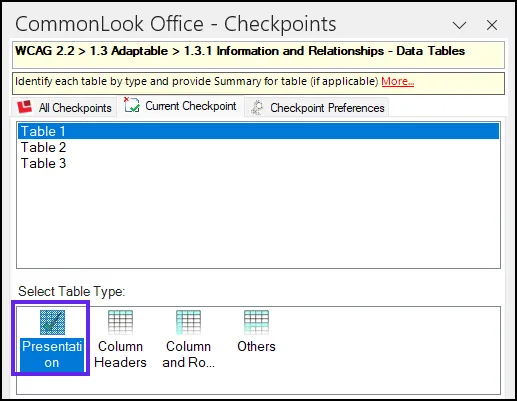
- Because the text in the left column should be read before the right column, select the radio button to “Linearize Table Vertically.”
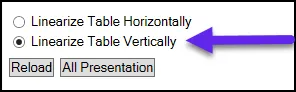
- Choose “Next Task” (or select Table 2 in the CommonLook panel) to proceed to the second table.
Simple Data Tables
Data tables need to have their header cells identified as either column or row headers so that screen readers can associate the data in the table with the correct headers. Unfortunately, MS Word does not provide this functionality for its data tables. CommonLook Office, however, will allow you to correctly mark header cells in the PDF as headers, with the correct scope, so that the tables are compliant with accessibility standards.
To address the second table, follow these steps below:
- Select “Table 2” in the CommonLook panel (if it’s not already selected). Notice that this table only contains column header cells (no row headers are present).
- In the “Select Table Type” panel, choose the second option, “Column Headers.”
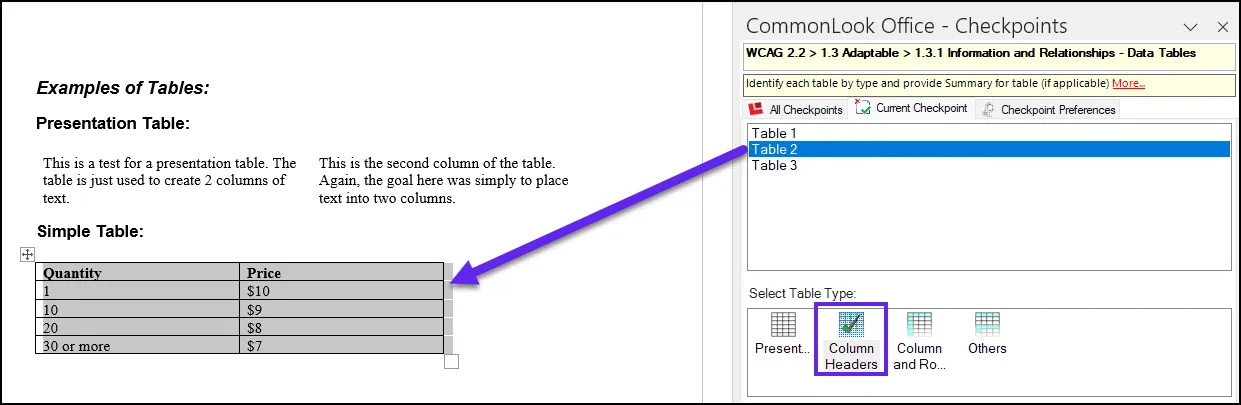
- (Optional) Below the Table Type selection, provide a Summary. For more information on why you might include a Table Summary, follow the “More” link above the Current Checkpoint tab.
- The top row in the table contains the column headers “Quantity” and “Price.” Because these are the only column headers in the table, In the field labeled “Rows of Column Headers”, set that value to “1.”

- Proceed to the third table.
Complex Tables
The process to fix the third table is very similar to fixing the second table with the addition of row headers and more than one row of column headers.
- If you haven’t already done so, select “Table 3” in the CommonLook Office panel.
- Choose the table type “Column and Row Headers.”
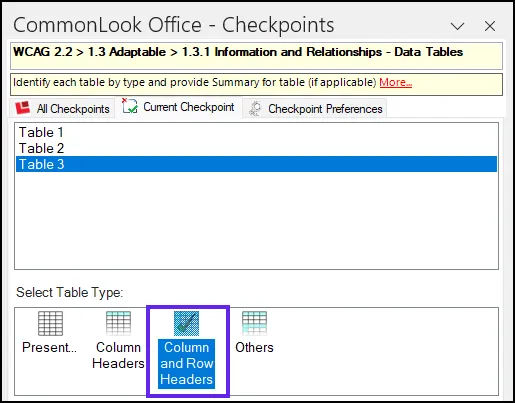
- (Optional) Input a table Summary. Again, refer to the information in the “More” link for more information about table summaries.
- In the Physical View of the table, we notice that the top three rows contain column headers. In CommonLook, set the value in the box next to “Rows with Column Headers” to “3.”

- There are two columns of cells containing row headers. In CommonLook, set the value in the box next to “Columns with Row Headers” to “2.”

- Choose “Next Applicable Checkpoint” to proceed through the document.
Sensory Characteristics
The next checkpoint is for Sensory Characteristics. The instructions for both understanding and operating content in a PDF cannot rely upon sensory characteristics alone, including shape, color, size, visual location, orientation, or sound. This means that the PDF document should be authored to be understood and operated without someone needing to use the sense of sight and/or hearing. We do not have any sensory characteristics issues in this Word document, use “Next Applicable Checkpoint” to proceed to the next checkpoint.
Color Use
The next checkpoint is the color checkpoint. CommonLook Office has detected color on pages 1, 2, and 3. This checkpoint is asking us to verify that color is not the only way that information is being conveyed (and to fix issues that we notice).
To check for appropriate color use follow these steps:
- In CommonLook Office, select the “Show Filter” button. A lens will open which, when moved over the document, will remove the color so that you can determine whether or not information is lost when the color is removed.
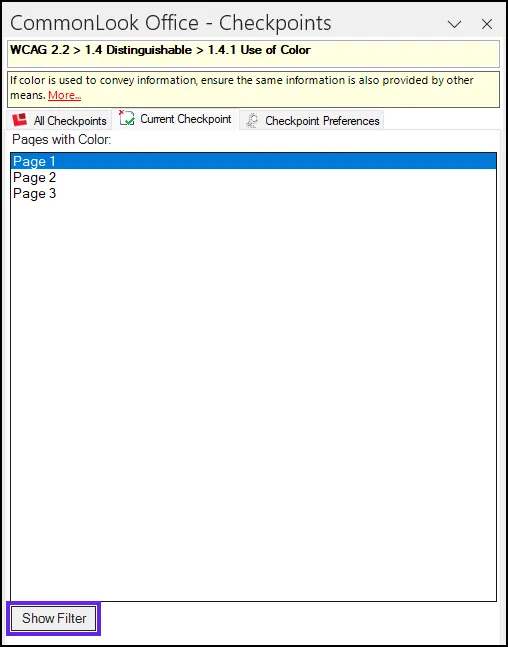
- Move the lens, either with the mouse or the arrow keys on your keyboard, over the content on the page to make sure that, when color is removed, information isn’t lost.
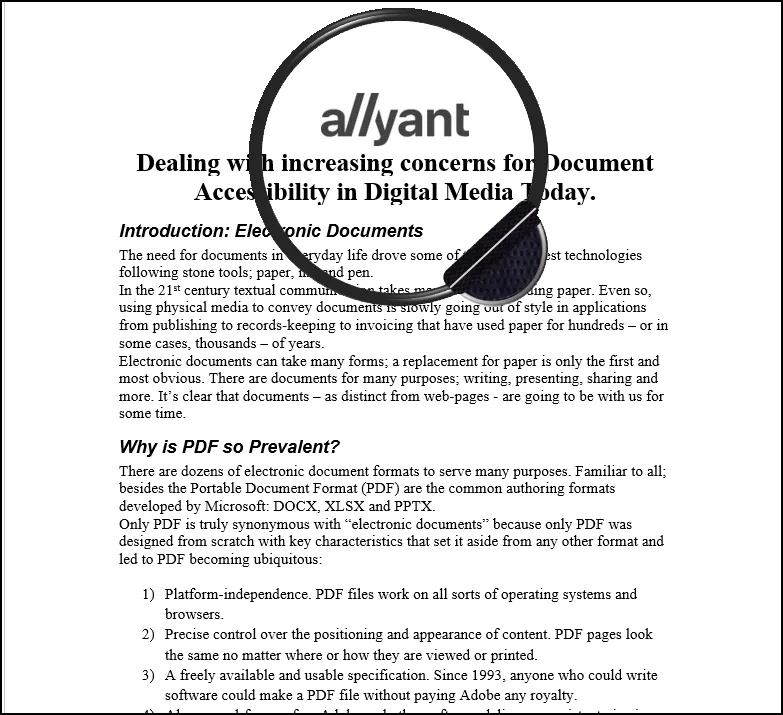
- As previously mentioned, if information is lost due to the use of color, this needs to be fixed in Word. In the CommonLook Office Ribbon, select the “Close & Return to Word” button, fix the color issues, save your changes, and then reopen CommonLook to continue working. (Tip: Every page that uses color will be listed in the CommonLook Office panel. For efficiency, you could check all of the pages, making a note of those that need to be fixed, and then return to Word, fix all of the color issues, and then reopen CommonLook Office.)
- Select “Next Task” to proceed through the other pages that use color.
- Page Two – the Chart – While this is not an ideal presentation of the data in the chart, the information will also be conveyed by the Alternative text assigned during the “Non-Text Content” checkpoint.
- Page Three – The Complex Table – Even though page three doesn’t contain color, the color checkpoint stops here because of the bold font in the table headers. If information was being conveyed solely by the use of bold font, this would also be considered a color failure, because screen readers won’t identify font (or other formatting changes such as italics, underline, etc.), and the information that formatting changes are intended to convey. However, because we’ve addressed the table in the “Data Tables” checkpoint, we know that this table will be accessible and compliant.
- Use “Next Applicable Checkpoint” to proceed through the document.
Tip: If you closed CommonLook Office, when reopening CommonLook, it’ll stop on the checkpoint for images and Alternative text even though, at this point, those issues have been corrected. This is because some checkpoints, like Alternative text for images, are, by default, “user verification” checkpoints meaning that they can’t be automatically passed. CommonLook wants you to verify, in this example, that the Alternative text for the graphics is correct. However, because we’ve already fixed the Alternative text for the images, you can easily “fast forward” to where you left off by using the “Next Applicable Checkpoint” button.
Non-text Contrast
CommonLook Office will list the images in the Word document. We need to verify that graphical objects used to convey important information, meet the minimum contrast ratio of 3:1 against the background and/or adjacent colors.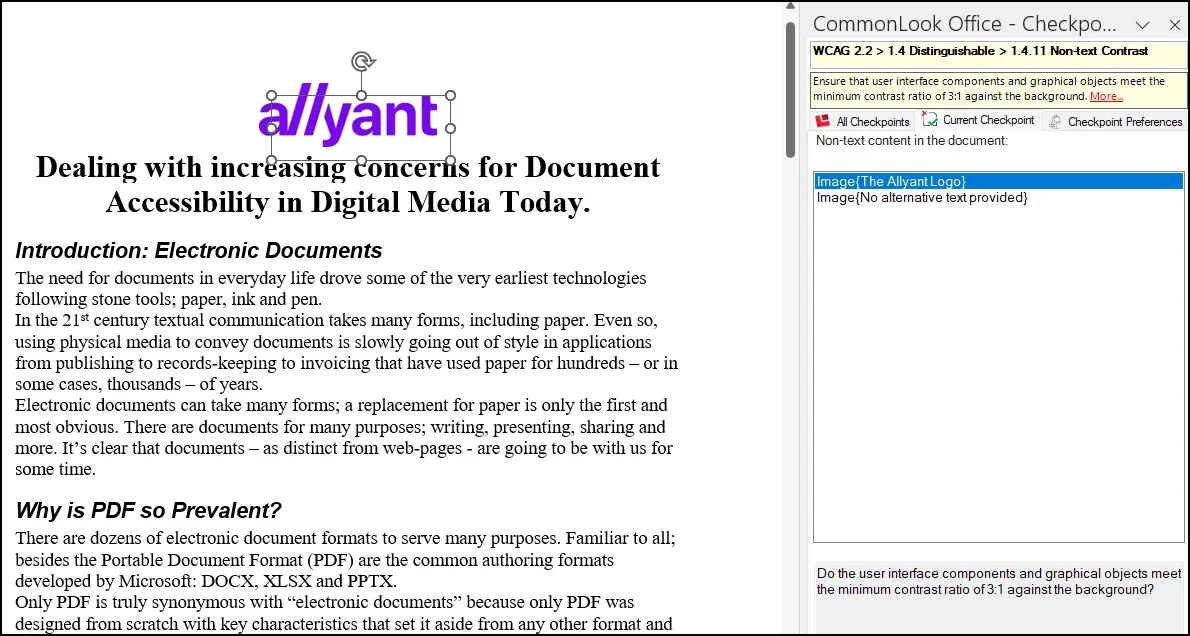
If you find contrast issues, close CommonLook Office, return to MS Word, fix the contrast issues, and then relaunch CommonLook Office to continue working. (Hint: we don’t have a contrast issue with either of the two images listed).
Tip: To test for contrast ratios, we recommend using the WebAIM contrast checker. It’s free, easy to use, and provides clear passing and failing results!
Metadata
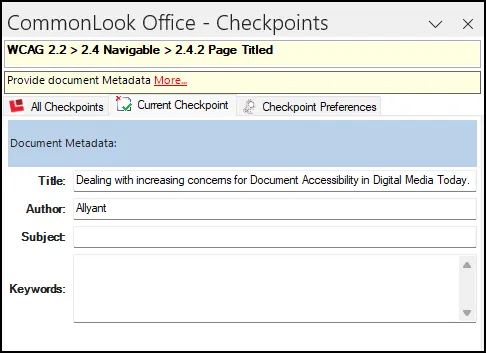
“The main purpose of metadata is to facilitate the discovery of relevant information, more often classified as resource discovery. Metadata also helps organize electronic resources, provides digital identification, and helps support archiving and preservation of the resource. Metadata assists in resource discovery by ‘allowing resources to be found by relevant criteria, identifying resources, bringing similar resources together, distinguishing dissimilar resources, and giving location information.’” (For more information, visit the Wikipedia page on metadata.)
Use the text fields in the Metadata checkpoint to add the following information:
- Title – (Required by all standards) This should be short but informative to the purpose of the document.
- Author – This is not an individual person’s name. Use the name of your organization, department, agency, division, etc.
- Subject – Sometimes the same as the title. May provide a brief description of the document.
- Keywords – Keywords make the document searchable online. Separate keywords with semicolons.
- When finished inputting the metadata information, choose “Next Applicable Checkpoint” to continue.
Hyperlinks
There are two checkpoints to address links. They’re described next.
Alternative Text on Links
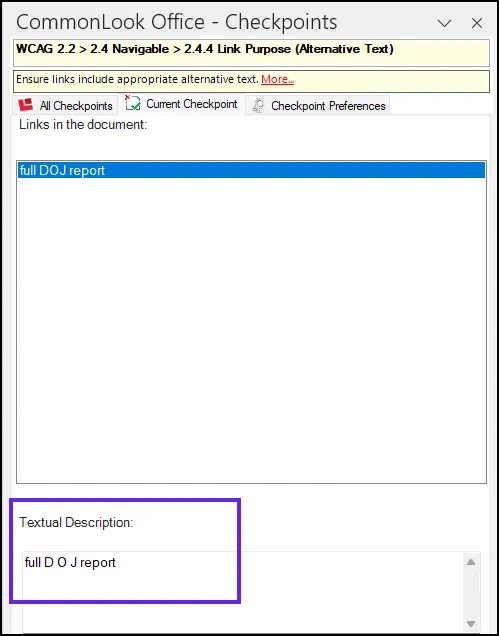
Similar to images and “non-text” content, hyperlinks should also have Alternative text that tells people using assistive technologies where the link will take them (or what it’ll do, for example, opening an email to compose and send). This checkpoint allows you to describe the link in a meaningful way.
- Select the link in the CommonLook panel.
- In the “Textual Description” field, the display text for the link has been automatically populated as the Alternative text in the Textual Description field.
- Because the acronym DOJ, may be announced as a full word instead of letters, add a space between the D and the O, and the O and the J. This will force Assistive Technology to read the Acronym as D-O-J (and not the word Doj).
- Select “Next Applicable Checkpoint” to continue working through the document.
Link’s “Display” Text
A common authoring practice, when including a link in a document, is to simply hyperlink the words “click here” or to provide the URL (as in our example). This, however, is a poor authoring practice. For one reason, screen readers can scan through a document reading only the links. If all of the links simply say, “Click Here”, the user has no indication of where that link will take them and whether or not that’s the link they want to follow. Equally uninformative is including the entire URL; that can be just as confusing and useless as “click here.” This checkpoint asks you to verify that the hyperlinked text is sufficiently descriptive. (Tip: A well-authored link is one where you can read just the hyperlinked text and know where the link is going to take you.)
The link display text, “full DOJ report,” describes clearly where the link leads, so there is no need to make any changes to the document.
Select “Next Applicable Checkpoint” to move on.
Re-running Verification
When you get to the end of the checkpoints that need to be addressed, depending on your workflow, you may get a dialog box popping up that says, “CommonLook Office detected that the document has been modified since it was last verified. Do you want to re-run the verification process?” You can choose “Yes” or “No.”
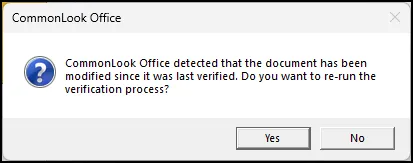
If you choose “Yes” CommonLook will start again at the beginning, taking you through all of the relevant checkpoints in the Word document. If you choose “No” CommonLook will move to the next step which is to create the PDF.
Creating the PDF Document
After fixing the skipped heading levels, opening CommonLook Office, and using “Next Applicable Checkpoint” to “fast forward,” you’ll discover that you’ve addressed all of the issues in this document and the “Save as Accessible PDF” dialog box will open.
By default, the PDF will be saved in the same location where the Word document is, and it’ll be saved with the same File name. Make changes if needed and then choose “Save.”
Creating a Report and Viewing the PDF
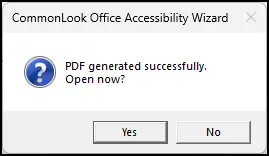
After the PDF has been generated, CommonLook Office will ask if you want to save a compliance report. In the dialog box that opens, select “Yes” to generate the report as an accessible HTML file. It’ll be saved in the same location as the Word document and the PDF.
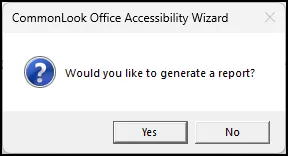
CommonLook will also ask you if you want to open the PDF. Choose “Yes” or “No” as needed.
Training
Congratulations, you’ve generated an accessible WCAG 2.2 compliant PDF from MS Word document using CommonLook Office! We hope that this Quick Start Guide has been a helpful resource in getting started using the software.
For information about Allyant Training, please visit our Training page, email your account executive, or contact us at training@allyant.com.
We wish you continued success in your creation of accessible and standard-compliant PDFs!
Was this article helpful?
That’s Great!
Thank you for your feedback
Sorry! We couldn't be helpful
Thank you for your feedback
Feedback sent
We appreciate your effort and will try to fix the article