If two or more textboxes are used to create a multi-column layout, the result, in the PDF, is that text will be tagged as separate paragraphs, lists, etc. and incorrect structural information will be conveyed to the user. Instead, place the text into a single text box and use the "Columns" feature for formatting.
To create columns, follow these steps:
- Select the text, textbox, etc., that you want to be formatted into columns.
- On the Home tab, in the Paragraph group, select the Column button.

- From the context menu, choose the number of columns needed.
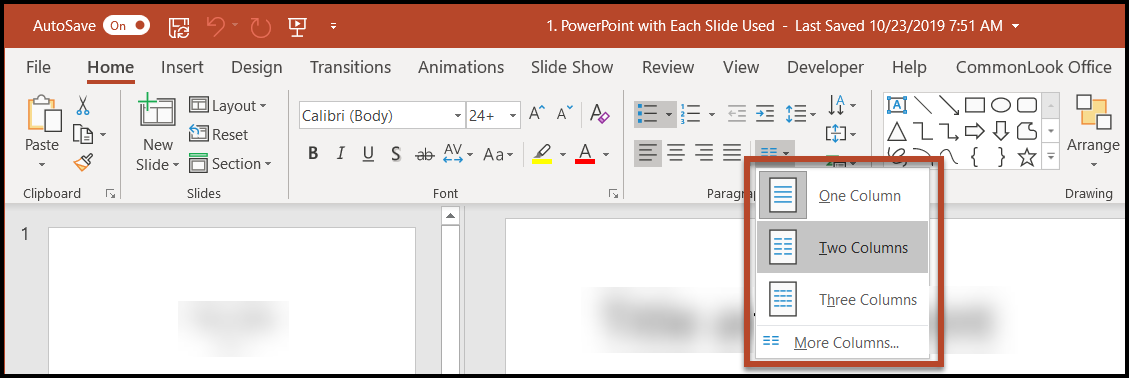
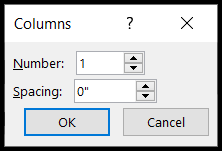
For additional column options, from within the context menu, choose “More Columns.” This allows you to not only control the number of columns used on the slide but also to control the spacing between the columns.
Was this article helpful?
That’s Great!
Thank you for your feedback
Sorry! We couldn't be helpful
Thank you for your feedback
Feedback sent
We appreciate your effort and will try to fix the article