Creating Lists in Word
Follow these steps to correctly build simple lists:
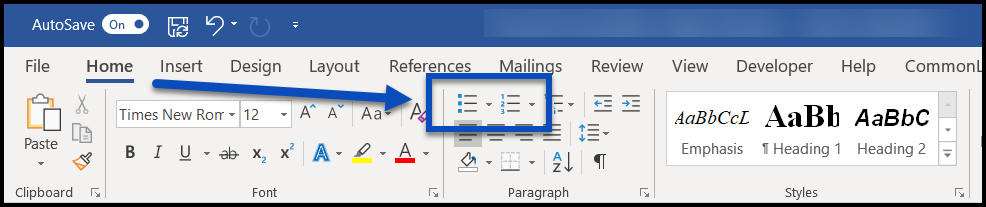
- Determine the type of list needed (Unordered or Ordered) and select the appropriate list tool in the Paragraph group on the Home tab in the ribbon.
- Type the text for the first list item.
- Press Enter. The cursor will move to the next line and the next number (letter, or bullet) will be created at the beginning of the next list item.
- Continue typing the list, pressing Enter at the end of each list item.
- At the end of the list, press Enter again. This will create one more list item line. Instead of typing text, press Enter a second time. This will stop the list and create the next paragraph in the document.
Nested (sub) Lists
- Create a list using the tools in the ribbon (as outlined above).
- Type the text and press Enter at the end of the list item.
- To start the (indented) nested list, press the Tab key.
- As an example, the tab key was pressed to insert this nested list item.
- Pressing the Enter key after a nested list item creates the second item in the nested list (this line).
- When done creating the nested list, press Enter, then press and hold the Shift key and then press the Tab key. This will move the list item back out one level.
- Continue typing any additional list items.
- End the main list as described in the steps above for simple lists.
Adding Additional Text to List Items
If you need to add additional paragraphs, for example, to your list items (or, for example, when we add screenshots in the middle of lists), press and hold the Shift key and then press Enter. This will create a "soft return" so that you can add additional content and not break your list. Then, when you hit Enter (without the Shift key) you'll create the next item in the list.
Multi-Column Lists
To create a multi-column list, use the column formatting options in conjunction with the list functionality in Word. Refer to the article on Formatting in Columns if needed.
Was this article helpful?
That’s Great!
Thank you for your feedback
Sorry! We couldn't be helpful
Thank you for your feedback
Feedback sent
We appreciate your effort and will try to fix the article