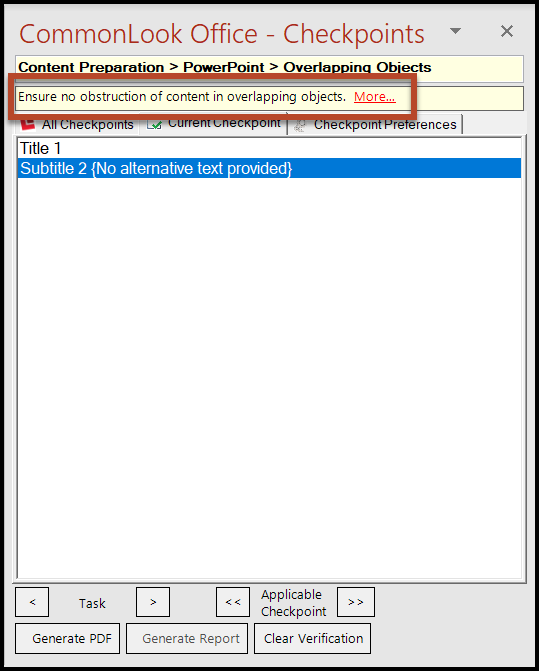
The purpose of this checkpoint is to verify that, where objects on slides overlap, content is not being hidden. CommonLook Office displays a list of overlapping objects in the presentation. Click “Next Task” (or use the arrow keys on your keyboard) to navigate through the list of objects, making sure that content is not being obstructed. (If content on the slide is hidden, read the tips in the next section of this article.)
If Content is Hidden
There are three options to choose from when content is hidden underneath other elements on the slide:
- Close CommonLook Office and change the slide design in PowerPoint so that content is not hidden.
- Group the overlapping objects. Refer to the Grouping Elements on slides article if needed. If objects are grouped, be sure to provide the appropriate alternative text! Read the article on Alternative Text, if needed.
- Leave the design as it is. This option is not recommended because content in the PDF may be tagged incorrectly. Important: When choosing this option, the tagging in the PDF will need to be checked for accuracy. If issues arise in the PDF, either 1) fix the PDF or 2) return to PowerPoint/CommonLook Office and edit the design of the slide, or group the items as needed, and then recreate the PDF.
Was this article helpful?
That’s Great!
Thank you for your feedback
Sorry! We couldn't be helpful
Thank you for your feedback
Feedback sent
We appreciate your effort and will try to fix the article