Making sure that assistive technology reads content in a logical order, as seen visually, is paramount to accessibility. For this reason, and because, in PowerPoint, it's especially easy to get wrong, on every slide and in every presentation, you'll be asked to verify that the reading order is correct.
Reading Order Instructions (in CommonLook)
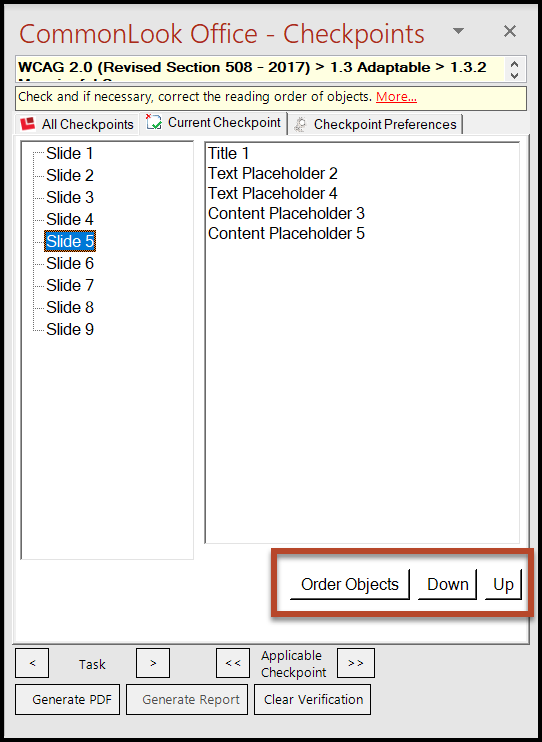
When CommonLook Office opens on this checkpoint, on the left side of the panel, all of the slides in the presentation will be listed and, on the right, CommonLook will list all of the elements on each slide in the order in which they will be read by a screen reader.
- On each slide, choose “Next Task” (or use the down-arrow on your keyboard) to review the order of the objects in the panel. Generally speaking, the elements on the slide should be read in the same sequence that they are presented visually.
- If the reading order of elements on a slide needs to be changed, this can be done in a couple of different ways.
- Automatically. Select the “Order Objects” button. This will order the elements on the slide to be read from top-to-bottom and left-to-right. Caution: This method of ordering objects is based on their physical position on the slide. In the case of overlapping objects, sometimes their automatic ordering may yield inaccurate reading order results. If this is the case, refer to the next option for manually adjusting the reading order.
- Manually. To adjust a slide’s reading order manually, select the object to be moved (in the right-side panel of CommonLook Office) and choose “Down” or “Up” as needed. Important: Keep in mind that changing the reading order in CommonLook will not change the visual presentation of the slide; it simply changes the order in which content will be read by a screen reader.
Was this article helpful?
That’s Great!
Thank you for your feedback
Sorry! We couldn't be helpful
Thank you for your feedback
Feedback sent
We appreciate your effort and will try to fix the article