When documents (or presentations) contain images or other non-textual content, there are a number of things to consider and address.
Alternative Text
In order to be compliant with accessibility standards, all non-text content that is being used to convey information (figures, charts, images, shapes, etc.,) needs to have alternative text (also referred to as "alt text"). (Images that are only used for decoration may be artifacted so that they are not read by screen readers and therefore do not require alternative text.)
Tip: The extent of the alternative text may be influenced by the surrounding content. For example, if a chart is being used to graphically represent data that's also provided in a table, then the alt text may not have to be as descriptive as it might otherwise need to be.
Adding (or Editing) Alt Text in CommonLook Office
When CommonLook Office detects graphical elements in the document (or presentation), the checkpoint to assign (or verify) alternative text will be prompted to run. Follow these steps:
- Select the first image listed in the CommonLook panel. When selected, the image will be highlighted in the document.
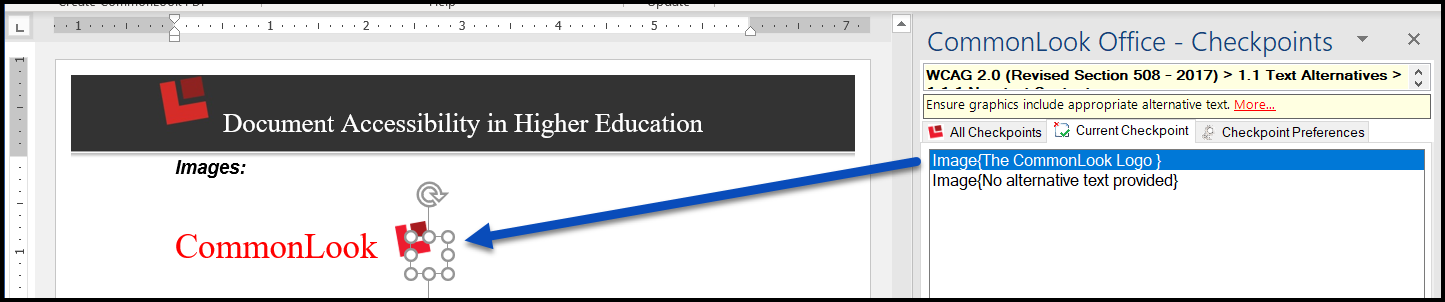
- Determine whether or not the image needs to have alternative text. Tip: If the image is used to convey relevant information, it needs alternative text. If the image is decorative, it does not.
- If the image does need alternative text, type it in the Textual Description box in the CommonLook panel. If alternative text is not needed, check the checkbox next to “No textual description required image used solely for presentation.”
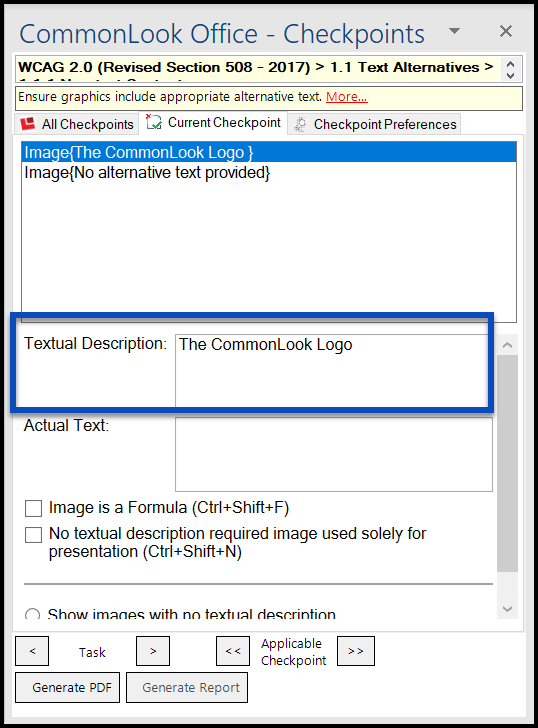
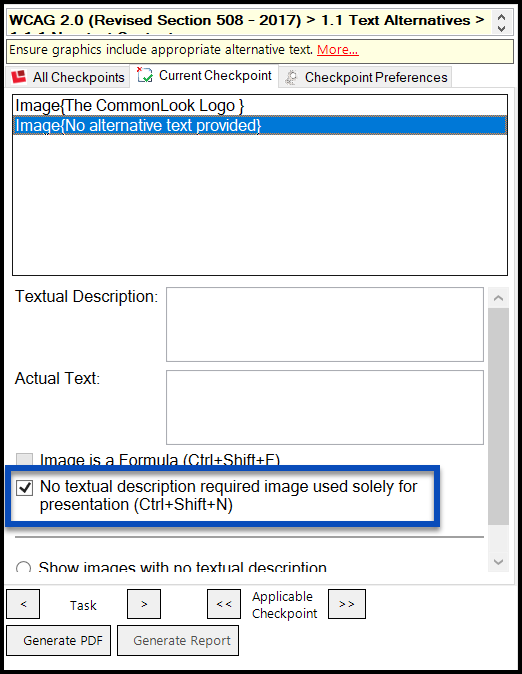
- Repeat these steps (as needed) for the rest of the images in the document (presentation).
Other Notes Regarding Alt Text
There are other options available in the alternative text checkpoint.
- If alternative text was already assigned to an image, for example in Word or PowerPoint, then you can verify the accuracy and/or edit the text in the “Textual Description” box.
- Provide Actual Text if the image is a picture of text.
- Check the checkbox labeled “Image is a Formula” if the image is a mathematical formula (and provide a textual description so that a screen reader can read the formula correctly). Note: Do not provide the formula in the textual description field. It needs to be "spelled out."
While not recommended, you can select the radio button to “Show images with no textual description” if the alternative text for the images has already been verified in Word (or PowerPoint) and you simply want to check the images that don't have alternative text. This can be an easy way to quickly artifact the images in the Word document or PowerPoint presentation that don't convey any relevant information. The potential problem with this option is that any alternative text assigned to an image is automatically approved, whether or not the alt. text is accurate or useful.
Error Message - Alternative Text "Quality"
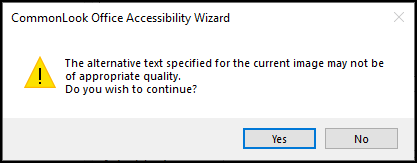
Let’s say, for a chart, you simply typed “Chart” for the Alt text. When you try to move on to the next image in your document, or the next checkpoint, you’ll get a message from CommonLook Office saying, “The alternative text specified for the current image may not be of appropriate quality” and it’ll ask you if you wish to continue.
Because you only typed in the word “Chart” for your Alt text, CommonLook is asking you to re-evaluate whether or not that Alt text is sufficiently informative for end users who might be using screen readers or other assistive technologies. If the Alt text is sufficient, you can hit “Yes” and continue on. It the Alt text is not sufficient, hit “No,” go back, and edit the Alt text for that graphic.
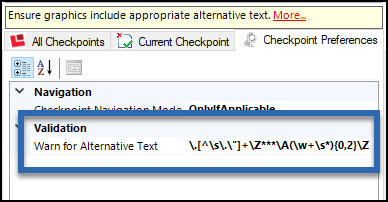
This message is prompted based on settings in the “Checkpoint Preferences” tab, through the use of Regular Expressions. As shown in the screenshot below, in the Checkpoint Preferences tab, there is a "Validation" section. There, CommonLook is setup to give this warning if there are, for example, special characters in the Alt text, or if the Alt text is two or fewer words. While not recommended, if you know Regular Expressions, you can edit the Regular Expression.
Was this article helpful?
That’s Great!
Thank you for your feedback
Sorry! We couldn't be helpful
Thank you for your feedback
Feedback sent
We appreciate your effort and will try to fix the article