Why Group Elements?
It might be necessary to group elements on a PowerPoint slide for any one of a number of reasons. Some of them are listed here:
- When multiple objects are used to convey one overall thought or concept,
- If you need to manipulate the reading order of graphical elements,
- To fix issues with elements that are overlapping.
Important: Do not group tables and form fields. Grouping these objects will cause them to be ignored by other checkpoints pertaining to those objects.
The Grouping Checkpoint in CommonLook Office
When running the Grouping Checkpoint, CommonLook Office will display, on the left side of the panel, all of the slides containing elements that may need to be grouped. The individual slide elements are listed in the “Objects” panel on the right. Below the “Objects” panel are various selection and grouping buttons that will be discussed in the next section.
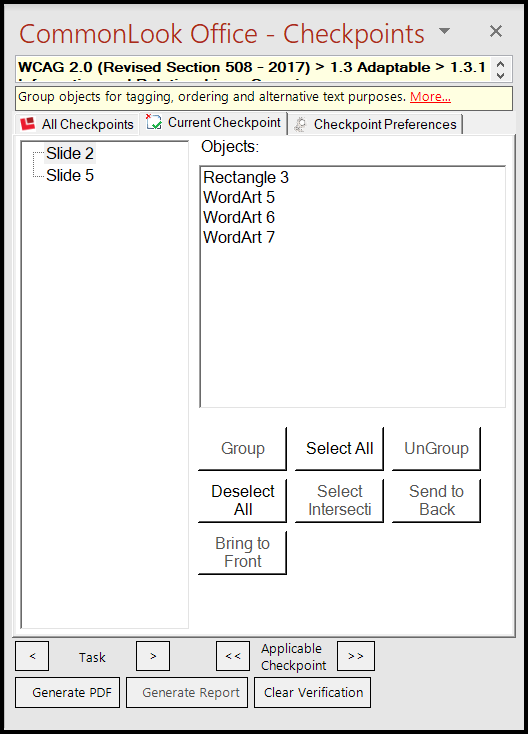
To Group Elements
In the “Objects” panel, select each of the items to be grouped.
Tip: Choosing an item in the list and then using the “Select Intersecting” button will find the objects on the slide that overlap the currently selected element.
Important: If content is hidden, grouping elements can be a solution.- Use the "Group" button.
If grouping objects results in layering issues:- Ungroup them (with the “UnGroup” button).
- Select the problematic object and then"Send to back" or "Bring to front" to change the order of the objects when grouped.
- Regroup to test your changes.
Important: After grouping elements together, be sure to provide the appropriate Alternative text!
Was this article helpful?
That’s Great!
Thank you for your feedback
Sorry! We couldn't be helpful
Thank you for your feedback
Feedback sent
We appreciate your effort and will try to fix the article