When using CommonLook Office (version 2.1.4 or later) you'll have the option, in the "CommonLook Office Preferences," to choose how your tags will "look" in the PDF. Your options are to either have CommonLook Office convert all of the styles used in Word to standard PDF tags or to keep the tag names so that they match the styles used, but those "custom" tags are role mapped to standard PDF tags.
Choosing Your Tag Options
Follow these steps to check or change this option:
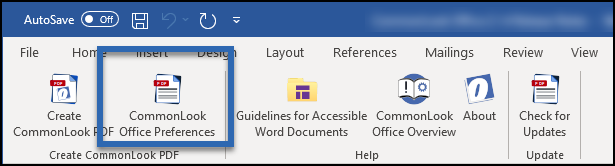
- In a Word document or PowerPoint presentation, select the CommonLook Office tab.
- In the ribbon, select "CommonLook Office Preferences."
- In the "Application Preferences" dialog box, navigate to "Generate Tags using" and use the dropdown menu to choose from "Standard Tags" or "Office Style Names."
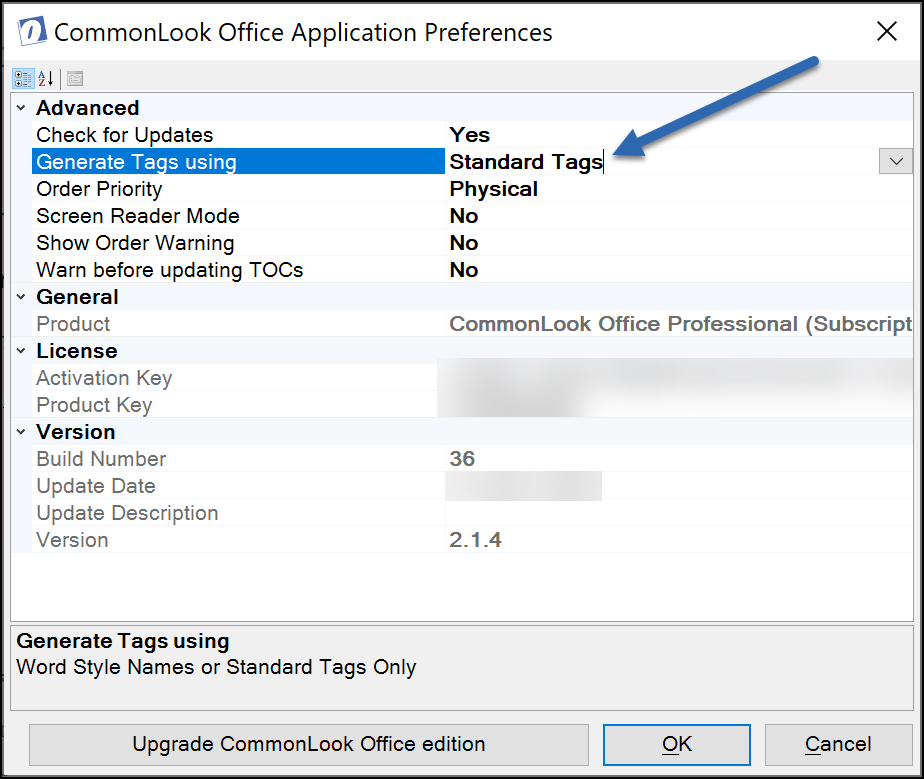
- Hit "Ok."
What This Does
If you are using the option to create Standard Tags then, when you generate your PDF, the tag names will all be standard PDF tags. So, for example, your paragraphs of text will be in "P" tags, your lists will be in "L" tags, etc.
If you keep the Word Style Names then, when you generate the PDF, your paragraphs of text could be in "Normal," Paragraph Body Text," or whatever the style is that was used, in Word, for your paragraphs. Similarly, lists could appear in "List" tags (or other style names). However, these "custom" tags will be role mapped to their standard PDF tag equivalent so that, if assistive technology doesn't know how to handle a particular tag, because it doesn't recognize the tag name, the AT should know how to handle the standard tag that it's mapped to.
For more information about Role Mapping in CommonLook Office, please refer to this article on "Headings (Styles) Checkpoints in CommonLook Office." (Scroll down to the section "Check that Styles are Mapped to the Correct PDF Tag.")
Important Note: Whether you are keeping your Word Styles or having CommonLook Office convert the styles to the standard PDF tags, if you're using styles other than those provided by Word "out of the box," it's highly recommended you run the Role Mapping checkpoint in CommonLook Office to make sure that your styles will be handled correctly! In CommonLook Office, in the All Checkpoints tab, this is checkpoint 1.3.1 "Information and Relationships - Styles."
Was this article helpful?
That’s Great!
Thank you for your feedback
Sorry! We couldn't be helpful
Thank you for your feedback
Feedback sent
We appreciate your effort and will try to fix the article