When working in PowerPoint, you may have a list or a table that spans multiple slides. When converting the PowerPoint to PDF, even with CommonLook Office, two issues will likely be created. First, the list (table, etc.), will be broken into multiple tags (per slide) but, in reality, it was intended to be read as one list (table, etc.). Second, the title (heading) at the top of each slide will be tagged but we don't need that heading read and we also don't want the list (table, etc.), to be interrupted by this heading.
This article explains how to properly untag the heading (slide title) in Acrobat so that you can then merge the lists (tables, etc.), as needed so that they're read properly.
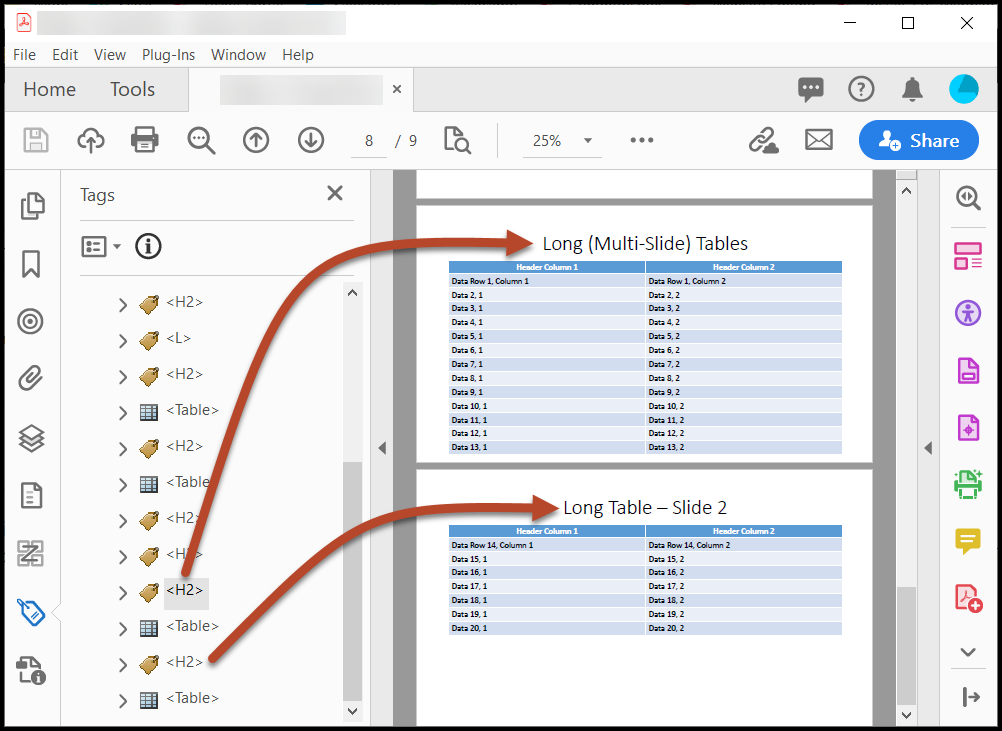
The screenshot below shows two pages in the PDF generated from PowerPoint. There's a table on each page but, based on the physical view, it should be read as only one table. In the Tags tree, the H2s for the titles on each slide are highlighted. The problem is that the table is broken across the pages and there's an "extra" H2 in the middle. The second H2, for "Long Table - Slide 2," needs to be artifacted (untagged). Unfortunately, in Acrobat, accomplishing this isn't as easy as simply deleting the H2. (In CommonLook PDF, selecting the H2 and deleting it will automatically place it in an Artifact container.) Refer to the steps below to artifact content in Acrobat.
To Untag (Artifact) Content in Acrobat
In the toolbar, select the View tab,
- Navigate to Tools,
- Choose Accessibility,
- then Open.
- In the Accessibility pane, select the Reading Order Tool.
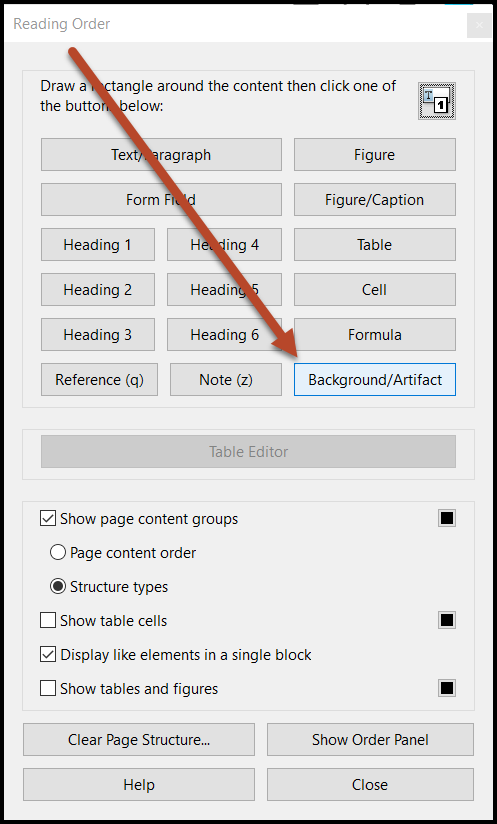
Tip: When the Reading Order pane opens, you might need to move it out of the way of the content that you need to artifact.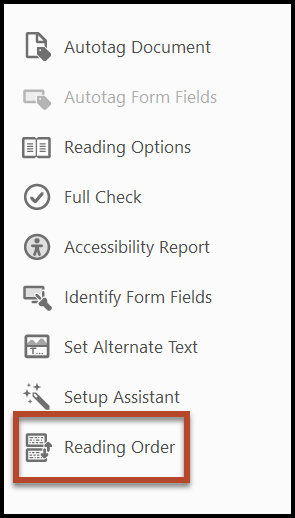
- In the Physical View of the PDF, highlight the content that you want to artifact (untag).
- In the Reading Order pane, choose the Background/Artifact button.
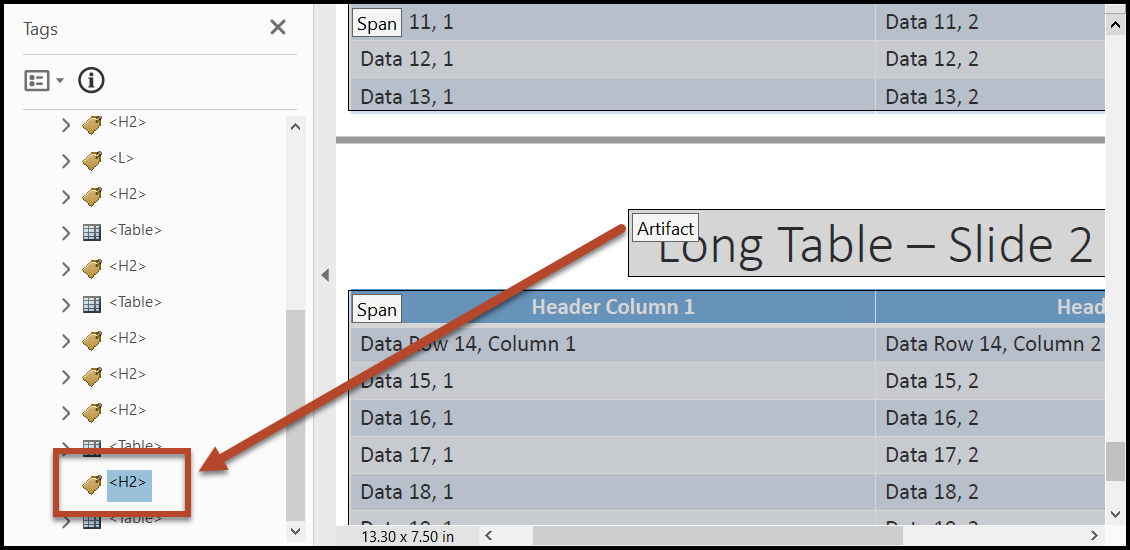
- In the Tags tree, select and then delete the empty tag that's left behind.
Was this article helpful?
That’s Great!
Thank you for your feedback
Sorry! We couldn't be helpful
Thank you for your feedback
Feedback sent
We appreciate your effort and will try to fix the article