Why Use Styles?
In a PDF document, the tags define its structure and enable screen readers to properly convey the structure and content of the document to the user. For this reason, it is important that each object (for example, a slide title) is mapped to the correct PDF tag.
The Style Mapping Checkpoint
In the “Styles” or “Style Mapping” checkpoint, CommonLook Office asks you to verify that the correct tag will be assigned to the various elements on a slide. Here are some examples and explanations of tags used:
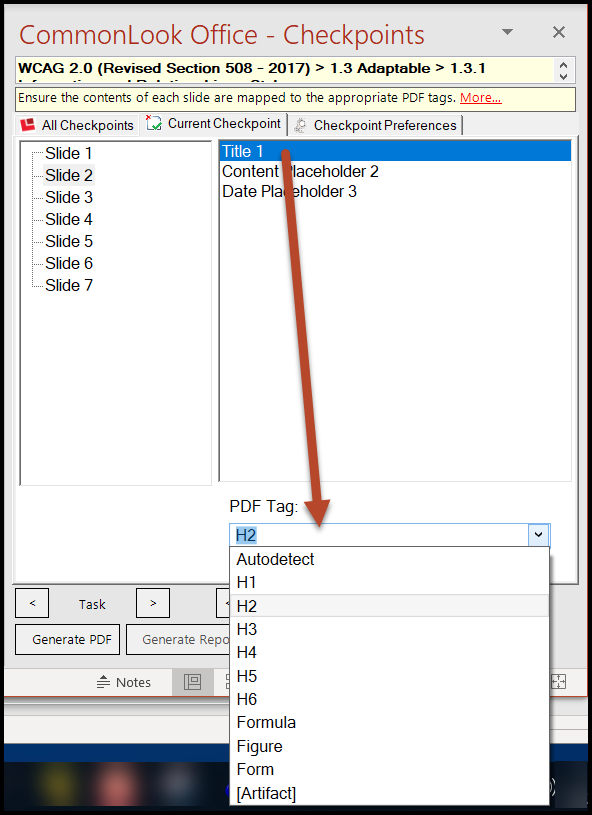
- Heading levels – H1, H2, H3, etc. When considering heading levels, it may be helpful to think in terms of an outline format. The H1 (heading level 1) tag is reserved for the title of a document and the top box in the Title Slide will be tagged accordingly. In subsequent slides, the title boxes will be tagged as H2 (heading level 2) because they fall under the title in the hierarchical structure of the document. If there are slides that are sub-sections then their slide title boxes would be tagged as H3.
- Figure – Graphical elements used to convey information. Figures require alternative text.
- Artifact – Elements on a slide, such as decorative images, slide numbers, date footers, etc., that don't convey relevant information. Content marked as an Artifact will not be read by assistive technology.
- Formula – Use the “Formula” tag for Mathematical formulas. Note that Formulas, like figures, also require alternative text.
- Autodetect – Used in CommonLook Office for objects containing paragraphs, tables, lists, etc.
Checking (and Changing) Tag Types
CommonLook Office will list all of the slides in the presentation and all of the elements on each slide.
- Select the first element on the slide.
- Identify the content highlighted in the physical view.
- Below the list of elements on the slide, in the "PDF Tag" field, verify that the content will be placed in the correct tag type.
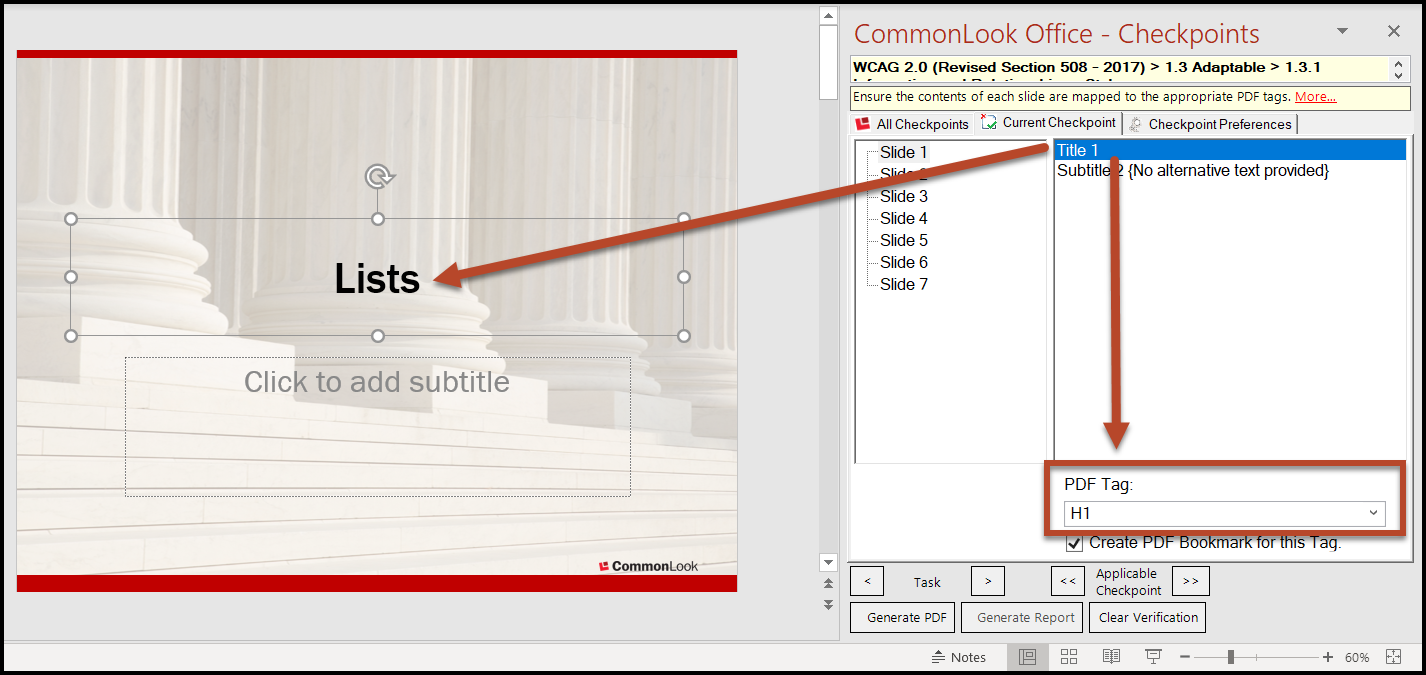
- If the PDF Tag type is correct, use the Next Task button (or the down-arrow on your keyboard) to check the other elements on the slide (and the elements on the subsequent slides in the presentation). If the PDF Tag is not correct, use the dropdown menu in the PDF Tag field to assign the correct tag type.
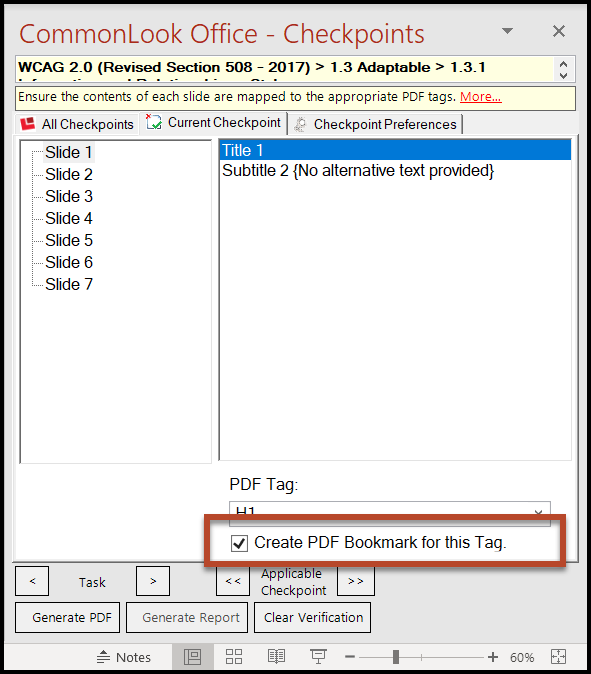
- If appropriate (with Headings, for example) make sure the checkbox to “Create a PDF bookmark for this Tag” is selected.
Was this article helpful?
That’s Great!
Thank you for your feedback
Sorry! We couldn't be helpful
Thank you for your feedback
Feedback sent
We appreciate your effort and will try to fix the article