CommonLook Office is a completely accessible software that is intended for use by all audiences. The software allows individuals who are using assistive technology, such as a screen reader or Braille keyboard, to fix Word or Powerpoint documents and prepare them for conversion to PDF. There are certainly challenges associated with remediating with these limitations - a blind user, for example, would have difficulty remediating a complicated table layout because of their lack of vision, but technically not because of the CommonLook's inaccessibility. In a situation like this, it is not uncommon for a disabled remediator to have someone helping them through the process, helping them understand the appearance of the document.
CommonLook has keyboard shortcuts for every single command within the platform. Simultaneous and sequential keyboard shortcuts are used based on specific commands. For example, opening CommonLook Office with a Word or Powerpoint document requires a sequential use of the Alt key, letters, and numbers. Once inside CommmonLook, using the Tab key allows users to progress through various checkpoints or to the next selection. The spacebar and Enter keys allow the user to make selections, and the arrow keys can also be helpful as you check complicated tag structures such as during list verification.
Some of the more complicated checkpoints will have multiple "sections" within the CommonLook panel, and navigating those can be challenging at first. For example, when checking tables, you will need to use the Tab key to move into the "Select Table Type" section, and then the arrow keys to change the selected table type.
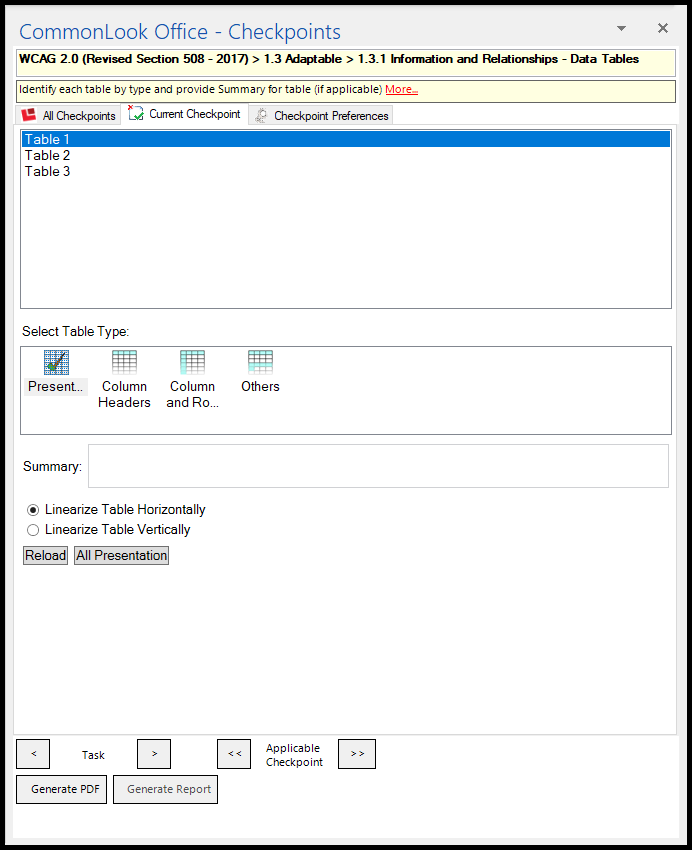
Users are also able to go back to previous checkpoints by using the Tab key to navigate to the "Previous Applicable Checkpoint" or "Next Applicable Checkpoint" buttons.
Using CommonLook Office with a Screen Reader
Note: When screen reader mode is turned on, CommonLook Office will not highlight elements in the physical view of the document when they are selected in the CommonLook Office panel. So, for example, if on the CommonLook Office side, if you select an image, list, or table, that will not be highlighted in the document view.
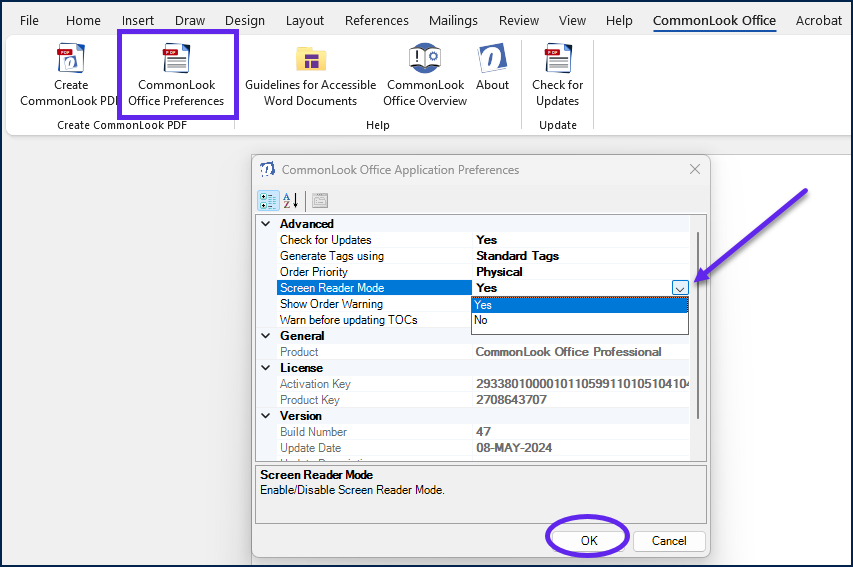
When using CommonLook Office with a screen reader, users may find it easier to switch to screen reader mode in the CommonLook Office Applications menu. To turn on screen reader mode, follow these steps:
1. In the CommonLook Office ribbon, select the CommonLook Office Preferences button in the Create CommonLook PDF group.
2. The CommonLook Office Applications popout menu will open. In this menu, select the drop-down next to "Screen Reader Mode" and change the selection to "Yes."
3. Select the OK button at the bottom of the menu.
Was this article helpful?
That’s Great!
Thank you for your feedback
Sorry! We couldn't be helpful
Thank you for your feedback
Feedback sent
We appreciate your effort and will try to fix the article