How to Know There's an Update
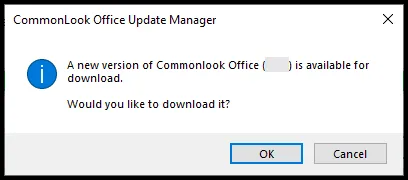
If you have automatic updates turned on, and there's an update available, you'll be notified when you choose "Create CommonLook PDF."
You can always navigate to "Check for Updates" to find out if there's an update available.
How to Install the Update
- Choose "OK" in the update notification
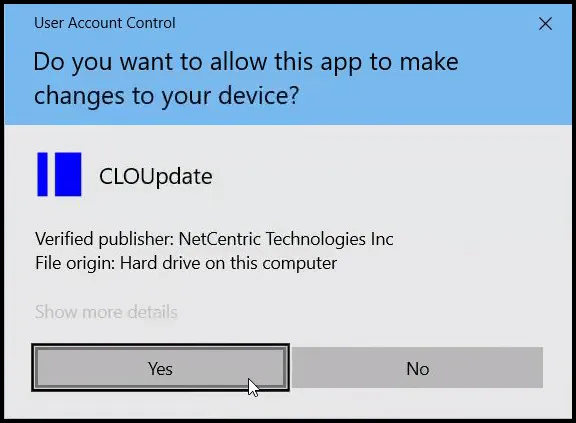
- Choose "Yes" to allow changes to your system. The download will begin automatically.
- Watch
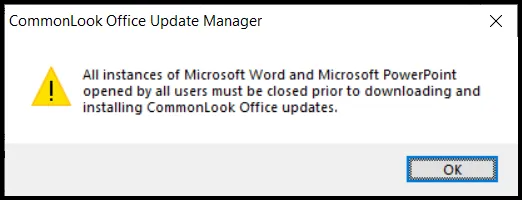
- Close Word and/or PowerPoint
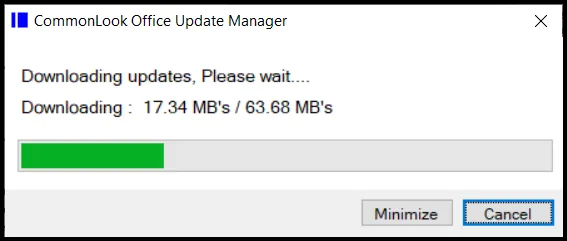
- Watch the progress. Do not open Word or PowerPoint yet!
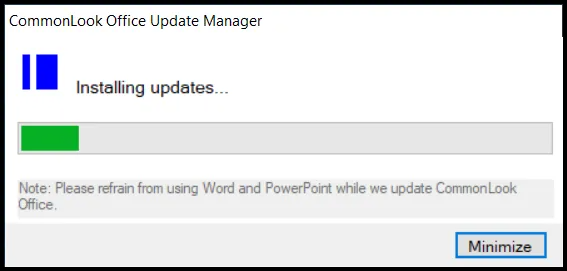
- Choose "OK"
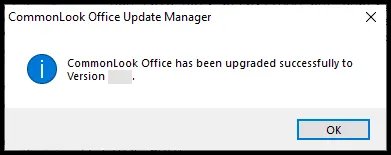
- Return to Word or PowerPoint and continue working.
How to Disable "Check for Updates/Automatic Updates" in CommonLook Office
- Open Microsoft Word with CommonLook Office installed. In the ribbon, select the CommonLook Office tab.

- Select CommonLook Office Preferences in the ribbon.

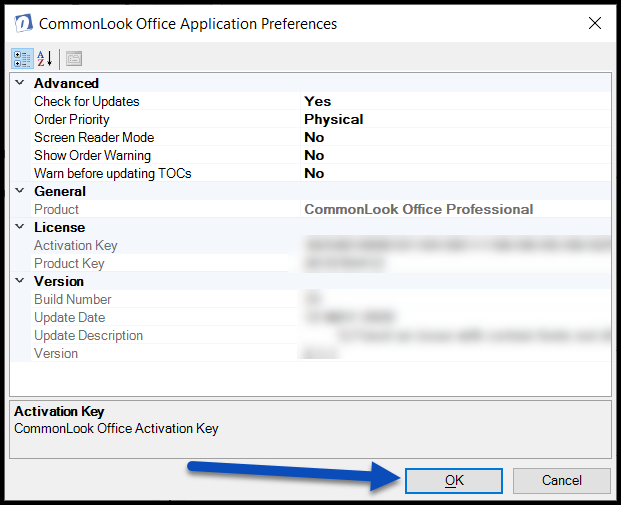
- This opens the Preferences window. Near the top, navigate to “Check for Updates.”
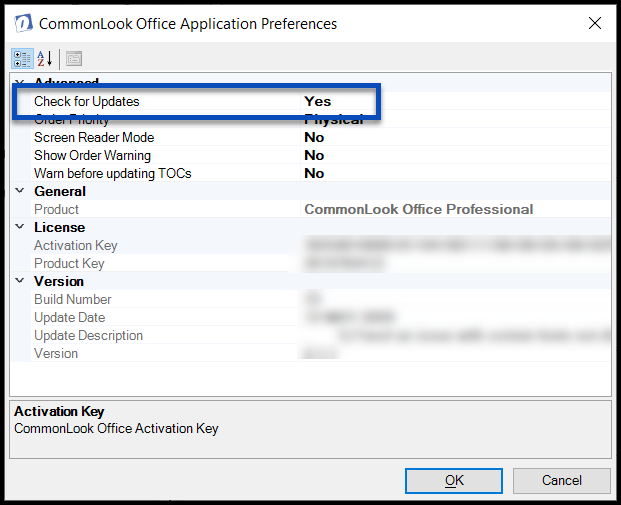
- Expand the dropdown menu and choose "No."
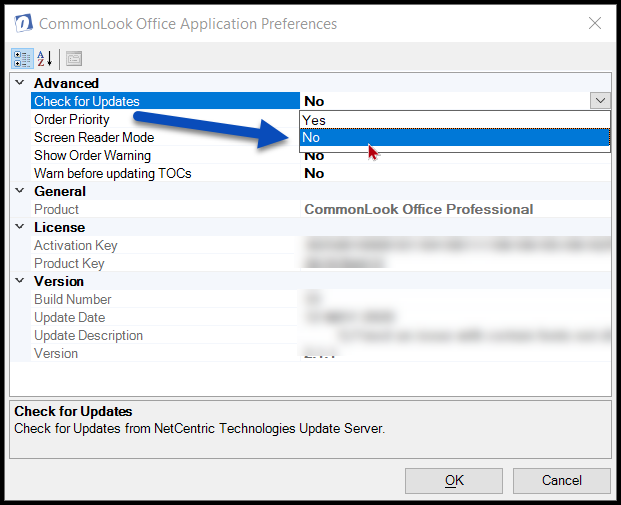
- Select “Ok” to save the setting.
Update Issues
If you have any issues with the update please contact support@commonlook.com.
Was this article helpful?
That’s Great!
Thank you for your feedback
Sorry! We couldn't be helpful
Thank you for your feedback
Feedback sent
We appreciate your effort and will try to fix the article