In the desktop version of CommonLook PDF, and in the web-based Advanced Editor, you have the functionality to add "User tags" to the ribbons of the Insert and Convert tag tabs.
In web-based CommonLook PDF:

In the desktop version:

Why User tags?
The most frequently used tags are readily available in the ribbon from both "Insert Tag" and "Convert Tag" (and/ or with keyboard shortcuts). However, less frequently used tags, like Art (Article), Div, and Formula, for example, are selected by opening the "Standard Tags" dropdown menu.
If, however, you use these "less frequently used tags" often, adding them to the User tags group makes them more readily available.
How to add User tags
In the web-based, Advanced Editor:
- Navigate to, and open, the hamburger menu at the upper left,
- Go to "Settings."
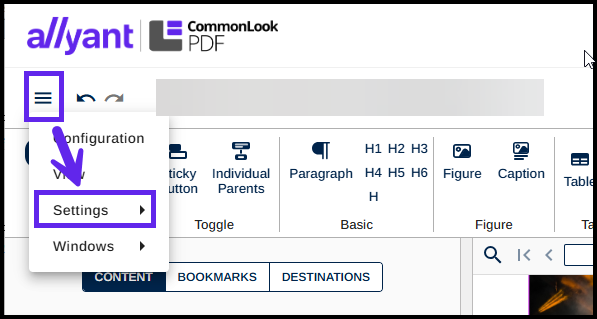
- From "Settings," select "User tags"
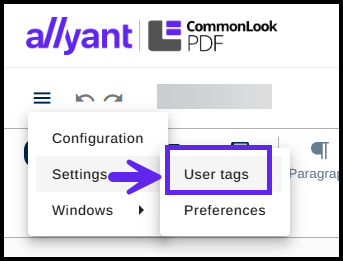
- In the dialog box that opens, add the tags you want to make available in the "User tags" group.
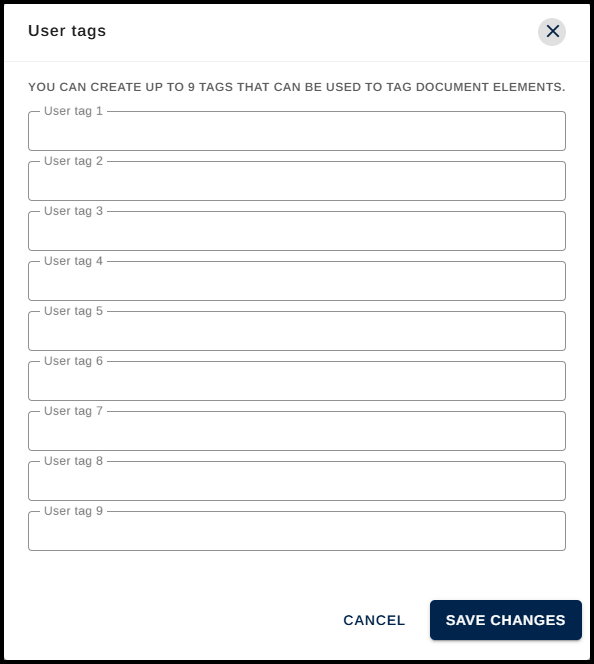
- Select "Save Changes" (or Cancel to cancel this).
To remove "User tags" from the ribbon, navigate to the User tags dialog box, remove the tags, and then hit Save.
In the desktop version:
- Navigate the the Settings tab,
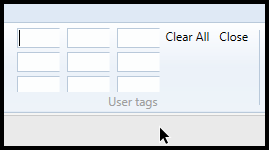
- In the ribbon, select "User tags"

- Type the tag names you want to use
- Click "Close" when finished. (To remove all of the User tags, select "Clear All".)
Creating Custom Tags
In addition to adding "popularly used" Standard PDF tags to the ribbon, you can also use this functionality to create Custom tags, if you need to. However, if creating Custom tags, make sure that you properly Role Map them! For more information on Role Mapping tags, make sure you read our article on Role Maps and Custom Tags.
Was this article helpful?
That’s Great!
Thank you for your feedback
Sorry! We couldn't be helpful
Thank you for your feedback
Feedback sent
We appreciate your effort and will try to fix the article