Depending on the use of styles when creating the Word document, when opening CommonLook Office, one or more Styles checkpoints may be prompted to run. Refer to the article on Heading Levels (Styles) in Word as needed.
Check for Heading Use
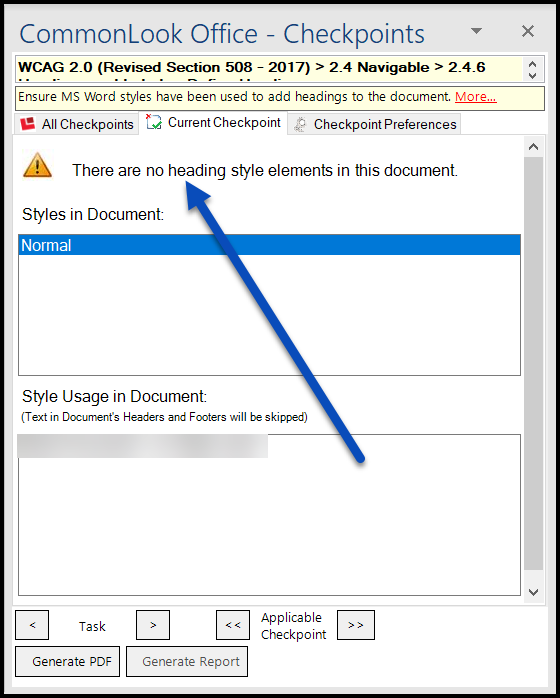
CommonLook Office checks to make sure that heading styles have been used in Word. In this checkpoint, the CommonLook panel displays a list of the styles that have been used in the document. In addition, as shown in the screenshot below, when heading levels are not used in Word, Commonlook Office displays an error message stating that “there are no heading style elements in this document.” If this happens, close CommonLook, return to Word, and add headings as needed.
Check that Heading Levels are not Skipped
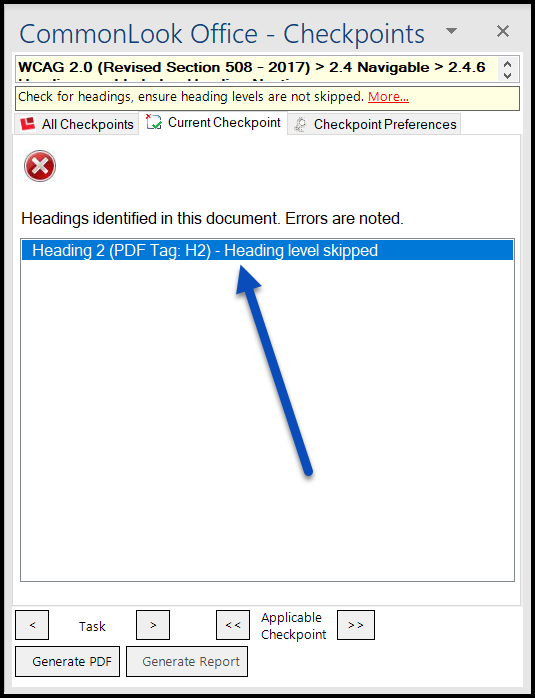
If heading levels have been skipped while the document was being created, CommonLook Office will identify these skipped heading levels.
As mentioned in the article on Heading Levels (Styles) in Word, think of your heading level organization similar to an outline.
To resolve the skipped heading levels issue follow these steps:
- Select the errors in the CommonLook panel to identify where, in the document, the heading levels have been skipped.
- Close CommonLook Office and return to Word.
- Assign the proper heading levels to the text.
- Reopen CommonLook to continue working on the document.
Check that Styles are Mapped to the Correct PDF Tag
When tagging the PDF, CommonLook Office will use the Styles information in Word to create a PDF tag. Use the Style Mapping checkpoint to make sure that the correct tag will be used and also to generate bookmarks based on the headings used in the document. The tag assigned to a particular style can also be changed in this checkpoint.
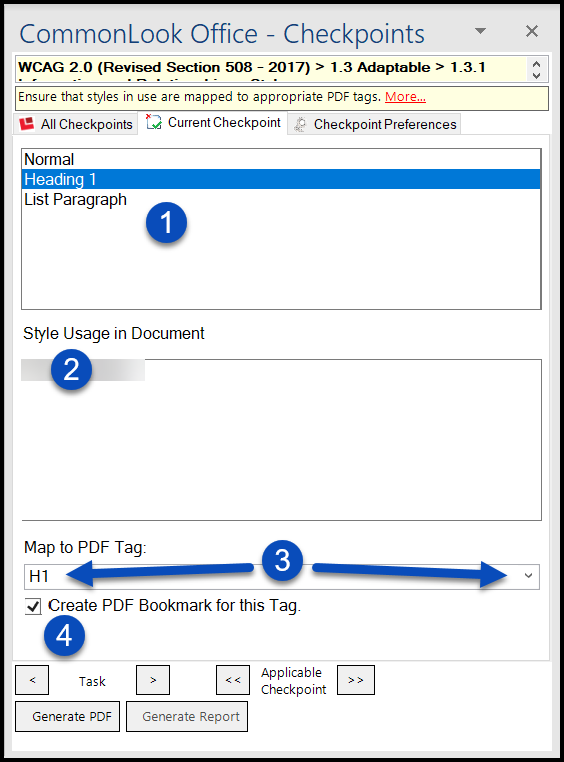
Referring to the screenshot below:
- In the upper panel, all of the Styles used in Word will be listed.
- In the lower panel, when a Style from the top panel is selected, all of the text that is assigned that particular Style will be displayed. (When text is selected in this lower panel, it will also be highlighted in the Word document.)
- In the “Map to PDF Tag” field, verify or change the tag type that will be created for the selected Style. (Open the menu, if needed, to assign a different tag type.)
- Check the checkbox to create a bookmark from the corresponding PDF tag.
Tag Names in the PDF
When using CommonLook Office (version 2.1.4 or later) you'll have the option, in the "CommonLook Office Preferences," to choose how your tags will "look" in the PDF. Your options are to either have CommonLook Office convert all of the styles used in Word to standard PDF tags or to keep the tag names so that they match the styles used, but those "custom" tags are role-mapped to standard PDF tags.
Refer to this article on PDF Tags from CommonLook Office for more information.
Was this article helpful?
That’s Great!
Thank you for your feedback
Sorry! We couldn't be helpful
Thank you for your feedback
Feedback sent
We appreciate your effort and will try to fix the article