Product
CommonLook PDF Desktop Version
Feature
Updates
Document Element
Automatic Updates
Overview
CommonLook PDF Desktop, on the subscription-based licensing model, can check for and notify you of software updates automatically. This article covers how to recognize that an update is available and how to turn on automatic update checks through the CommonLook Update Manager inside Adobe Acrobat.
Prerequisites
- CommonLook PDF Desktop Version installed as an Acrobat plugin, on the subscription-based licensing model.
- Adobe Acrobat installed and able to open.
- Do this any time you want update notifications to appear automatically going forward, rather than checking for updates manually.
Steps to Follow
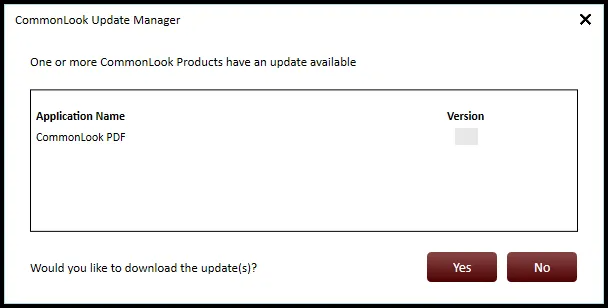
If you have automatic updates turned on, you'll be notified that an update is available as soon as you open Acrobat.
How to Turn On Automatic Updates
- Open Acrobat (or a specific PDF).
- Navigate to Plugins.
- Choose CommonLook.
- From the sub-menu, choose CommonLook Update Manager.
- Check the checkbox to Automatically Check for Updates.
- Close the Update Manager.
Screenshots
Add screenshots to help illustrate
Common Problems
Sometimes the Update Manager will be blocked, and therefore you will not be notified of updates to CommonLook PDF Desktop. We suggest checking the version and release notes to ensure that you have the most up-to-date version of the software.
Versions and Release Notes (CommonLook PDF desktop version)
Was this article helpful?
That’s Great!
Thank you for your feedback
Sorry! We couldn't be helpful
Thank you for your feedback
Feedback sent
We appreciate your effort and will try to fix the article