Disabling the Color Contrast checkpoint in CommonLook Office can speed up the process of running a Word Document through CommonLook Office. We recommend only turning this off is you are sure you do not have any color contrast issues in your document.
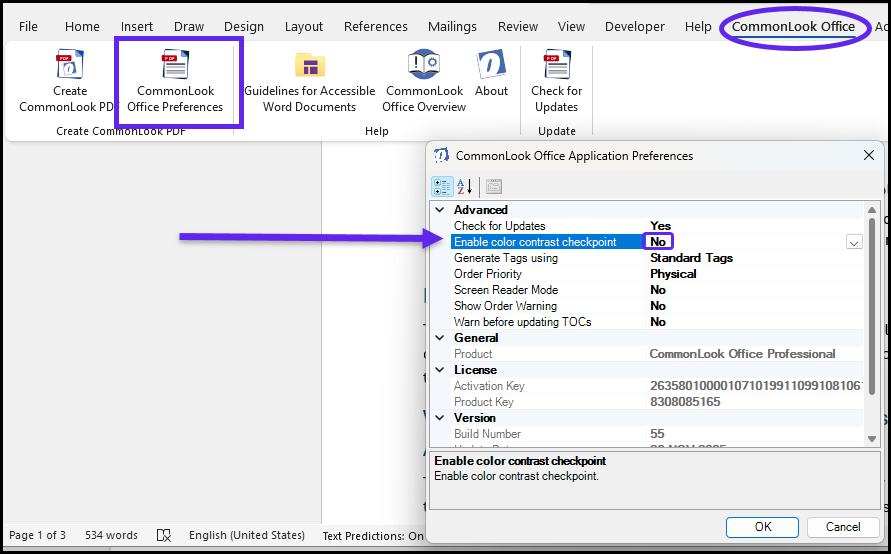
The following steps will allow you to disable the Color Contrast checkpoint in CommonLook Office:
1. Select the CommonLook Office Tab.
2. Select the "CommonLook Office Preferences" button in the ribbon menu.
3. In the "CommonLook Office Preferences" dialog box that opens, toggle the setting to "No" for Enable color contrast checkpoint.
Was this article helpful?
That’s Great!
Thank you for your feedback
Sorry! We couldn't be helpful
Thank you for your feedback
Feedback sent
We appreciate your effort and will try to fix the article