Oftentimes, the Simplified Editor in CommonLook PDF will automatically join List containers for lists that span across columns, across pages, or over other breaks in the document. It may, however, need your input if, for example, there is a list that goes on to the next page but, at the bottom of the first page, there is a container in the way, like holding a footnote, for example. (Ordinarily, page numbers in the footer won’t present a problem. It’s only when the containers are “bigger.”) If there is a container in the way, "blocking" the connection, and you need to keep the container so the content gets read, you'll need to change the reading order first, before making the connection (unless the container "in the way" is a Footnote or Page Number container).
If you need to manually connect a list, you’ll do this in the “Full Document Review” step.
When you’re in your “Full Document Review,” follow these steps:
- Make sure both “pieces” of the list are in List containers and their List Items and List Item Levels are correct. For more information, check out those relevant articles in this Knowledge Base.
- Make sure the Reading Order has been verified and set as needed.
- Select the “Connections” button at the upper right side of the interface, below the “Page Elements” and “Reading Order” buttons.

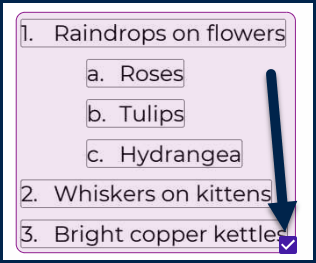
- Check the checkbox at the bottom right corner of your first list to connect.
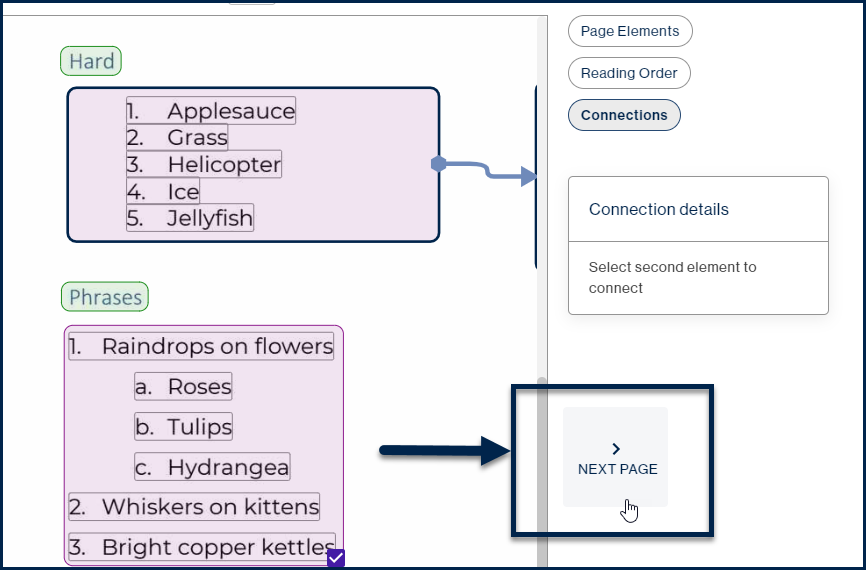
- If the second part of the list is on the next page in the document, use the “Next Page” button to navigate there.
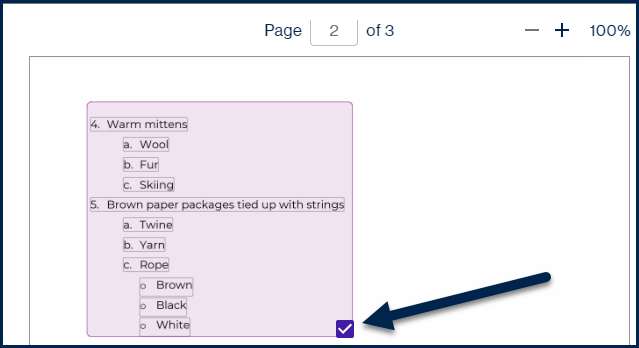
- Check the checkbox at the lower right corner of the second list you’re connecting to.
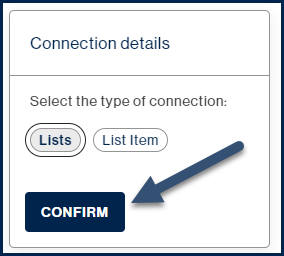
- In the “Connection details” options, choose “Lists.”
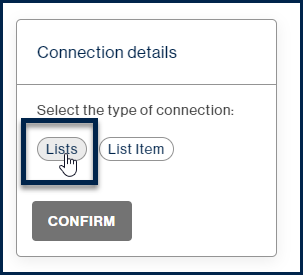
- Use the “Confirm” button to connect the lists.
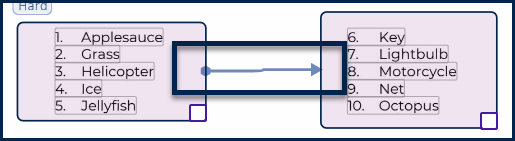
- When your lists are connected, you’ll see a blue arrow on the page view, indicating that the list is connected to the next one (or the previous one, depending on the page that you’re on). (Note: The screenshot below shows a list between two columns on the same page of the document but this screenshot makes it easier to show the arrow indicating the connection.)
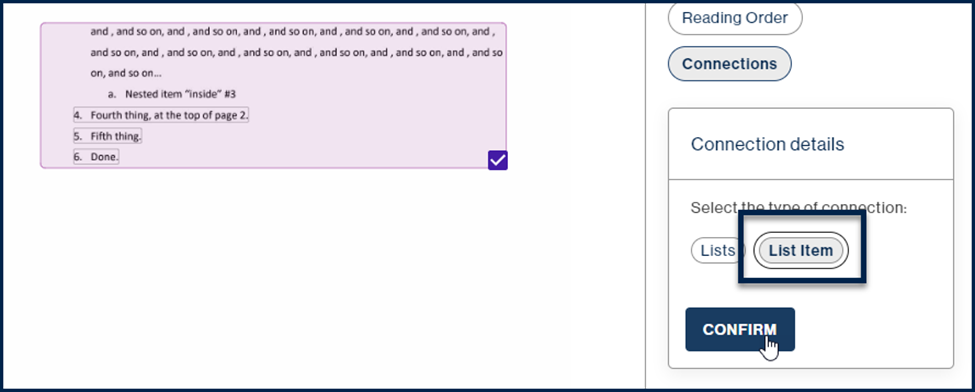
Choosing "List items" in "Connection details"
When making connections, if the content of one list item flows to the next page (or the next column, etc.), choose “List item” in “Connection details.”
Didn't find what you're looking for? Navigate to our "Lists" section for more related articles that may help!
Was this article helpful?
That’s Great!
Thank you for your feedback
Sorry! We couldn't be helpful
Thank you for your feedback
Feedback sent
We appreciate your effort and will try to fix the article