We are frequently asked about Reflow in PDFs, how it works, does CommonLook PDF support it, and “why does my document look weird in reflow?” In this article, we’ll try to answer these questions.
Why Reflow?
But first, what’s the point of Reflow? The “advantage” of being able to reflow a document is that, in reflow, a person looking at a document should just be able to scroll down the page to read all of the content, instead of having to scroll down as well as from left to right.
How does Reflow work?
In Adobe Acrobat, when a document is in reflow, how the content appears on the page is determined by the order of the content in the Content Panel. This is in accordance with the currently supported PDF specification, ISO 32000-1 (the PDF 1.7 specification).
It is important to note, however, that how reflow works is defined differently in PDF 2.0 (ISO 32000-2). In the PDF 2.0 specification, reflow is determined by the order of the content in the Tags tree. So, in the future, when Acrobat more fully supports PDF 2.0, the behavior, or appearance of a document, will change. Also noteworthy, there are other PDF processors available now that do support reflow in the context of PDF 2.0. So, depending on which software you’re using, you may get different results.
Why does my document look weird in Reflow?
Because, in Acrobat, the appearance of the document in reflow is determined by the order of the content in the Content panel, when a document is put into reflow, this can create unexpected results. These unexpected results may be due to ordering in the Content panel that you weren’t aware of. Another cause is very likely due to the fact that any content in an Artifact Container will be removed from the physical appearance. Below are some real-world examples.
Content might move
Here is a screenshot of the title page of a document that is not in reflow. Notice that the text “Colorado Springs” is at the top of the page, above the image. Then there is a photograph of Colorado Springs, followed by the text “2000-2024 Strategic Report.”

Here is a screenshot of that same title page in reflow:
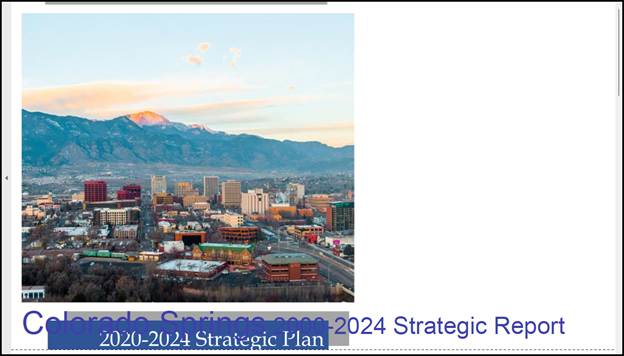
Notice that the photo of Colorado Springs is now at the top of the page and the words “Colorado Springs” have moved down, below the image, and they are actually right on top of the words “2000-2024 Strategic Report.” In addition, there is now also white text visible that reads “2020-2024 Strategic Plan” that was not visible before!
Artifacted content disappears
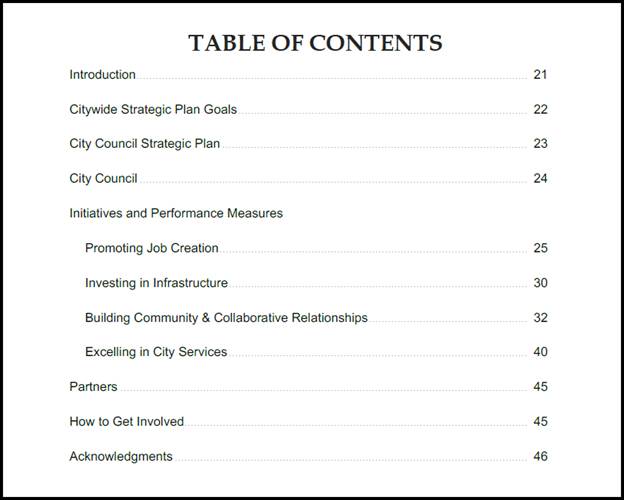
From that same document previously mentioned, here is a screenshot of the Table of Contents (not in reflow). Notice the dot leaders are visible on the page.
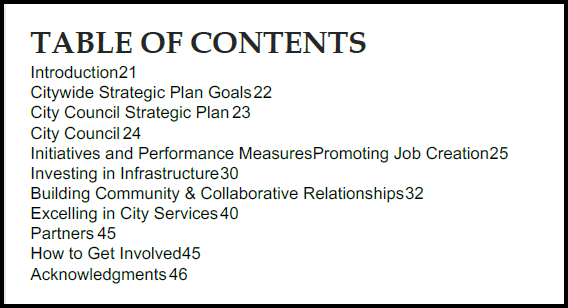
Here is the same Table of Contents again, in reflow. Notice that the dot leaders are missing and there are also no spaces between the text of the Table of Contents items and the page numbers. While that might not be an issue in this document, if the table of content items contain numbers, followed immediately by the page numbers, this could lead to confusion.
(You may also scroll back up in this article to where we talked about the title page changing. In the non-reflowed screenshot, you may notice there is content in the footer at the bottom of the page. That content is also missing in the screenshot of the title page in reflow!)
Things can get really messy
In the screenshot below, we have a data table. The two column headers, in the top row of the table, contain white text on a blue background. Then, there is a row that only contains the word Airport (in black text). Below the row for Airport, in the left-hand column, there is some data - perhaps a one-item list. However, in the second column, on the right, there is a list of four items. Then there’s another row containing only the text City Clerk (again, in black, like Airport). And, again, in column 2, on the right, there’s a list of two items. Then there’s a row containing City Council and, again in the 2nd column, below City Council, there is a list of four items. Furthermore, because this is laid out as a table, we can visually see the cell borders outlining each cell, and row, to make it visually very apparent where each row and cell begin and end.
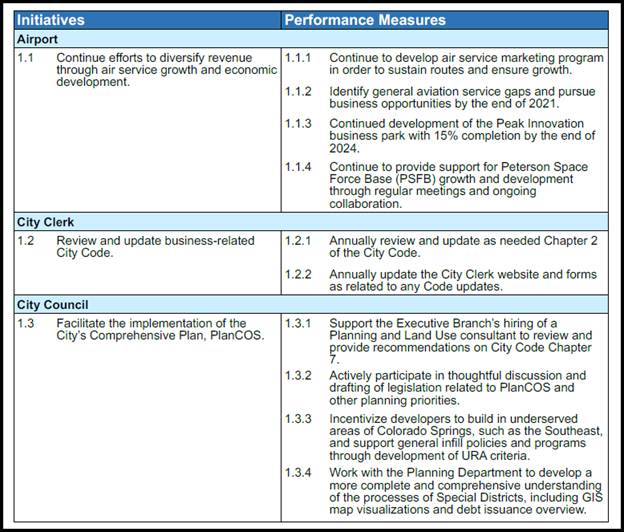
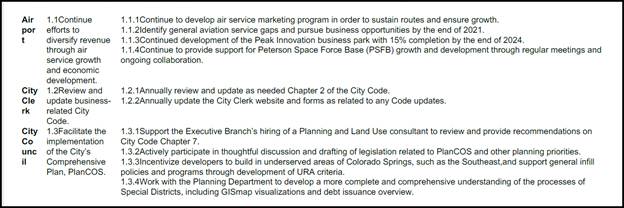
When that same data table is put into reflow, as shown in the screenshot below:
- The white text of the column headers completely disappears.
- The text for Airport, City Clerk, and City Council are moved to the left side of the “table” and have been “flowed” to multiple lines, making the text harder to read and increasing the cognitive load.
- The cell borders have all disappeared, making it more difficult for some people to realize where one row, or section of the table might end and where the next row or section might begin.
- The text, including the lists in the other data cells, becomes significantly harder to read, too.
What does CommonLook do?
CommonLook PDF actually does not do anything to “remediate” this problem. That’s because we live by two very simple rules, one of which being that, when using CommonLook PDF, you can’t change the physical view of the document. However, if you start moving things around in the Content panel in Acrobat, it’s very likely that you will change the physical view.
At this point, you have a couple of options:
- Pressure Adobe Acrobat for better support of PDF 2.0,
- Recommend that end users who will be putting the documents into reflow use a PDF processor that supports reflow in the PDF 2.0 context and reflows based on the order of the content in the tags.
Was this article helpful?
That’s Great!
Thank you for your feedback
Sorry! We couldn't be helpful
Thank you for your feedback
Feedback sent
We appreciate your effort and will try to fix the article