If Clarity doesn't find PDFs, when running a Task, it may be helpful to adjust your Domain Configuration or to try some filters.
To Adjust the Domain Configuration
In the Domains screen, for the domain in question, click “Configure” in the table.
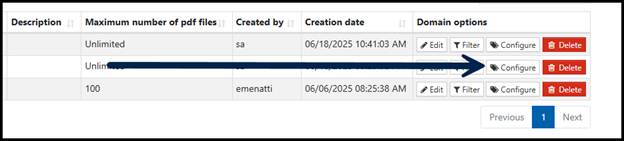
Then, in the configuration, try the following (one at a time and “Re run” the Task after each change):
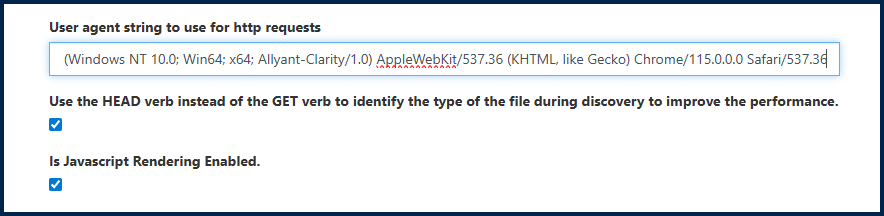
- About halfway down the Configuration page, change the “User agent string to use for http requests” to:
Mozilla/5.0 (Windows NT 10.0; Win64; x64; Allyant-Clarity/1.0) AppleWebKit/537.36 (KHTML, like Gecko) Chrome/115.0.0.0 Safari/537.36
(the default is: Mozilla/5.0 (Windows NT 10.0; Win64; x64) AppleWebKit/537.36 (KHTML, like Gecko) Chrome/90.0.4430.212 Safari/537.36) - Uncheck the checkbox for “Use the HEAD verb instead of the GET verb to identify the type of the file during discovery to improve the performance.”
- Uncheck the checkbox for “Is Javascript Rendering Enabled.”
Using Filters
Follow this link to learn more about Filters in Domains.
If the PDFs are in a "different" sub-domain that Clarity isn't pointed at / getting to
If you can manually search on the site for PDFs, and find them, check where they are located. If we are scanning "Allyant.com," for example, but the PDFs are located at "pdf-repository.allyant.com" then Clarity may not find them (although the filter for "everything Allyant" might help).
We would have to point Clarity to that "other" domain or otherwise get the PDFs (like in a folder) and then have Clarity scan the folder.
Also, Clarity cannot test files that are in Google Drive. Clarity will also have issues testing PDFs, in SharePoint, DropBox, ShareFile, etc.
We might be getting blocked from crawling
Go to the Task screen and, in Manage Runs, click "Log." If you see a 403 error code, that means we are getting blocked / can't scan / can't download PDFs to test, etc. In this case, Clarity would need to be whitelisted. Reach our to support@allyant.com to get the information you need (IP Address, etc.) to whitelist Clarity.
Was this article helpful?
That’s Great!
Thank you for your feedback
Sorry! We couldn't be helpful
Thank you for your feedback
Feedback sent
We appreciate your effort and will try to fix the article