What is Canva?
Canva is a visual layout tool, while an accessible PDF is a semantic document. That gap is why Canva-exported PDFs often “look perfect” but read poorly with assistive technology: screen readers don’t follow pixels on the page—they follow a tags tree (structure), reading order, and metadata like alt text and language. PDF/UA (the PDF accessibility standard) makes this explicit: accessibility depends on semantic information such as machine-recoverable text, a declared language, a logical structure of content, and metadata like alternative text.
The good news: Canva now supports key accessibility inputs (heading “semantics,” alt text, language, and layer-based reading order). The bad news: Canva itself warns that these features work best for simple, linear layouts, and that one common export choice—Flatten PDF—removes accessibility tagging entirely.
Why Canva PDFs are often difficult to make accessible
A Canva design is built from many positioned objects—separate text boxes, shapes, icons, grouped elements—arranged visually. Accessibility, however, requires a single, meaningful content flow and structure.
Export behavior is the first major source of problems. Canva provides PDF Standard and PDF Print. PDF Standard is geared toward typical on-screen documents and is described as ~96 dpi for illustrations/text/graphics, while PDF Print targets high-quality printing and is the option associated with 300 DPI export. Higher print fidelity is useful for production, but it often nudges teams toward “locking” the layout—especially via flattening.
Flattening is the biggest accessibility trap. Canva’s own help center says flattening merges all design elements into a single image (a “static image”), helps fonts display accurately, and prevents editing in tools like Acrobat—but it also removes or prevents meaningful tagging and accessible text structure. In accessibility terms, flattening commonly turns selectable text into pixels, which undermines PDF/UA’s expectation of machine-recoverable text.
Finally, Canva’s own ecosystem and community reports underscore limits. Canva acknowledges that Acrobat tends to interpret tags more consistently than built-in browser viewers and that you may see inconsistent behavior across viewers. Universities and accessibility teams often report that direct Canva-to-PDF export can produce missing tags and poor reading order. It is reccomended to convert the document created in Canva to a PowerPoint document, fix issues, then convert to PDF with Acrobat, for better results.
Practical steps for Authoring and Exporting Canva PDFs that make the biggest difference
Start with the mindset: design like you’re creating a clean, single-column document (even if it’s visually styled).
Prioritize these actions:
- Use real text, not text baked into images. If you flatten, Canva merges into a single image—so keep Flatten OFF for accessibility.
- Set text semantics (headings/paragraphs). Canva can auto-assign heading levels based on visual hierarchy, but you can (and should) override using “Edit text semantics,” available on web/desktop.
- Add alt text and mark decorative items decorative. Canva provides element-level alt text and a decorative flag; do this before export.
- Treat Layers as reading order. Reorder layers so the bottom-to-top stack matches the intended reading sequence, then export with “Match reading order to layers.”
- Keep layouts simple: avoid multi-column reading flows and heavy overlaps. Canva itself notes reading order works best for simple, linear layouts.
Export settings that usually work best:
- Choose PDF Standard and keep Flatten PDF unchecked (Canva explicitly warns flattening removes tags; tagging isn’t supported for flattened PDFs).
Prioritized workflow from Canva design to a correct tags tree
This workflow is written to cover (1) Windows and macOS, and (2) both non-technical and advanced users. The priority is to reduce downstream remediation by designing for structure. 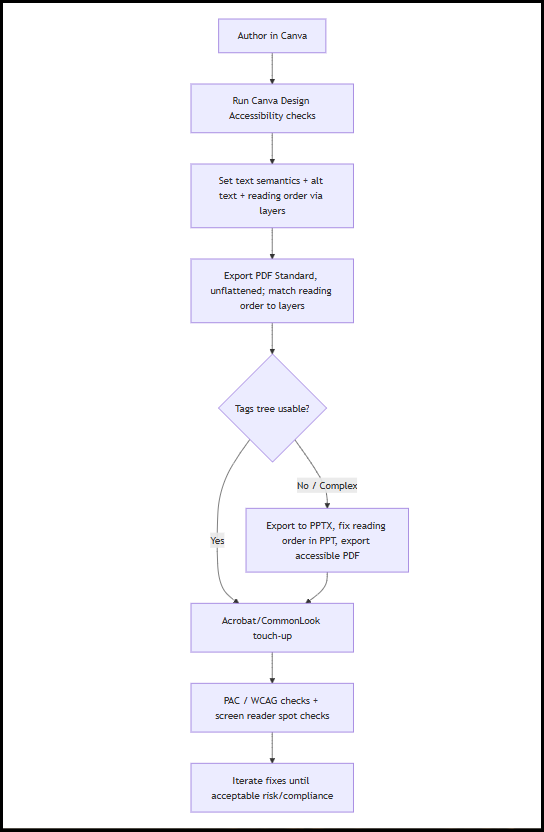
Was this article helpful?
That’s Great!
Thank you for your feedback
Sorry! We couldn't be helpful
Thank you for your feedback
Feedback sent
We appreciate your effort and will try to fix the article