Product
CommonLook PDF Desktop Version
CommonLook Web-based Advanced Editor
Feature
Verification (HHS 2018 Standard)
Document Element
Dictionary Failures on Checkpoints A11 and I3
Overview
The HHS 2018 Standard has two specific checkpoints — A11 (Text correctly formatted) and I3 (Language for words and phrases) — that check the words and phrases in a document against your computer's dictionary. Documents that must comply with HHS 2018 are often filled with medical terminology and names that probably aren't in that dictionary, so a word or phrase that's actually spelled correctly can still be flagged as a failure.
If you've confirmed a flagged word or phrase is spelled correctly, you can add it to your dictionary using the Fix Wizard in CommonLook PDF. That's worth doing: once a word is in the dictionary, it stops failing either checkpoint going forward.
This article also covers a related situation: if HHS 2018 verification seems to "hang" while testing A11 (Text correctly formatted), you can disable the dictionary check in your Checkpoint Configuration settings.
Prerequisites
Do this when:
- A verification against the HHS 2018 Standard flags a word or phrase as a failure under A11 (Text correctly formatted) or I3 (Language for words and phrases), and you've confirmed the word or phrase is spelled correctly.
- HHS 2018 verification appears to hang or get stuck while testing A11 (Text correctly formatted) — see "Disabling the Dictionary Check" below.
Steps to Follow

Follow these instructions to add the failed words or phrases to your dictionary.
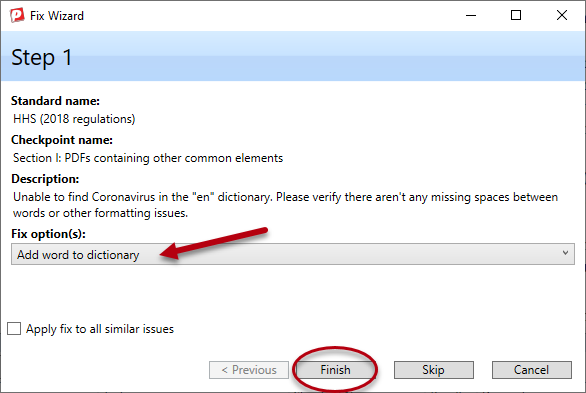
- Double click on the Failure, or right-click and choose Fix.
- In the “Fix options” menu, ensure "Add word to dictionary" is chosen as your "Fix option."
- Select Finish
Frequently Asked Questions
How do I stop a correctly spelled word from failing verification again?
Use the Fix Wizard: double-click the failure (or right-click and choose Fix), select "Add word to dictionary" as the Fix option, and select Finish. Once it's added, the word won't fail A11 or I3 again.
What are checkpoints A11 and I3?
Under the HHS 2018 Standard, A11 (Text correctly formatted) and I3 (Language for words and phrases) both check that the words and phrases in a document match your computer's dictionary.
Why does HHS 2018 verification flag so many words as failures?
Documents that must comply with HHS 2018 often contain medical terminology and proper names that aren't in a standard dictionary, so verification flags them even though they're spelled correctly.
Was this article helpful?
That’s Great!
Thank you for your feedback
Sorry! We couldn't be helpful
Thank you for your feedback
Feedback sent
We appreciate your effort and will try to fix the article