What Has to be Tagged?
When working in a document, all content that conveys information (text, images, charts, etc.) needs to be tagged so that the material is available to people who use assistive technology.
Creating Tags
One of the easiest (and fastest) ways to tag content and create tags is by following these steps:
- In the physical view of the document, highlight the content to be tagged.
- Use the options in the “Insert Tag” tab to create the necessary tag.

Tip: There are many keyboard shortcuts available for creating tags! Hover the mouse over the tag type in the Insert tag tab to see the keyboard shortcut for creating that tag (or refer to the CommonLook PDF Keyboard Shortcuts article).
Note: If content is already in a tag when it is highlighted in the physical view it will also be highlighted in the Tags tree (in the left panel). If content is not already tagged, when highlighted in the physical view, the element(s) will be shown in the Untagged Content panel. When the tag is created (Step 2), the selected element(s), and the new tag, will appear in the Tags tree.
In addition to creating tags for previously untagged content, when content is incorrectly tagged, it may be easier to simply highlight it in the physical view of the document and create a new tag. This can also be helpful when content that belongs in a single tag has been placed in multiple tags.
Tip: When previously tagged content is placed in a new tag, that new tag is nested inside the previously existing tag. Right-click and choose “Level up” (keyboard shortcut: Ctrl+P) to move the new tag out of the previous tag in which it was nested.
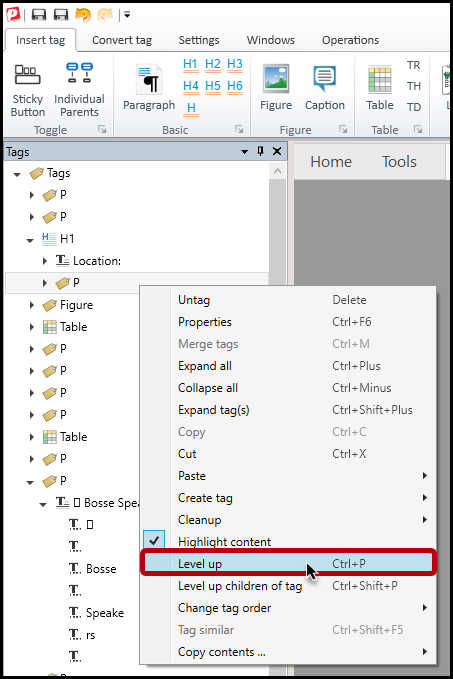
Note: When creating tags, adjustments to the reading order may also be required. Refer to the article on Reading Order for more information.
Converting Tags
Sometimes it's possible to simply change the tag type instead of creating new tags or merging existing tags. Choose the incorrect tag in the Tags tree and then use the “Convert Tag” tab in the ribbon to choose the proper tag. (Tag conversion is also possible with a variety of keyboard shortcuts!)
Note: If the intent is to change the tag type, make sure to use the Convert Tag options. Oftentimes people click on options in the “Insert tag” tab when they mean to be converting one tag type to another. This mistake leads to improper tag use and often incorrect tag nesting as well!

Tip: If options in the Convert tag tab are “greyed out” and not available, it is most likely because a tag is not selected. Make sure to select the tag to convert and not the text (or other content) inside the tag.
Merging Tags
When content that belongs in one tag is placed into multiple tags, another way to fix this (as opposed to creating a new tag) is to simply merge the two tags together. Follow these steps:
- Select the tags to be merged.
Important: Make sure you select tags in the correct order. Content will be merged in the order in which it is selected. Selecting items in the reverse order will cause them to be reversed when the tags are merged! - Right-click on one of the tags and, in the context menu, choose “Merge tags” (or use the keyboard shortcut Ctrl+M).
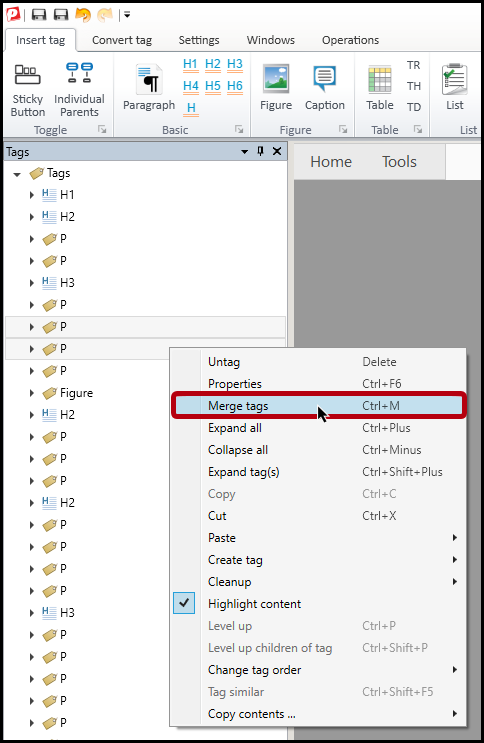
- When merging content in different tag types, all of the content will be placed in one tag and the tag type will be that of the first tag selected. For example, if an H2 and a P are selected (in that order) and then merged, all of the content will be placed in one H2 tag. Convert the tag if needed.
- Adjust the reading order as needed. Refer to the article on Reading Order for more information.
When merging tags, keep in mind the following important details:
- Be careful of selection order when merging. Content will be merged in the order in which it is selected. Selecting items in the reverse order will cause them to be reversed when the tags are merged!
- Make sure that after merging, the tag type is correct. When merging content in different tag types, all of the content will be placed in one tag and the tag type will be that of the first tag selected. For example, if an H2 and a P are selected (in that order) and then merged, all of the content will be held in one H2 tag.
- Make sure that after merging, the reading order is correct. Merging two tags in different locations in the reading order will move the content to the location of the first tag selected in the Tags tree. Refer to the article on Reading Order for more information.
Didn't find what you're looking for? Navigate to our "Tagging (or Untagging) Content" section for more related articles that may help!
Was this article helpful?
That’s Great!
Thank you for your feedback
Sorry! We couldn't be helpful
Thank you for your feedback
Feedback sent
We appreciate your effort and will try to fix the article