While text runs never need to be merged, sometimes they may need to be split so that text or content can be manipulated and read correctly. Keeping in mind that it is not possible to select only part of a text run when highlighting content in the physical view, if it cannot be selected in the tags, it may be that only a portion of a text run is being highlighted.
Tip: When selecting content in the tags or in the physical view, each individual box highlighted in the physical view is one text run.
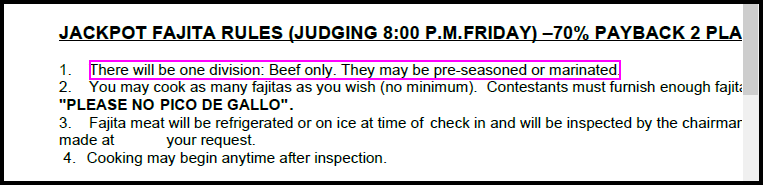
In the screenshot below the text in the first list item, "There will be one division: Beef only. They may be pre-seasoned or marinated" is highlighted. The fact that it is all contained in one highlight box is an indication that all of that text is in one text run.
Reasons to Split Text Runs
Here is a list of some of the reasons you might need to split text runs:
- To isolate symbols, abbreviations, etc., to provide alternative (or expansion) text.
- If content in one text run belongs to adjacent cells in a table.
- To isolate a word or phrase in order to change its language.
How to Split Text Runs
Follow these steps:
- Find the text run in the Tags tree. Tip: When highlighting in the physical view, once the tag or text element has been located, remember to open the text element to find the specific text run.
- With the text run selected, Right-click on it (or otherwise open its context menu) and choose “Split text” (or use the keyboard shortcut Ctrl+Shift+X).
Hint: If “Split text” is not an option in the context menu then the text run was not actually selected. Most likely what was selected, in this case, was the text element. Open the text element, select the text run, and try again.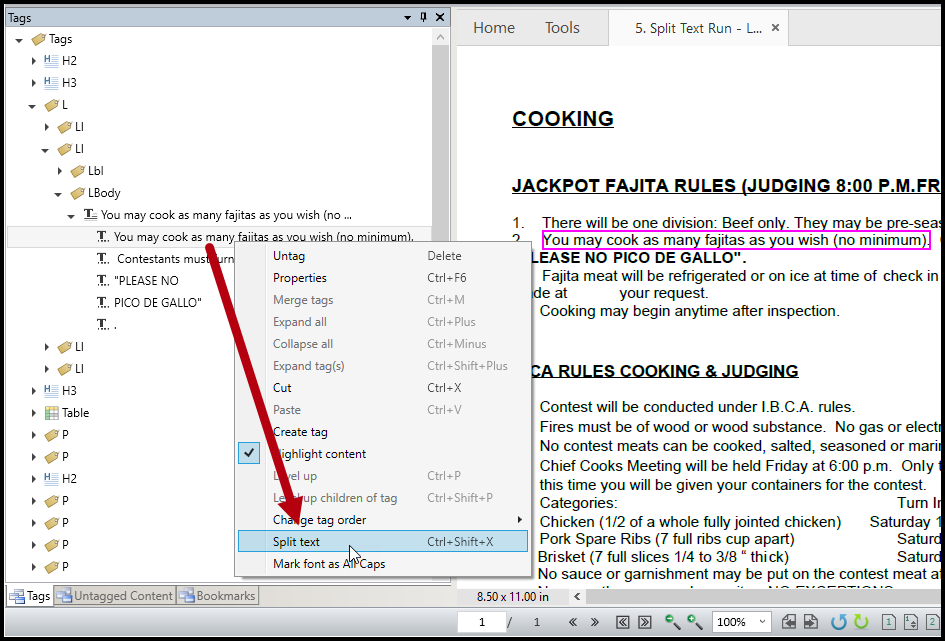
- Place the cursor where the split should occur.
- Press the Space Bar.
Remember: When splitting text runs to isolate content, more than one text run may need to be split.
Why can’t I split a text run in CommonLook PDF?
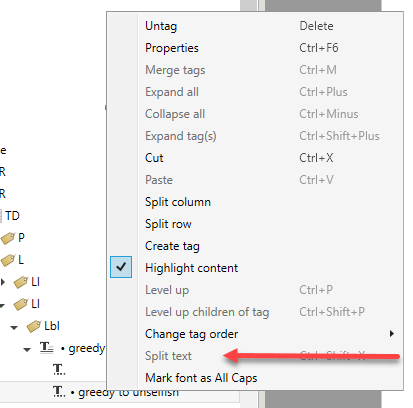
Sometimes you may find, in CommonLook PDF, that you're unable to split a text run. There are a number of reasons for this but the most common is because the text run (or runs) contain ligature(s). The option for “split text” in the content menu will appear greyed out and is unable to be selected, as in the screenshot above.
How can I solve this issue?
There are a couple of solutions for this issue. One is to use a different font, in the source file, so that ligatures aren't an issue. Another option could be to try generating your PDF, from the source, using a different export method (this can vary, depending on what the "source" is).
A third option could be to use the Reading Order tool in Acrobat. (It used to be called the "Touch Up Reading Order" tool.)
To do so:
- Open the Accessibility menu within Acrobat.
- Select the Reading Order tool.
- With the Reading Order tool dialog box, select the content you want to split.
- Then choose the type of tag you want to place it in. (If the tag you want isn't an option in Acrobat, you could just put it in a paragraph tag, seeing as you're about to finish remediating the document, fixing the tags, anyway.)
- Save the document and re-open CommonLook PDF.
Didn't find what you're looking for? Navigate to our "General Software Functionality" section for more related articles that may help!
Was this article helpful?
That’s Great!
Thank you for your feedback
Sorry! We couldn't be helpful
Thank you for your feedback
Feedback sent
We appreciate your effort and will try to fix the article