When tagging text that reads from right to left, follow these steps:
- In the Settings tab, choose the Text direction “Right to Left”

- In the Physical View, highlight the text to be tagged (from right to left!)
- Navigate to the Insert Tag tab and, in the "Other tags" group, choose ReversedChars.

- Do not Level Up the ReversedChars tag! Leave it inside a P tag (or LBody, etc., as appropriate for the content).
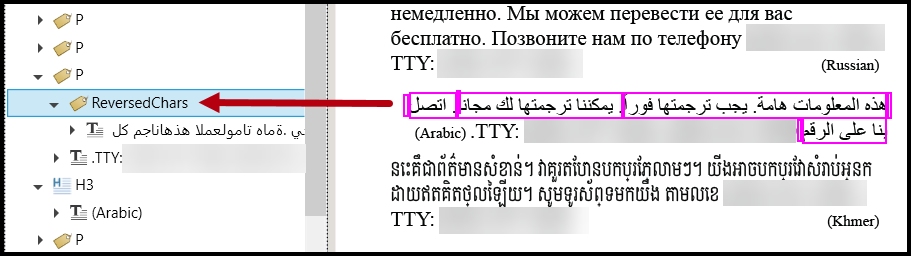
- Navigate to the Properties panel for the ReversedChars tag and change the language as needed. Refer to this article on Changing Languages for more information.
What this does (and other important notes):
- The “ReversedChars” tag will reorder (reverse) the characters within the text runs but not the text runs themselves (hence the need to select from right to left).
- The ReversedChars tag is not a standard PDF tag. So, do not "Remove Role Maps" after creating these tags!
- If your paragraph of text contains both right-to-left and left-to-right reading text, you'll need to make sure that the left-to-right reading text remains in that reading order. Also, make sure that the languages to the parts of your paragraph are assigned correctly!
Other Things to Consider When Dealing with Right-to-Left Languages:
Sometimes the text will be written in another program and then a screenshot of that text will be placed in the document as a picture. HHS does not allow images of text so this fails by HHS standards.
- Ask for the text in the correct font encoding so that it can be tagged correctly.
Didn't find what you're looking for? Navigate to our "Tagging (or Untagging) Content" section for more related articles that may help!
Was this article helpful?
That’s Great!
Thank you for your feedback
Sorry! We couldn't be helpful
Thank you for your feedback
Feedback sent
We appreciate your effort and will try to fix the article