Tagging links in a document will result in some new and unique outcomes when a user runs the verification check on their remediated document. In the following sections, users can familiarize themselves with these potential results and handle them appropriately.
Failures
There are two possible failures that may occur when running a verification on a document that contains Links. However, if one of those failures is fixed, the other is automatically repaired as well.
One requirement is that the Link tag has Alternative text, informing the user where that link will take them when it is activated. Specific to PDF/UA standards compliance, the other requirement is that the link Annotation has “Contents.”
To assign Alternative text to the Link tag, select the Link and then, in the Properties panel, input the appropriate alternative text. Remember to press the Tab key when finished. Similarly, to assign Contents to a link Annotation, select the Annotation in the Tags tree and then, in the Properties panel, type the necessary text into the Contents field. Again, remember to press the Tab key when finished.
If this error is prompted when running a verification, double click on the failure and follow the steps in the Fix Wizard to remedy the issue. Notice that, if using the Fix Wizard, when the failure for a Link not having Alternative text is fixed, the failure for the Annotation not having Contents is also fixed.
Note: A remediation best practice is to make the Alternative Text of the link and the Contents of the annotation the same, as some assistive technology performs differently than others.
Target URI Issues
Sometimes, CommonLook will be unable to verify that a link is directing the user to a genuine website or destination. This will typically result in a "target URI" issue.
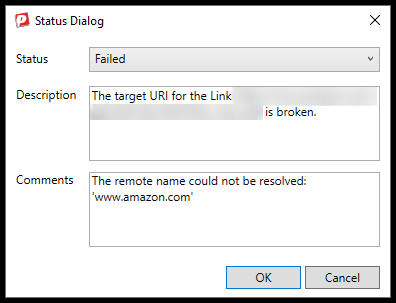
This can occur when the link is directing the user to a blocked location, perhaps somewhere behind a login credential that CommonLook cannot access, or a destination that is blocked by a firewall. Of course, this Failure could be caused by a genuinely broken URL, but if you are confident that the links are correct, and have tested them manually, you can manually change the result from a Failure to Passed.
It's also worth noting that in some situations, Adobe Acrobat's "Protected Mode" can cause link targets to not be validated. If you are running into this issue, and happen to still have Protected Mode enabled in Adobe, try disabling that. Instructions on how to do so can be found in our Knolwedge Base article titled, "Opening CommonLook & Troubleshooting" under the section about "Protected Mode."
Terminology
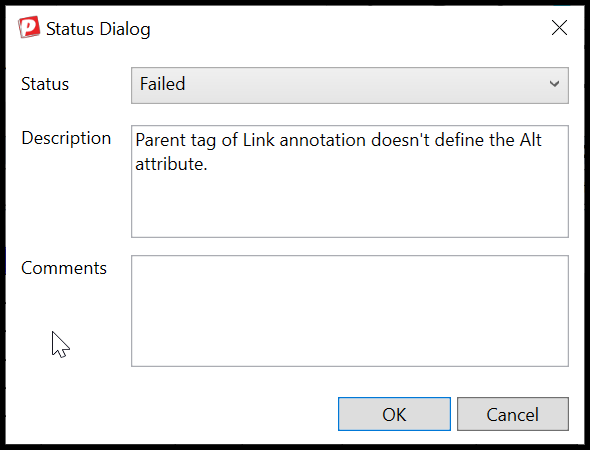
One situation that jumps out from time to time is that remediators have trouble with understanding the verification wording. For example, if you do not have Alt text on your Link, you may receive a Failure that states that the, "parent tag of the Link Annotation does not define the Alt attribute." This can be confusing but breaks down quite effectively. The parent of the Link Annotation is the Link! And the Alt attribute is simply the Alt text. So the result is actually stating that your Link doesn't have Alt text! It's important to break down some of these more complicated verifications to best understand what they are referencing. Beyond that, it's important to know that with time, these results will become easier to understand, even recognizable!
User Verification Results
After the failures for Links have been addressed either by assigning Alternative text to the Link tag or Contents to the Link Annotation, the Alt. text (or Contents) then becomes a “User Verification” checkpoint, just like Alternative text for images. The reason behind this is that CommonLook wants the user to confirm that the Alternative text for the link is sufficiently descriptive for where that link will take the user. Alternative text such as the URL itself is not adequately descriptive (and could even be annoying and/or confusing to listen to!). Verify that the Alternative text is useful and informative as to where the link actually takes the user and change the Status as applicable.
If Testing Link Destinations Makes Your Verification "Hang"
When running a Verification in CommonLook PDF, if it seems to get “hung up” testing link destinations, you might consider making the adjustment below in your Configuration settings.
Caution! Changing your configurations could result in unexpected (or unwanted) verification results. Proceed with care (and note the “Pro Tip” at the end of this article).
Follow these steps:
- In CommonLook PDF, navigate to the Windows tab.
- In the ribbon, choose “Checkpoint Configuration.”

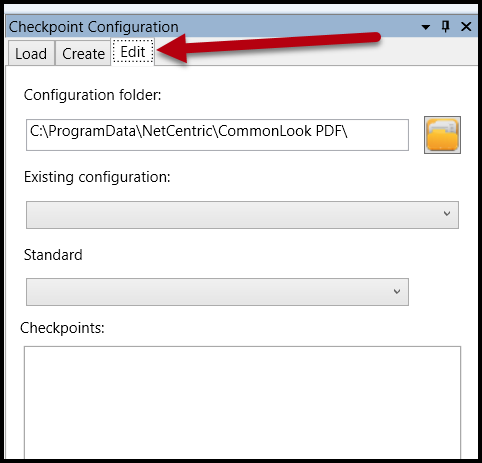
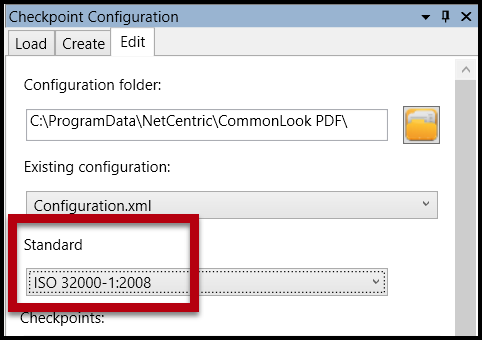
- In the Checkpoint Configuration panel, choose the Edit tab.
- In the Existing Configuration dropdown menu, choose “Configuration.xml.”
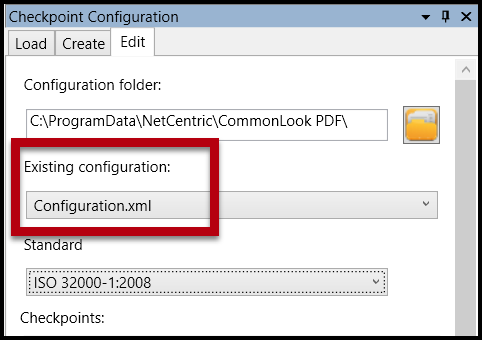
- In the Standard dropdown menu, choose ISO 32000-1:2008.
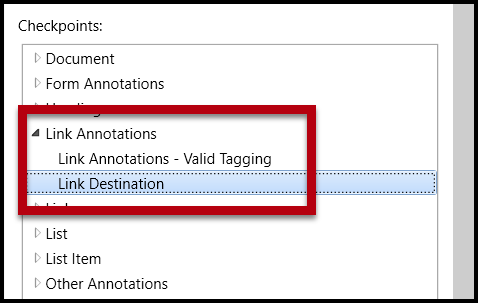
- In the “Checkpoints” section, expand “Link Annotations” and choose “Link Destination.”
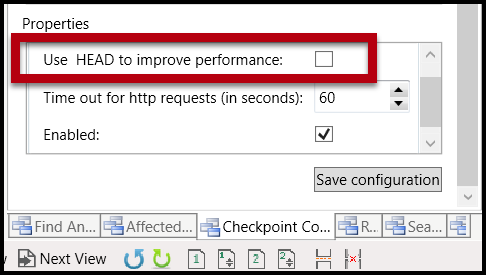
- Scroll down to the Properties section and uncheck the box next to “Use HEAD to improve performance.”
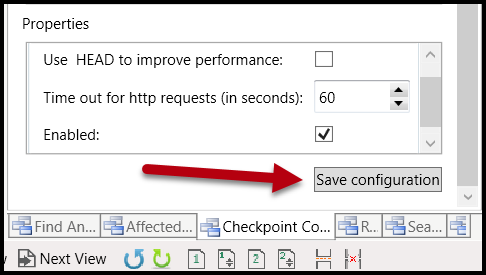
- Navigate to, and select, “Save configuration.”
- Navigate to the Standards panel, choose your standards, and run a verification.
Pro Tip:
In general, using “HEAD” is better for testing links. That’s why it’s checked, in the configuration, by default. However, for a variety of reasons, sometimes this can cause an issue when testing link destinations. Unchecking “HEAD” makes CommonLook PDF use the “GET” option instead. If you know you’re going to have to use “HEAD” in some documents, but “GET” in others, you could create a new Configuration with “GET” as the default.
To do that, instead of editing the “Configuration.xml” you could create a new configuration where “HEAD” is always unchecked. In the Checkpoint Configuration panel, choose “Create.” Name your new configuration (maybe something like “Link Destinations – GET”). In the Standard dropdown menu, choose ISO 32000-1:2008 (that’s what your new configuration will be based on). Then, follow the steps above in the Checkpoints and Properties section. When done, choose “Save and load configuration.” Then go run your verification.
When verifying other documents, in the future, navigate to the Checkpoint Configuration panel, then to the Load tab, choose the configuration you want to test with, and then choose “Revert Configuration.” This’ll load the selected ISO configuration so, when you run your verification, you’re testing with the one you want to use.
Didn't find what you're looking for? Navigate to our "Links" section for more related articles that may help!
Was this article helpful?
That’s Great!
Thank you for your feedback
Sorry! We couldn't be helpful
Thank you for your feedback
Feedback sent
We appreciate your effort and will try to fix the article